
ImmCase user manual · Everyday work
Add your own fields
Every firm tracks something of its own: where a client came from, an internal file number, a date that matters to you. Custom fields let an administrator add these to contacts, cases and applicants, with no help from us. Your team then fills them in like any other field.
The client («Daniela Ruiz») in this guide is fictional. Only administrators see Settings → Custom fields.
Getting started
Documents and applications
- Collect and review documents
- Keep a client's files in one place
- See all of a case's documents at once
- Send an eForm to a client
- File an application and record IRCC’s decision
- Write a submission letter
Everyday work
On this page: Watch the video · Step by step · Good to know · PDF
Getting started
- How to create a contact · 0:59
- How to create a quote · 0:52
- How to open a case · 0:53
Documents and applications
- Collect and review documents · 0:43
- Keep a client's files in one place · 0:40
- See all of a case's documents at once · 0:47
- Send an eForm to a client · 0:38
- File an application and record IRCC’s decision · 0:48
- Write a submission letter · 0:36
Everyday work
- Notes: write, pin and find · 0:46
- Tasks: assign, link, follow · 0:47
- Calendar: meetings with your team and clients · 0:48
- Inbox: the firm’s email, next to its clients · 0:52
- Chat: talk to your team without leaving ImmCase · 0:53
- Dashboard: the firm at a glance · 0:47
- Add your own fields · 0:40
Watch the video
Step by step
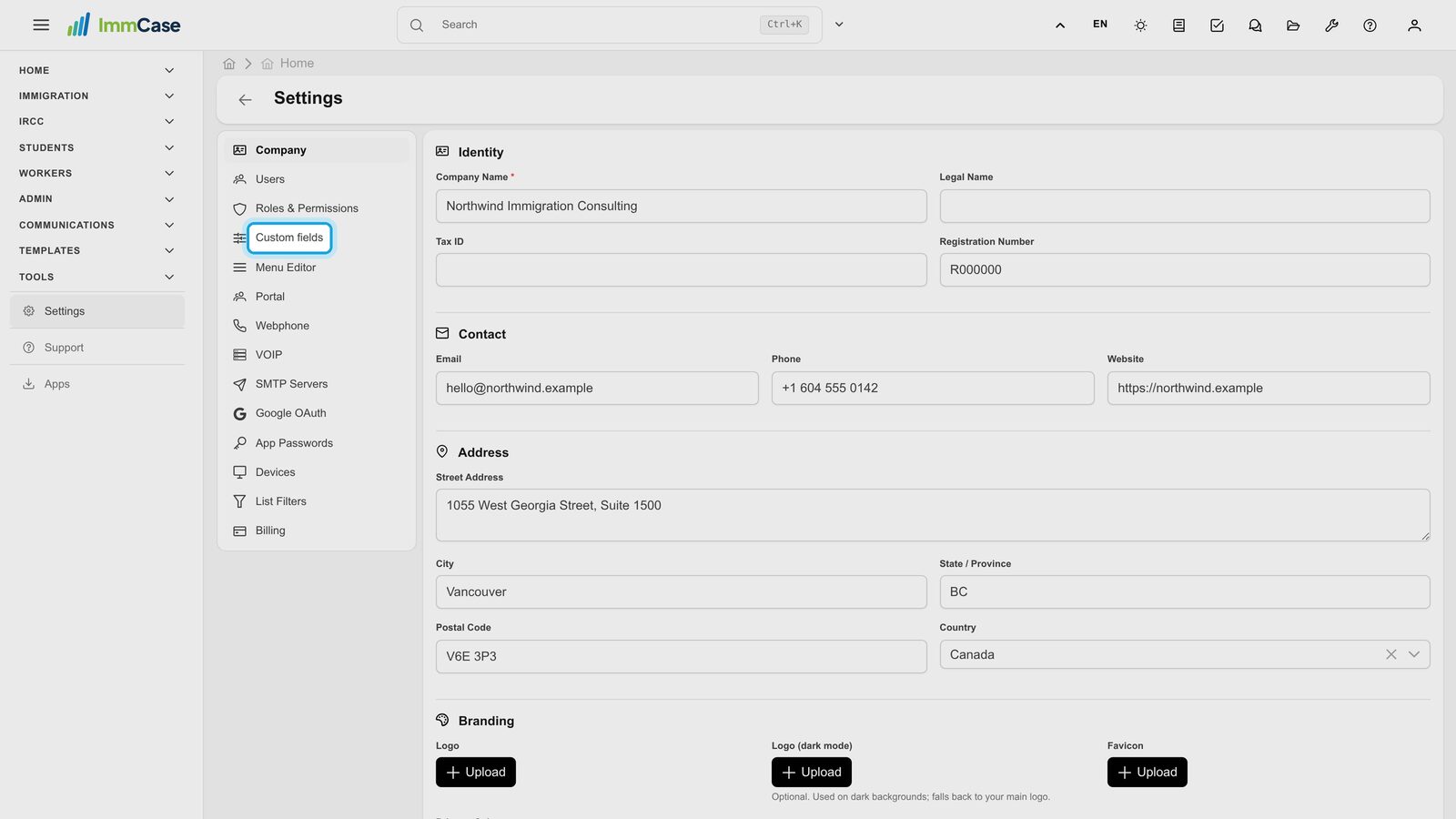
1. Open Custom fields
Click Settings at the bottom of the menu, then Custom fields.
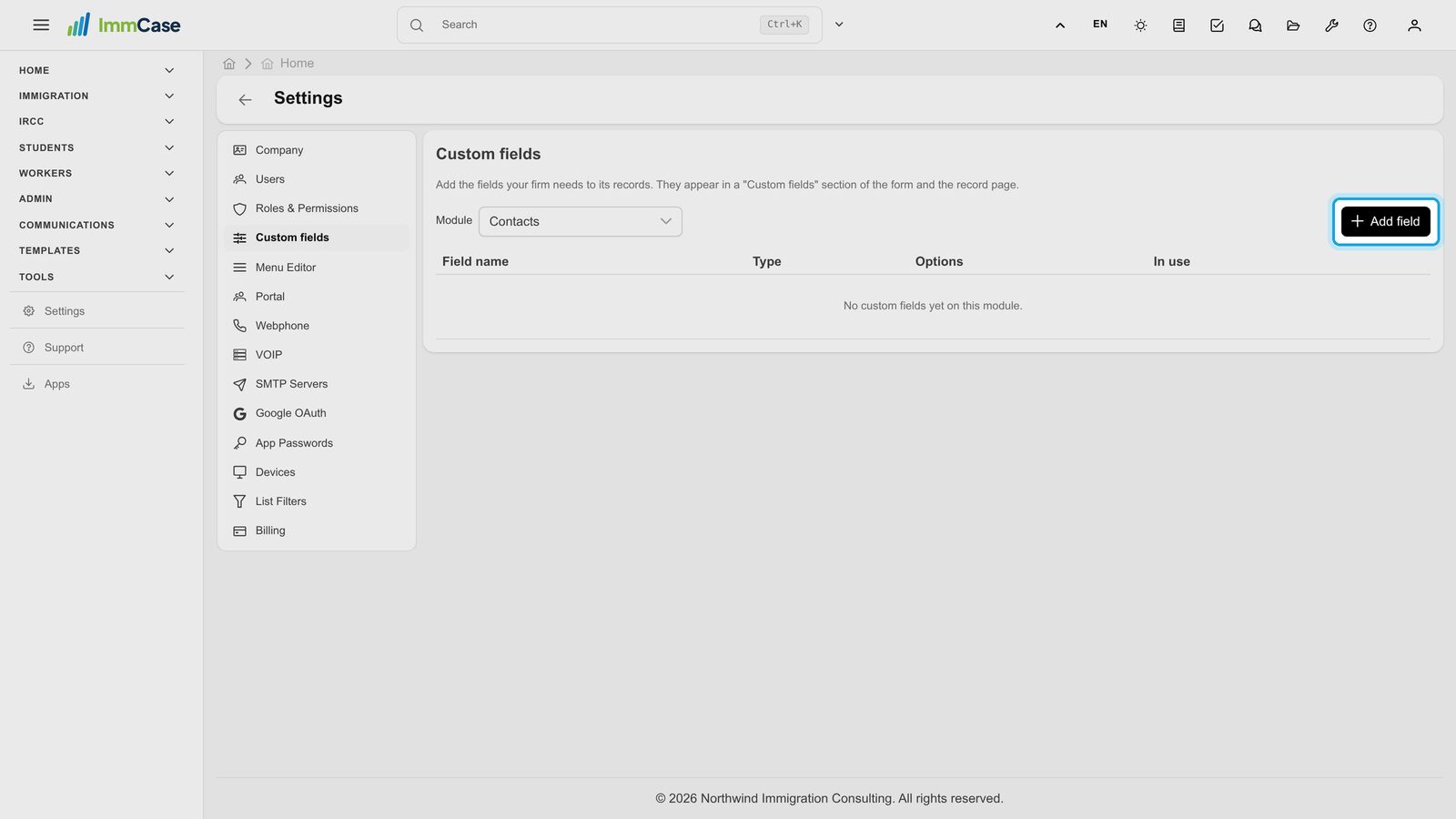
2. Pick where it goes
Under Module, choose Contacts, Cases or Applications (the people on a case). Then click Add field.
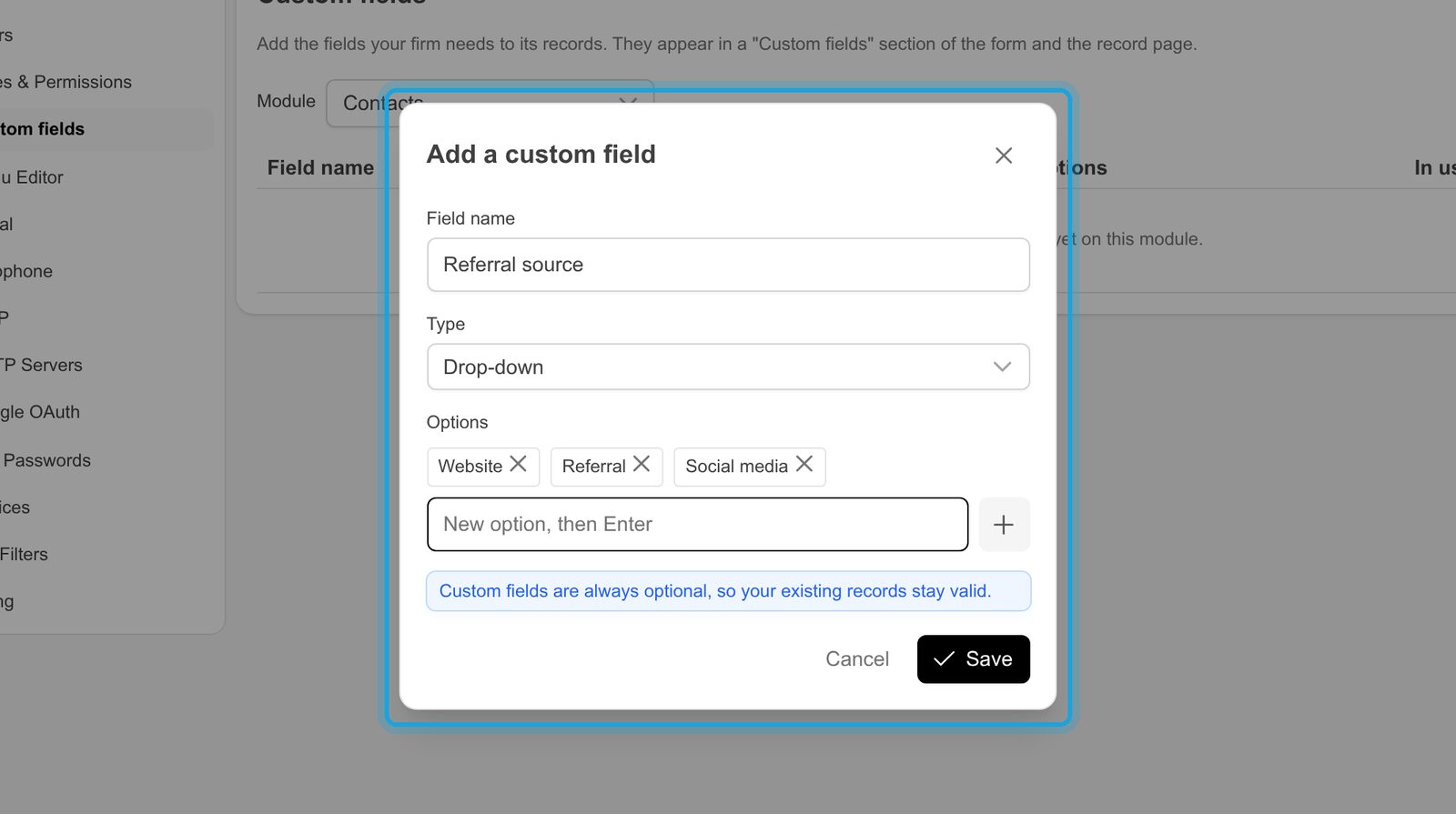
3. Name it and choose its type
Give the field a name and a type: Text, Long text, Number, Date, Yes / No or Drop-down. For a drop-down, type each choice and press Enter.
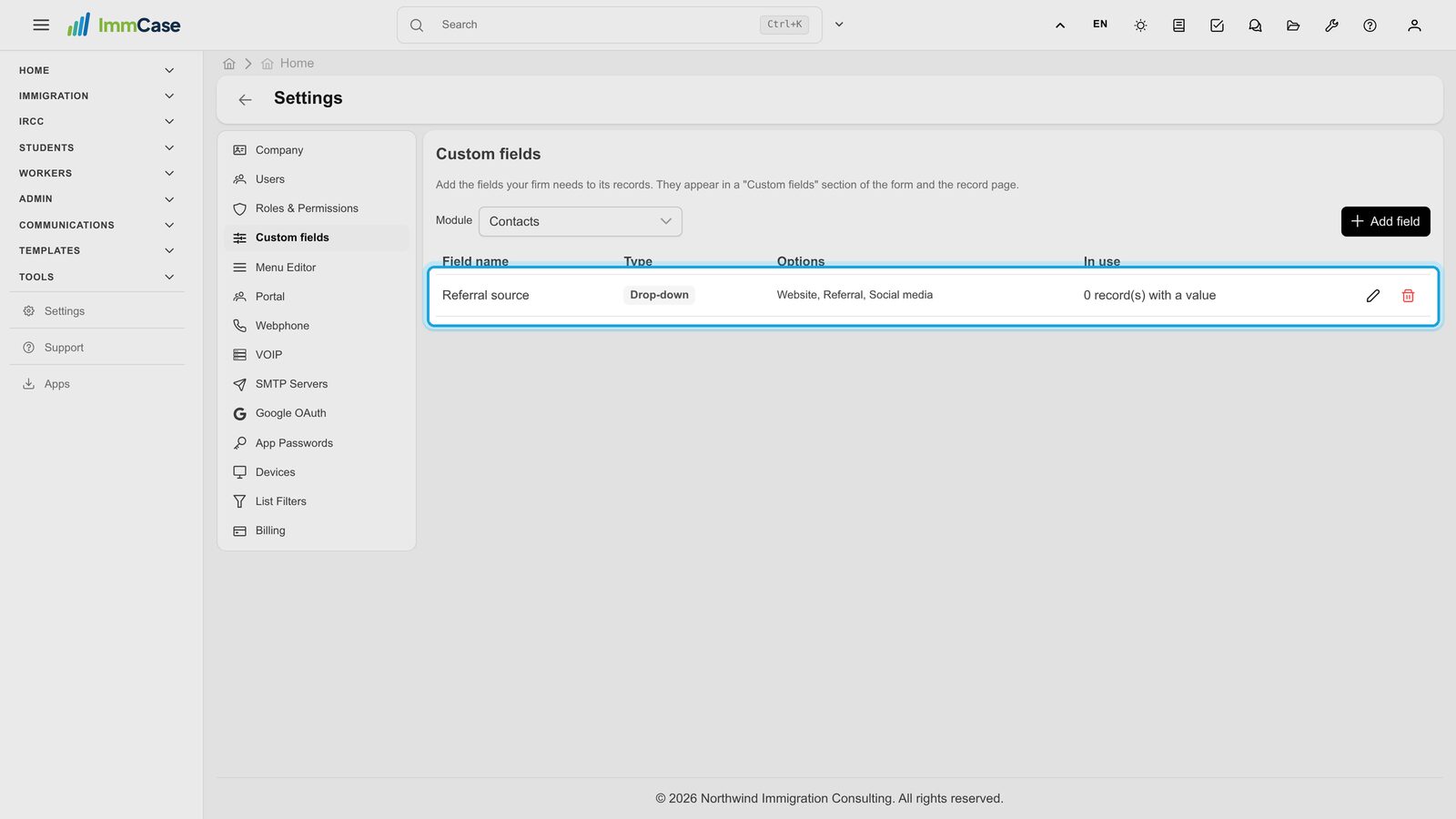
4. Save
Click Save. The field is listed with its type and choices, and In use shows how many records have a value.
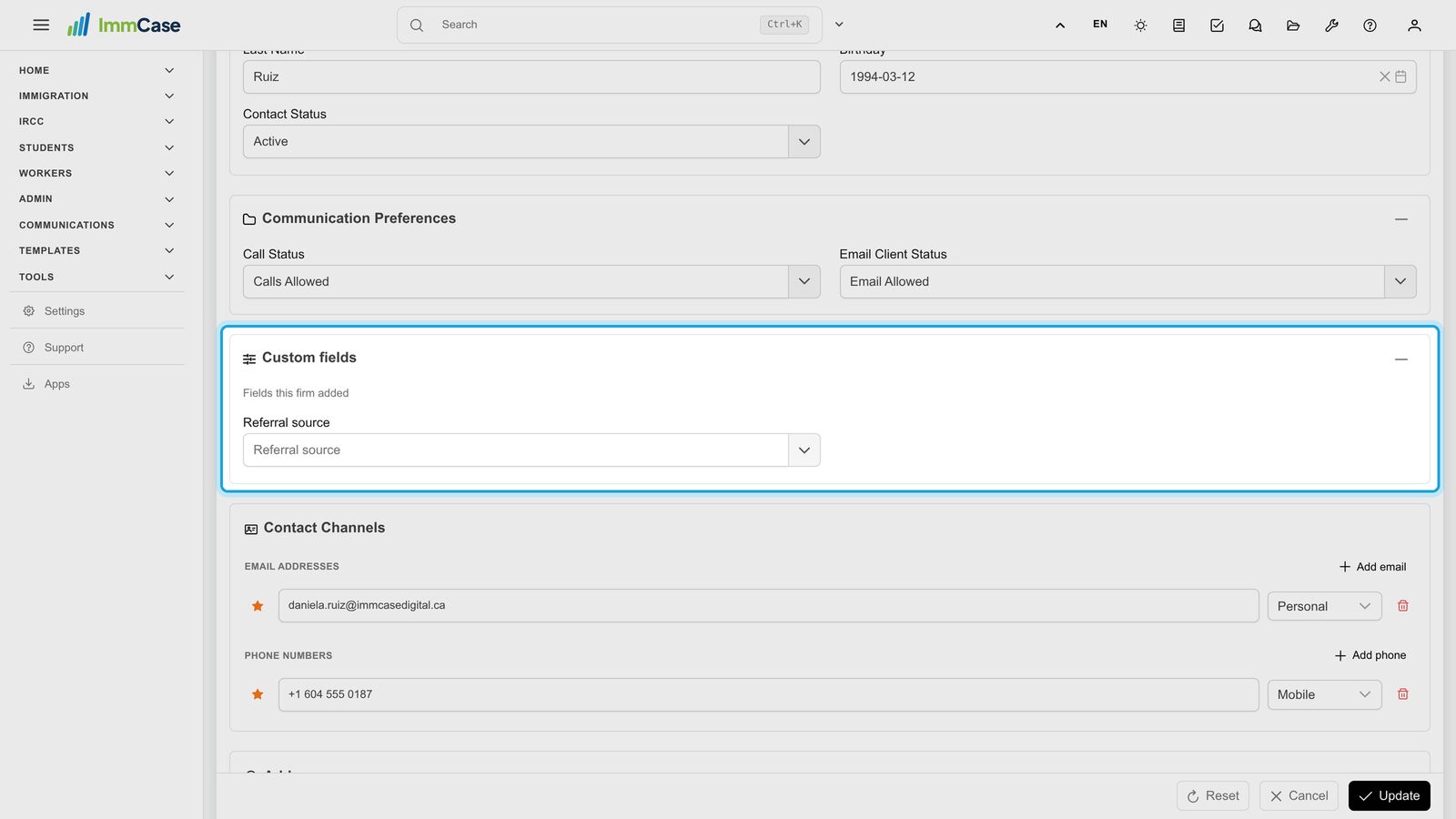
5. Fill it in
Open a record and click Edit. Your fields are in their own Custom fields section of the form.
6. See it on the record
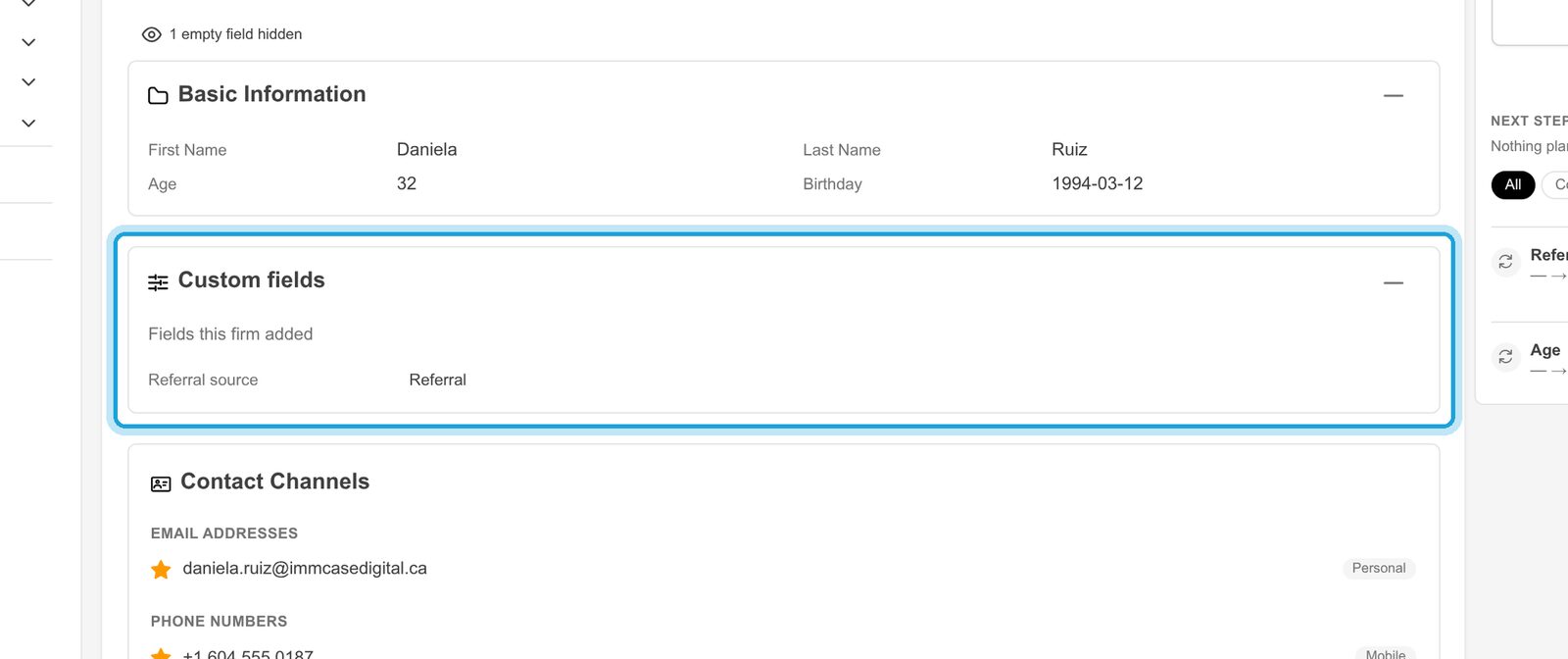
Click Update. The value now shows on the record page, and the change is in the record's history on the right.
Good to know
- Always optional. Custom fields never block saving, so the records you already have stay valid.
- Choose the type carefully: it can't be changed later. Drop-down choices can be renamed, but not removed once records may use them.
- Documents don't go in a field: put them in the case's document checklist or the client's File Manager.
Something on your screen does not match the guide? Write to us, or use Support inside ImmCase.