
ImmCase user manual · Documents and applications
Collect and review documents
Every person on a case has a document checklist: the passport, photo, bank statements and so on that the application needs. In the case's Workspace you upload each document, look at it, and accept it or ask for a replacement. The bar at the top shows how much of the file is ready.
The client («Daniela Ruiz») and the passport in this guide are fictional; the document is a specimen stamped NOT VALID.
Getting started
Documents and applications
- Collect and review documents
- Keep a client's files in one place
- See all of a case's documents at once
- Send an eForm to a client
- File an application and record IRCC’s decision
- Write a submission letter
Everyday work
On this page: Watch the video · Step by step · Good to know · PDF
Getting started
- How to create a contact · 0:59
- How to create a quote · 0:52
- How to open a case · 0:53
Documents and applications
- Collect and review documents · 0:43
- Keep a client's files in one place · 0:40
- See all of a case's documents at once · 0:47
- Send an eForm to a client · 0:38
- File an application and record IRCC’s decision · 0:48
- Write a submission letter · 0:36
Everyday work
Watch the video
Step by step
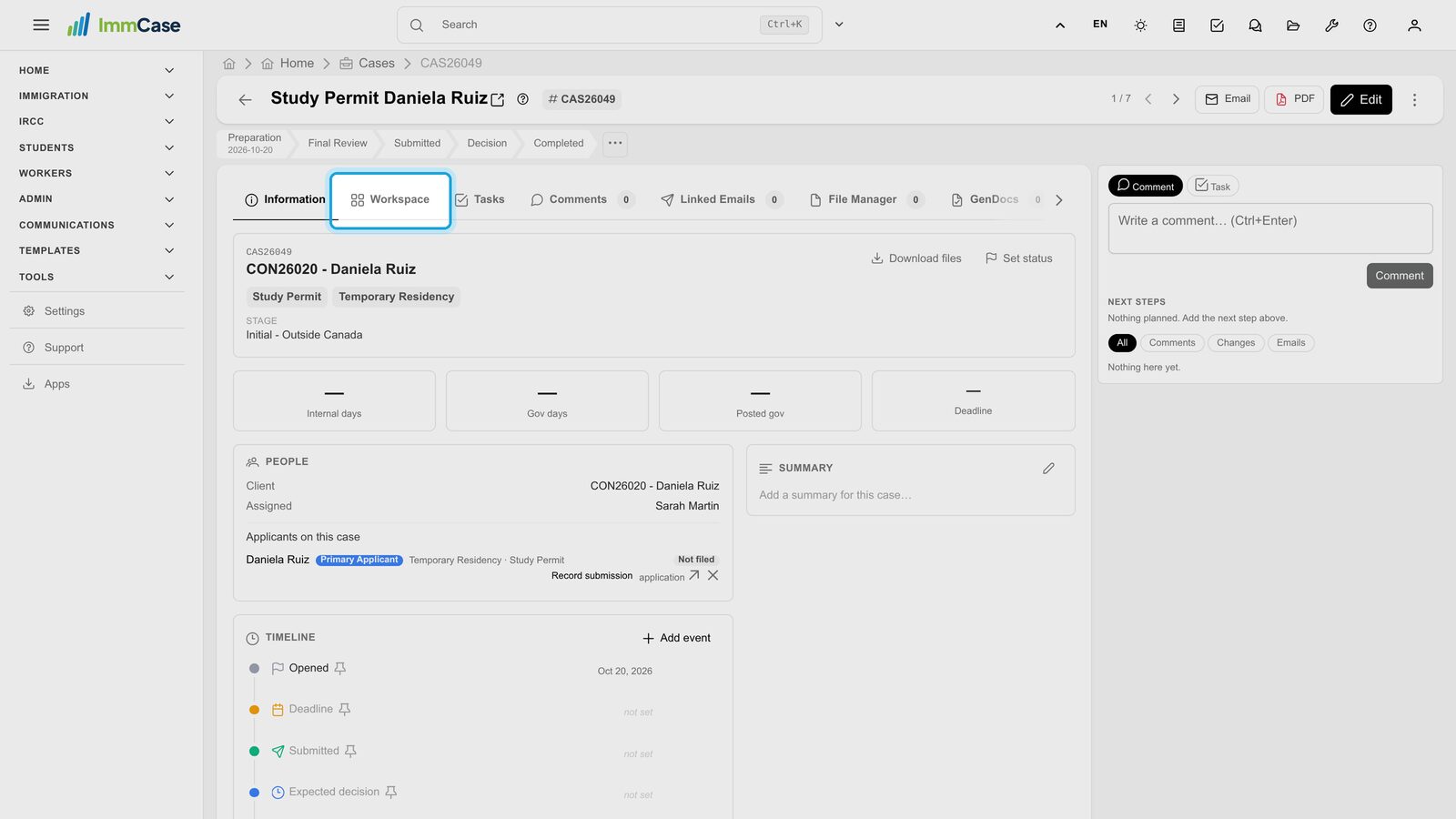
1. Open the Workspace
Open the case and click the Workspace tab.
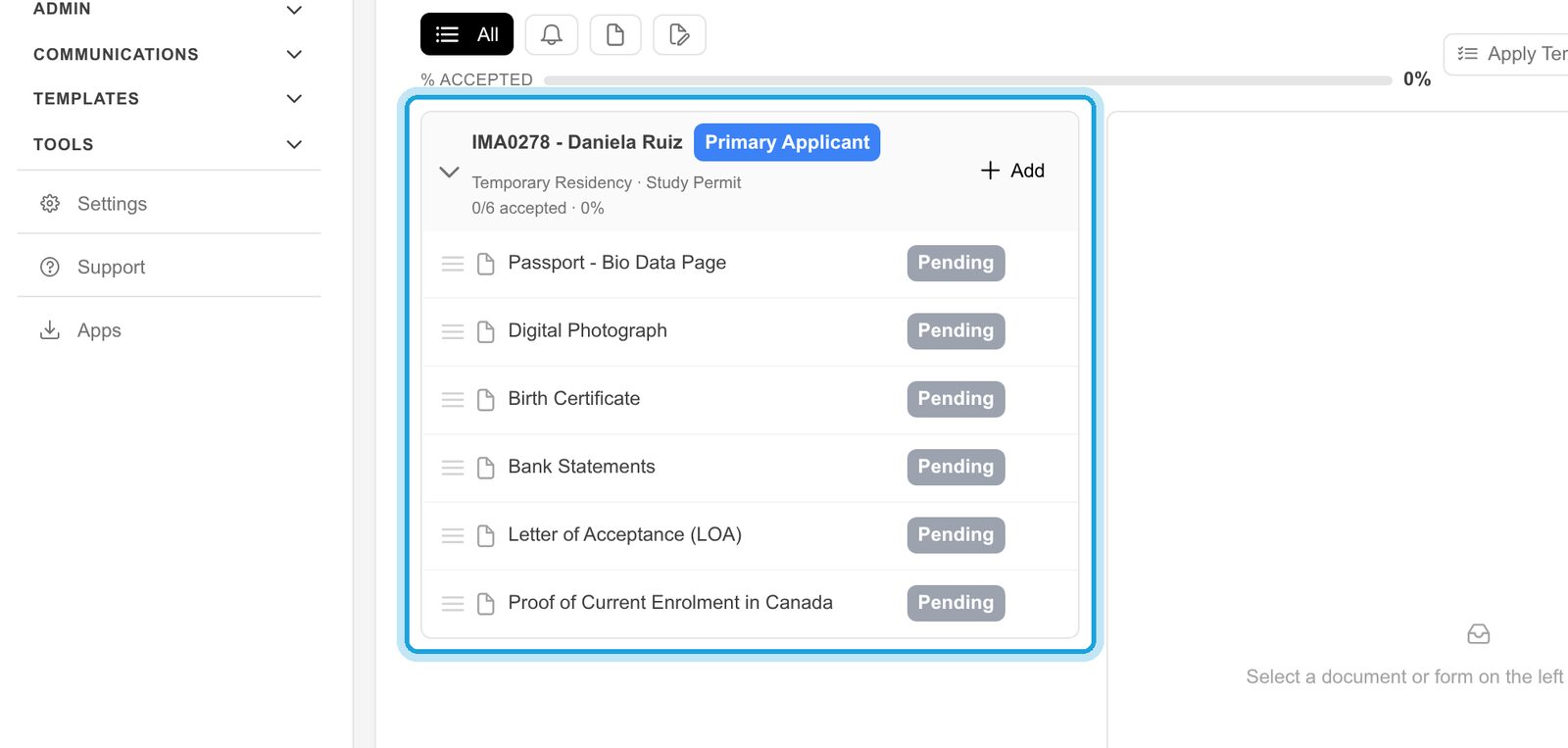
2. The checklist
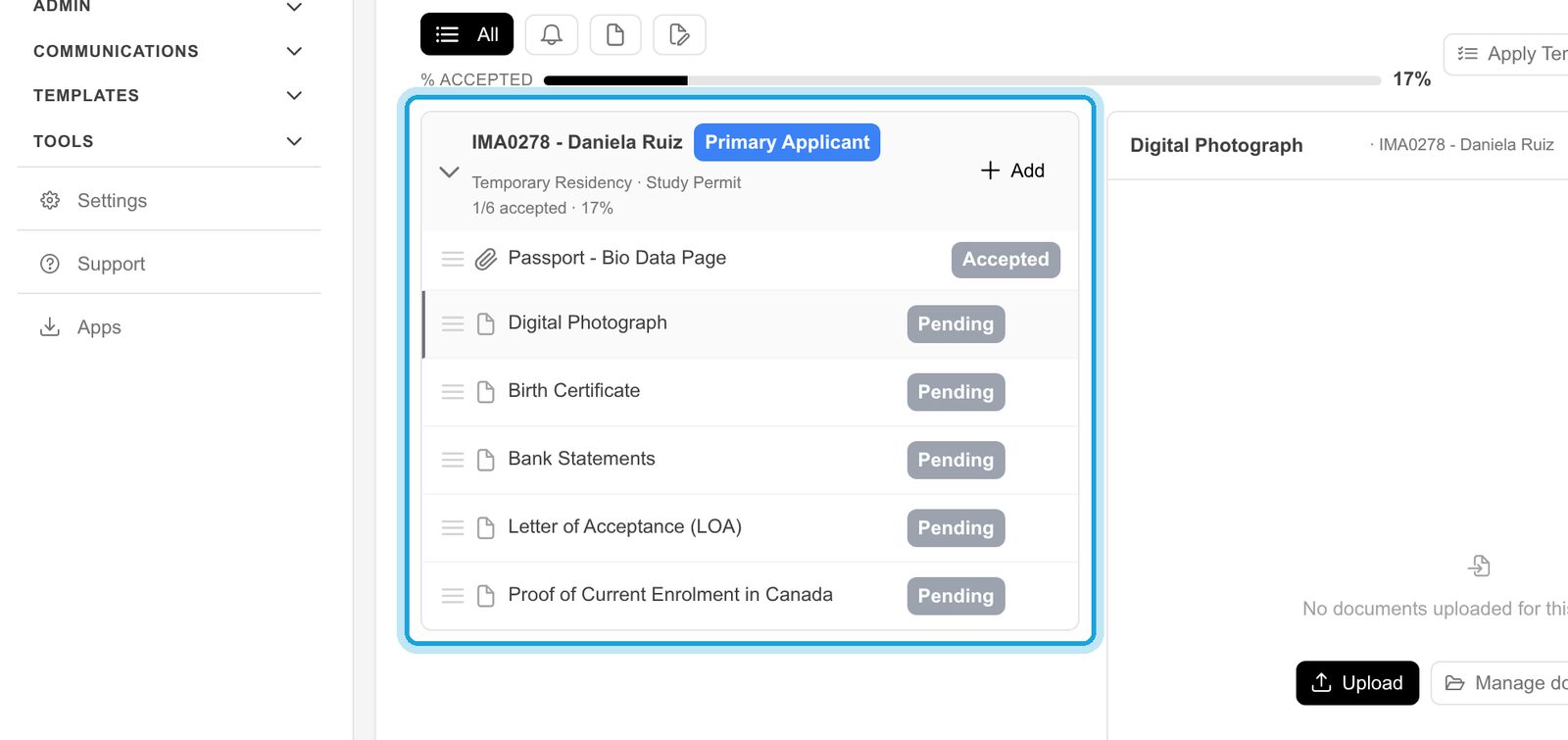
Each person on the case has their own list. Every document starts as Pending; the counter under the name shows how many are accepted.
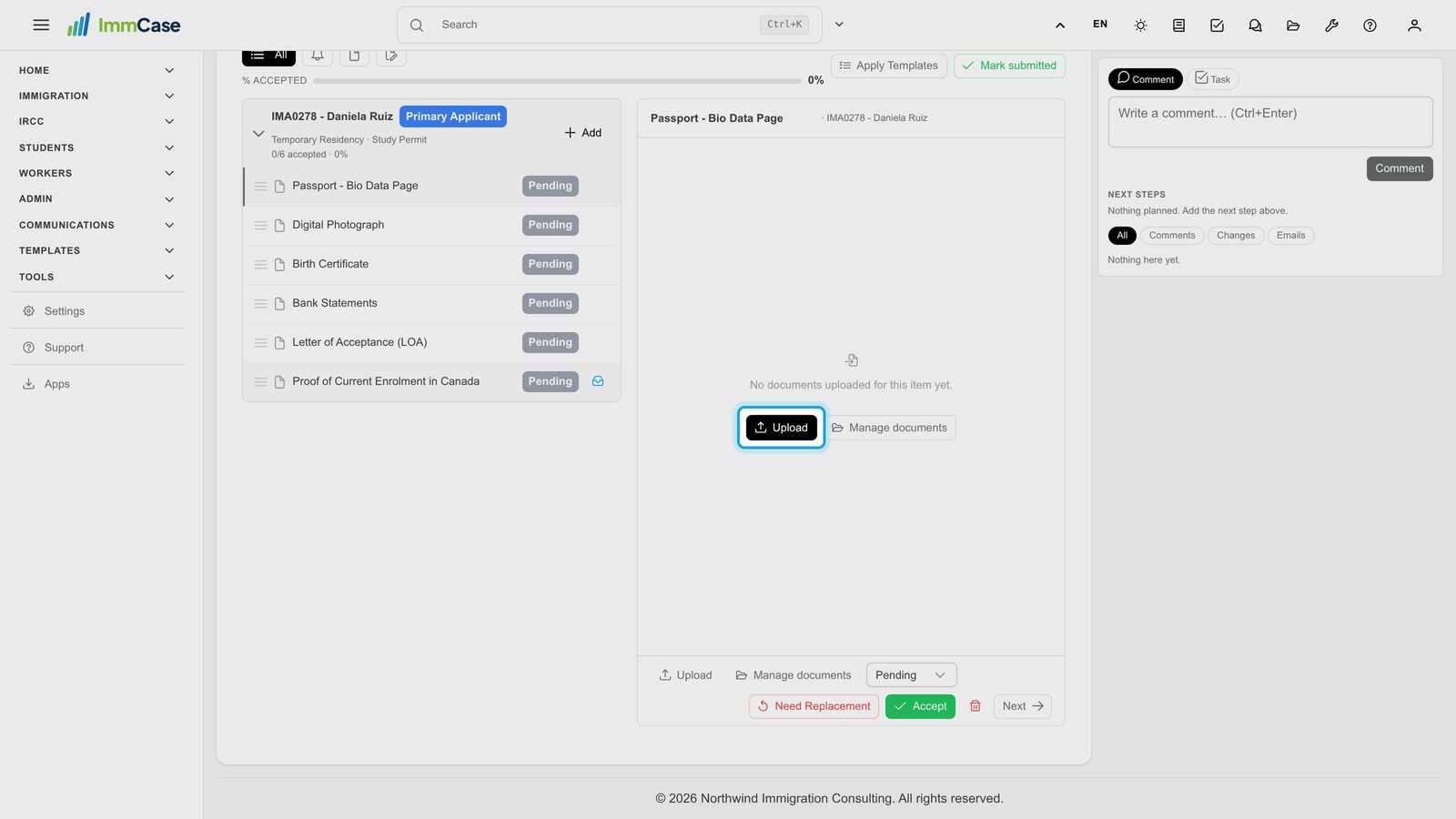
3. Upload the document
Click a document in the list, then Upload and choose the file the client sent you. Manage documents picks one already in the case's files instead.
4. Check it
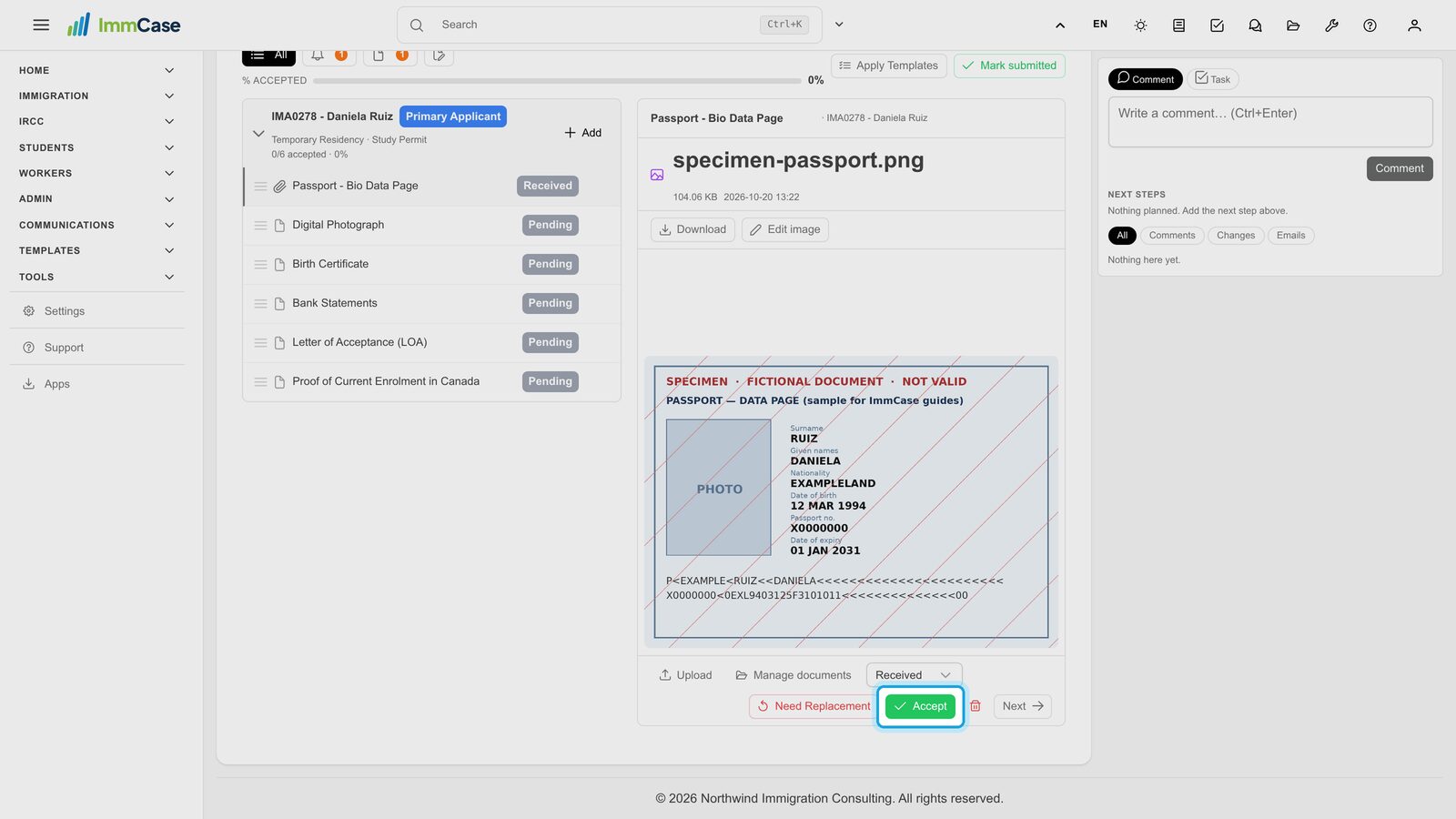
The file opens right beside the list and the item becomes Received. Check it is the right document, complete and readable.
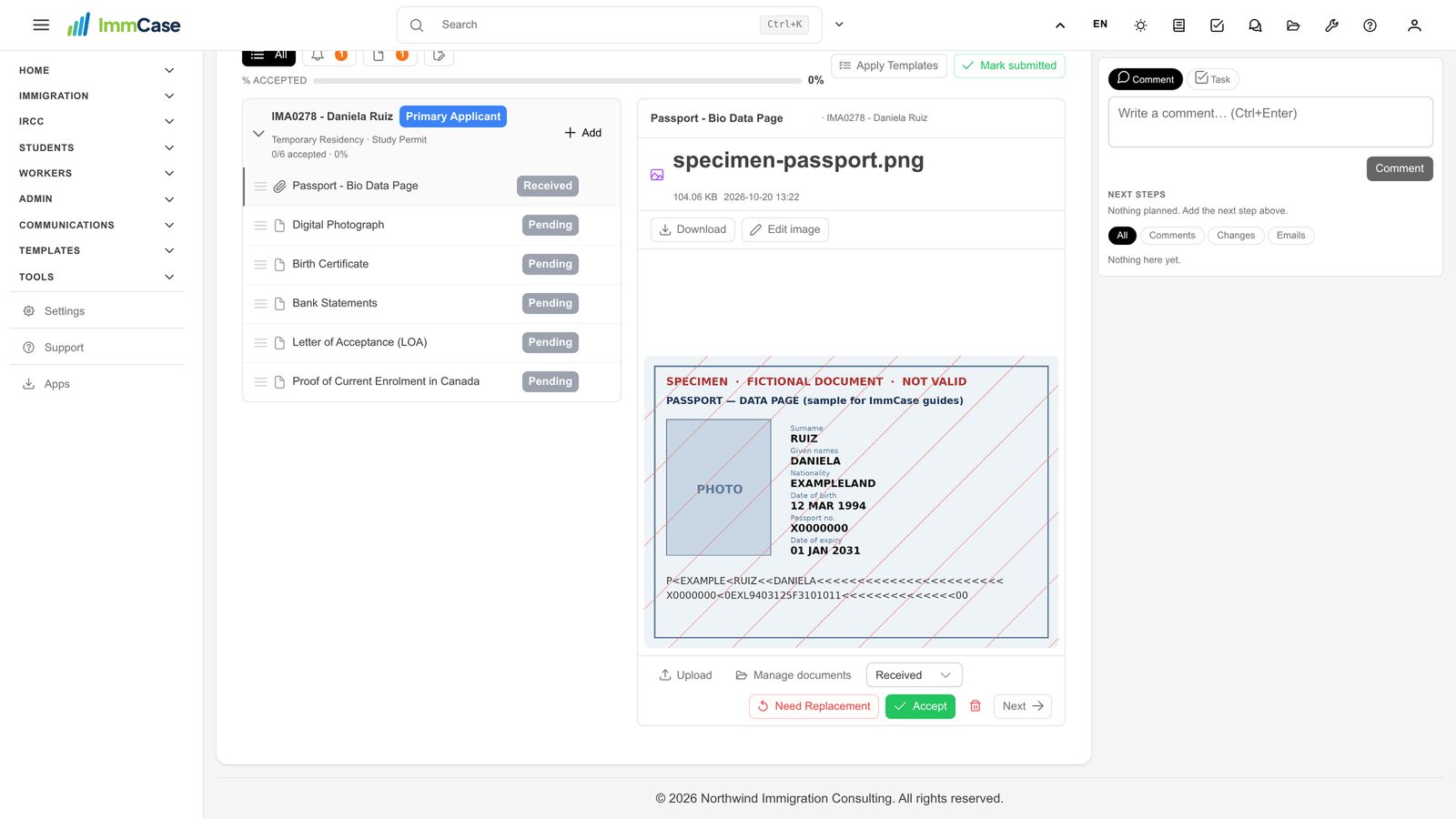
5. Accept, or ask again
Click Accept if it is good. Need Replacement marks it to be sent again, for example when a page is cut off or the passport has expired.
6. Watch the file fill up
The item turns Accepted, the bar shows the share of the case that is ready, and the next document opens so you can keep going.
Good to know
- Clients can upload too. Through the client portal they send documents straight into their own checklist; you only review.
- Missing something? Add, next to the person's name, puts an extra document on their list.
- Your firm's checklists live in Templates → Checklist Templates; edit them once and every new case uses them.
Something on your screen does not match the guide? Write to us, or use Support inside ImmCase.
Next guide: Keep a client's files in one place