
ImmCase user manual · Getting started
How to open a case
A case is the file for one immigration matter, such as a study permit. The New case wizard sets it up in four short steps: the client and program, the people on the case, a document checklist for each person, and a last review. It creates the case, each person's applicant profile and application, and their checklists in one go.
Every screen in this guide comes from ImmCase itself, filled with a fictional client («Daniela Ruiz») and firm («Northwind Immigration Consulting»).
Getting started
- How to create a contact
- How to create a quote
- How to open a case
Documents and applications
- Collect and review documents
- Keep a client's files in one place
- See all of a case's documents at once
- Send an eForm to a client
- File an application and record IRCC’s decision
- Write a submission letter
Everyday work
On this page: Watch the video · Step by step · Good to know · PDF
Getting started
- How to create a contact · 0:59
- How to create a quote · 0:52
- How to open a case · 0:53
Documents and applications
- Collect and review documents · 0:43
- Keep a client's files in one place · 0:40
- See all of a case's documents at once · 0:47
- Send an eForm to a client · 0:38
- File an application and record IRCC’s decision · 0:48
- Write a submission letter · 0:36
Everyday work
Watch the video
Step by step
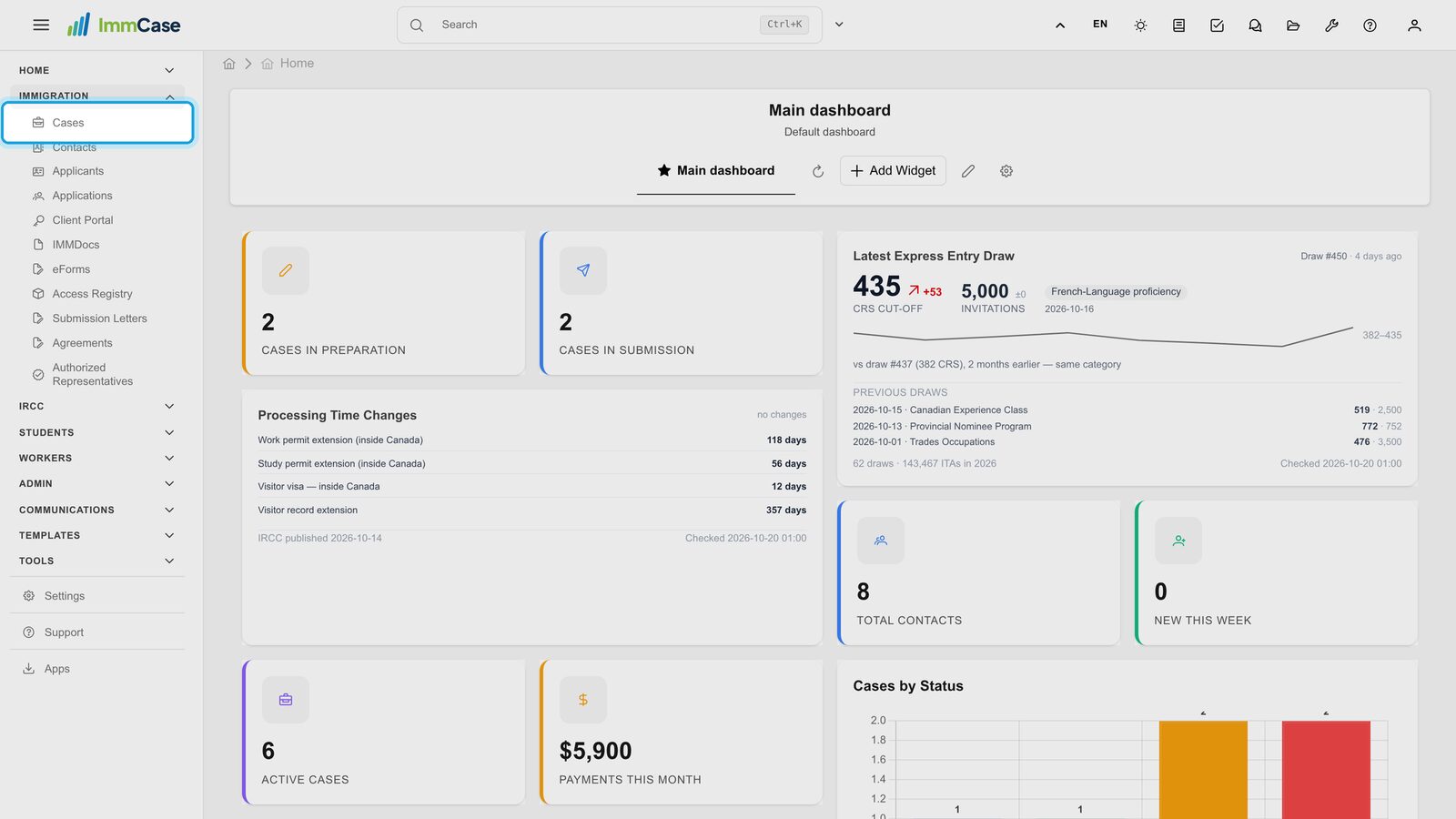
1. Open Cases
In the left menu, open Immigration and click Cases.
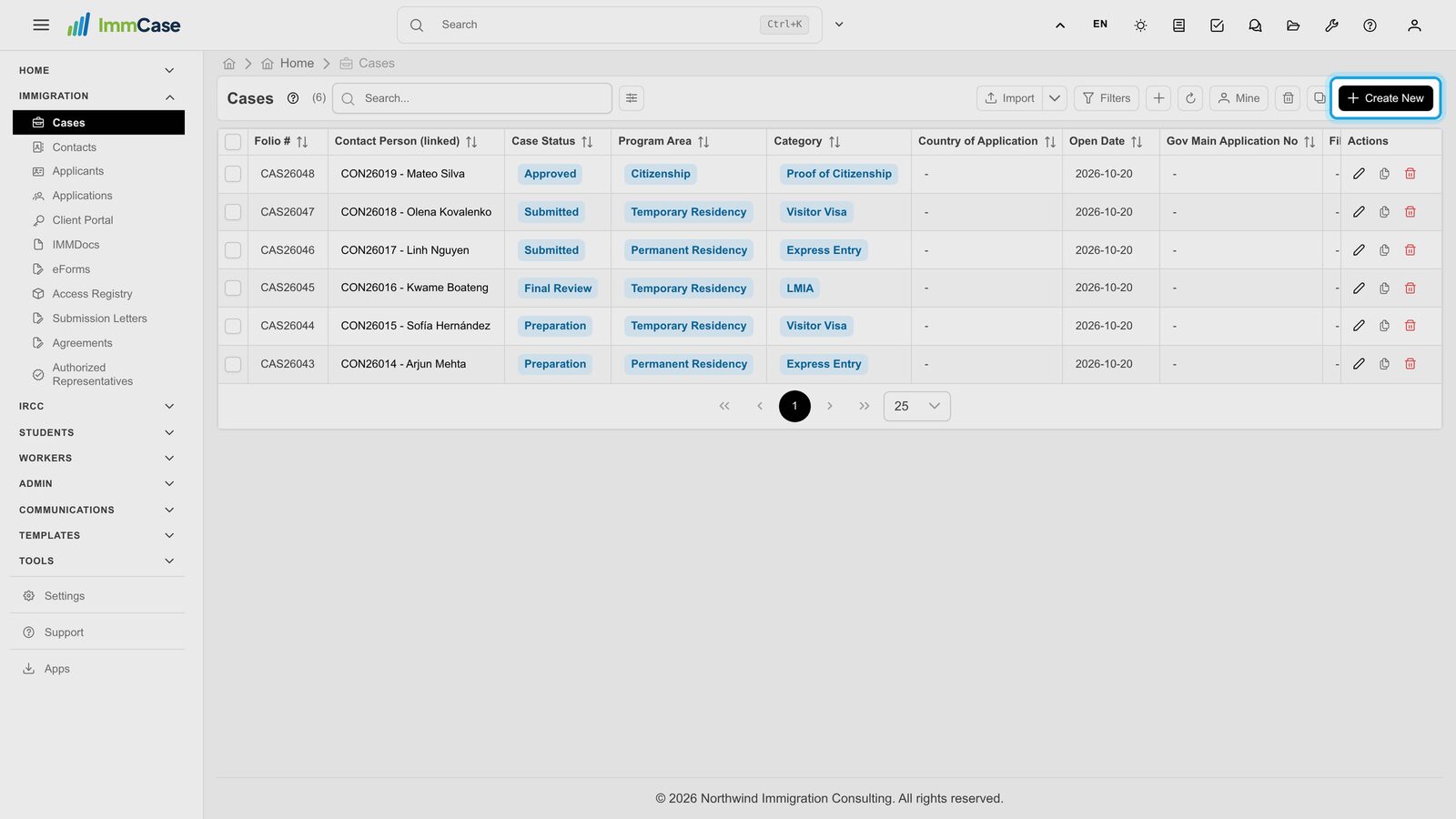
2. Start the wizard
Click Create New. The New case wizard opens.
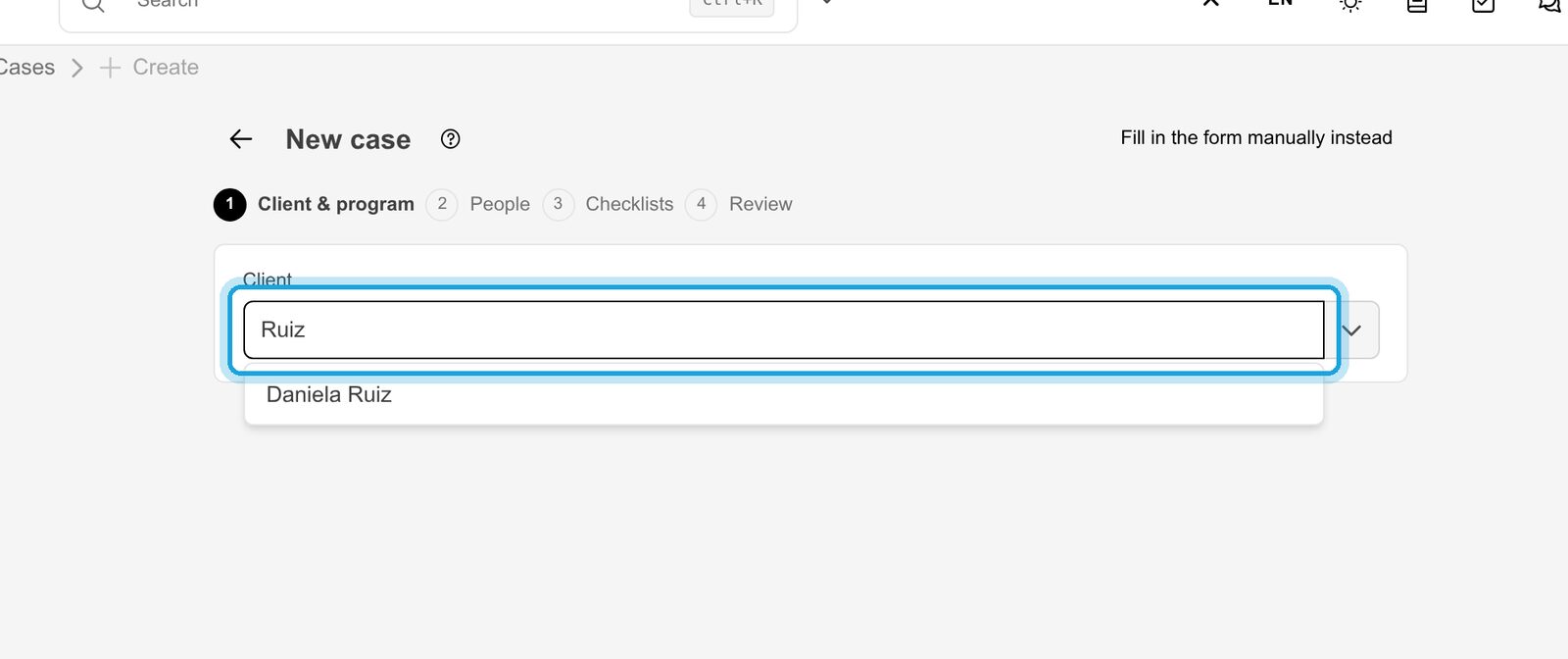
3. Pick the client
Type part of the client's name and pick their contact from the list.
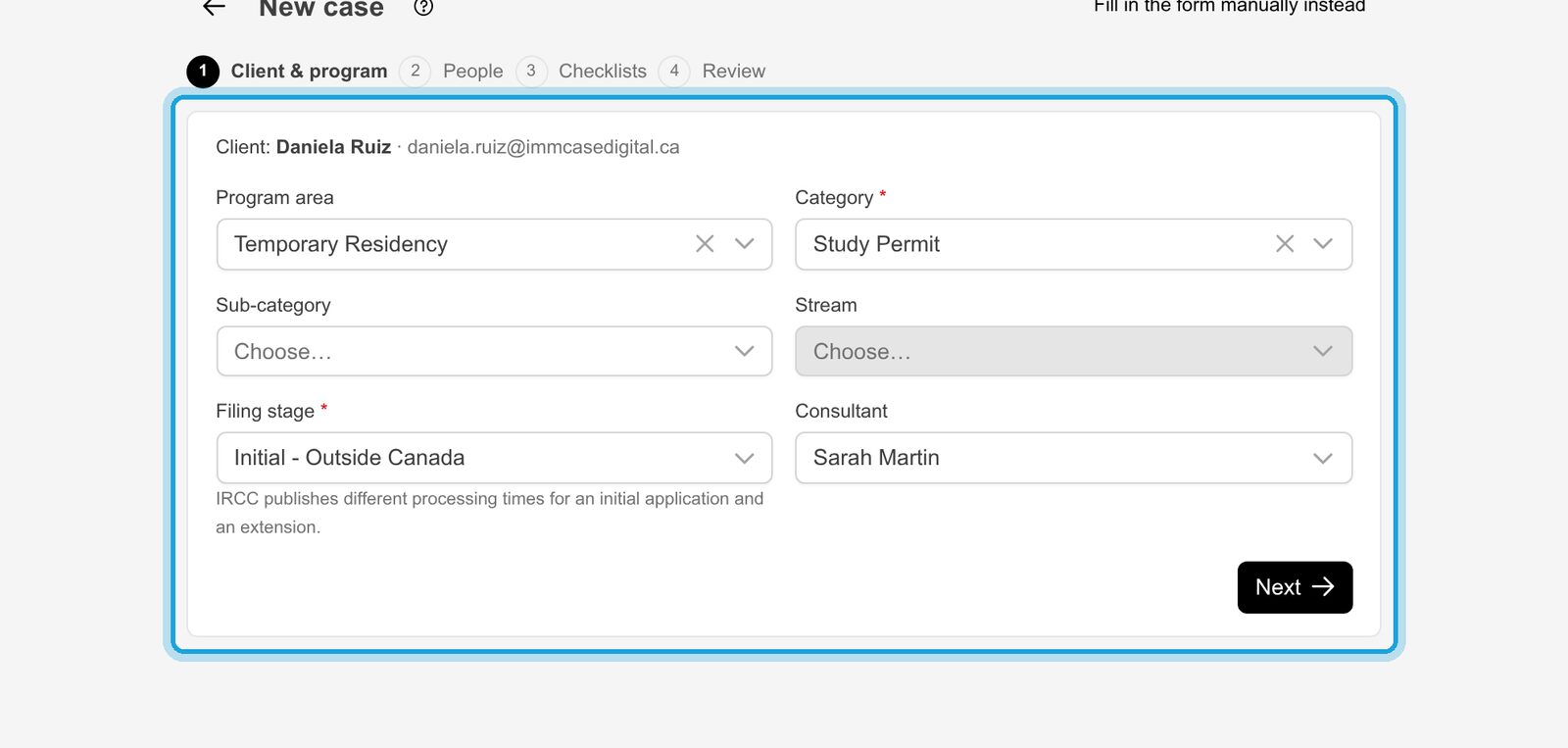
4. Program
Choose the program area (e.g. Temporary Residency), then the category (Study Permit). Filing stage says whether this is a first application from outside or inside Canada, or an extension: IRCC publishes different processing times for each. Consultant is you unless you assign a colleague. Click Next.
5. The people on the case
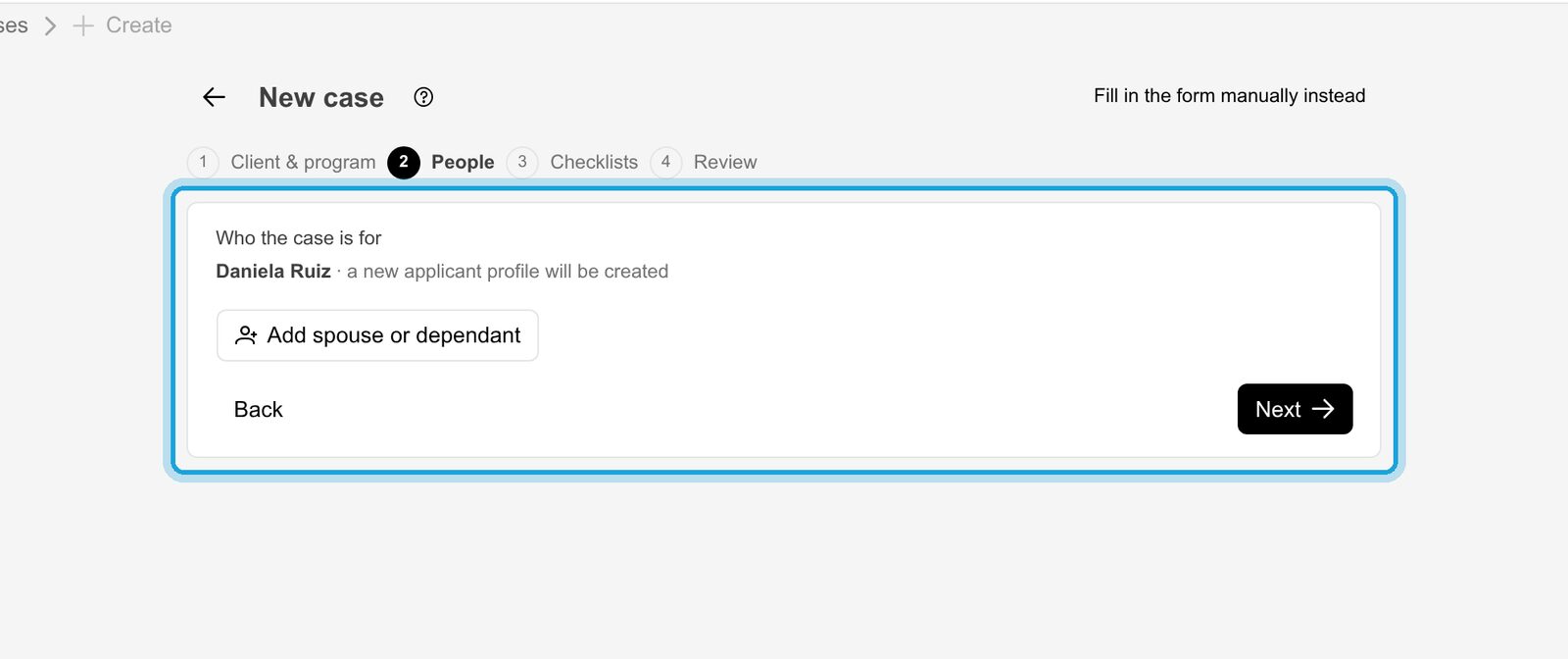
The client is the primary applicant. If a spouse or children apply with them, click Add spouse or dependant for each; every person gets their own applicant profile and application. Click Next.
6. A checklist for each person
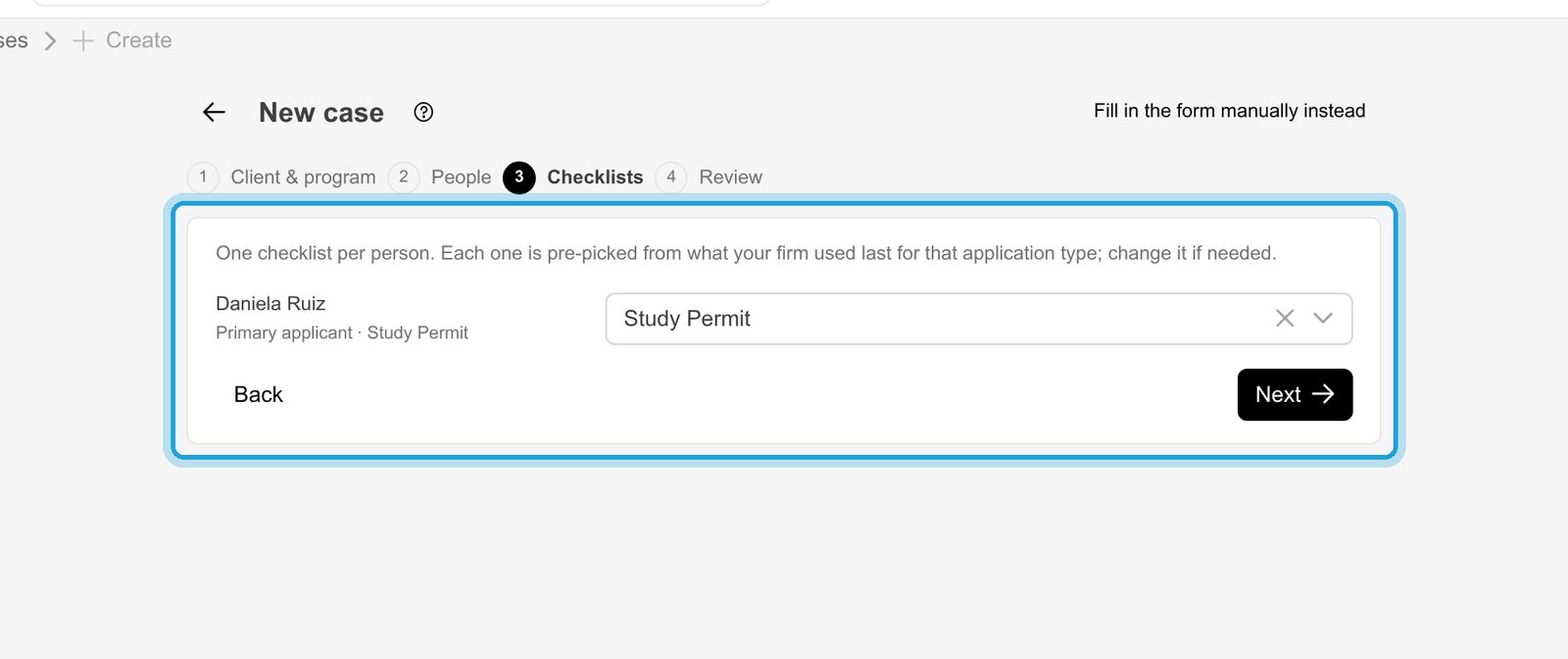
Pick the document checklist for each person, here «Study Permit». Next time, ImmCase pre-picks the one your firm used last for that application type. Click Next.
7. Review and create
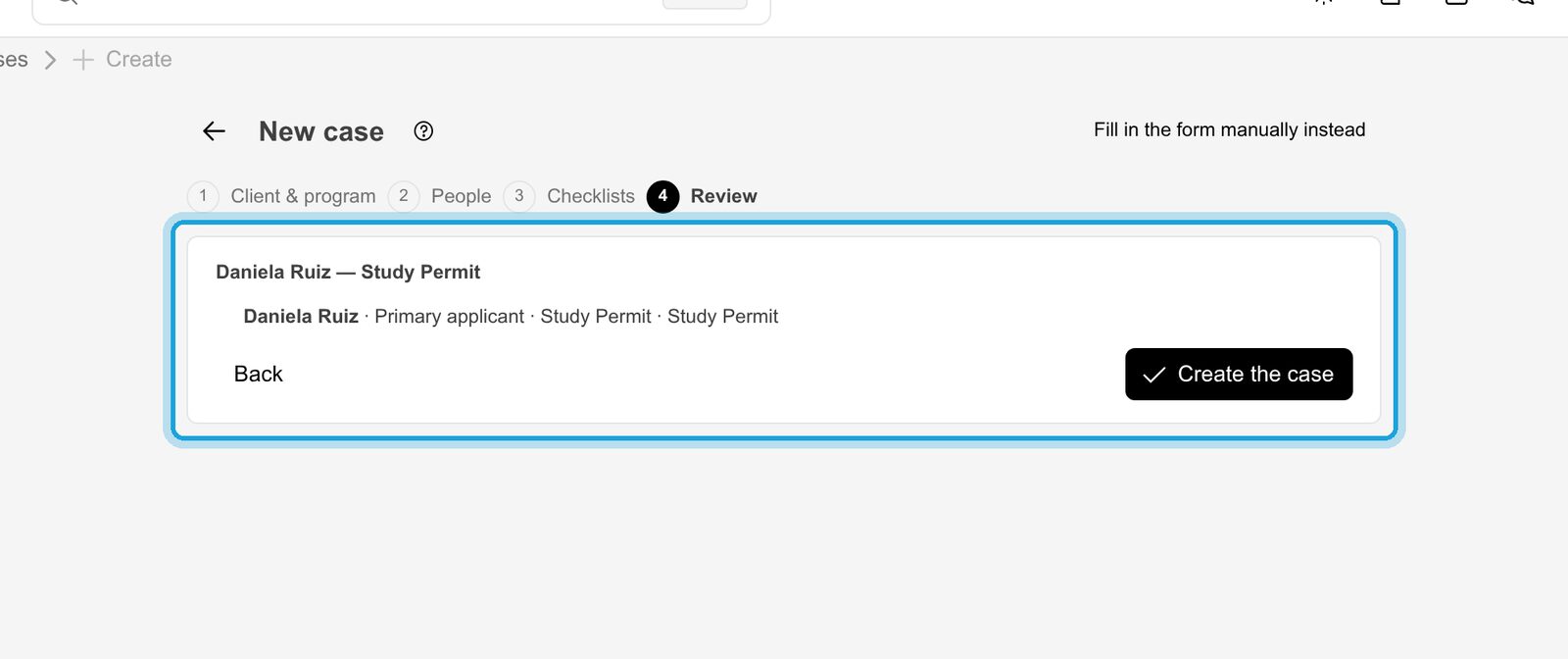
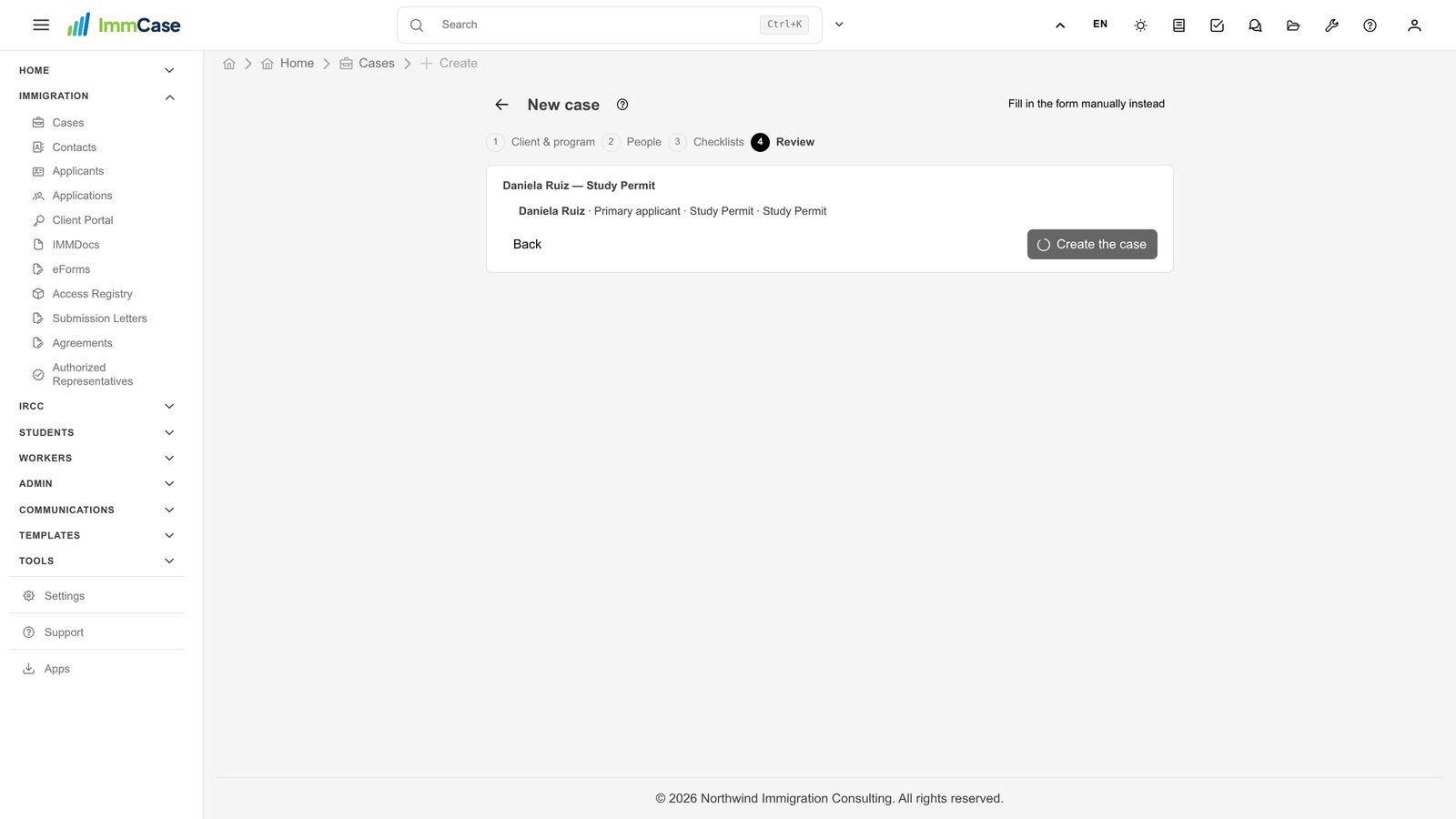
Check the summary and click Create the case. Back takes you to any earlier step.
8. Your case is open
The case gets its own number (CAS…) and opens on Information: the client, the applicants on the case, the stage bar from Preparation to Completed, and the timeline of key dates. Workspace holds the checklist and documents; Tasks, Comments, Linked Emails and File Manager keep the rest of the work in one place.
Good to know
- The client must exist first. Create the contact, then open the case for them.
- Only one field is required on the first step: the category. Sub-category and stream narrow it down when they apply.
- Prefer a plain form? Fill in the form manually instead, top right of the wizard, opens the full case form.
Something on your screen does not match the guide? Write to us, or use Support inside ImmCase.
Next guide: Collect and review documents