
ImmCase user manual · Documents and applications
Write a submission letter
The letter to IRCC that explains why your client meets the requirements. ImmCase starts it from one of your firm’s templates, prints the client’s facts from the case, and asks you only for the parts you have to write.
The client («Daniela Ruiz»), her case and the facts in her letter are fictional.
Getting started
Documents and applications
- Collect and review documents
- Keep a client's files in one place
- See all of a case's documents at once
- Send an eForm to a client
- File an application and record IRCC’s decision
- Write a submission letter
Everyday work
On this page: Watch the video · Step by step · Good to know · PDF
Getting started
- How to create a contact · 0:59
- How to create a quote · 0:52
- How to open a case · 0:53
Documents and applications
- Collect and review documents · 0:43
- Keep a client's files in one place · 0:40
- See all of a case's documents at once · 0:47
- Send an eForm to a client · 0:38
- File an application and record IRCC’s decision · 0:48
- Write a submission letter · 0:36
Everyday work
Watch the video
Step by step
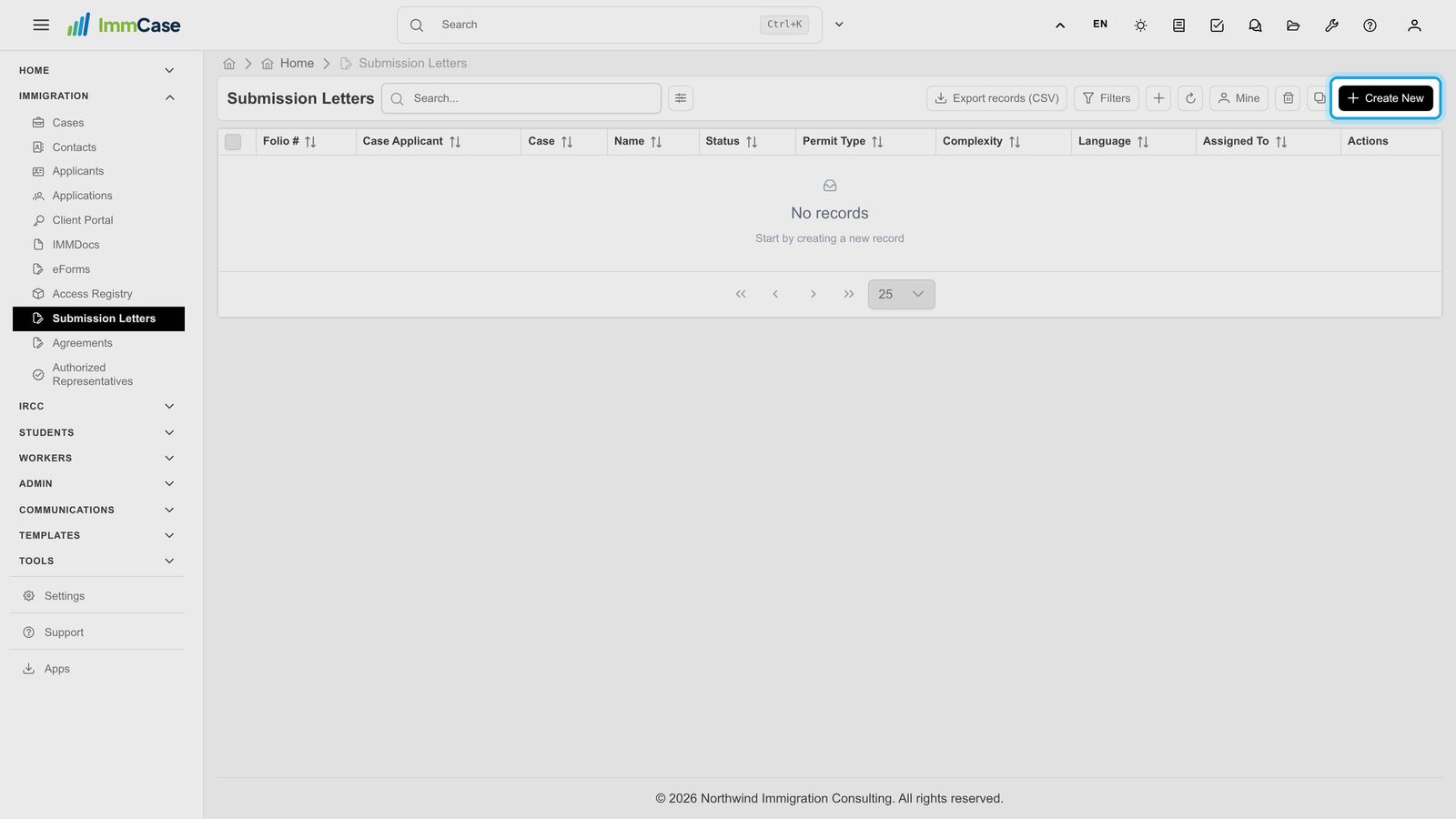
1. Start a letter
In the left menu, open Immigration and click Submission Letters, then Create New.
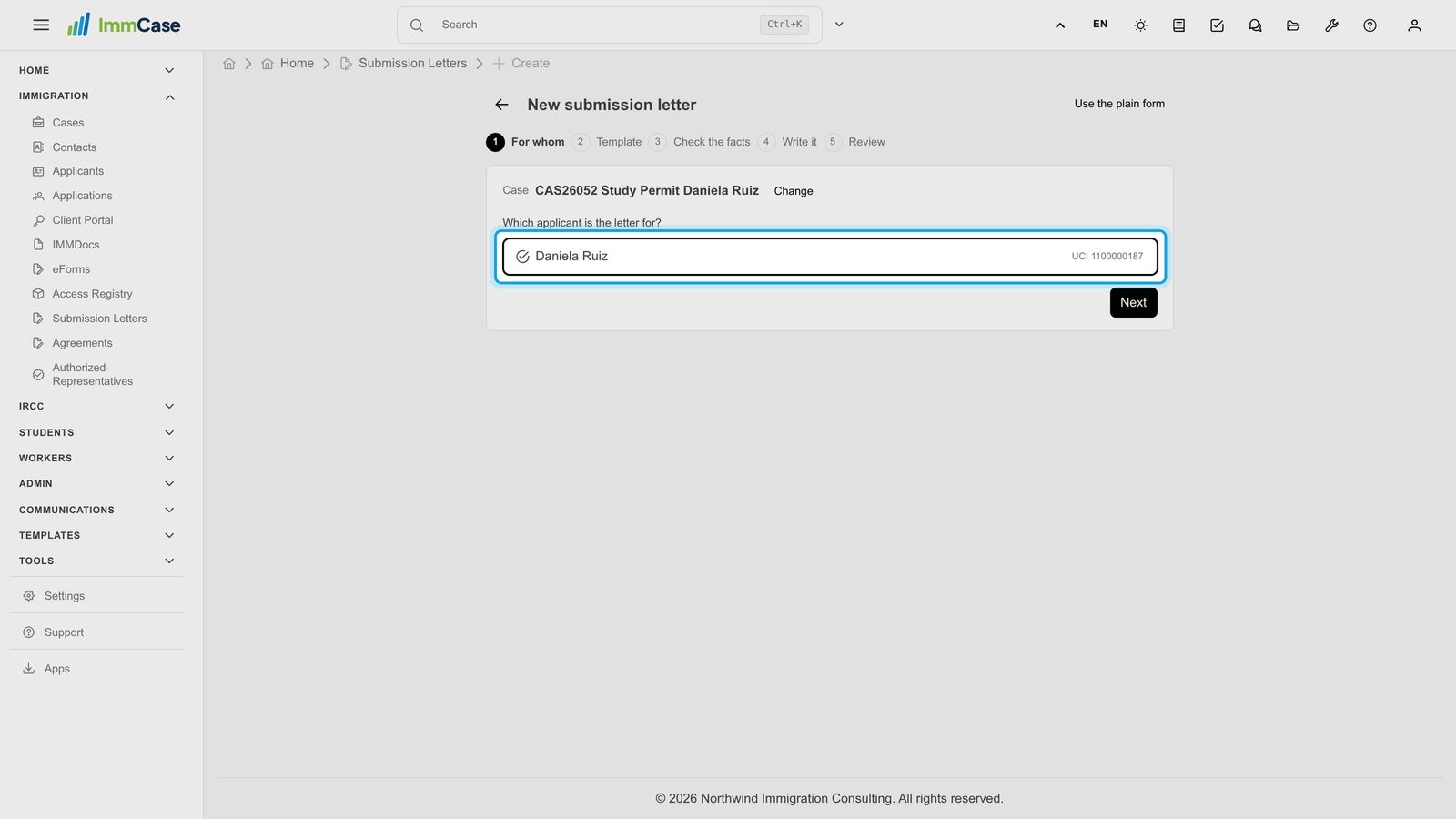
2. For whom
Type the client’s name or the case number and pick the case, then the applicant the letter is for. Click Next.
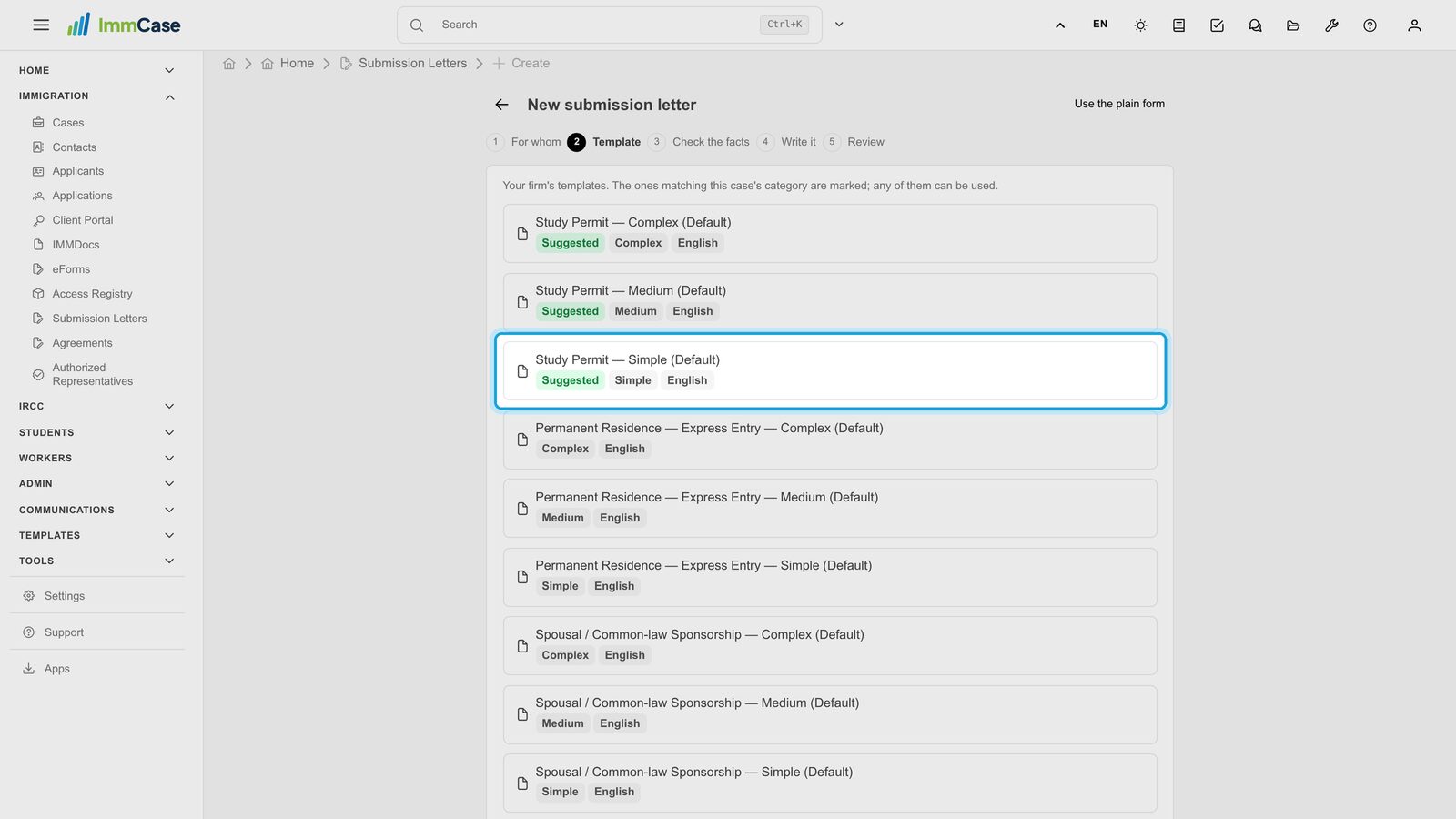
3. Choose a template
Your firm’s templates are listed. Those that match the case’s category are marked Suggested; any of them can be used. Each comes in a simple, medium or complex version.
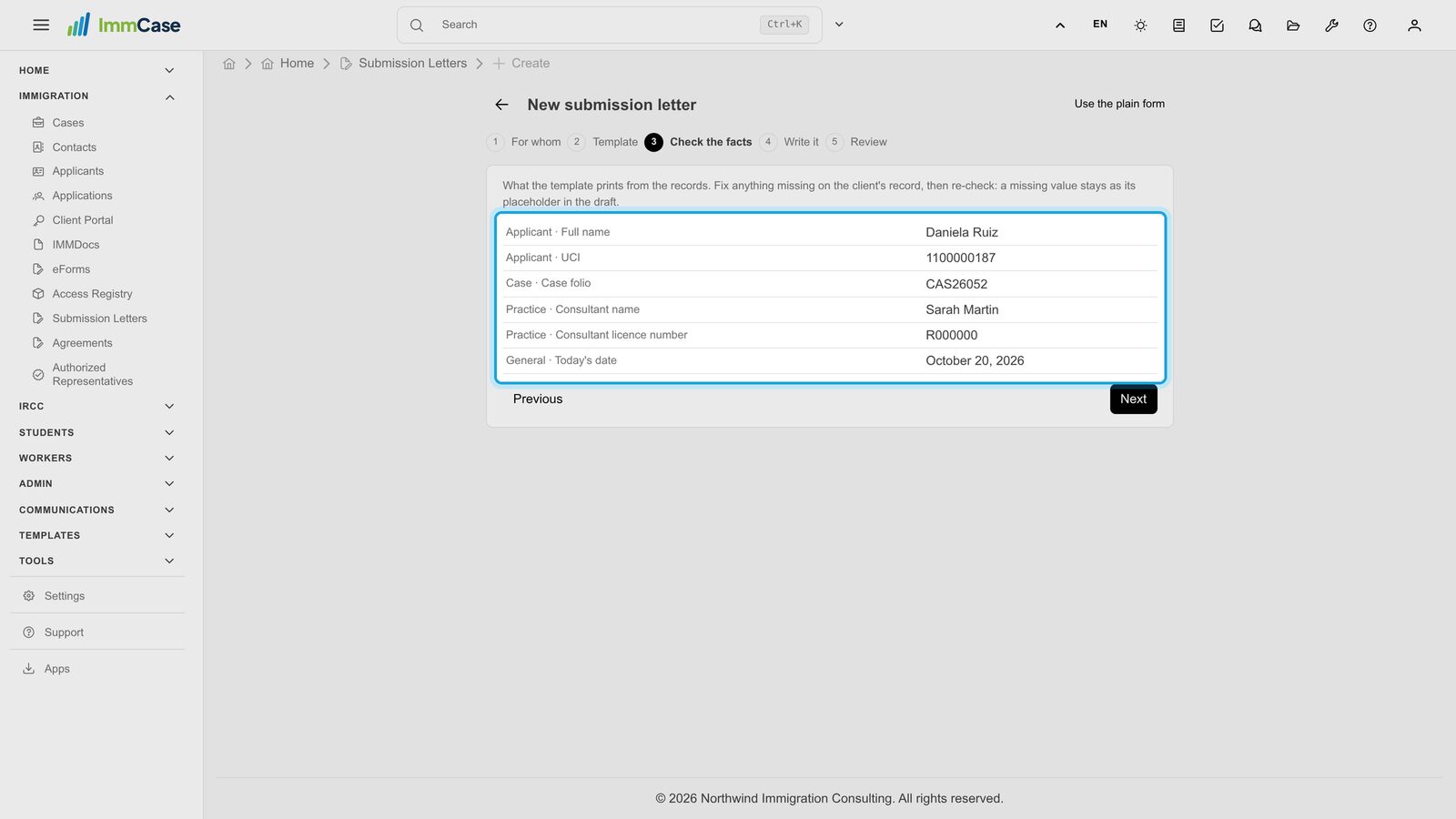
4. Check the facts
This is what the letter prints from your records: the client’s name and UCI, the case number, your name and licence number, today’s date. If something is missing, complete the client’s record and click Re-check.
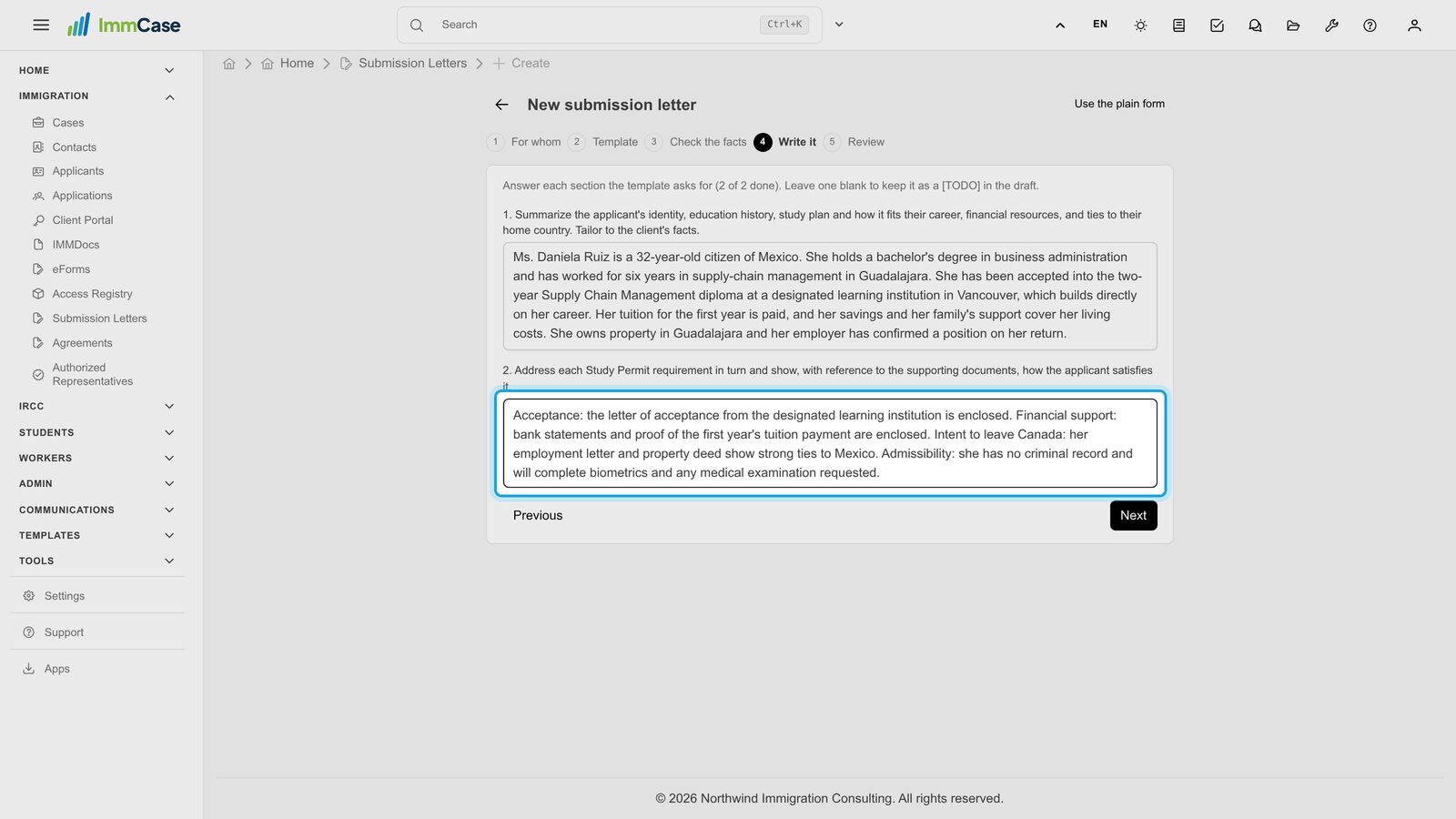
5. Write what only you can
The template asks for each section you must write, such as the applicant’s background and how they meet each requirement. Leave one blank to keep it as a [TODO] in the draft.
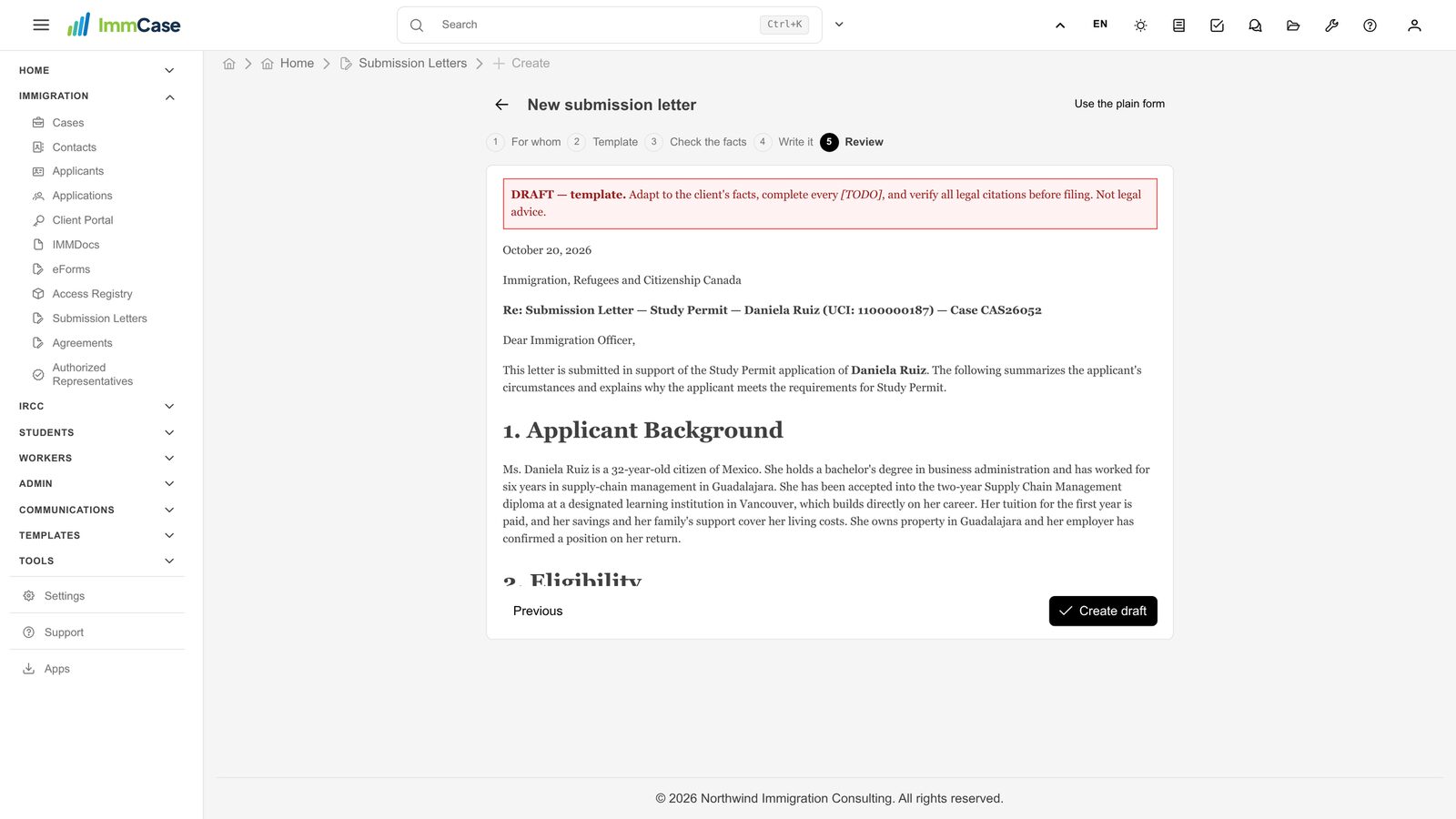
6. Review
Read the whole letter, then click Create draft. Previous takes you back to any step.
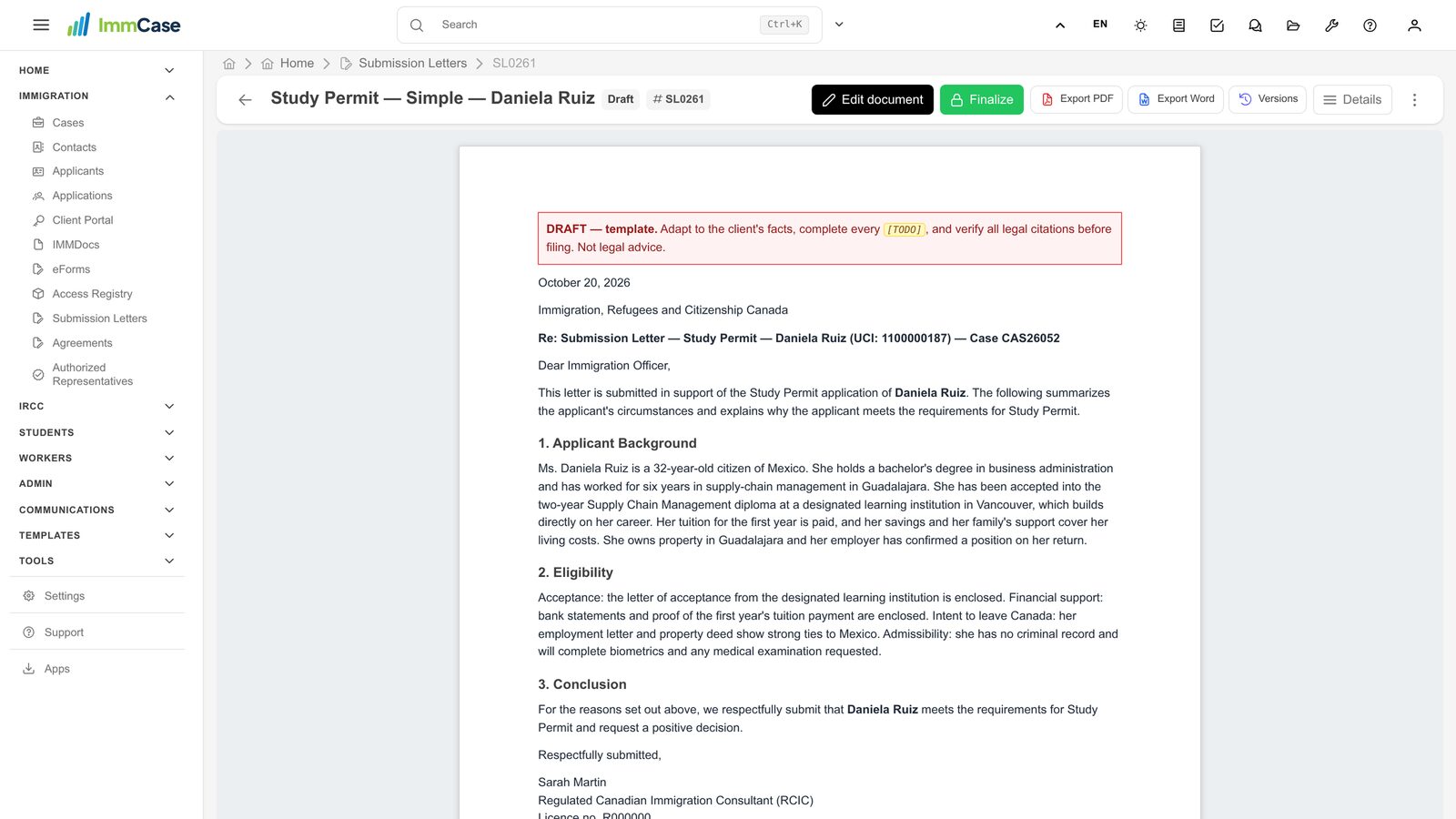
7. Your draft
The letter opens as a Draft. Edit document to polish it, Versions to see earlier ones, and Export PDF when it’s ready to file with the application.
Good to know
- Your firm’s templates live in Templates → Letter Templates. The ones every firm starts with are English starting points: complete every [TODO] and check every legal reference before filing.
- Prefer to start from scratch? Use the plain form, top right of the wizard.
Something on your screen does not match the guide? Write to us, or use Support inside ImmCase.
Next guide: Notes: write, pin and find