
ImmCase user manual · Everyday work
Notes: write, pin and find
Notes is your own notebook inside ImmCase: procedures you repeat, what a client told you on the phone, ideas for later. Each note has a title and formatted text, saves itself while you type, and can be pinned so it stays at the top.
The firm and the notes in this guide are fictional.
Getting started
Documents and applications
- Collect and review documents
- Keep a client's files in one place
- See all of a case's documents at once
- Send an eForm to a client
- File an application and record IRCC’s decision
- Write a submission letter
Everyday work
On this page: Watch the video · Step by step · Good to know · PDF
Getting started
- How to create a contact · 0:59
- How to create a quote · 0:52
- How to open a case · 0:53
Documents and applications
- Collect and review documents · 0:43
- Keep a client's files in one place · 0:40
- See all of a case's documents at once · 0:47
- Send an eForm to a client · 0:38
- File an application and record IRCC’s decision · 0:48
- Write a submission letter · 0:36
Everyday work
- Notes: write, pin and find · 0:46
- Tasks: assign, link, follow · 0:47
- Calendar: meetings with your team and clients · 0:48
- Inbox: the firm’s email, next to its clients · 0:52
- Chat: talk to your team without leaving ImmCase · 0:53
- Dashboard: the firm at a glance · 0:47
- Add your own fields · 0:40
Watch the video
Step by step
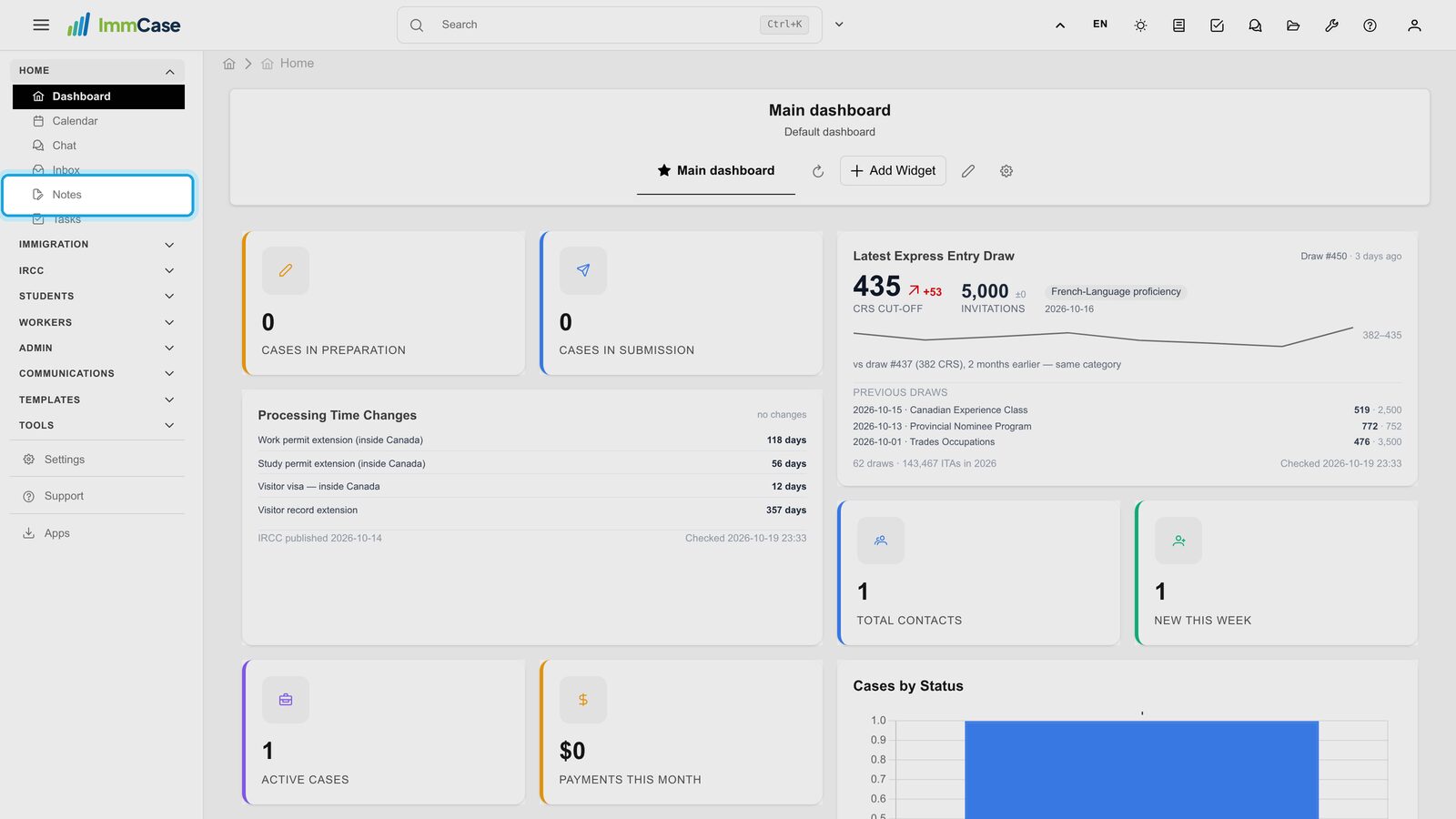
1. Open Notes
In the left menu, open Home and click Notes.
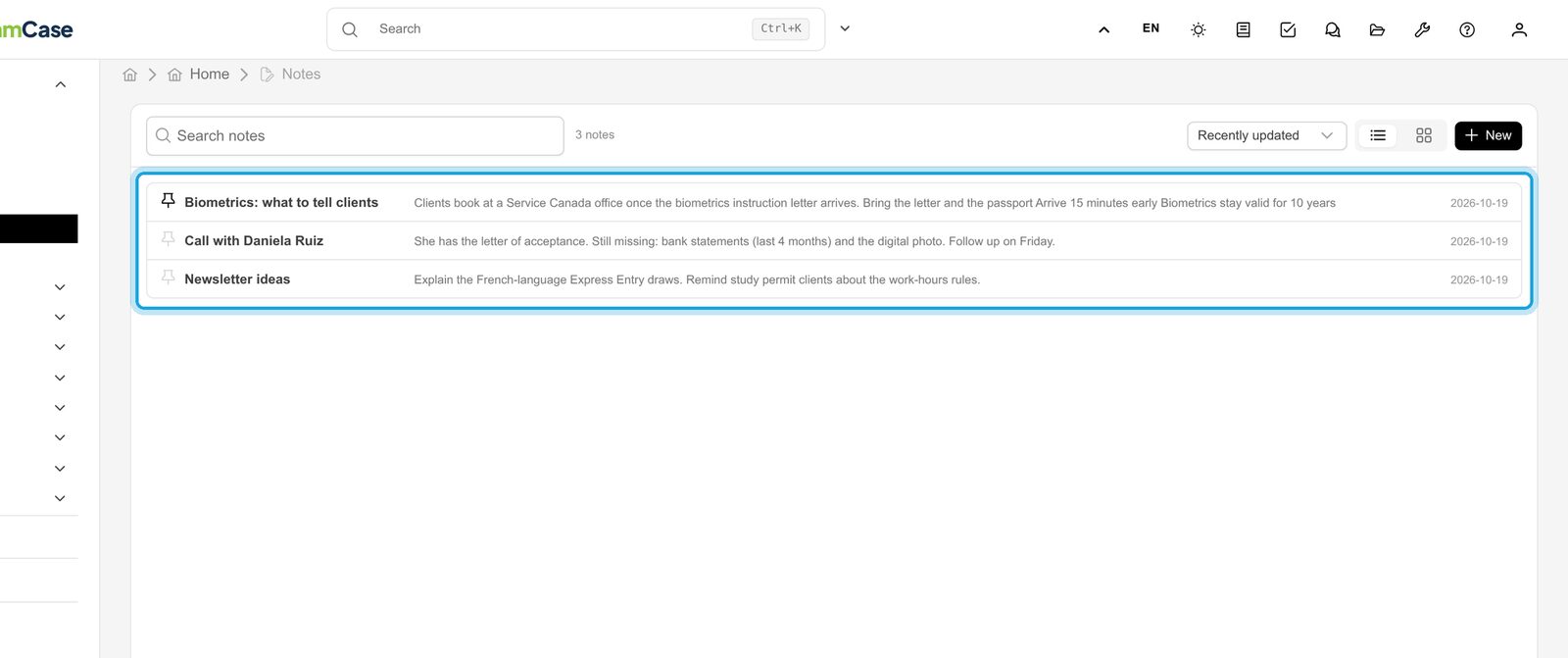
2. Your notes
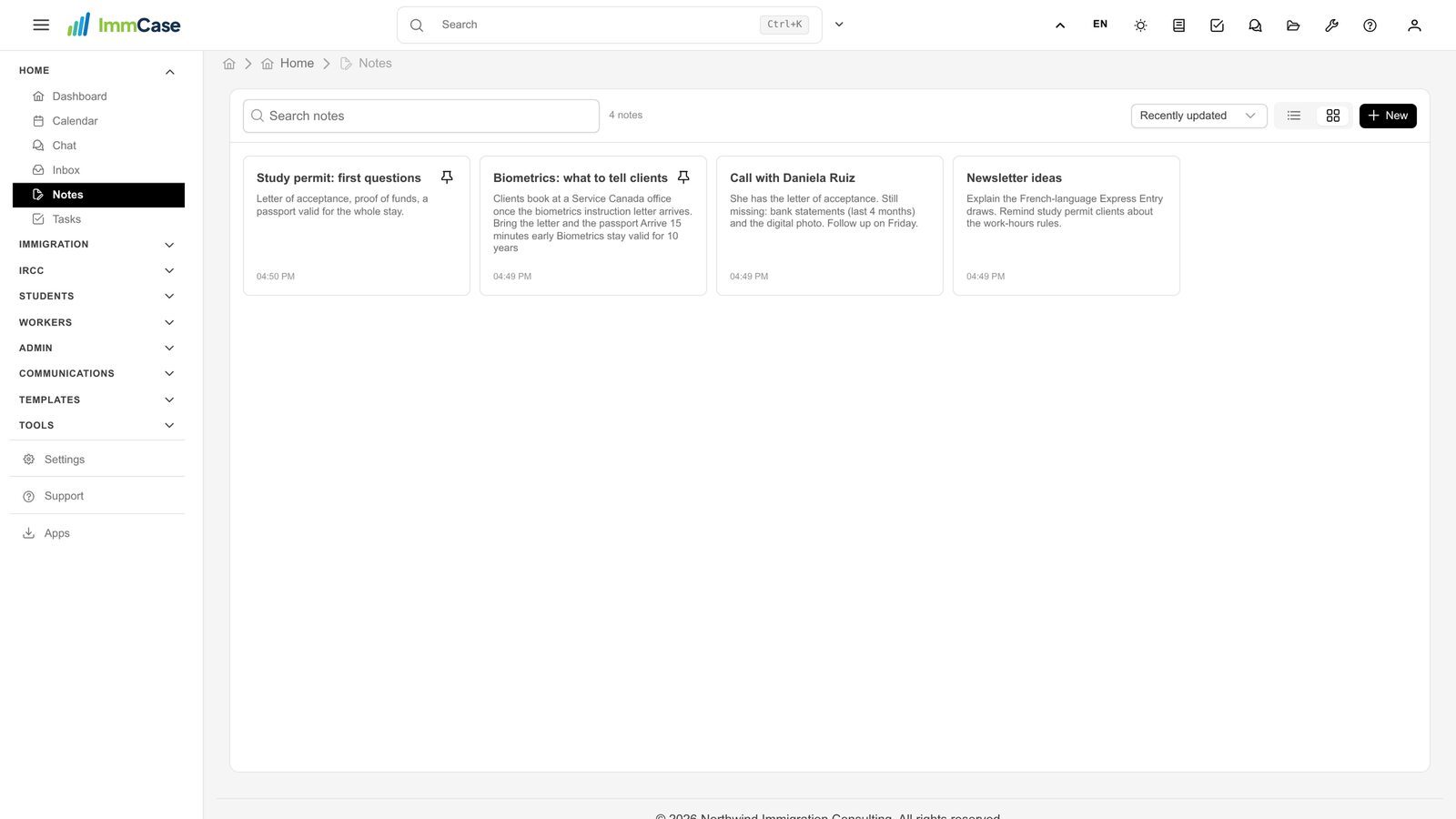
Every note you wrote, newest first. Pinned notes always come first. Search and sort from the bar above the list.
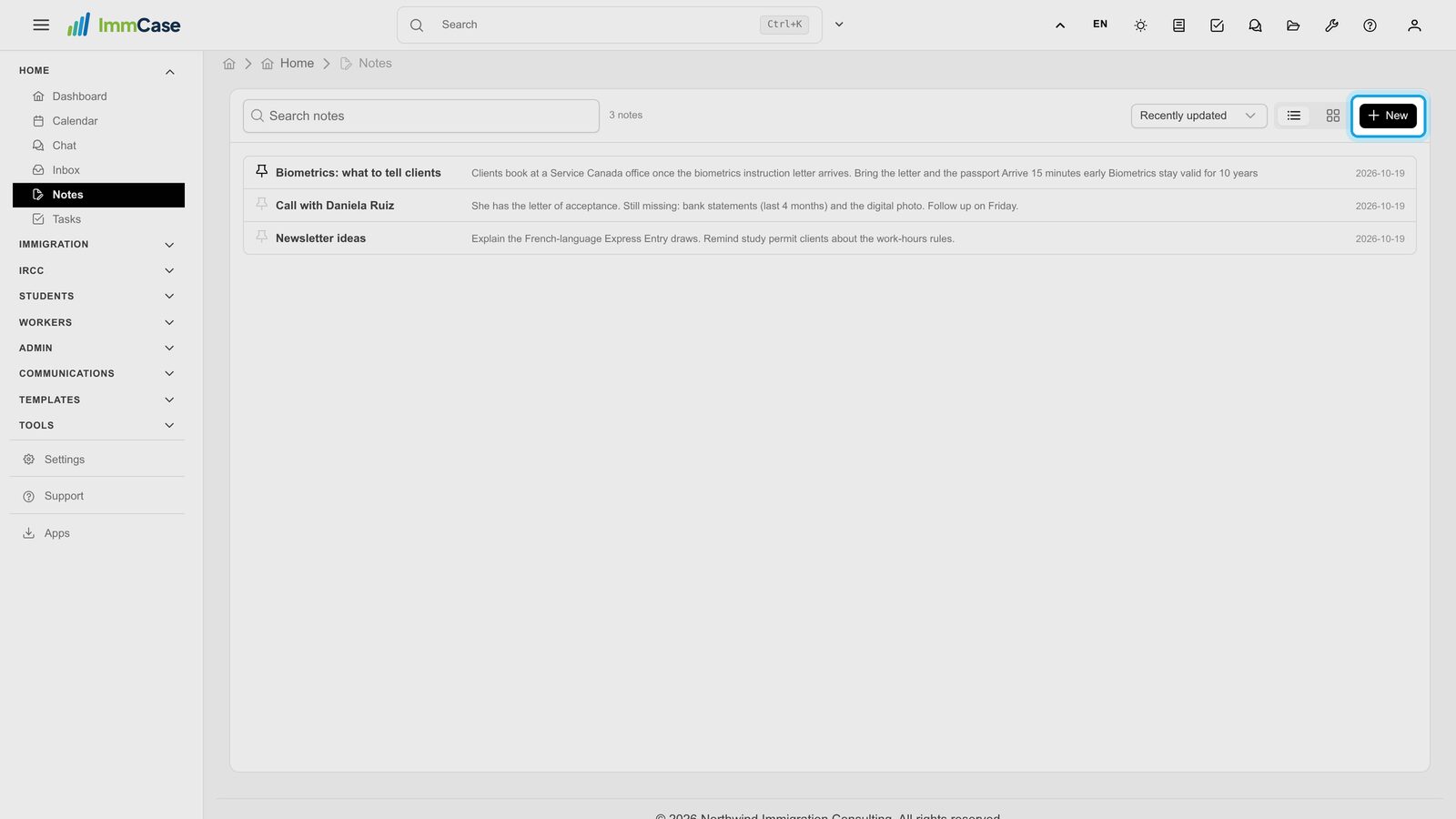
3. Start a note
Click New. An empty note opens beside the list.
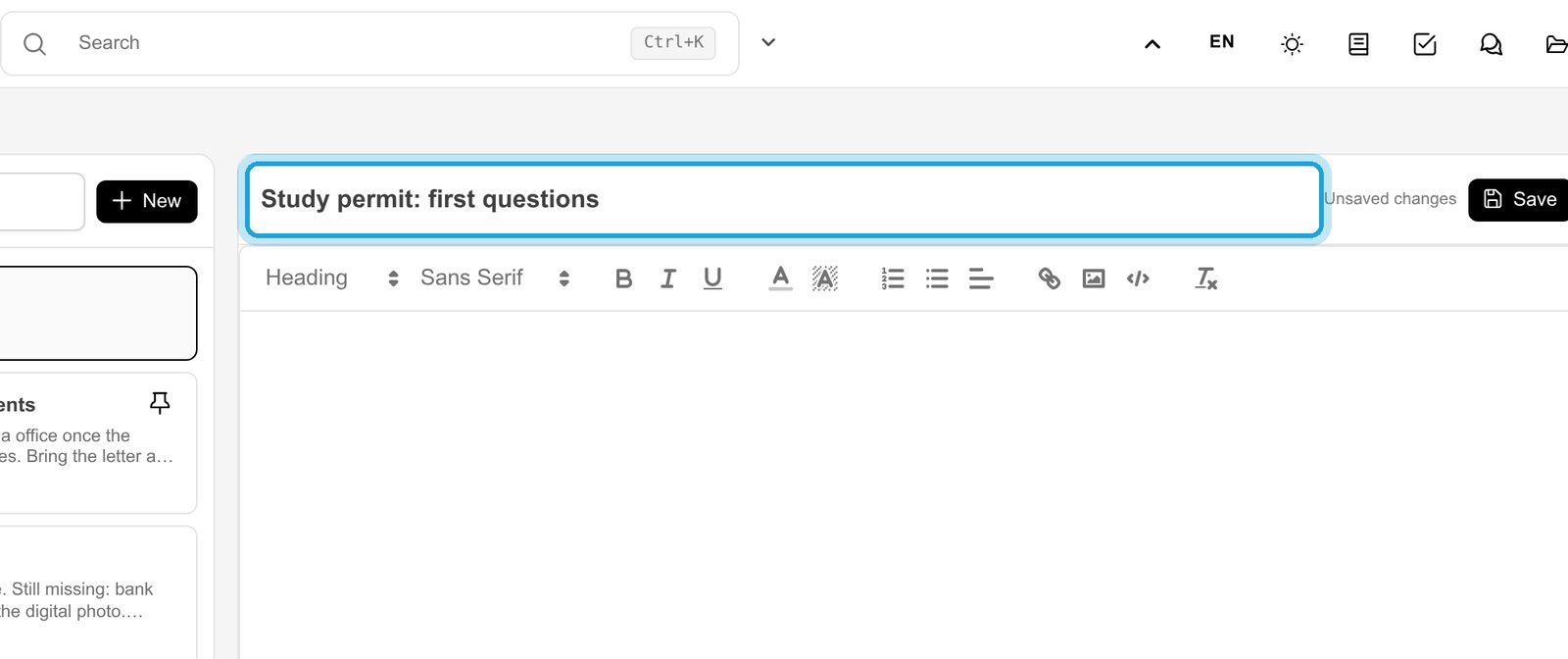
4. Give it a title
Type a title that you will recognise in the list later.
5. Write
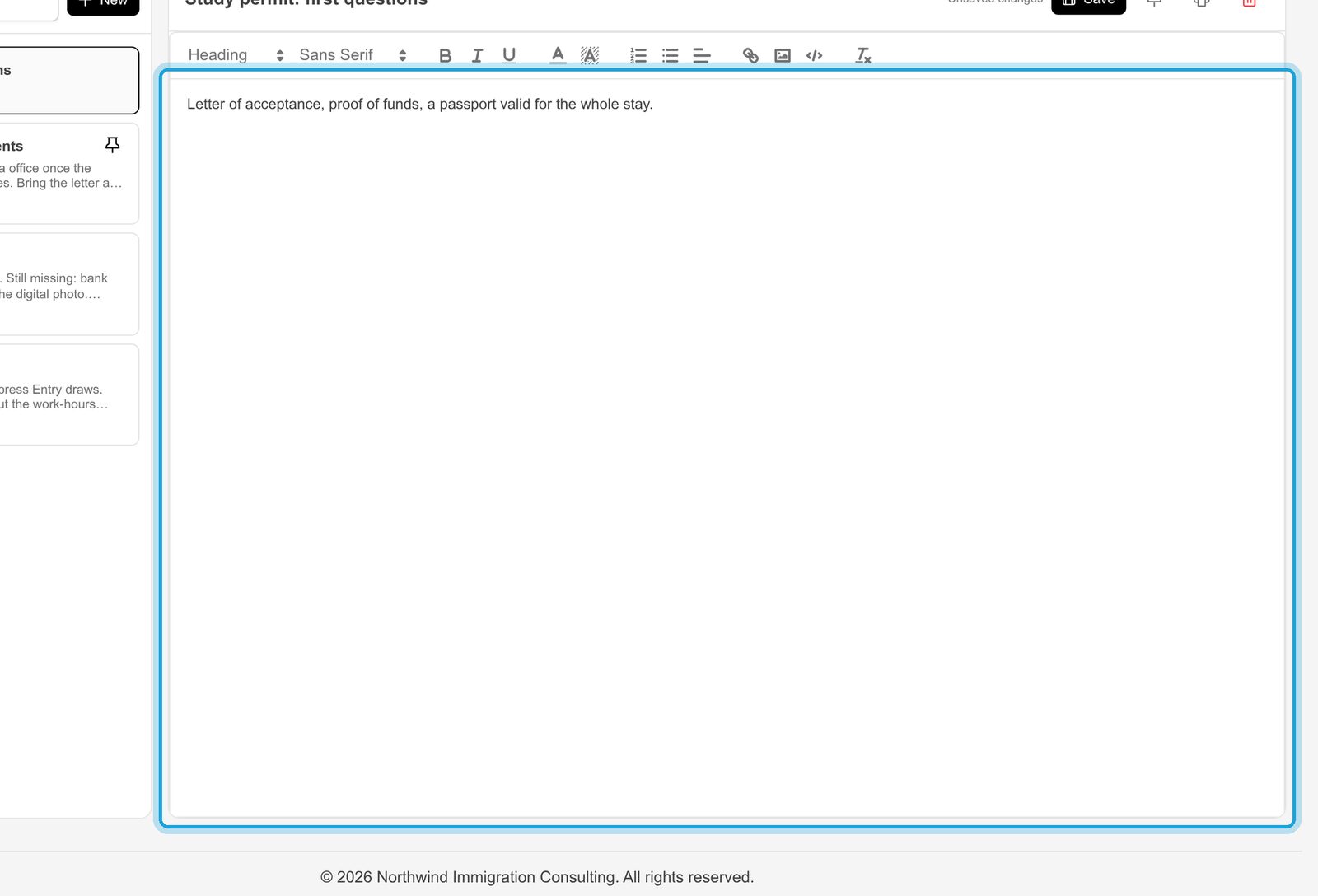
Write the note. The toolbar adds headings, bold, lists and links.
6. It saves itself
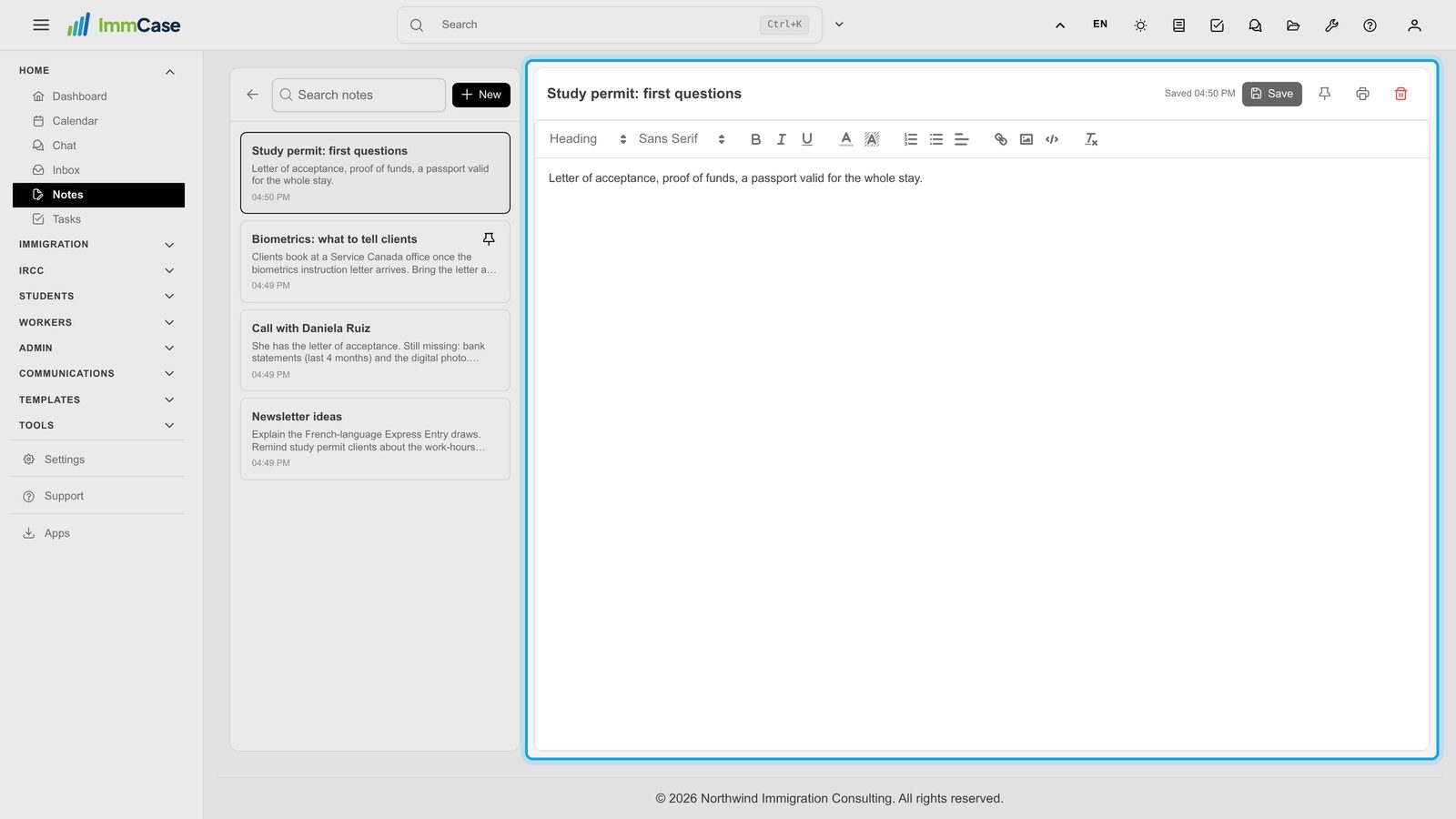
A moment after you stop typing, the note is saved; the time appears next to Save. You can also click Save yourself.
7. Pin it
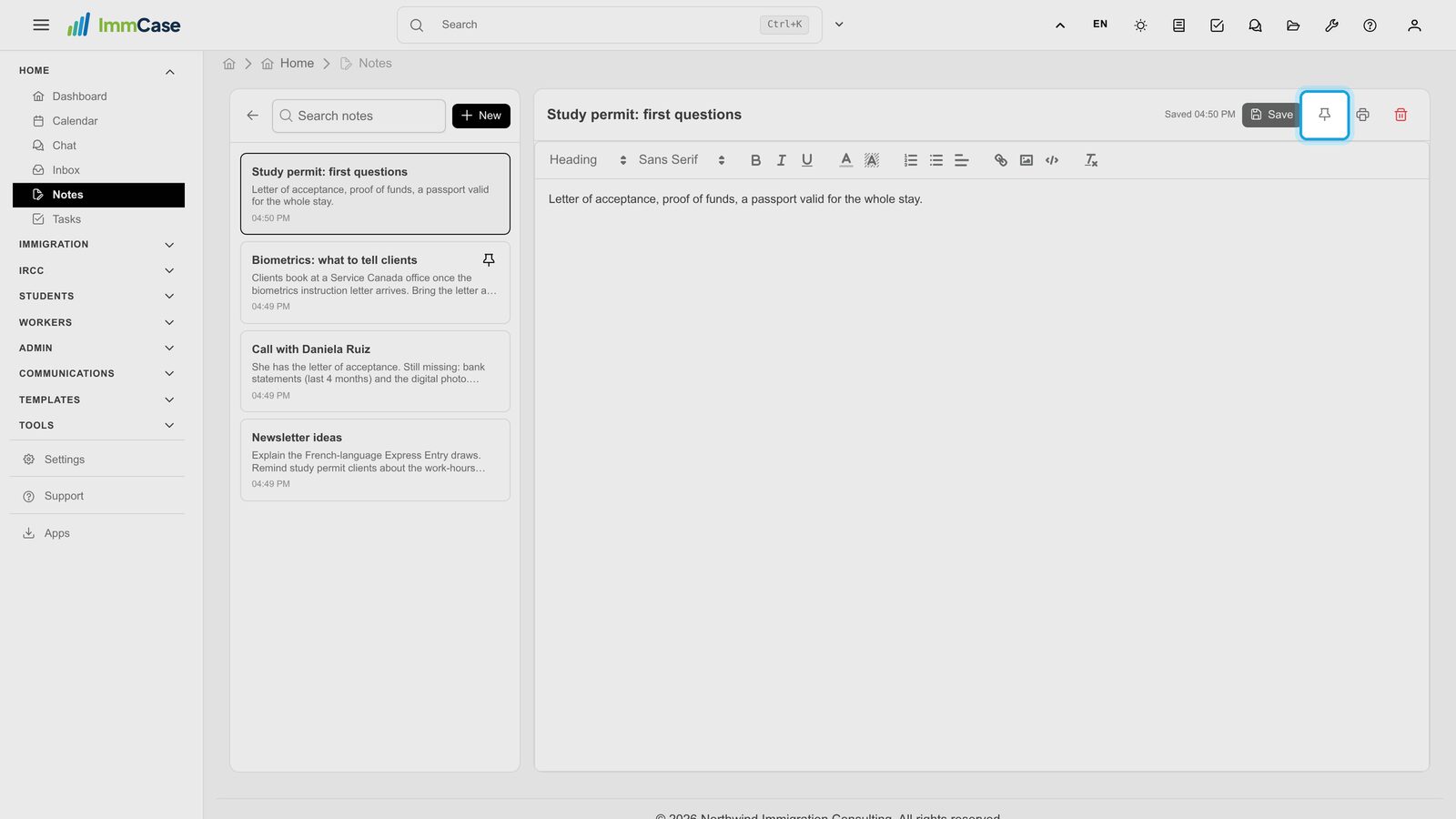
Click the pin to keep this note at the top of the list. Beside it: Print and Delete.
8. Back to the list
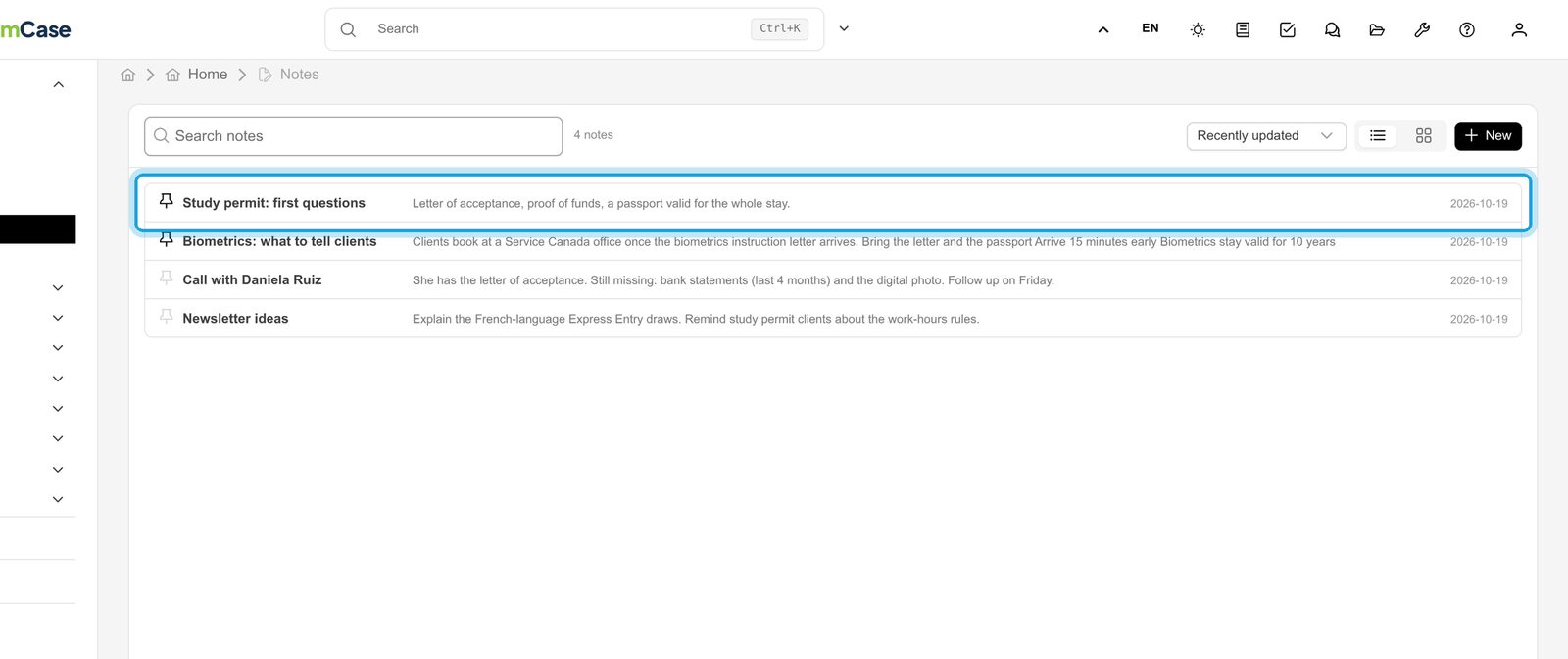
The arrow at the top of the list goes back to All notes. Your pinned note is now first.
9. List or cards
Switch between List and Cards with the buttons beside New. ImmCase remembers your choice.
Good to know
- Notes are yours. Other people in the firm don’t see them. To share something about a client, use Comments on the client’s or the case’s record.
- Quick note from anywhere: the notebook icon at the top of every screen opens a small note window, so you don’t have to leave what you are doing.
- Find it later: the search box looks in titles and text.
Something on your screen does not match the guide? Write to us, or use Support inside ImmCase.
Next guide: Tasks: assign, link, follow