
ImmCase user manual · Documents and applications
See all of a case's documents at once
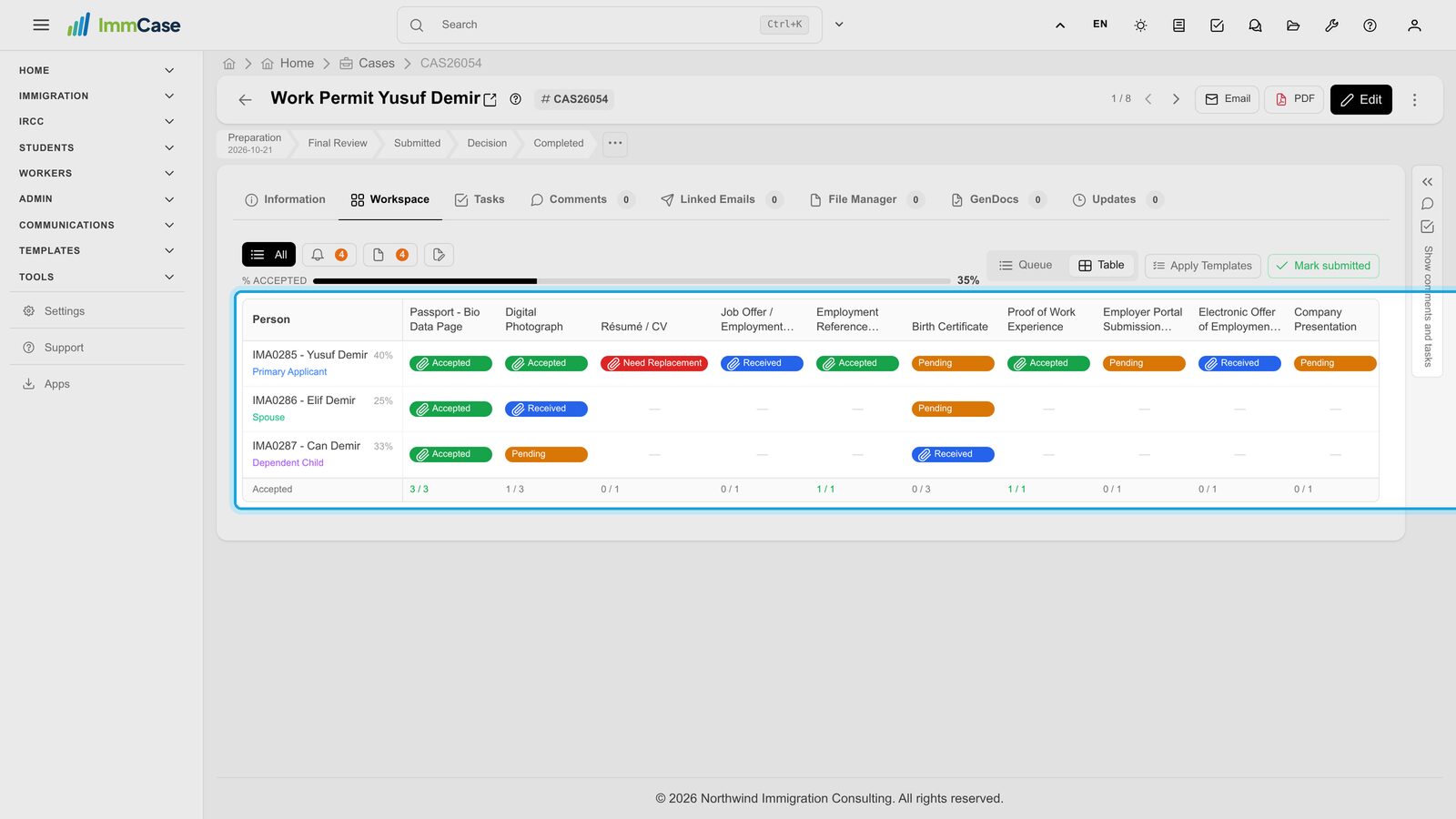
A family's case can need dozens of documents. The Table view in the case's Workspace shows them like a spreadsheet: one row per person, one column per document, and the status of each in its cell. You can review a document or upload a new one without leaving the table.
The family («Yusuf, Elif and Can Demir») and the documents in this guide are fictional; every document is a specimen.
Getting started
Documents and applications
- Collect and review documents
- Keep a client's files in one place
- See all of a case's documents at once
- Send an eForm to a client
- File an application and record IRCC’s decision
- Write a submission letter
Everyday work
On this page: Watch the video · Step by step · Good to know · PDF
Getting started
- How to create a contact · 0:59
- How to create a quote · 0:52
- How to open a case · 0:53
Documents and applications
- Collect and review documents · 0:43
- Keep a client's files in one place · 0:40
- See all of a case's documents at once · 0:47
- Send an eForm to a client · 0:38
- File an application and record IRCC’s decision · 0:48
- Write a submission letter · 0:36
Everyday work
Watch the video
Step by step
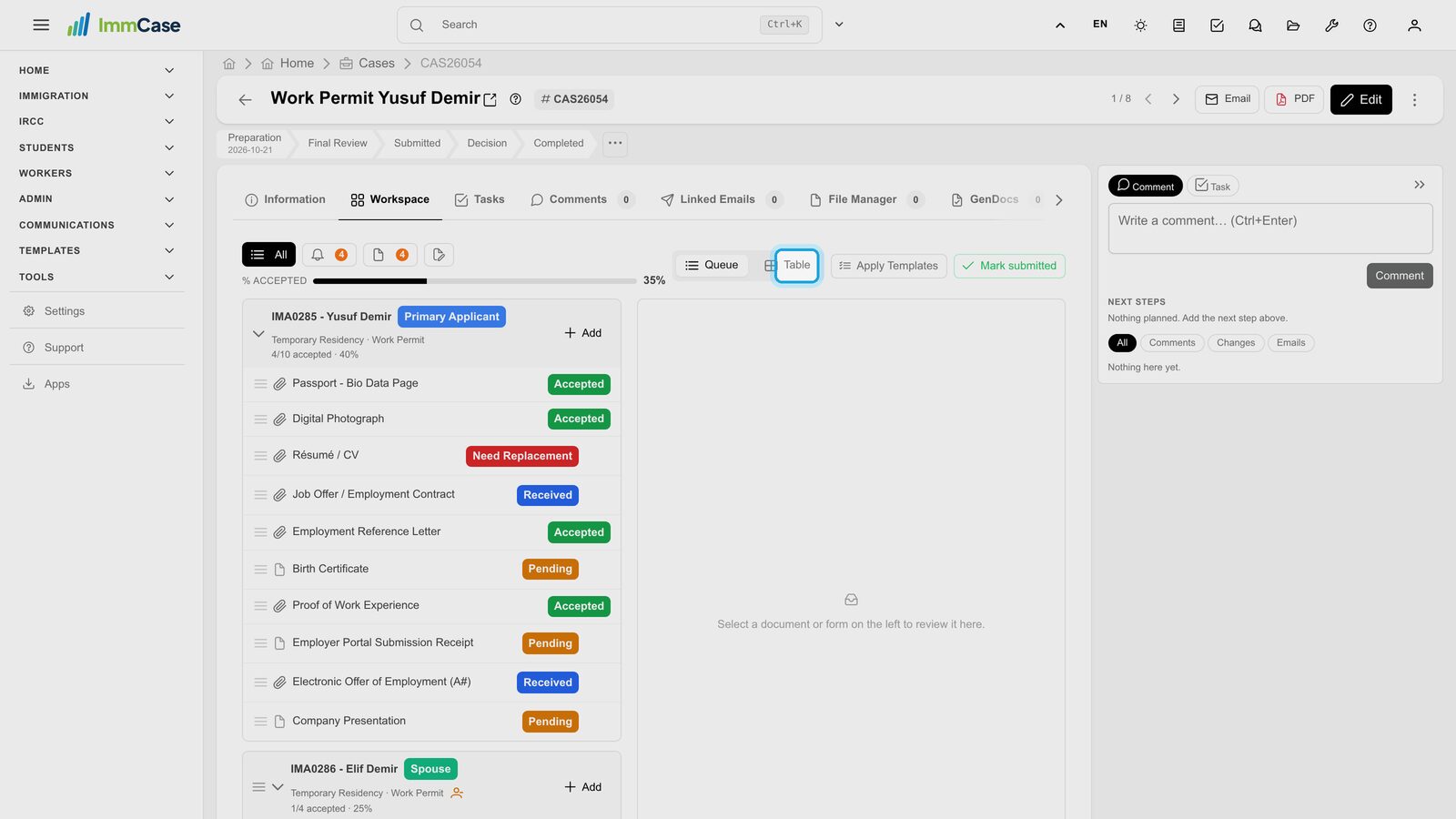
1. Switch to Table
Open the case, click the Workspace tab, then Table at the top right. ImmCase remembers your choice, so the next case opens in the table too.
2. Make room
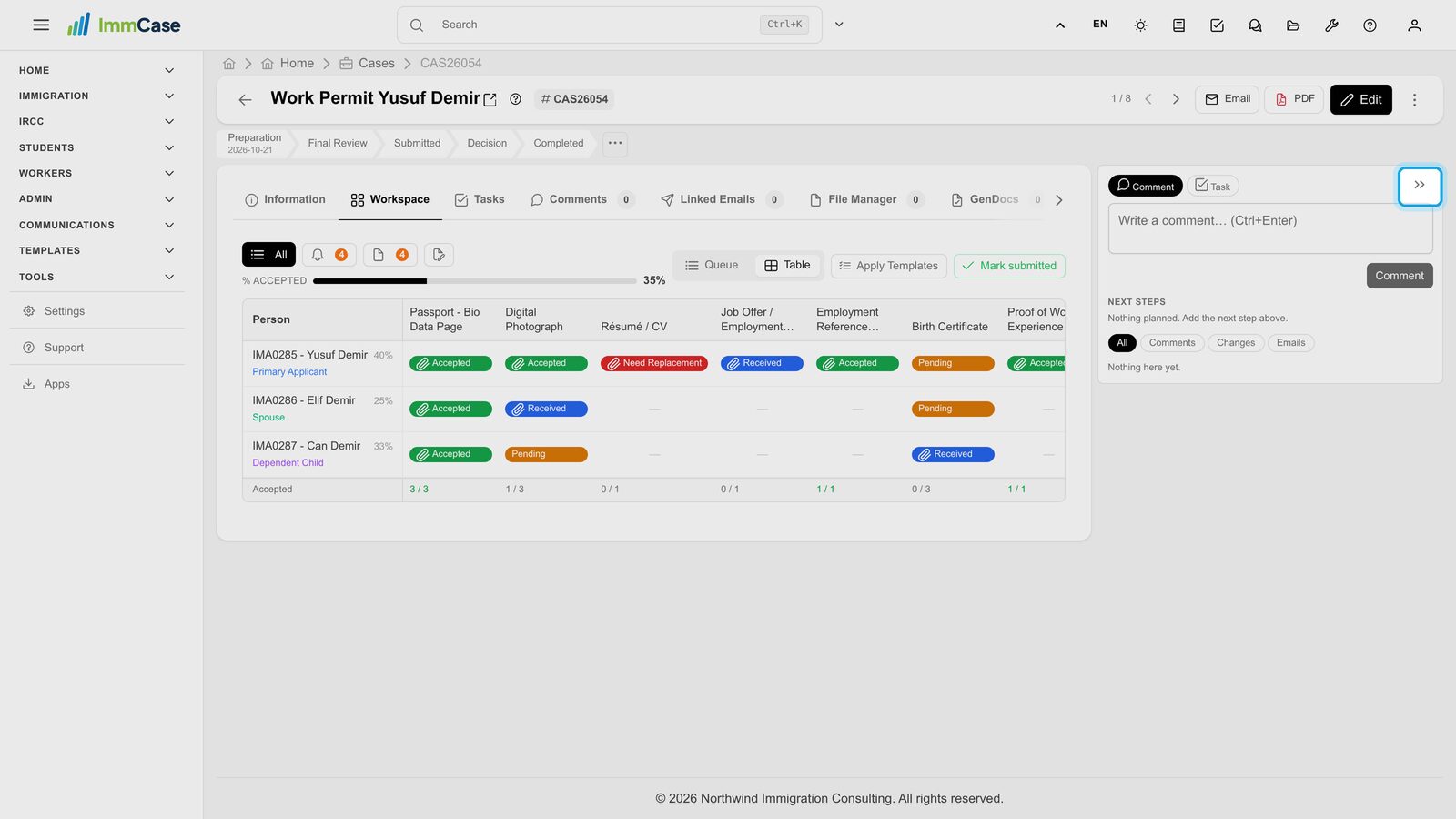
The comments and tasks panel takes the right side of the page. Click » at its top to fold it into a slim bar; click the bar to bring it back.
3. Read the table
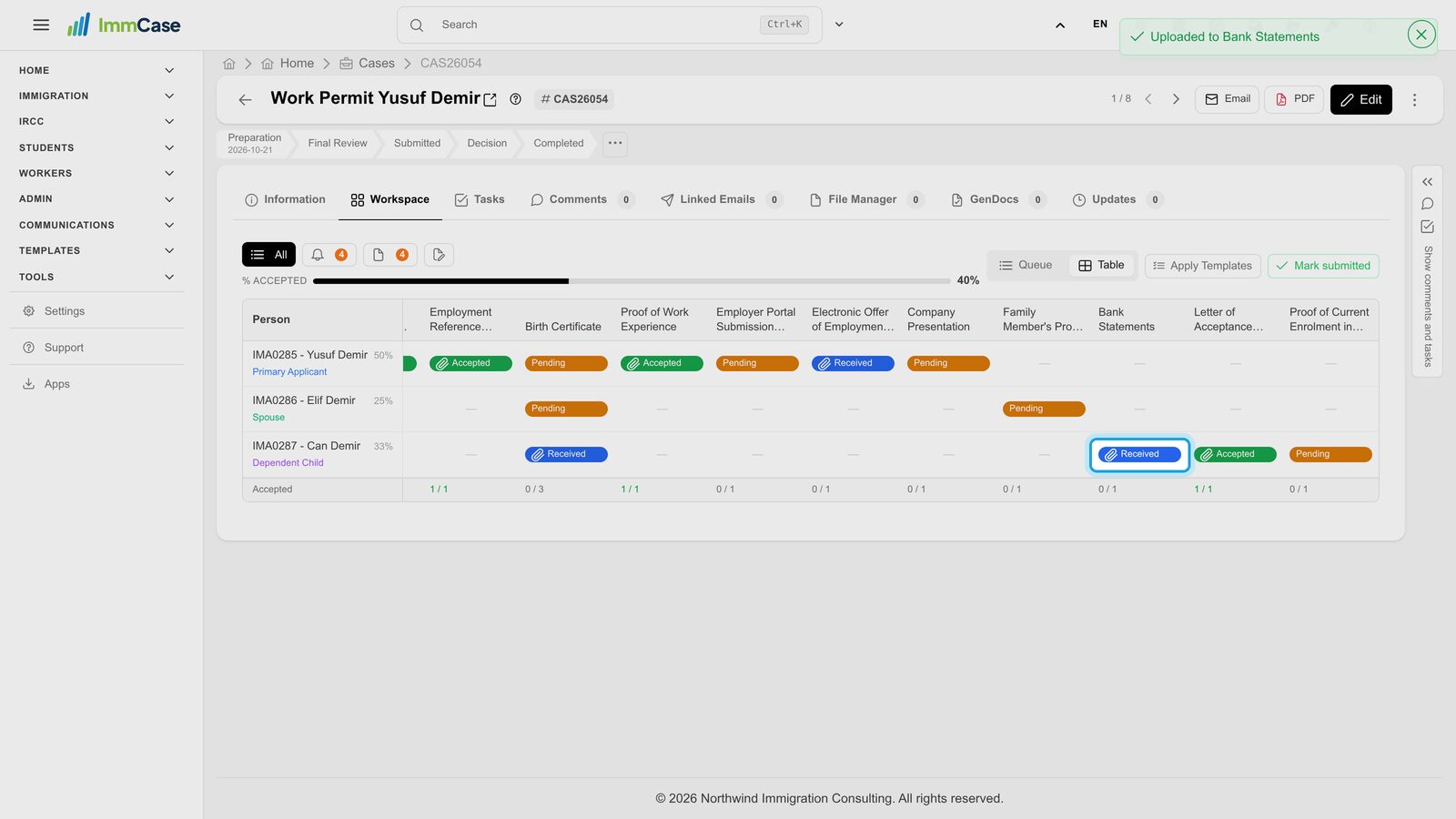
Each row is a person on the case and each column a document. Green is accepted, blue is received and waiting for you, red needs a replacement and orange is still missing. A dash means that document is not on that person's list. The last row counts what is accepted in each column.
4. Review a document
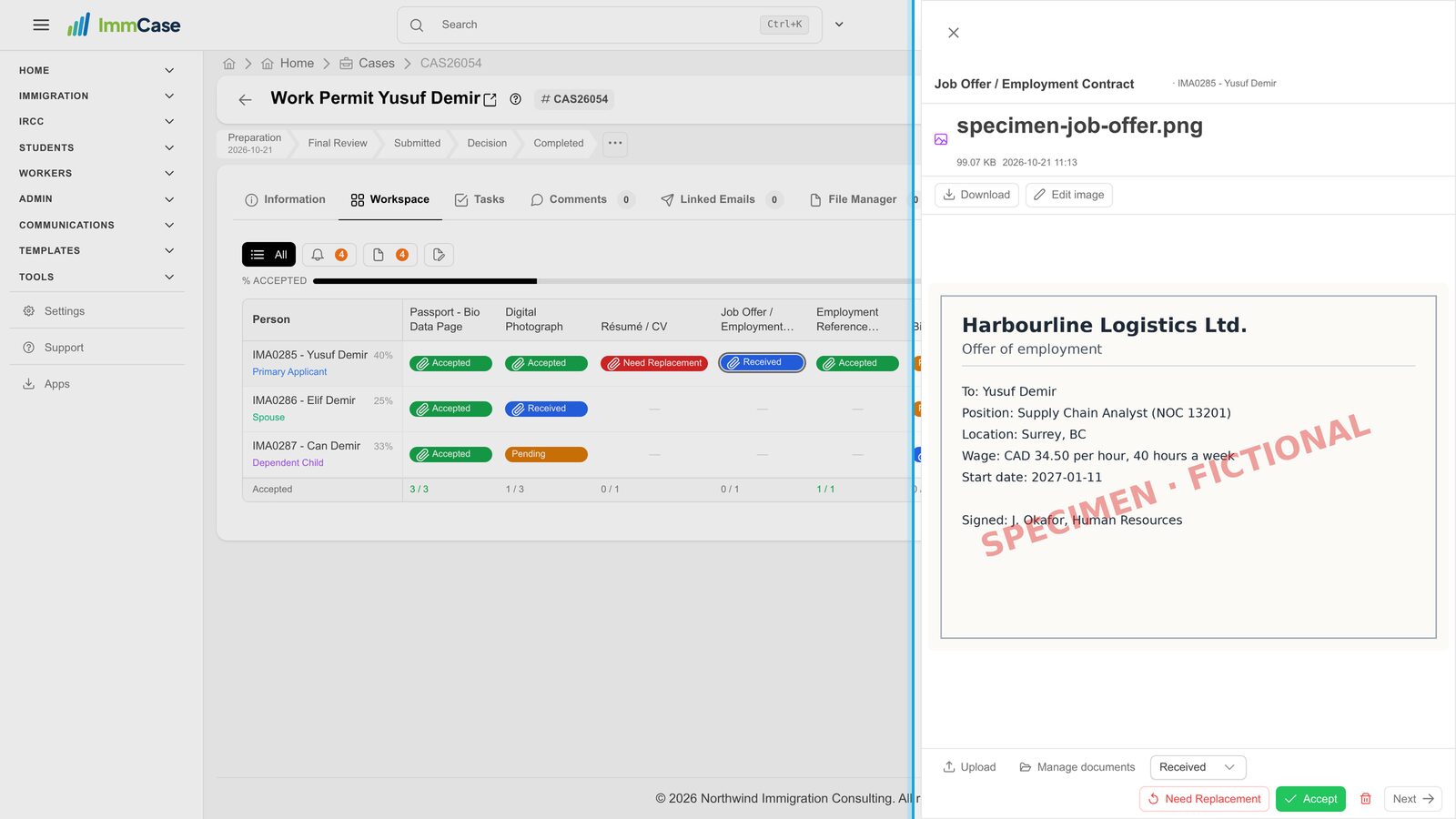
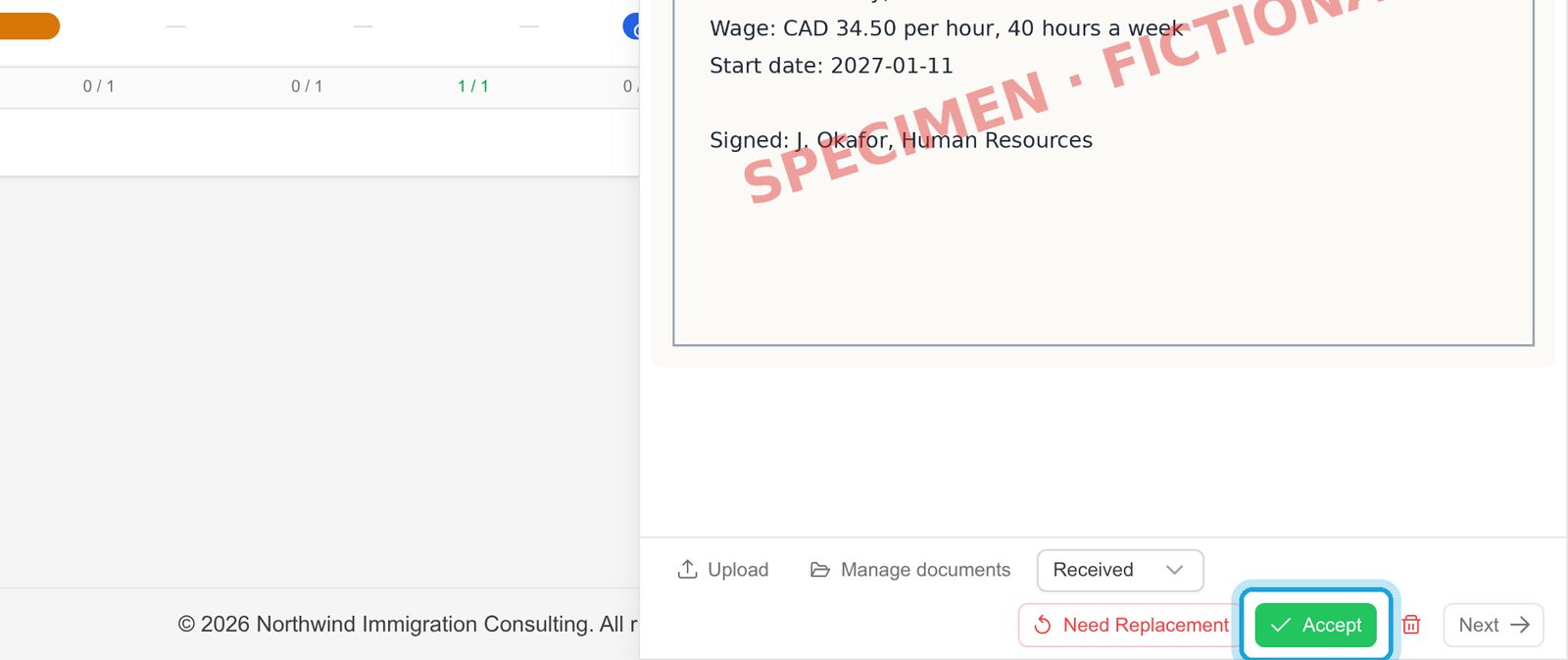
Click a cell. The document opens in a panel on the right, while the table stays where it is.
5. Accept it
Click Accept if it is right, or Need Replacement to ask the client again. The cell changes colour straight away.
6. Drop a file on a cell
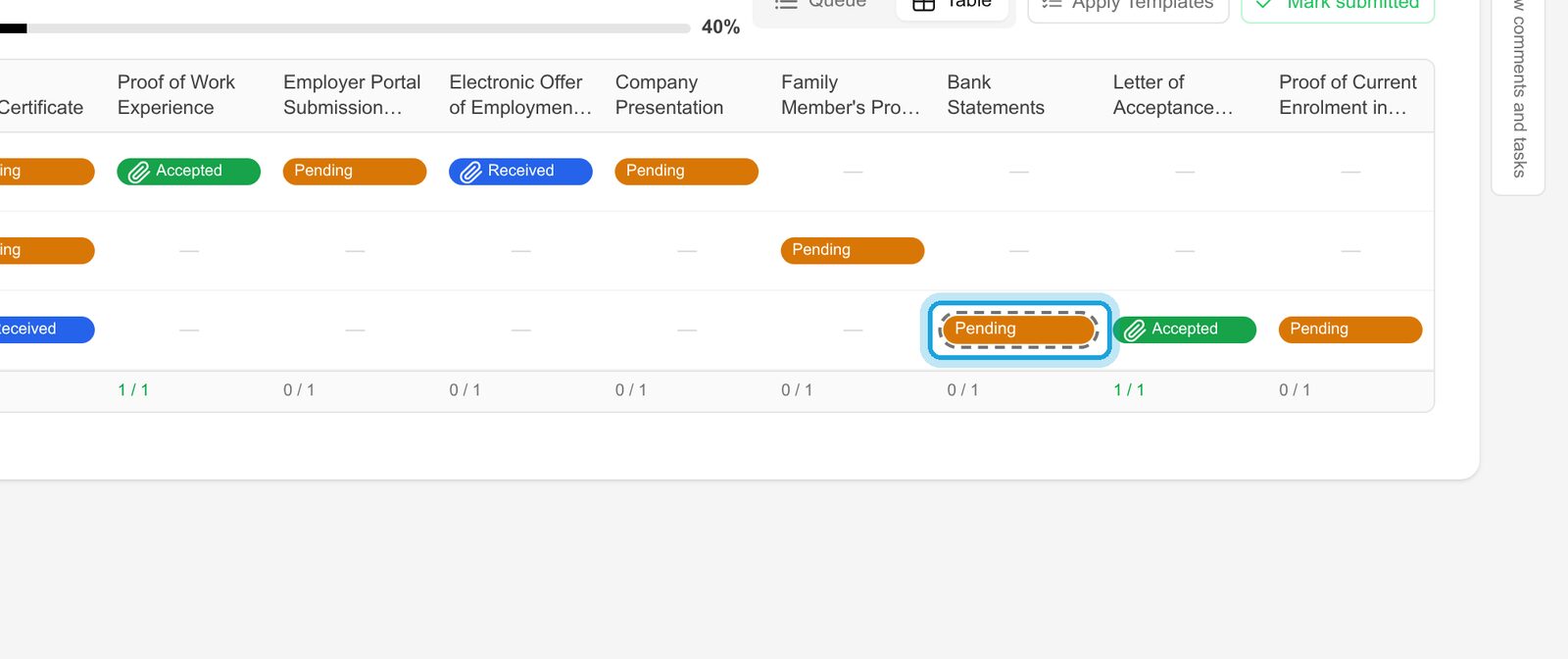
Got a document by email? Drag the file from your computer onto its cell. The cell is outlined while you hold it there.
7. Filed in the right place
The file is uploaded to that person's document and the cell turns Received, ready for you to review. It is also filed in the case's folders.
Good to know
- Filter the columns with the buttons above the table: show only what still needs attention, or only the documents.
- Back to the list view any time with Queue; both show the same checklist.
- Clients fill it too. Documents a client sends through the portal land in the same cells as Received.
Something on your screen does not match the guide? Write to us, or use Support inside ImmCase.
Next guide: Send an eForm to a client