
ImmCase user manual · Documents and applications
Keep a client's files in one place
Every client in ImmCase has their own folder, made for you the moment you create them. The File Manager tab on the client's record shows it: upload any document there, open it in one click, and find each case's files in their own folders below.
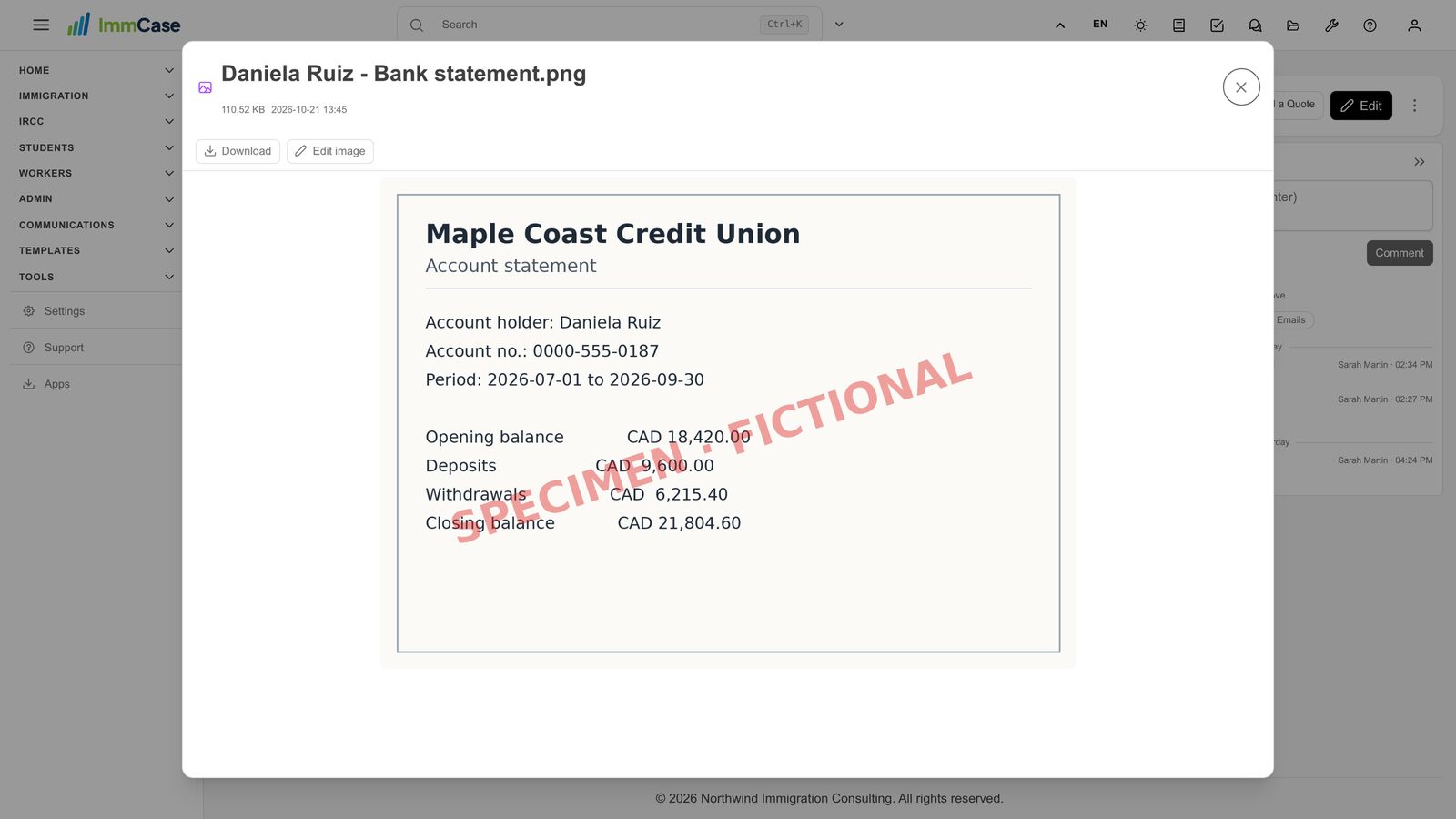
The client («Daniela Ruiz») and her bank statement in this guide are fictional; the document is a specimen.
Getting started
Documents and applications
- Collect and review documents
- Keep a client's files in one place
- See all of a case's documents at once
- Send an eForm to a client
- File an application and record IRCC’s decision
- Write a submission letter
Everyday work
On this page: Watch the video · Step by step · Good to know · PDF
Getting started
- How to create a contact · 0:59
- How to create a quote · 0:52
- How to open a case · 0:53
Documents and applications
- Collect and review documents · 0:43
- Keep a client's files in one place · 0:40
- See all of a case's documents at once · 0:47
- Send an eForm to a client · 0:38
- File an application and record IRCC’s decision · 0:48
- Write a submission letter · 0:36
Everyday work
Watch the video
Step by step
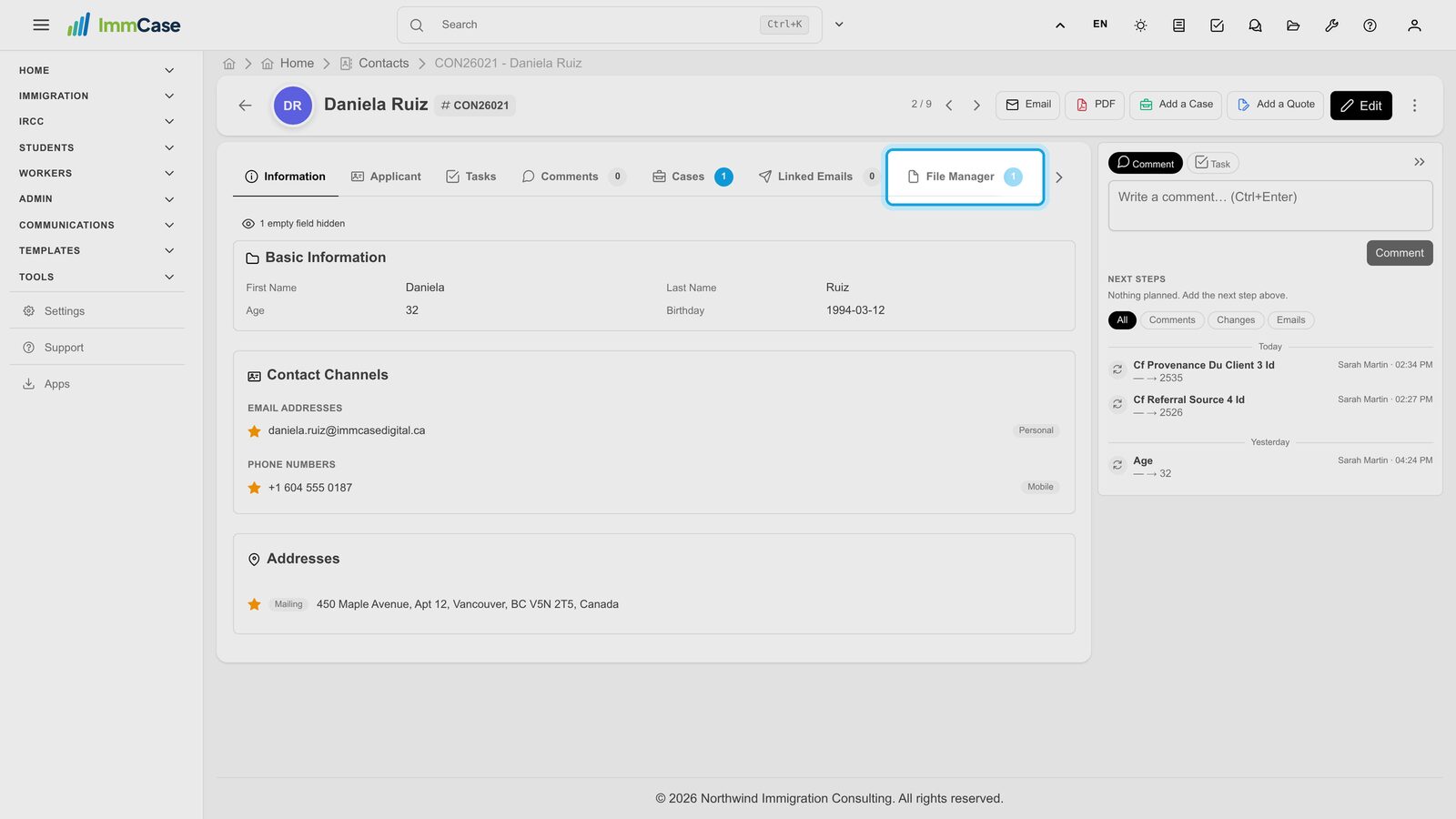
1. Open File Manager
Open the client's record and click the File Manager tab.
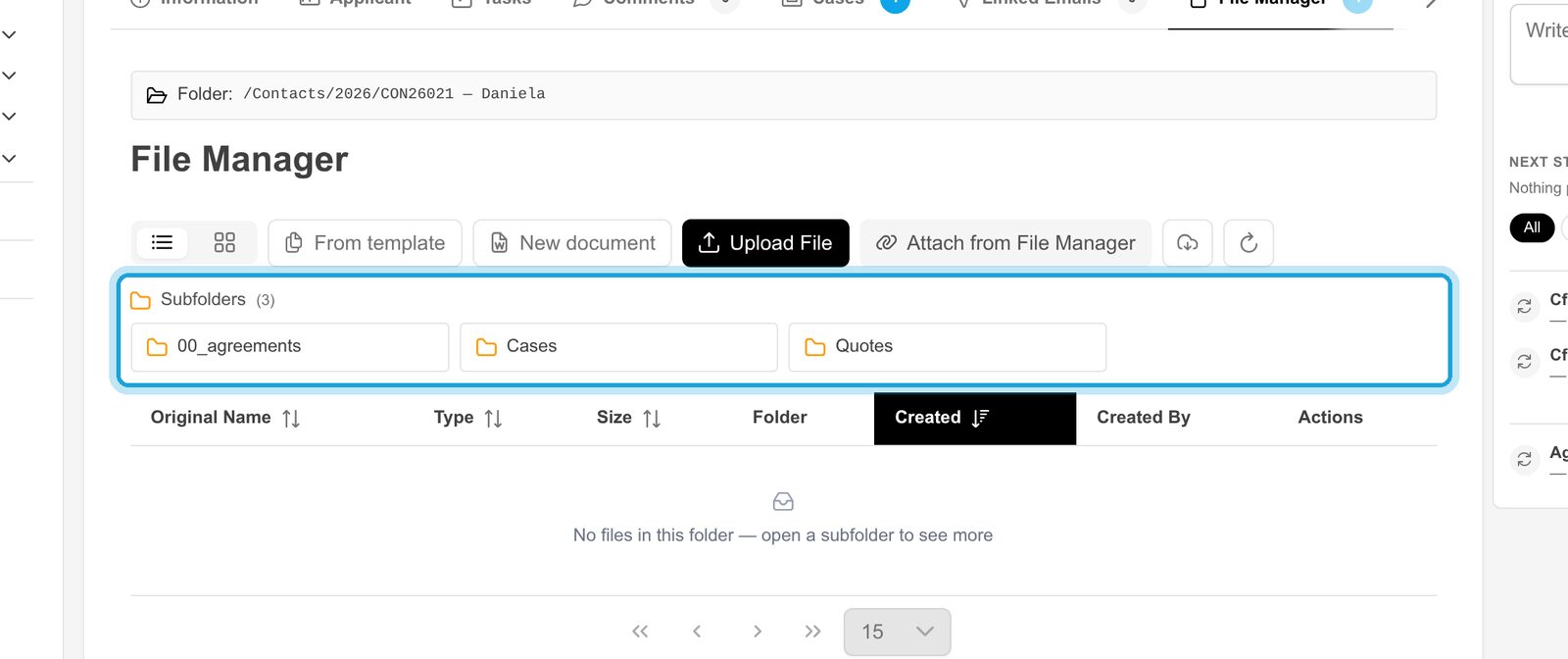
2. Folders made for you
The client's folder already has 00_agreements, Cases and Quotes. ImmCase files agreements, case documents and quotes there on its own.
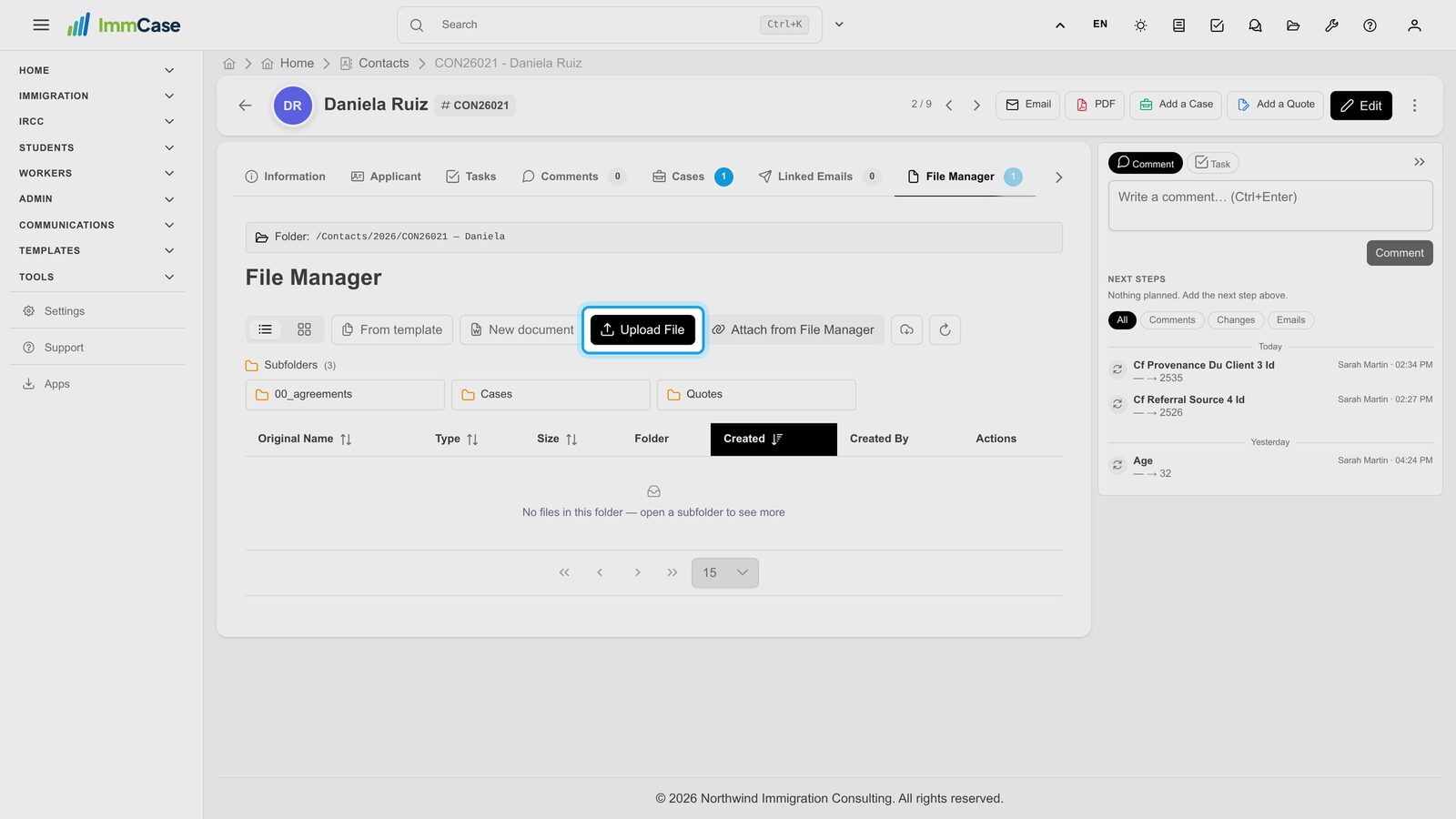
3. Upload a file
Click Upload File and choose the document on your computer.
4. It's on the client
The file is listed in the client's folder with its type, size and date, and stays there for the whole team.
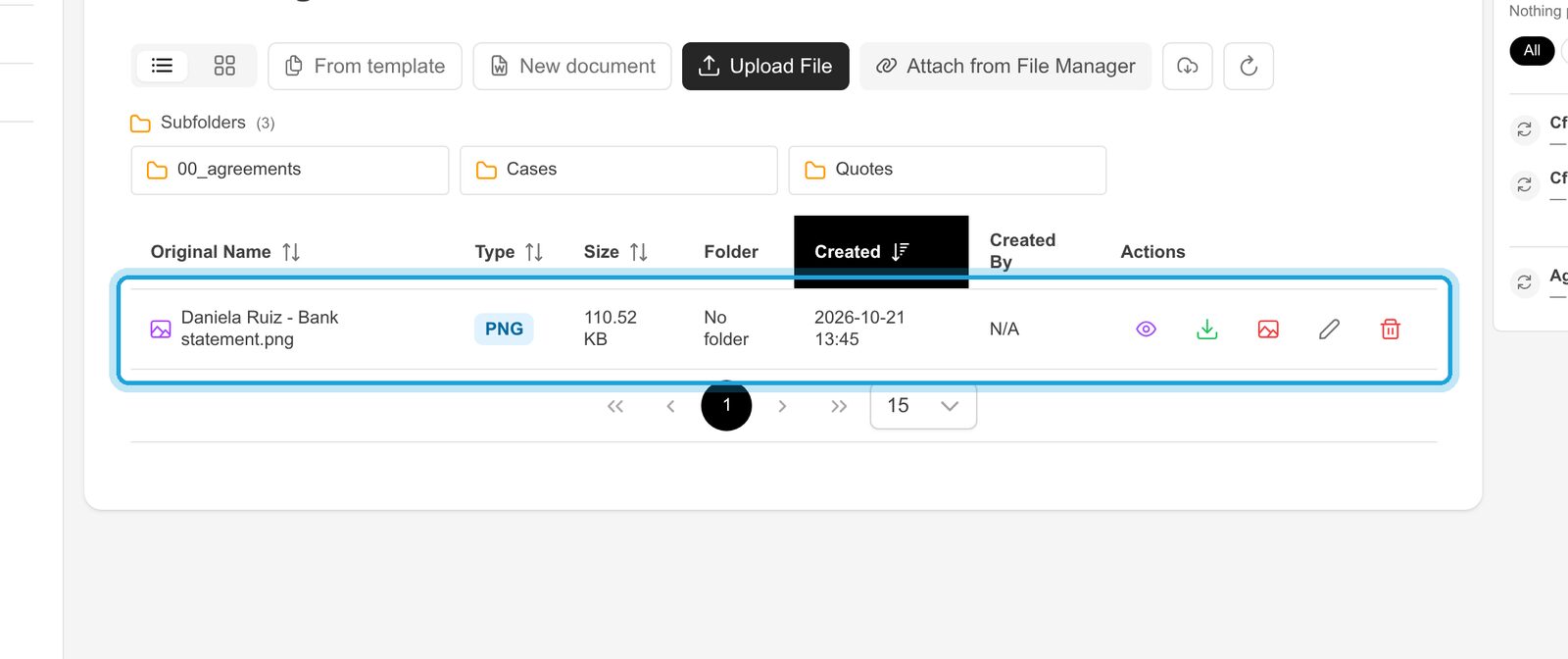
5. Open it
Click the eye in the file's row to open it right in ImmCase. From there you can Download it or, for an image, Edit it.
6. Each case has its folder
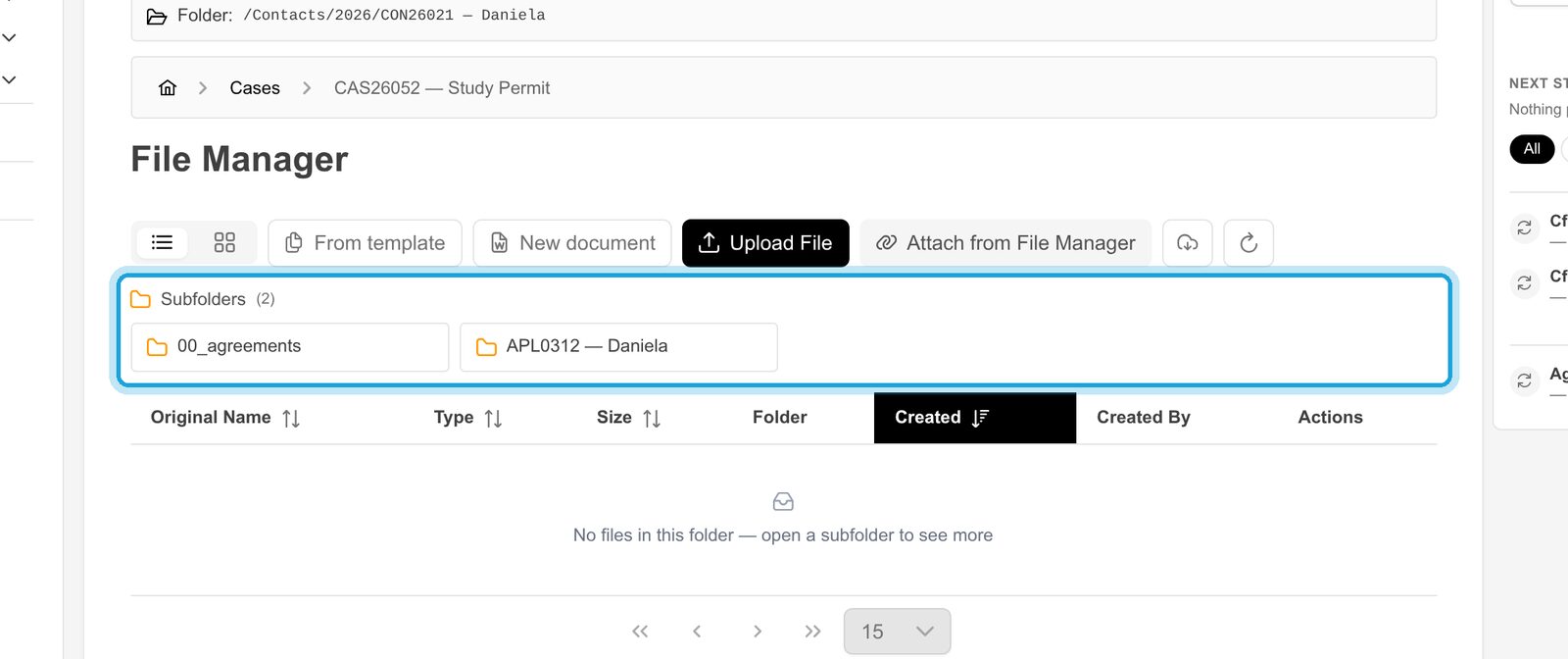
Open Cases, then a case: there is a folder for each person on it. Documents uploaded to a case's checklist are filed there automatically.
Good to know
- Documents for an application go on the case's checklist (see «Collect and review documents»): they are filed in the right person's folder and tracked until accepted.
- Everything else (correspondence, old permits, notes from the client) can go straight in the client's folder.
- The breadcrumb at the top of the list takes you back up a level.
Something on your screen does not match the guide? Write to us, or use Support inside ImmCase.
Next guide: See all of a case's documents at once