
ImmCase user manual · Documents and applications
File an application and record IRCC’s decision
Each person on a case has an application: their filing with IRCC. Record when it was sent, then, when IRCC decides, paste the status page from the IRCC portal: ImmCase reads the decision and the document IRCC issued, and keeps them on the client’s file.
The client («Daniela Ruiz»), her application, her UCI and the permit in this guide are fictional.
Getting started
Documents and applications
- Collect and review documents
- Keep a client's files in one place
- See all of a case's documents at once
- Send an eForm to a client
- File an application and record IRCC’s decision
- Write a submission letter
Everyday work
On this page: Watch the video · Step by step · Good to know · PDF
Getting started
- How to create a contact · 0:59
- How to create a quote · 0:52
- How to open a case · 0:53
Documents and applications
- Collect and review documents · 0:43
- Keep a client's files in one place · 0:40
- See all of a case's documents at once · 0:47
- Send an eForm to a client · 0:38
- File an application and record IRCC’s decision · 0:48
- Write a submission letter · 0:36
Everyday work
Watch the video
Step by step
1. The people on the case
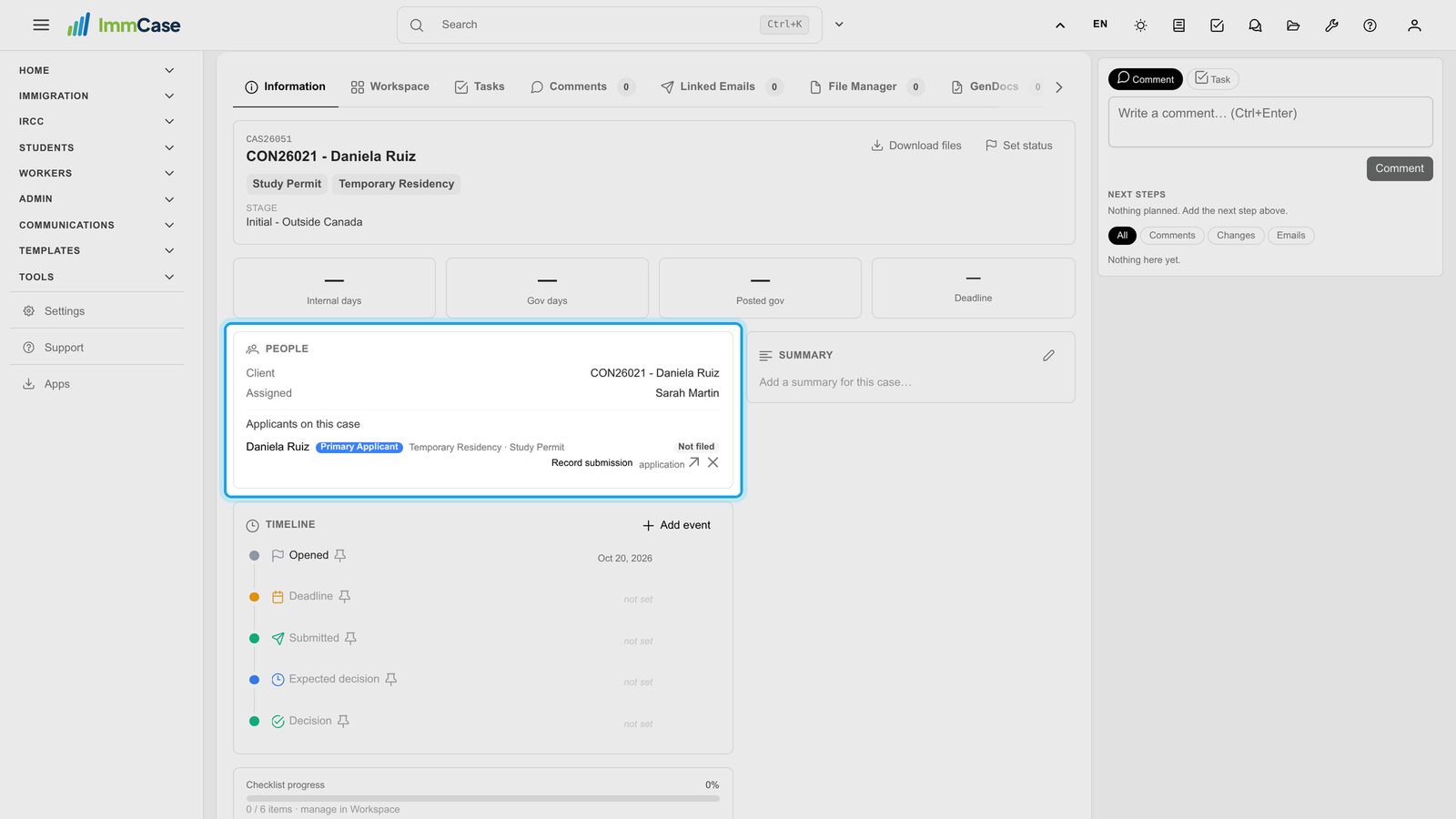
Open the case. On Information, the People card lists each applicant with their application. Not filed means it hasn’t been sent yet.
2. Record the submission
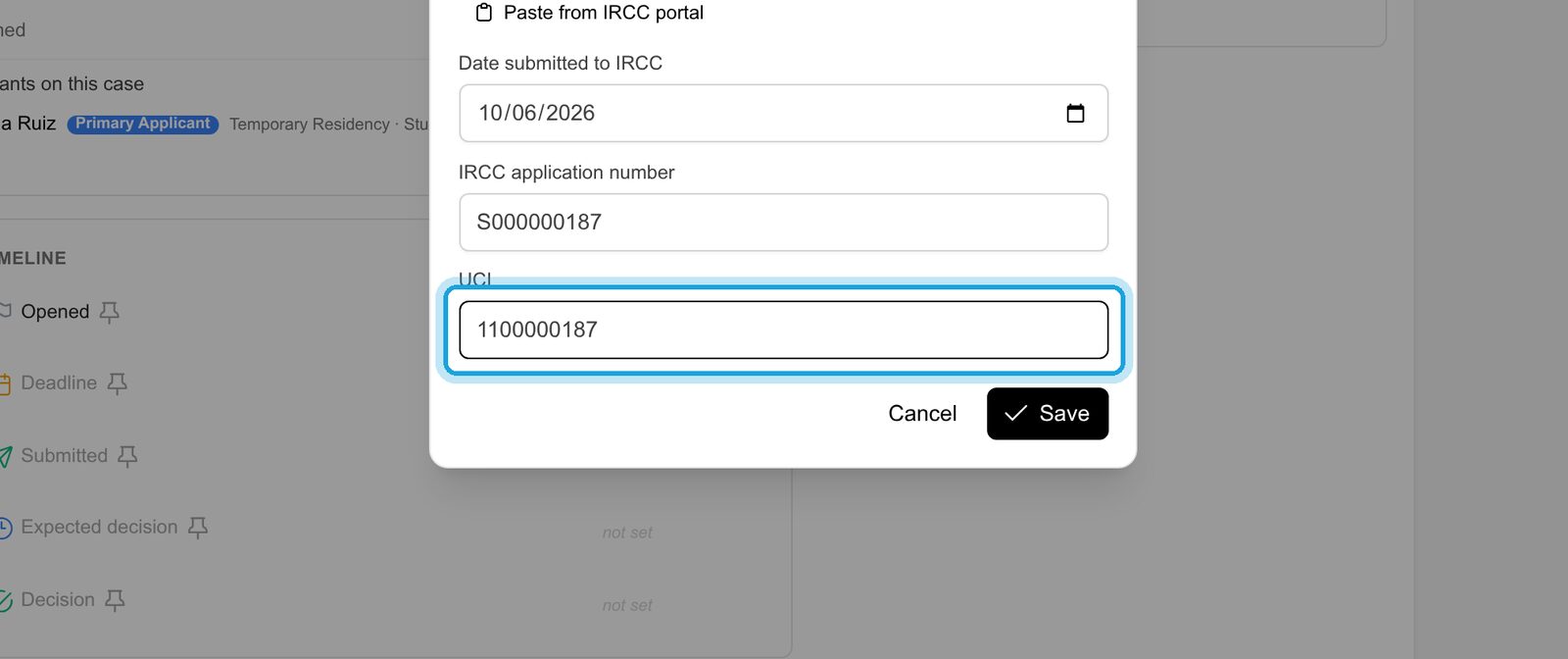
Click Record submission. Enter the date you sent it, the IRCC application number and the client’s UCI, then Save. When every application on the case is filed, the case moves to Submitted.
3. Days with IRCC
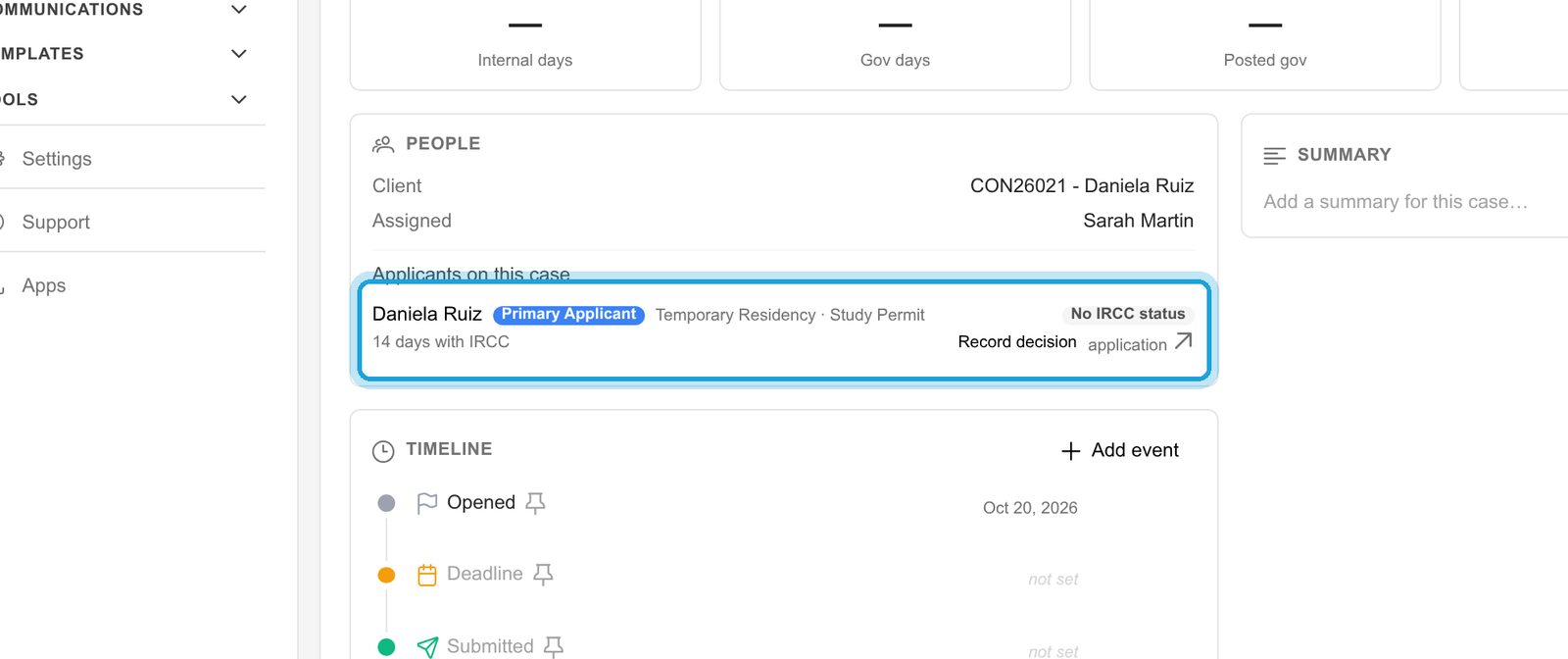
The application now counts the days it has been with IRCC, and Record decision appears.
4. IRCC decided: paste its page
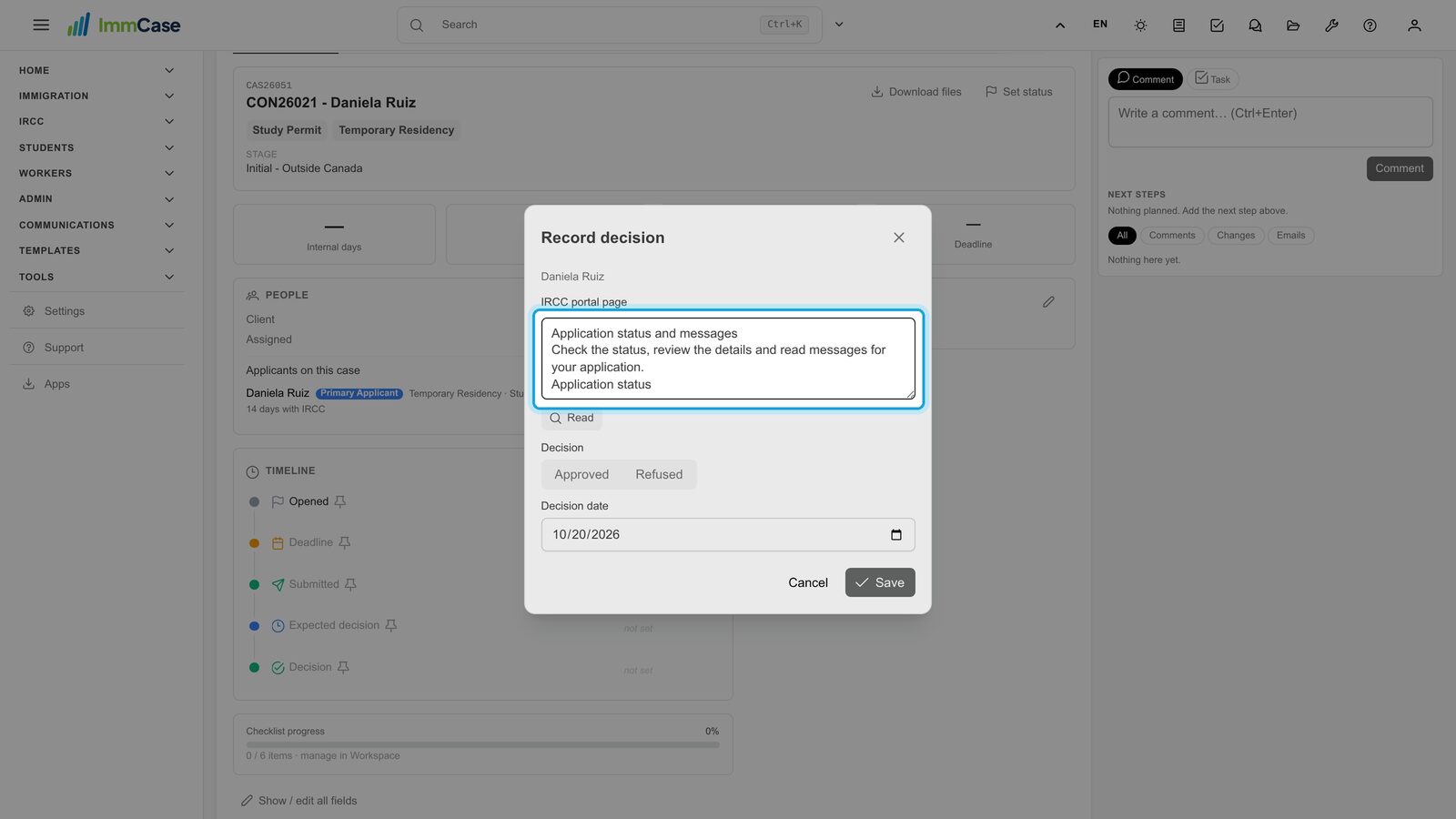
Click Record decision, then Paste from IRCC portal. In the IRCC portal, open the application’s status page, select the whole page (Ctrl+A), copy it and paste it here. ImmCase reads the English version of the page.
5. ImmCase fills it in
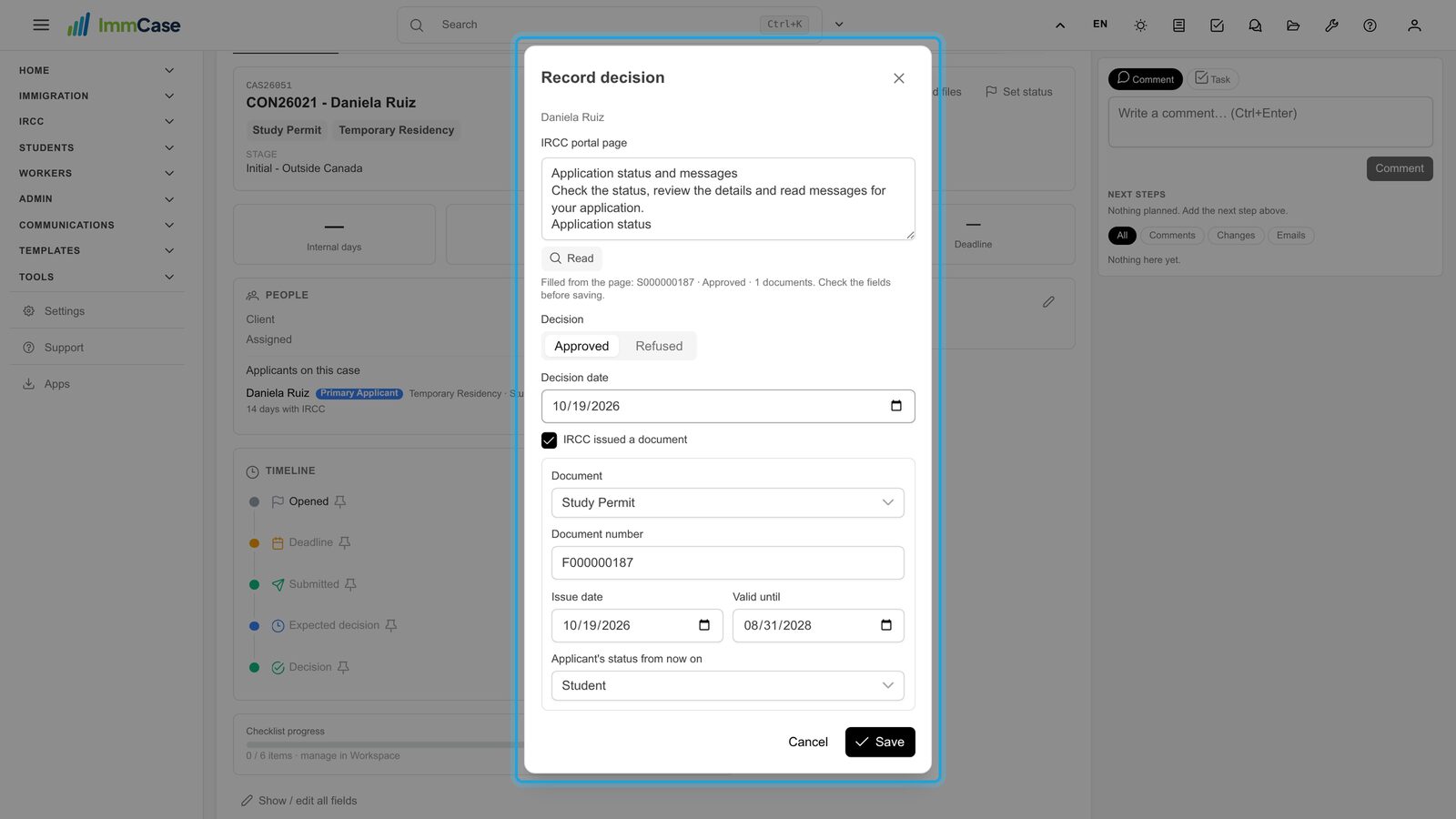
Click Read. ImmCase fills in the decision and its date, the document IRCC issued with its number and dates, and the client’s new status. Nothing is saved yet: check the fields. If the page belongs to another application or another person, ImmCase says so.
6. Approved
Click Save. The application shows the date of the decision, and the case moved to Submitted when you recorded the sending.
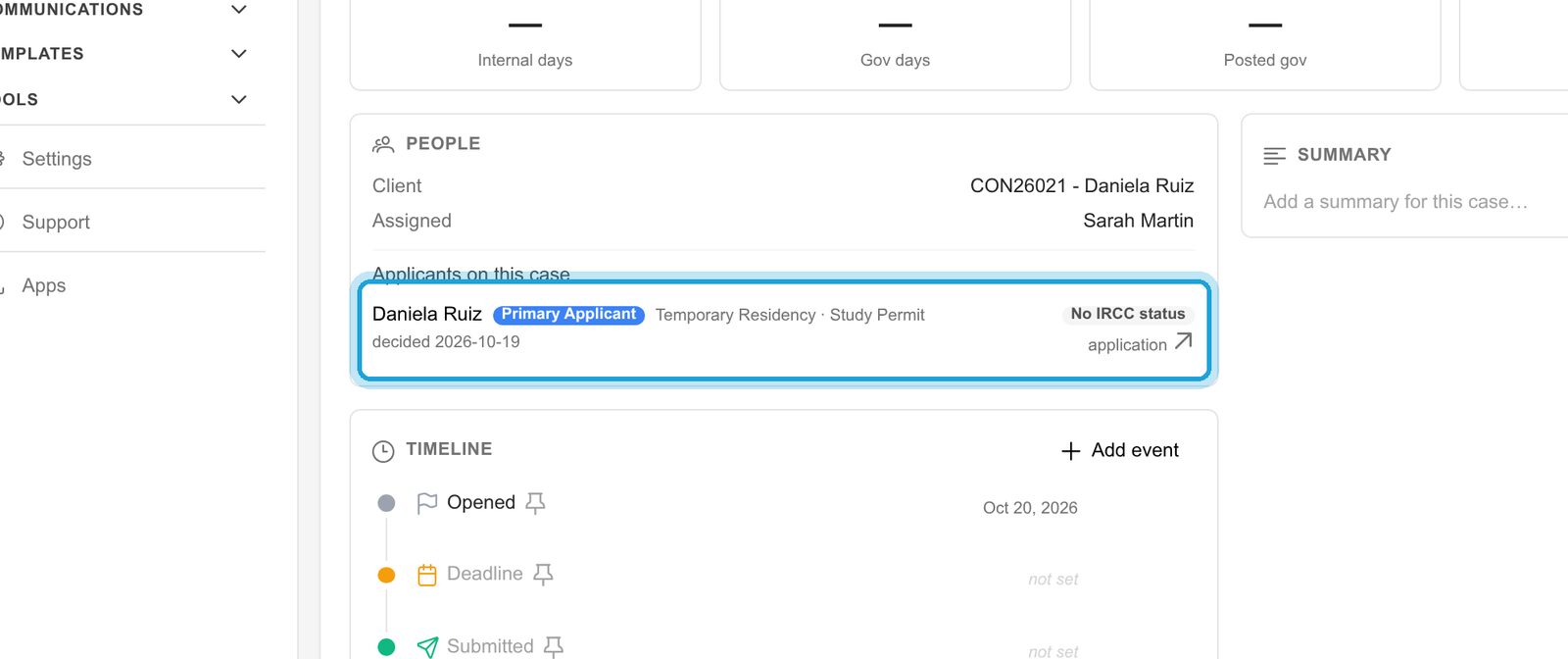
7. The permit, in IMMDocs
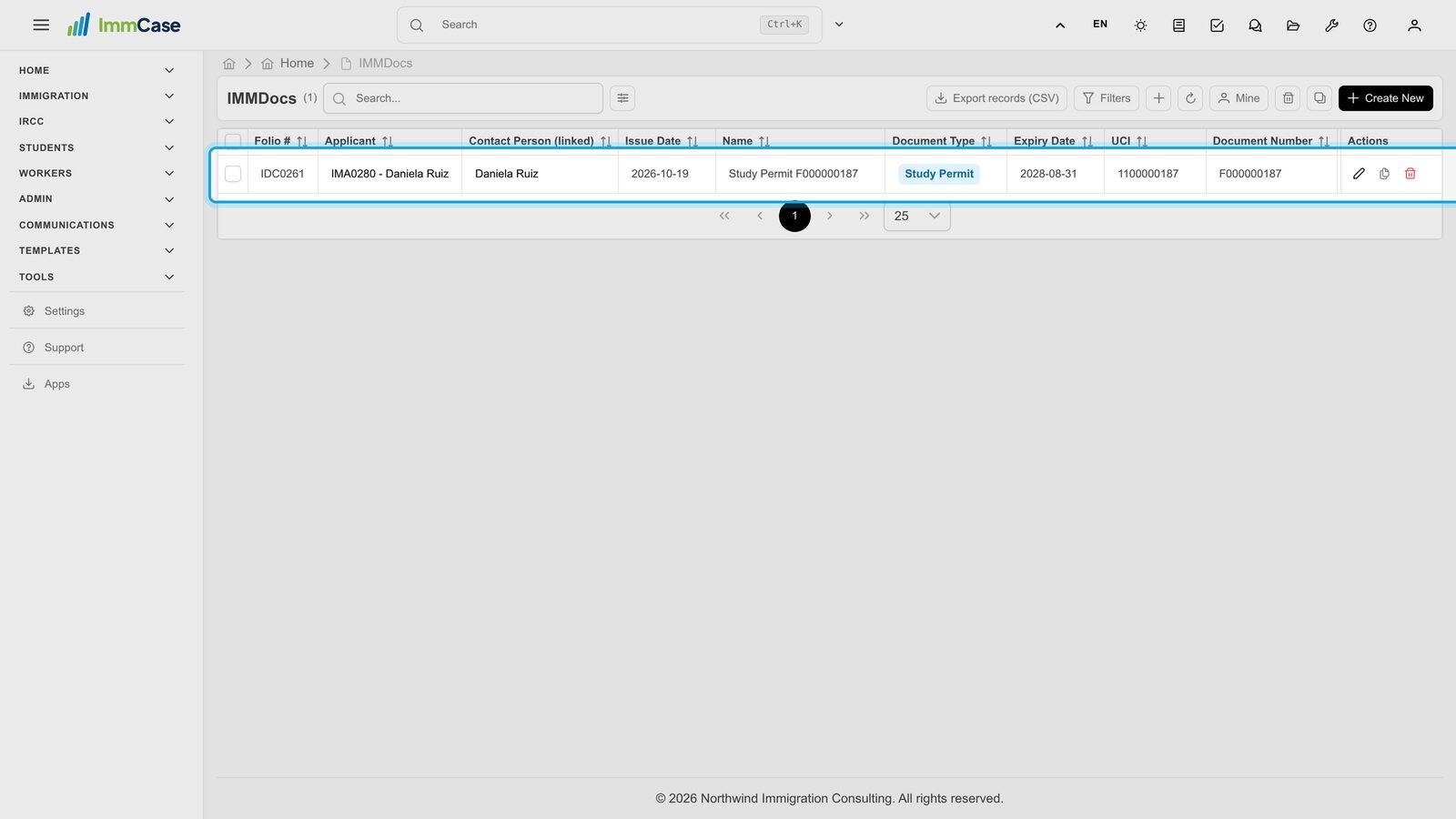
Immigration → IMMDocs lists every document IRCC issued to your clients, with its number and expiry date.
8. On the applicant’s file
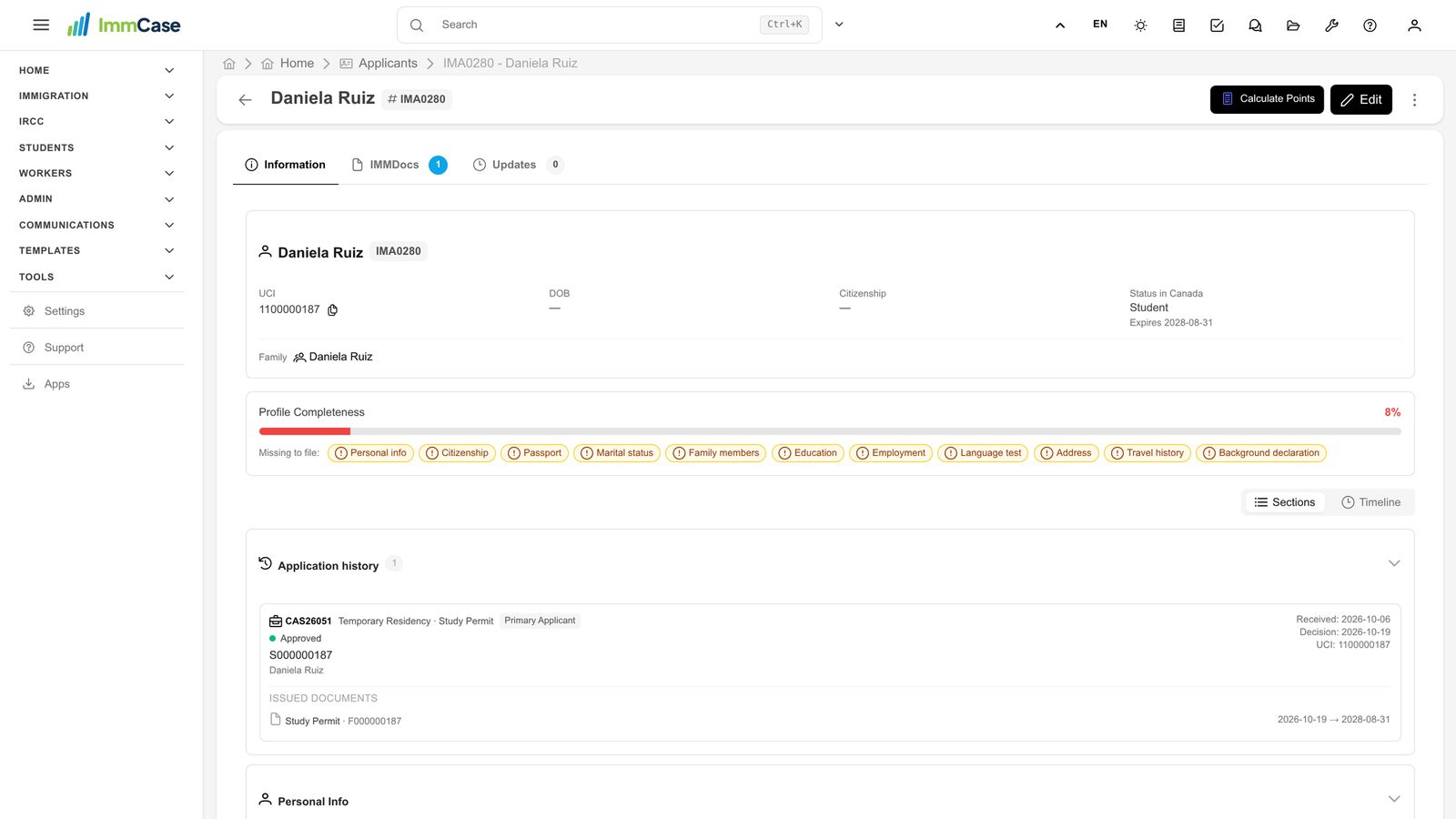
The applicant’s file keeps the application and their new status in Canada, so the next application starts from what IRCC already gave them.
Good to know
- No portal page at hand? Fill in the decision fields yourself instead of pasting.
- A refusal is recorded the same way: choose Refused; there is no document.
- A decision needs a submission first, and neither date can be in the future.
Something on your screen does not match the guide? Write to us, or use Support inside ImmCase.
Next guide: Write a submission letter