
ImmCase user manual · Everyday work
Tasks: assign, link, follow
Tasks are the to-dos of the firm. Each task can have a priority and a due date, be assigned to anyone on the team and be linked to a client or a case, so it shows up on that record too. Follow them in a list or on a Kanban board.
The firm, its staff and the client («Daniela Ruiz») in this guide are fictional.
Getting started
Documents and applications
- Collect and review documents
- Keep a client's files in one place
- See all of a case's documents at once
- Send an eForm to a client
- File an application and record IRCC’s decision
- Write a submission letter
Everyday work
On this page: Watch the video · Step by step · Good to know · PDF
Getting started
- How to create a contact · 0:59
- How to create a quote · 0:52
- How to open a case · 0:53
Documents and applications
- Collect and review documents · 0:43
- Keep a client's files in one place · 0:40
- See all of a case's documents at once · 0:47
- Send an eForm to a client · 0:38
- File an application and record IRCC’s decision · 0:48
- Write a submission letter · 0:36
Everyday work
- Notes: write, pin and find · 0:46
- Tasks: assign, link, follow · 0:47
- Calendar: meetings with your team and clients · 0:48
- Inbox: the firm’s email, next to its clients · 0:52
- Chat: talk to your team without leaving ImmCase · 0:53
- Dashboard: the firm at a glance · 0:47
- Add your own fields · 0:40
Watch the video
Step by step
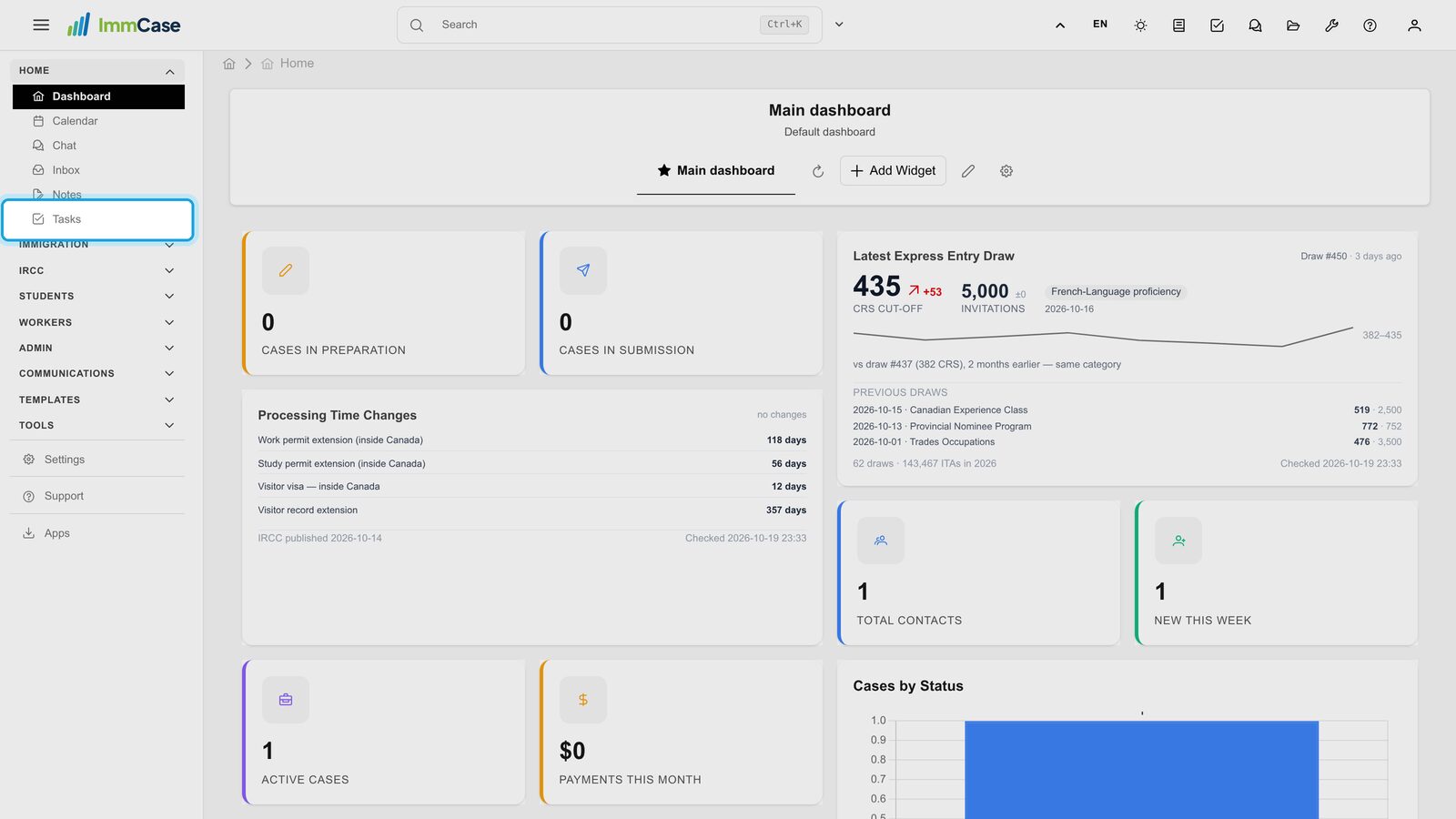
1. Open Tasks
In the left menu, open Home and click Tasks.
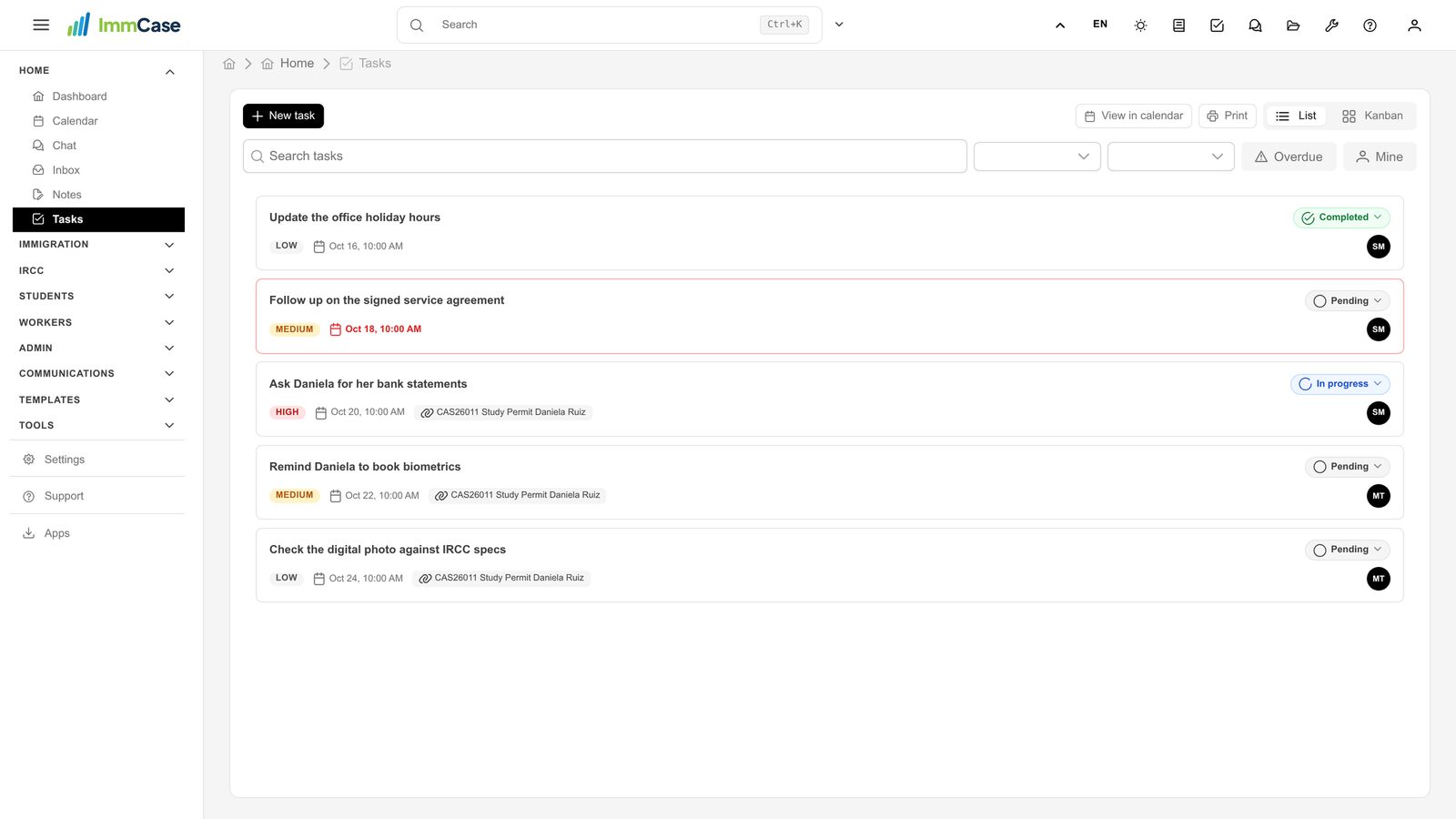
2. The firm’s tasks
Each task shows its priority, its due date (red when it is late), the record it belongs to and who it is assigned to.
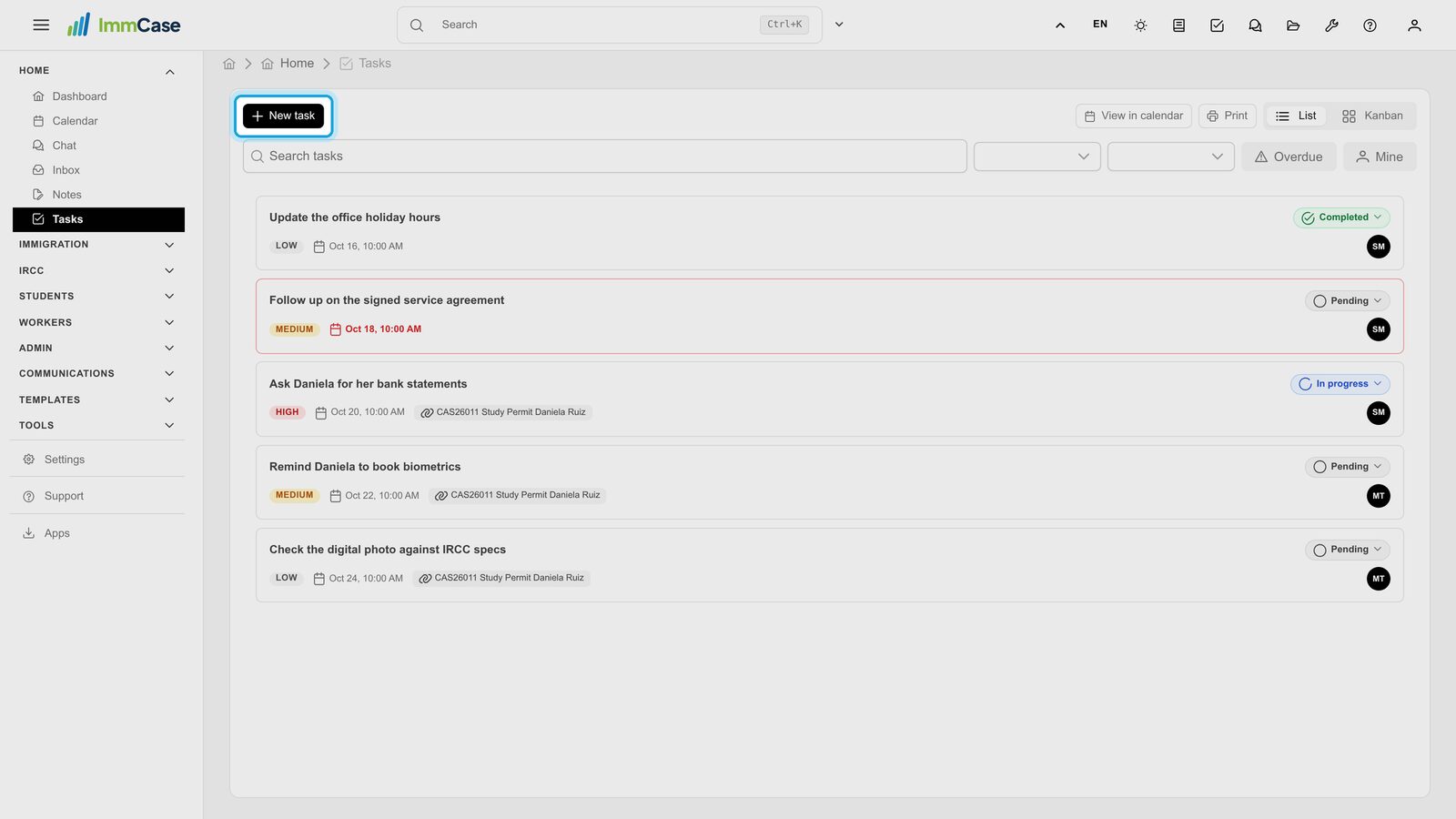
3. New task
Click New task.
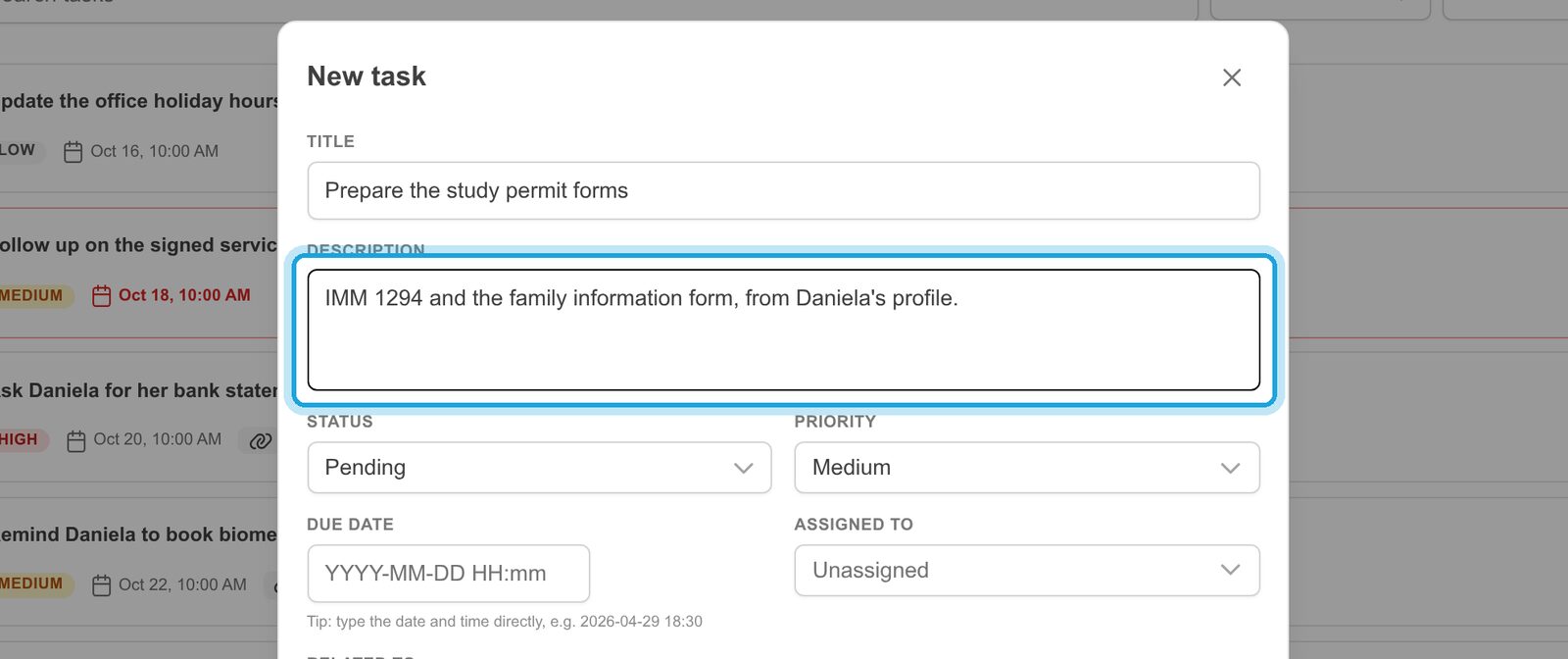
4. What needs doing
Type the title. Add details in Description if the person doing it will need them.
5. Priority and due date
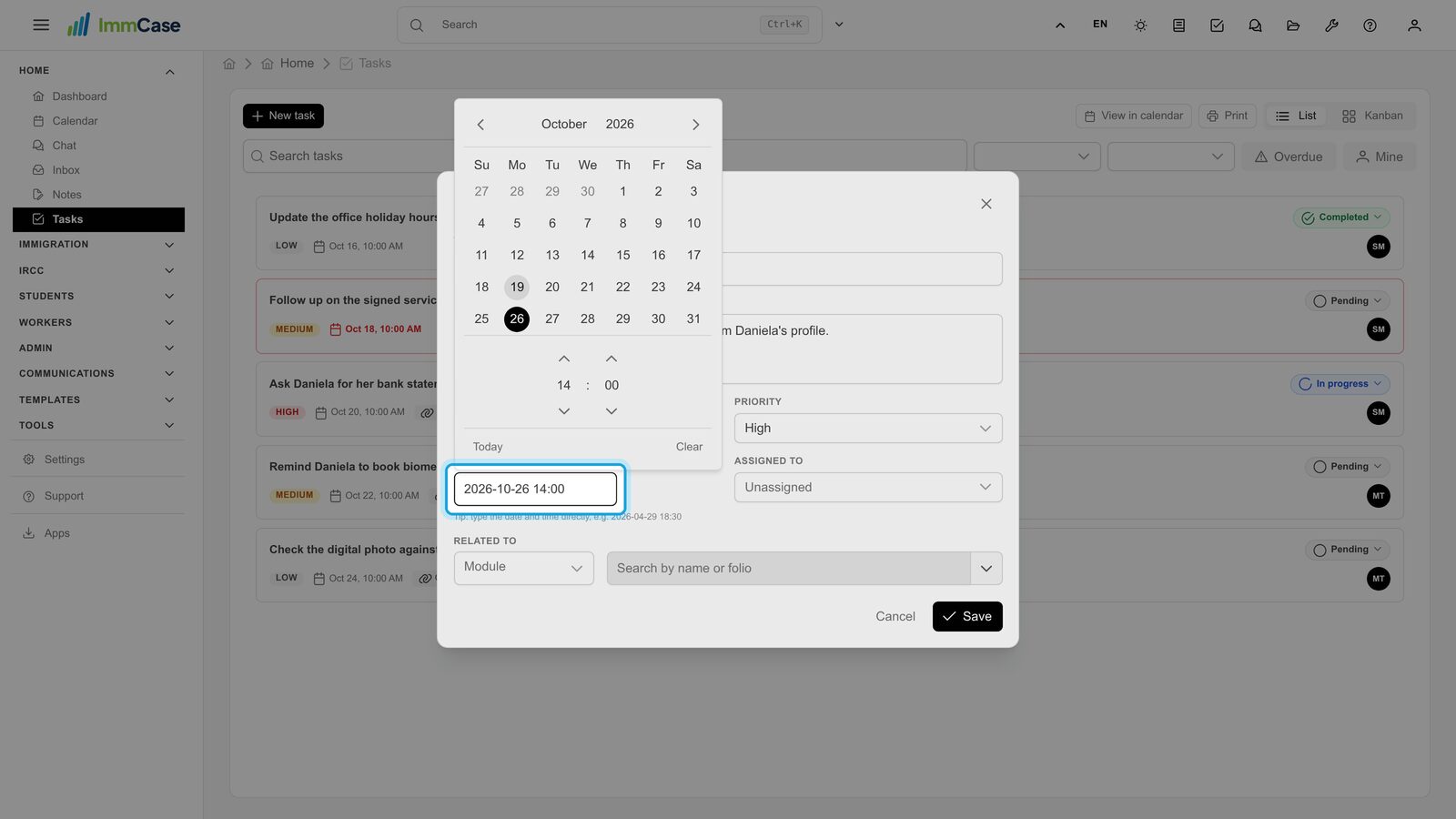
Pick a Priority, then a Due date: choose it in the calendar or type it.
6. Assign it
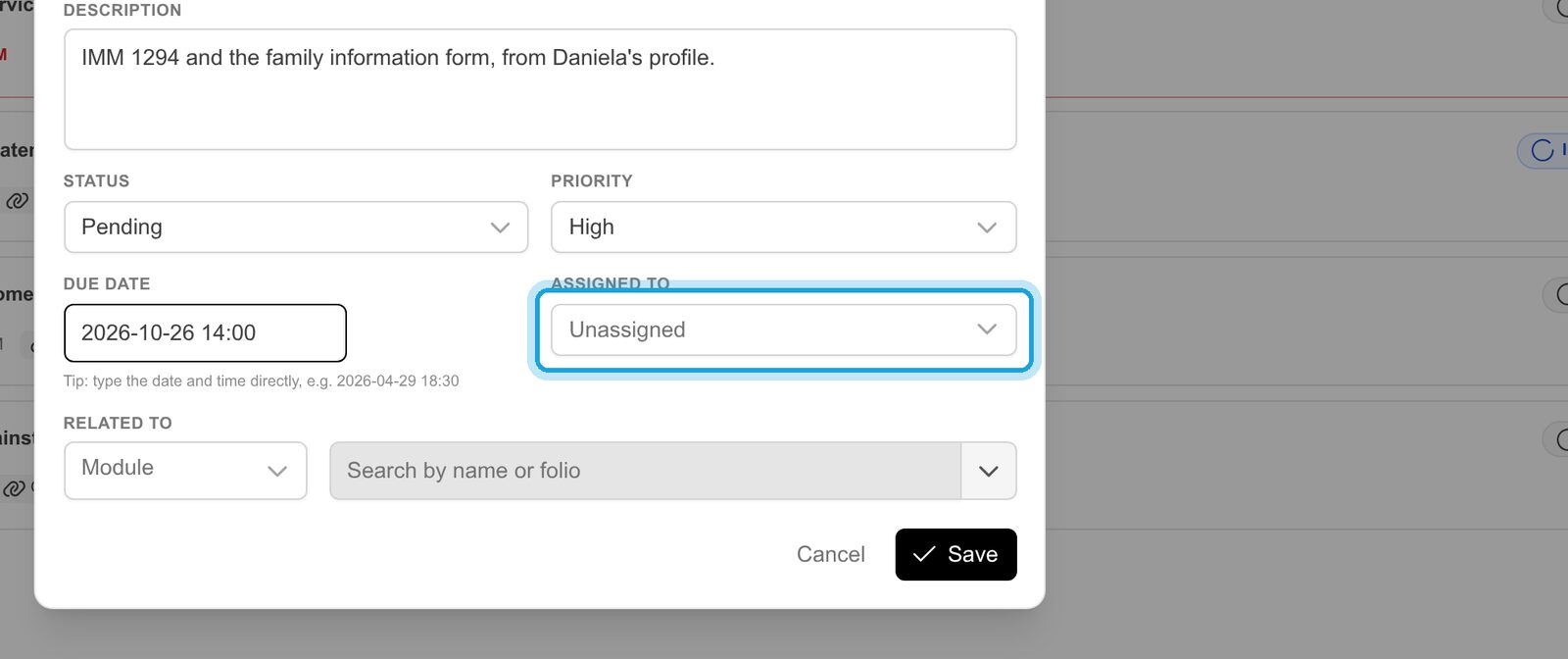
In Assigned to, choose who will do it. Leave it Unassigned to keep it for later.
7. Link it to the case
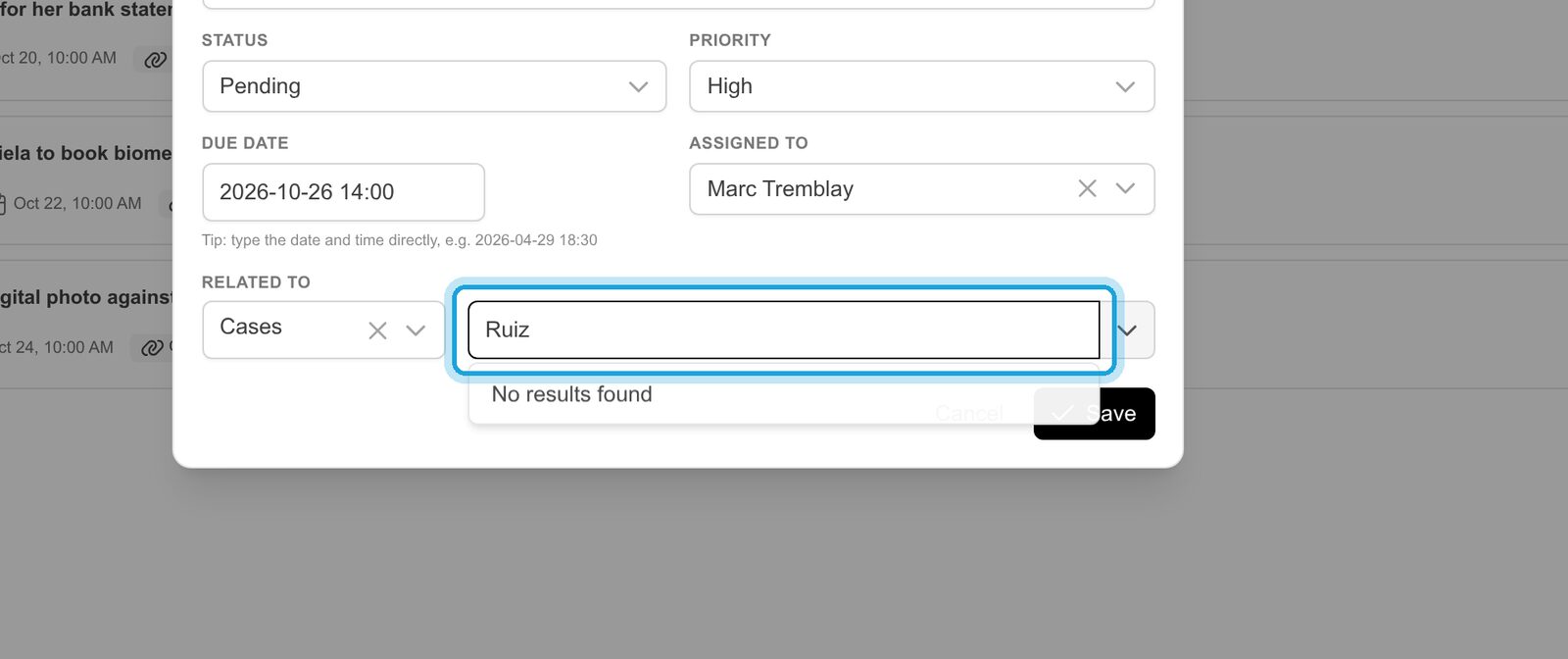
In Related to, pick the kind of record (here Cases), then search by name or folio. The task will also appear on that case.
8. Save
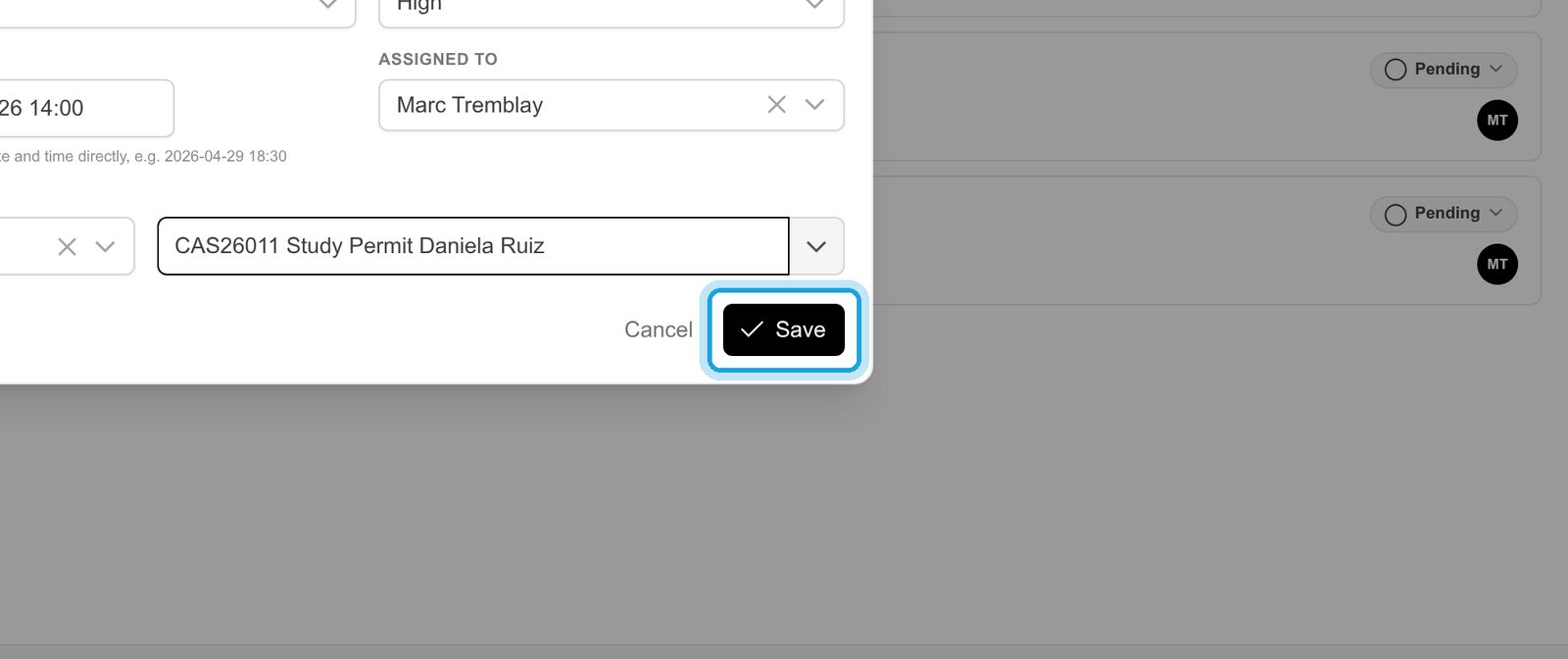
Check the task and click Save.
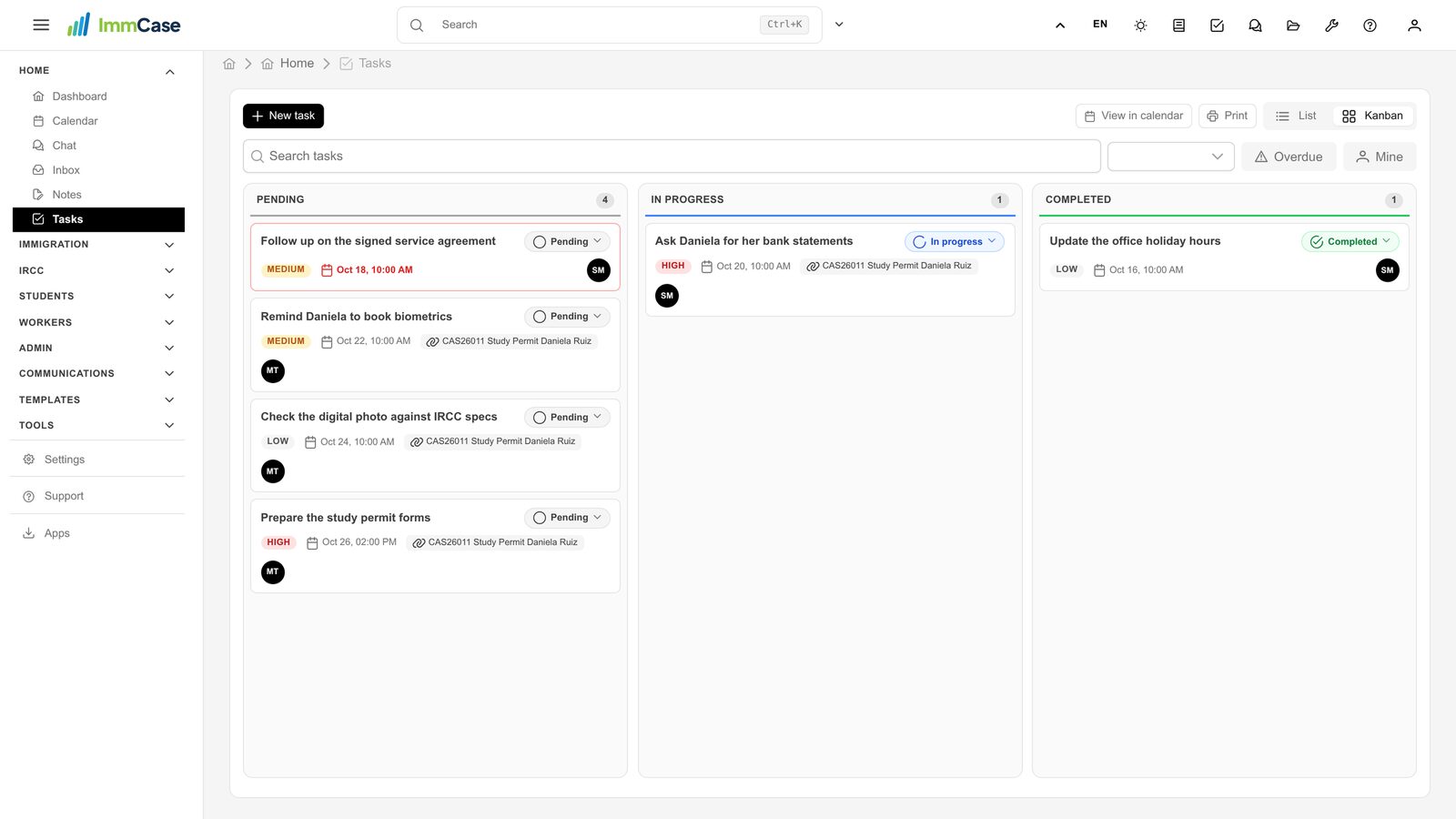
9. The Kanban board
Click Kanban to see the tasks by status: Pending, In progress, Completed. Drag a card to another column to change its status.
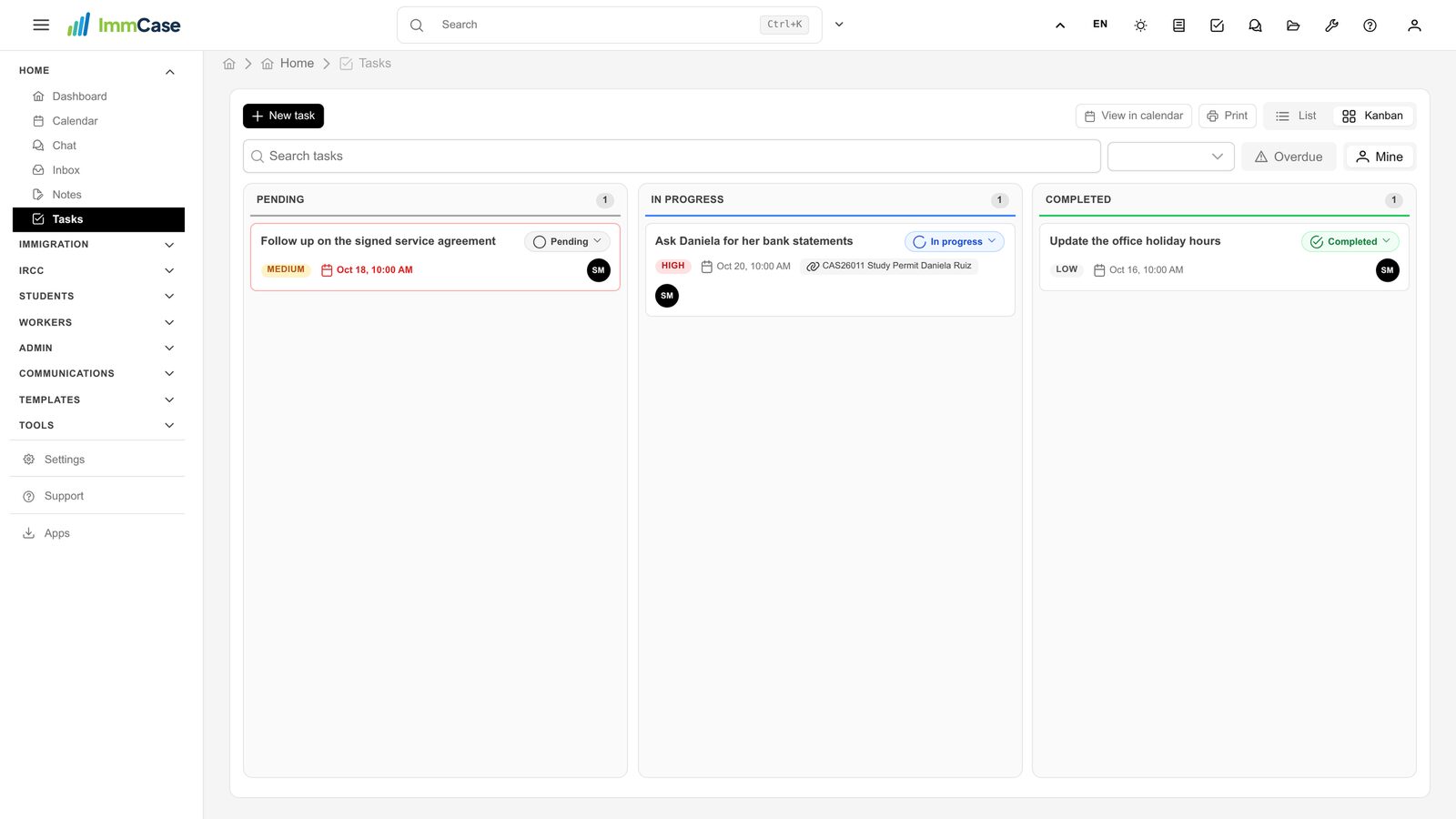
10. Only mine
Mine shows only the tasks assigned to you; Overdue only the late ones. Use them together to see what you owe today.
Good to know
- From the case itself: the case’s Tasks panel has an Add button that creates a task already linked to that case.
- From anywhere: the check-box icon at the top of every screen opens the same New task window.
- See them on the calendar: View in calendar shows tasks on their due dates.
Something on your screen does not match the guide? Write to us, or use Support inside ImmCase.
Next guide: Calendar: meetings with your team and clients