
ImmCase user manual · Getting started
How to create a quote
A quote tells the client what the work will cost before you start: your professional fees and the government fees you pass through. When the client accepts, one click turns it into an invoice. You need the client's contact first.
Every screen in this guide comes from ImmCase itself, filled with a fictional client («Daniela Ruiz») and firm («Northwind Immigration Consulting»). Prices are invented.
Getting started
- How to create a contact
- How to create a quote
- How to open a case
Documents and applications
- Collect and review documents
- Keep a client's files in one place
- See all of a case's documents at once
- Send an eForm to a client
- File an application and record IRCC’s decision
- Write a submission letter
Everyday work
On this page: Watch the video · Step by step · Good to know · PDF
Getting started
- How to create a contact · 0:59
- How to create a quote · 0:52
- How to open a case · 0:53
Documents and applications
- Collect and review documents · 0:43
- Keep a client's files in one place · 0:40
- See all of a case's documents at once · 0:47
- Send an eForm to a client · 0:38
- File an application and record IRCC’s decision · 0:48
- Write a submission letter · 0:36
Everyday work
Watch the video
Step by step
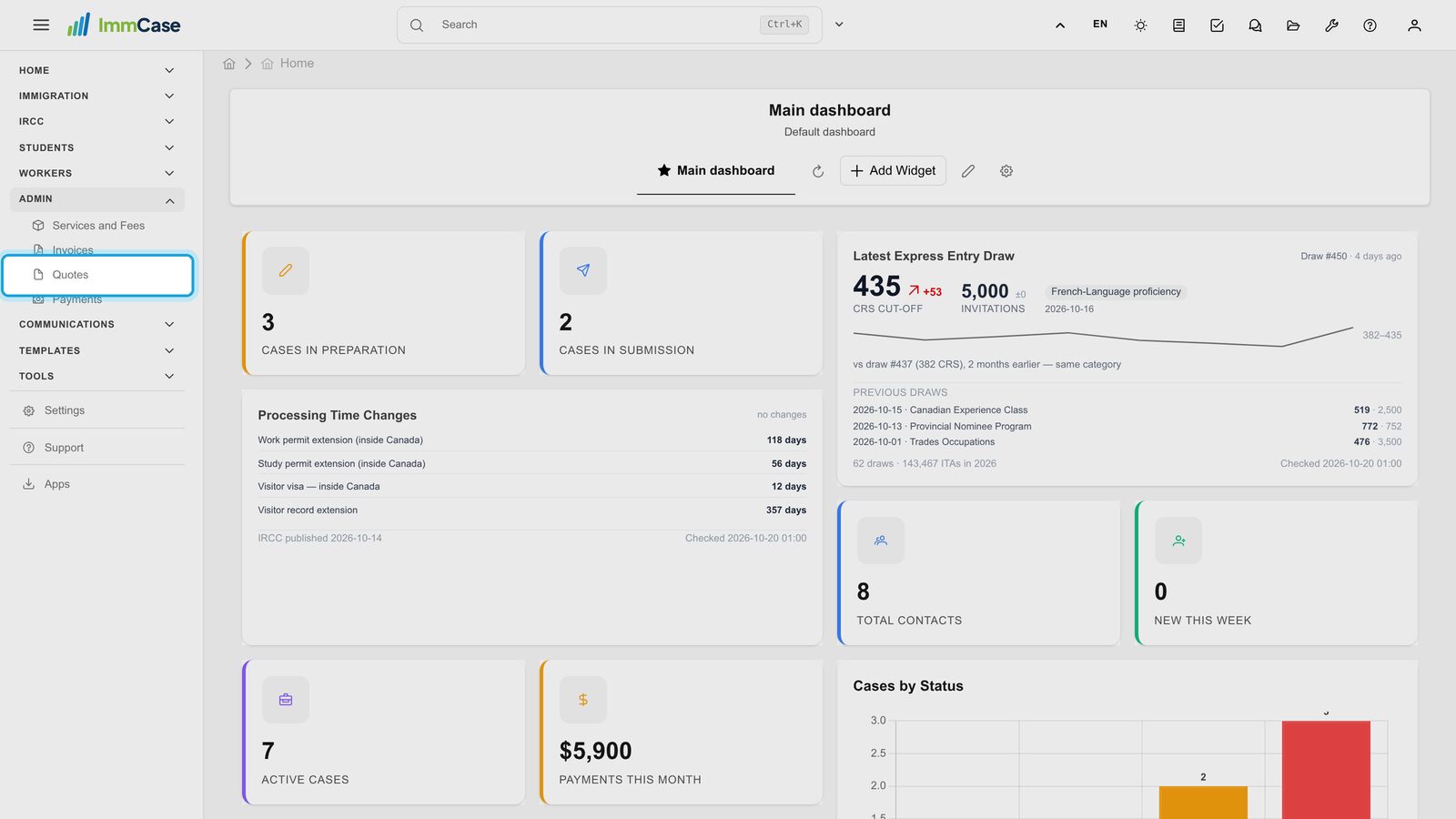
1. Open Quotes
In the left menu, open Admin and click Quotes.
2. Start a new quote
Click Create New, top right of the list.
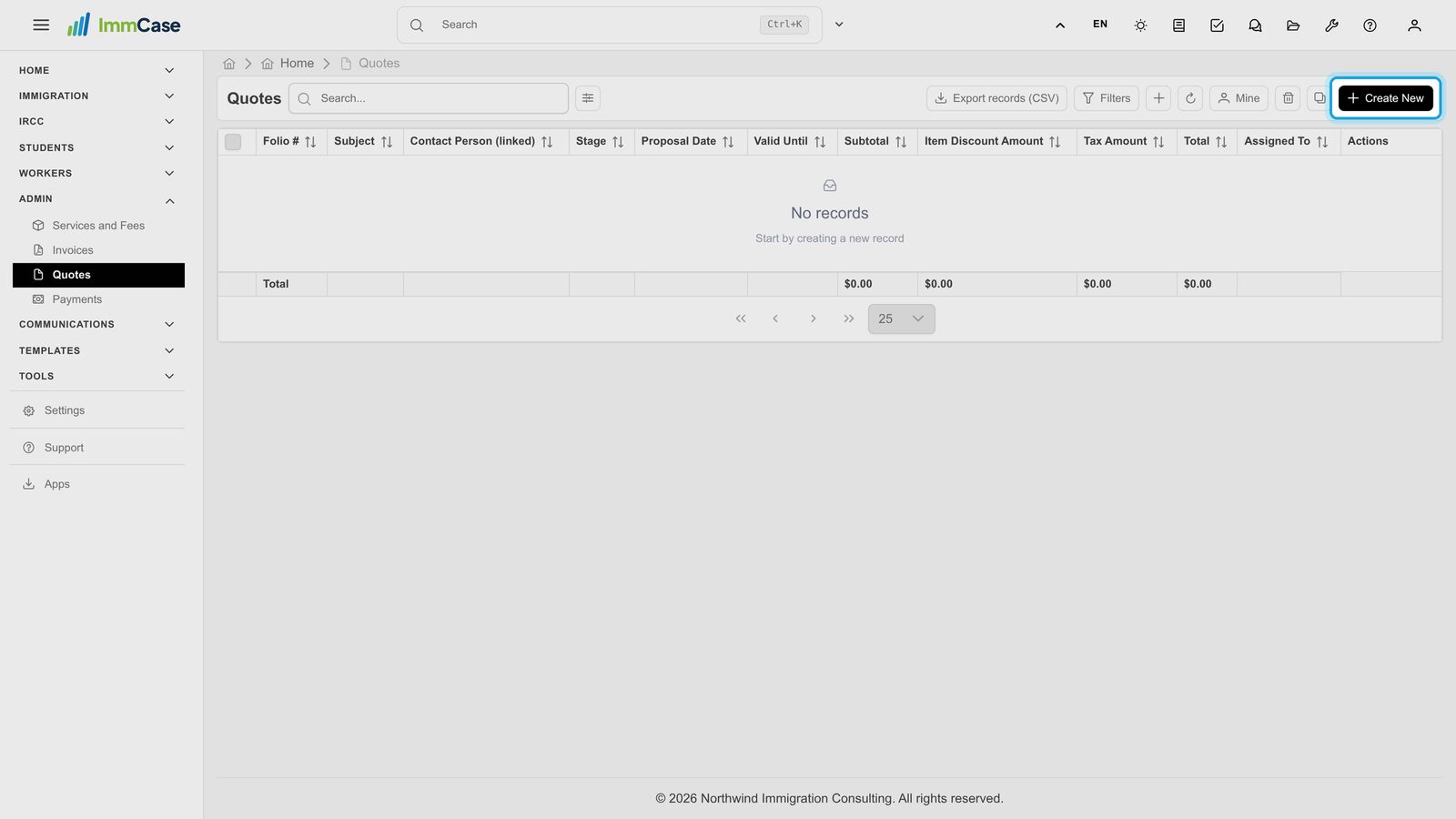
3. Subject and dates
Give the quote a subject the client will recognise, such as «Study permit - Daniela Ruiz». Valid until is the date the price holds; type it as YYYY-MM-DD or pick it from the calendar.
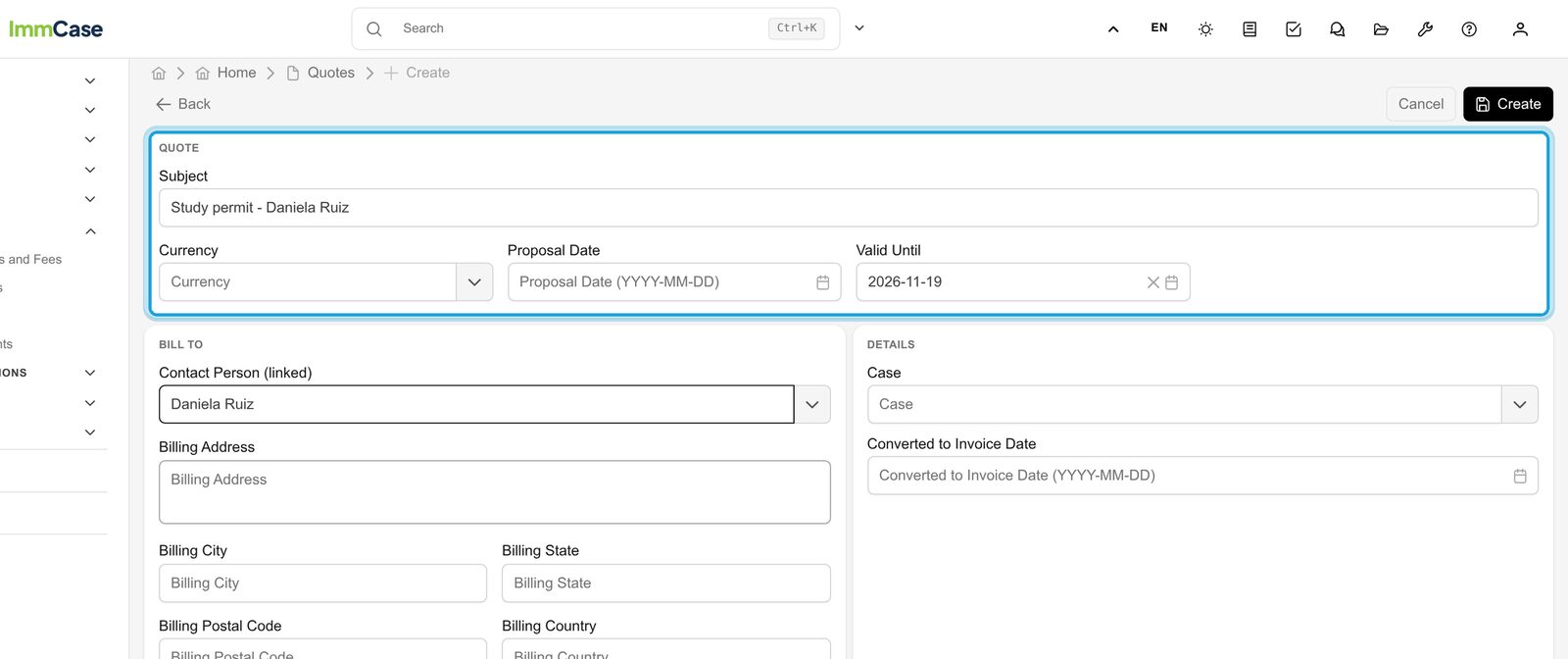
4. Who it is for
Under Bill to, type part of the client's name in Contact Person and pick them from the list.
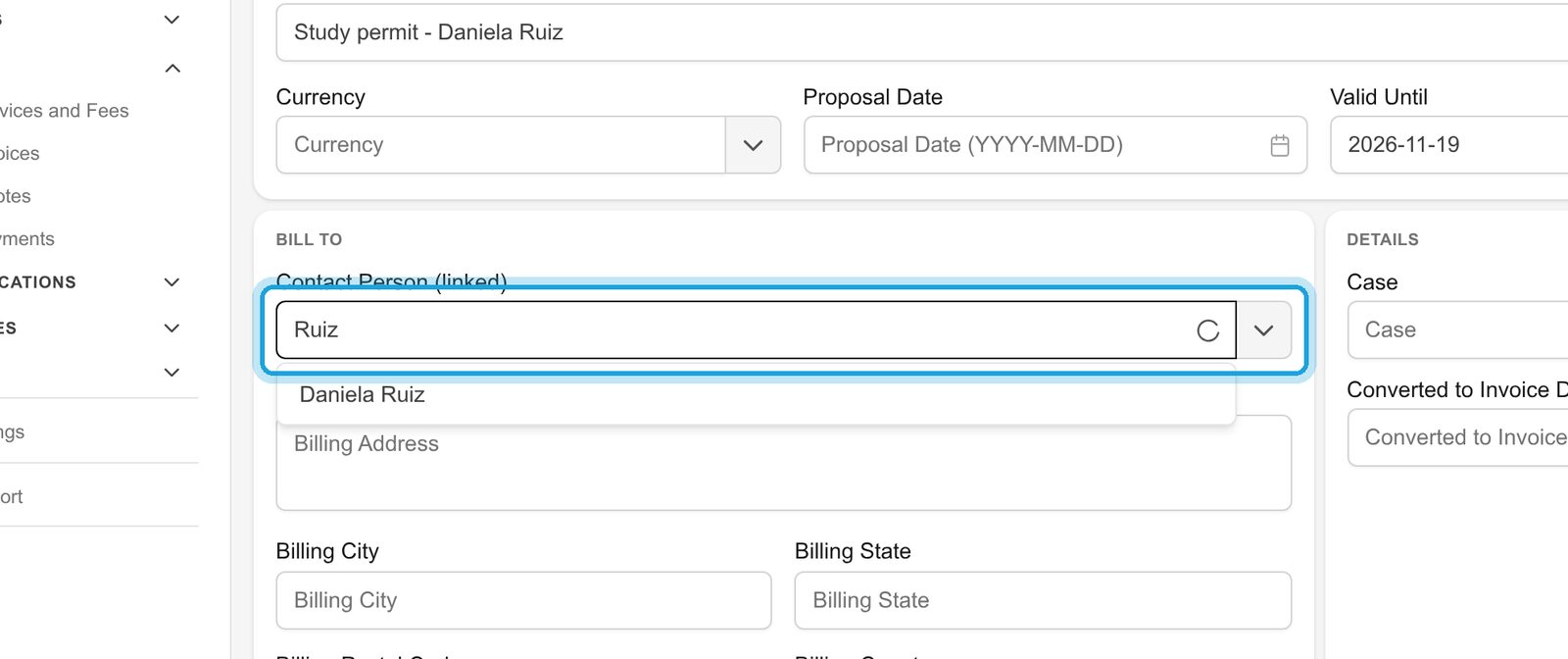
5. Add the first line
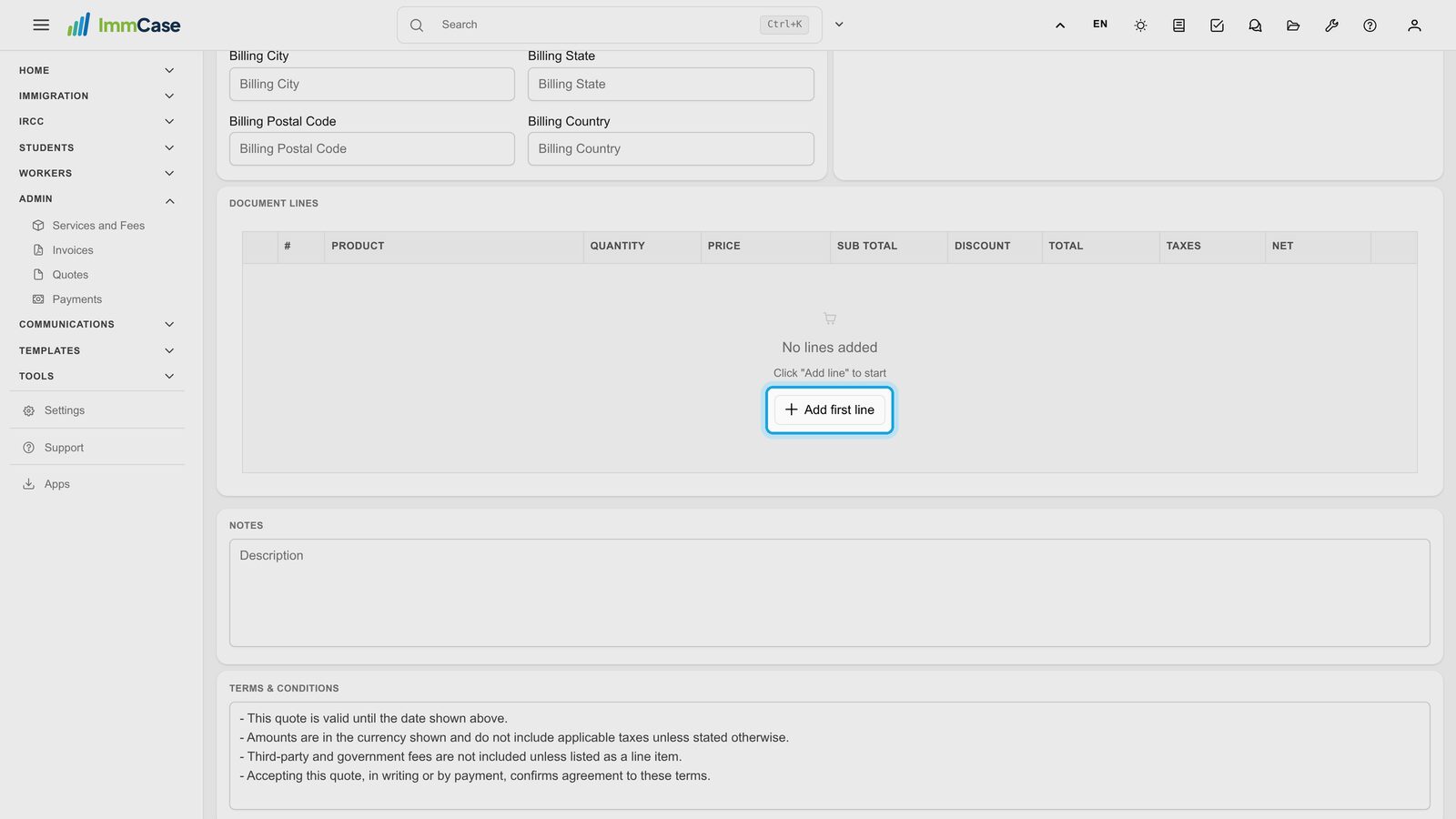
Under Document lines, click Add first line.
6. Your services and fees
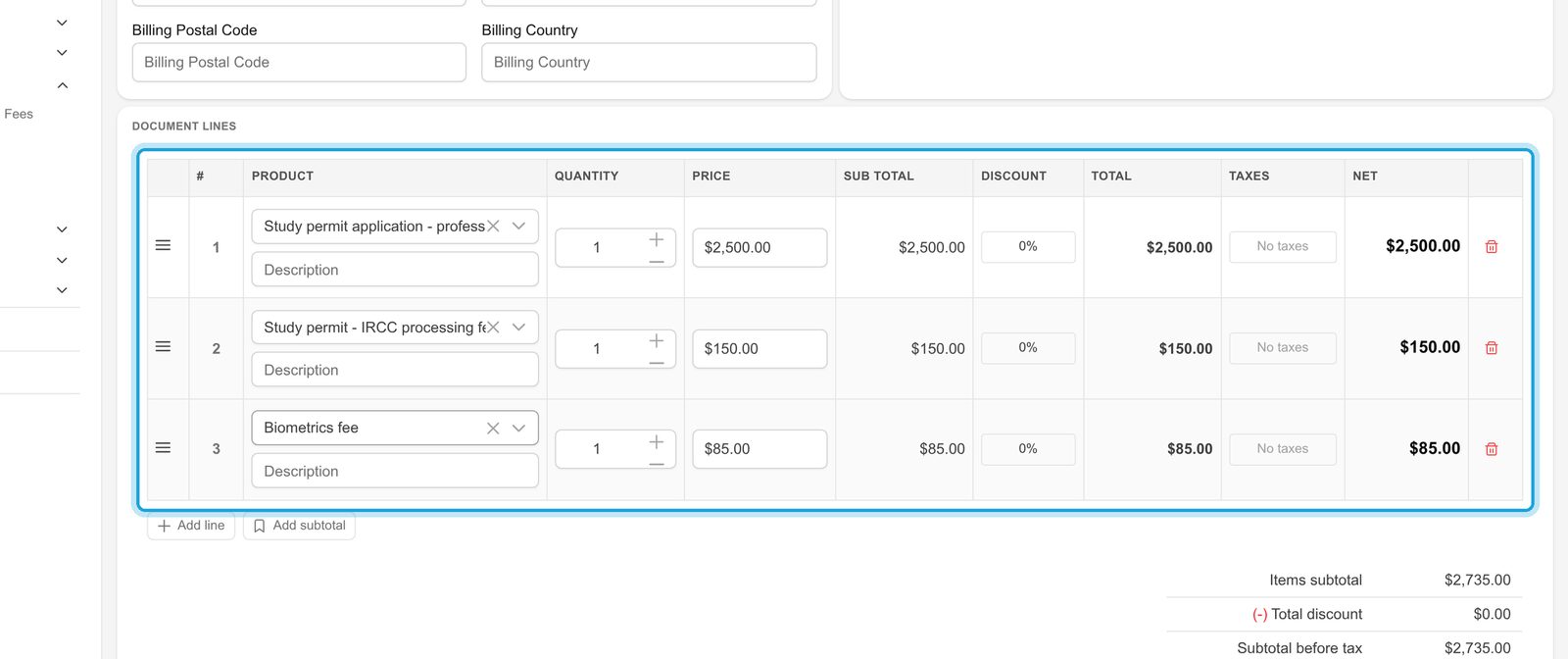
Pick a service in Product: its price comes from your Services and Fees list, and you can change it on this quote. Click Add line for each extra item, such as the IRCC processing fee and biometrics. Totals update as you go.
7. Save
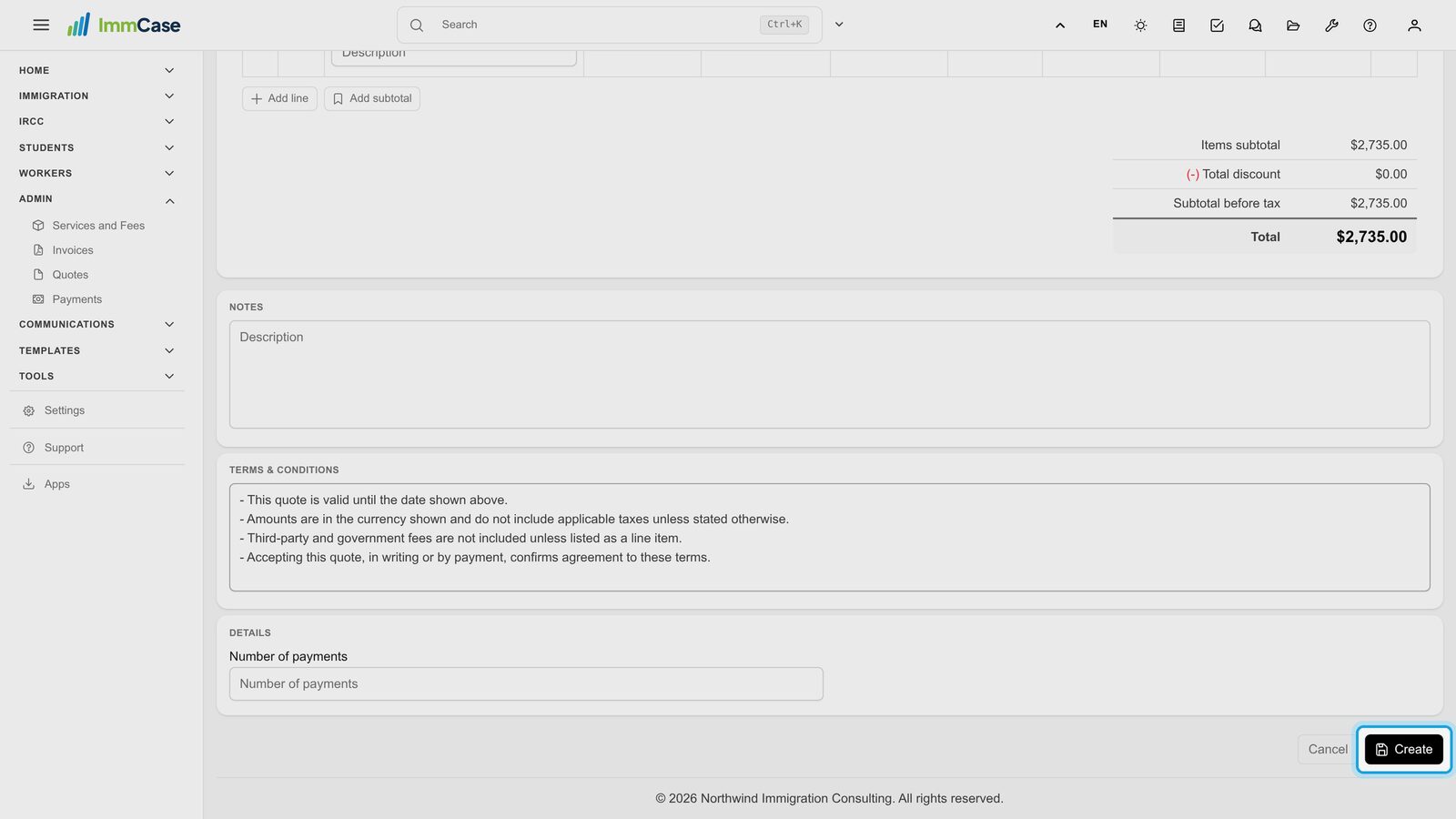
Click Create at the bottom right.
8. The quote is in your list
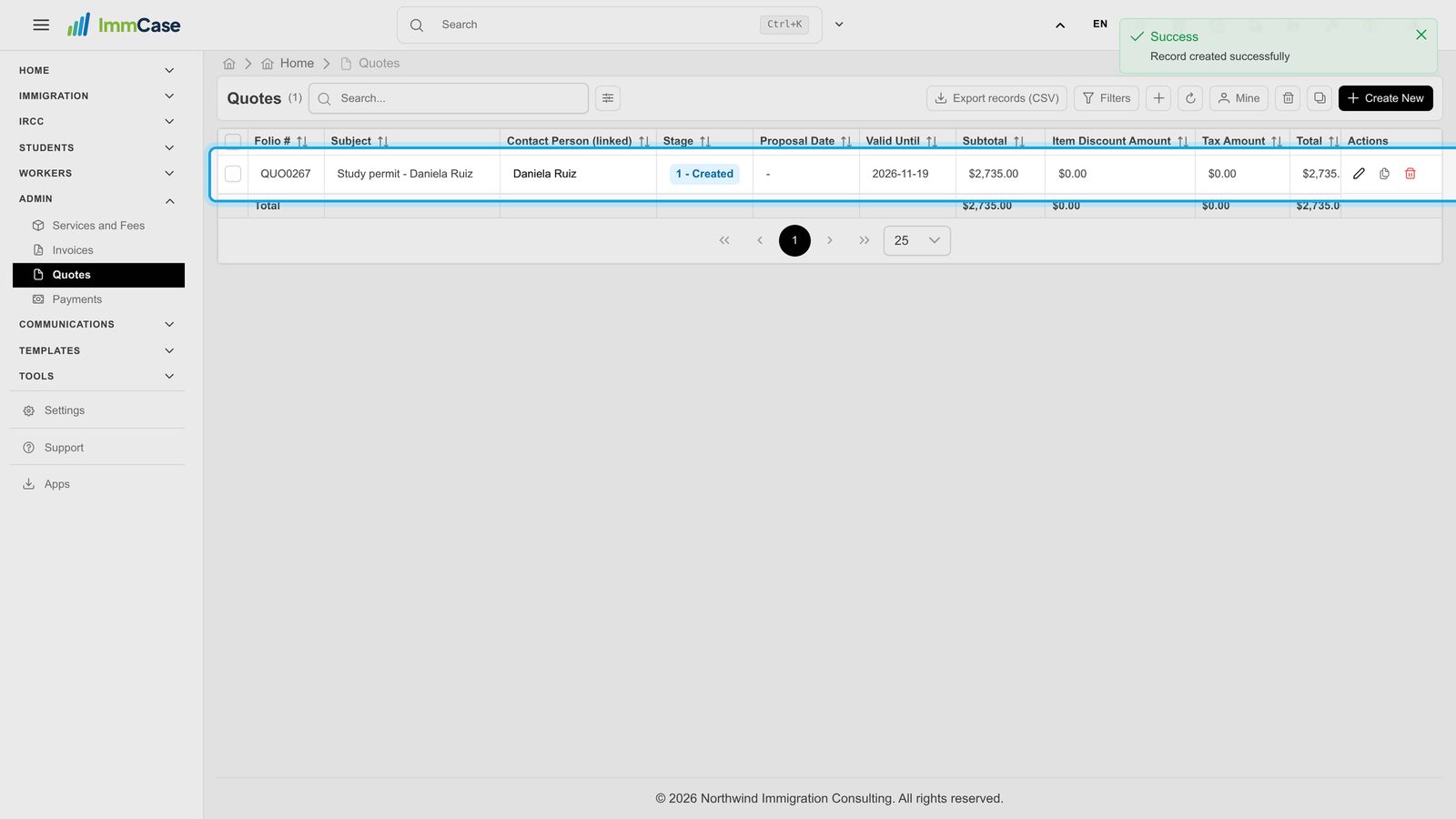
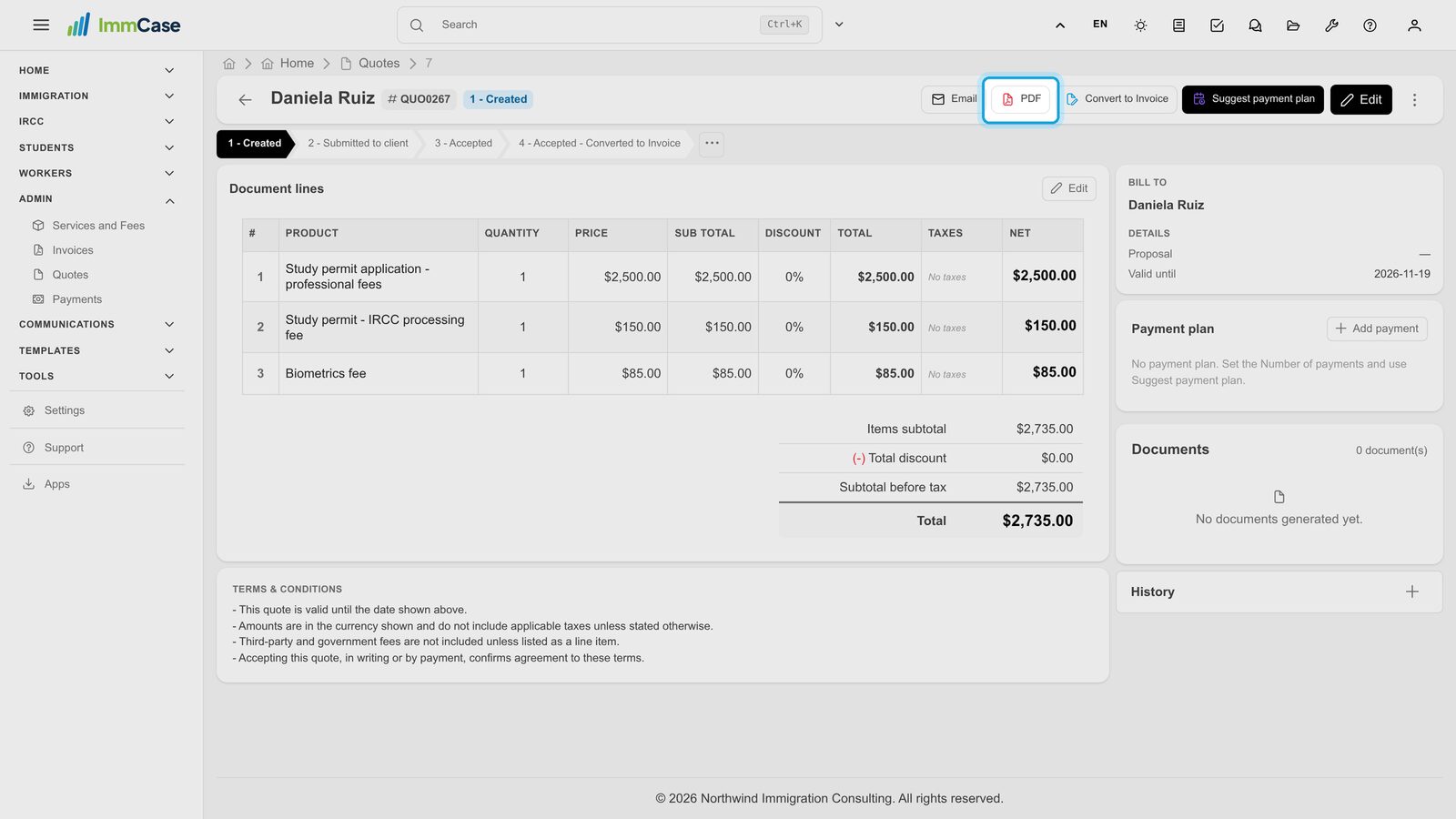
The quote gets its own number (QUO…) and starts at the stage Created.
9. Send it to the client
Open the quote. PDF makes the document on your letterhead and Email sends it. Move the stage bar along as the client answers: Submitted to client, then Accepted. When it is accepted, Convert to Invoice bills it without retyping a line.
Good to know
- Set up your price list once in Admin → Services and Fees. Every quote and invoice picks from it.
- Payment in instalments? Fill in Number of payments and use Suggest payment plan on the quote; the plan carries over to the invoice.
- Link the case in Details if it is already open, so the quote shows on the case too.
Something on your screen does not match the guide? Write to us, or use Support inside ImmCase.
Next guide: How to open a case