
ImmCase user manual · Everyday work
Chat: talk to your team without leaving ImmCase
Chat is the firm’s own messenger, for colleagues only: clients never see it. Write to one colleague, or open a group for a file, and share documents where the team already works.
The firm, its staff («Sarah Martin», «Marc Tremblay»), the client («Daniela Ruiz») and the document in this guide are fictional.
Getting started
Documents and applications
- Collect and review documents
- Keep a client's files in one place
- See all of a case's documents at once
- Send an eForm to a client
- File an application and record IRCC’s decision
- Write a submission letter
Everyday work
On this page: Watch the video · Step by step · Good to know · PDF
Getting started
- How to create a contact · 0:59
- How to create a quote · 0:52
- How to open a case · 0:53
Documents and applications
- Collect and review documents · 0:43
- Keep a client's files in one place · 0:40
- See all of a case's documents at once · 0:47
- Send an eForm to a client · 0:38
- File an application and record IRCC’s decision · 0:48
- Write a submission letter · 0:36
Everyday work
- Notes: write, pin and find · 0:46
- Tasks: assign, link, follow · 0:47
- Calendar: meetings with your team and clients · 0:48
- Inbox: the firm’s email, next to its clients · 0:52
- Chat: talk to your team without leaving ImmCase · 0:53
- Dashboard: the firm at a glance · 0:47
- Add your own fields · 0:40
Watch the video
Step by step
1. Write to a colleague
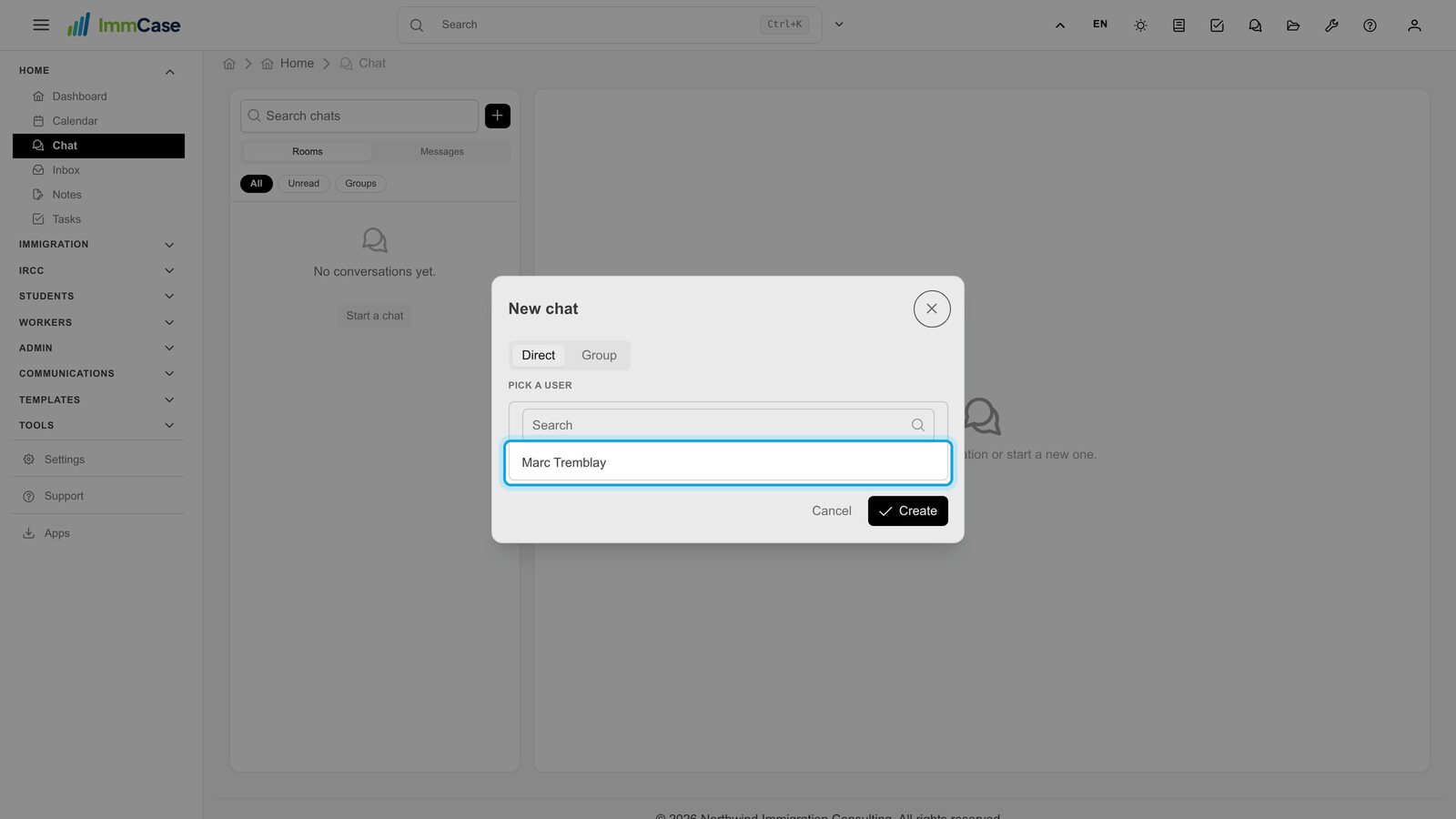
In the left menu, open Home and click Chat. Click +, keep Direct, pick the colleague and click Create. If you already have a chat with them, it opens that one.
2. Send
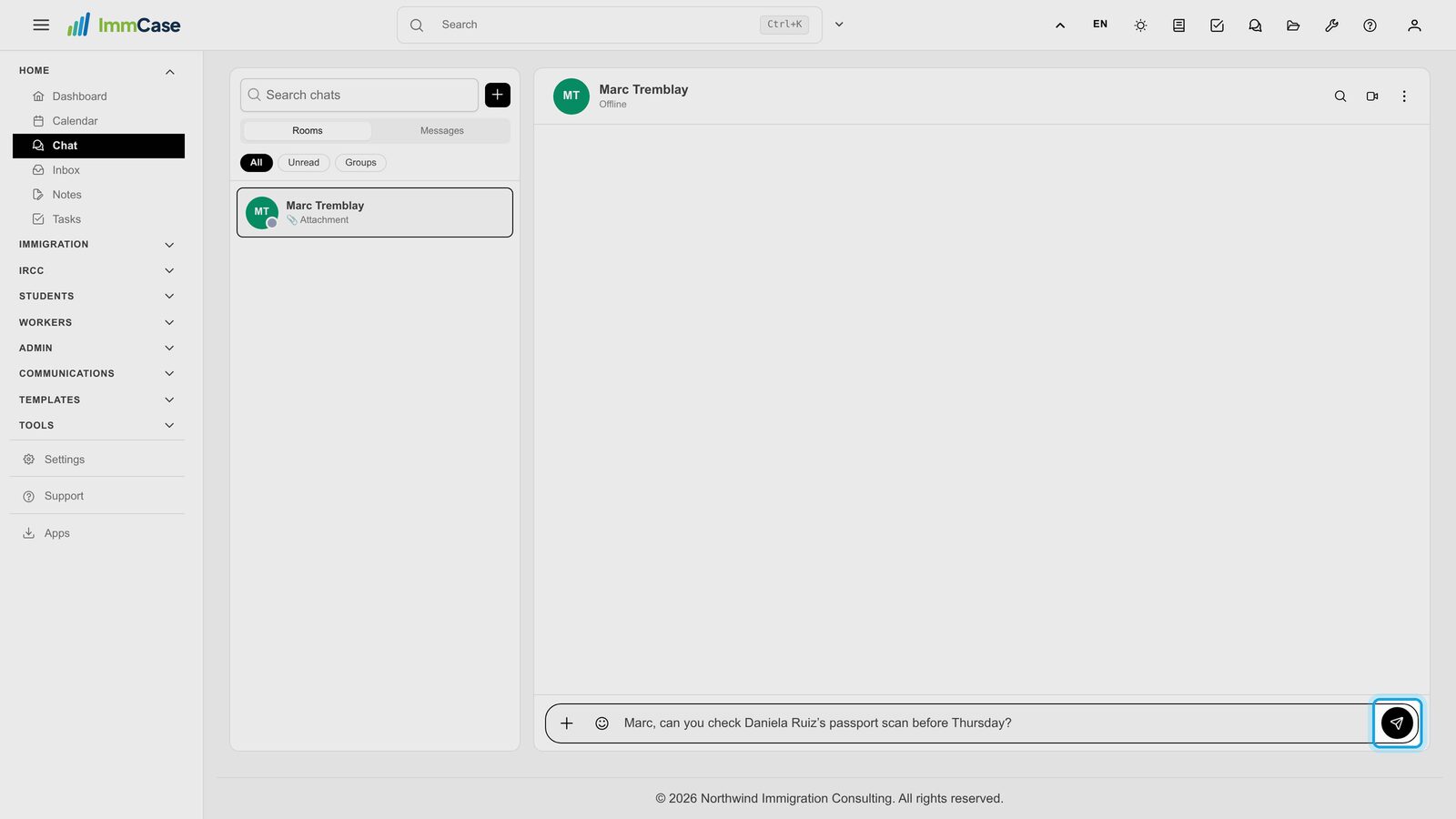
Type your message and press Enter to send it (Shift+Enter starts a new line).
3. Answers arrive live
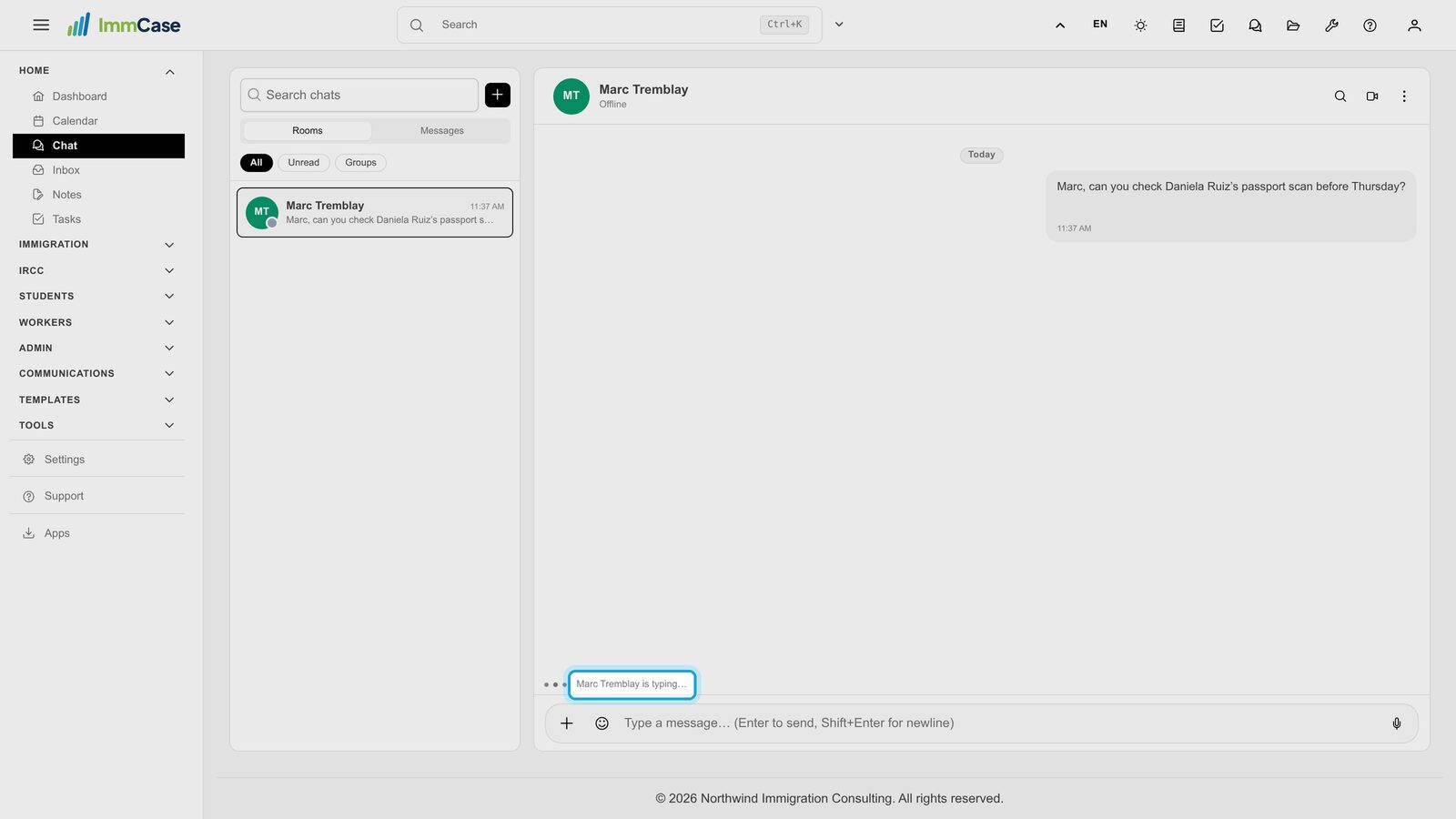
No need to reload: you see when your colleague is typing, and their answer appears as soon as they send it.
4. React
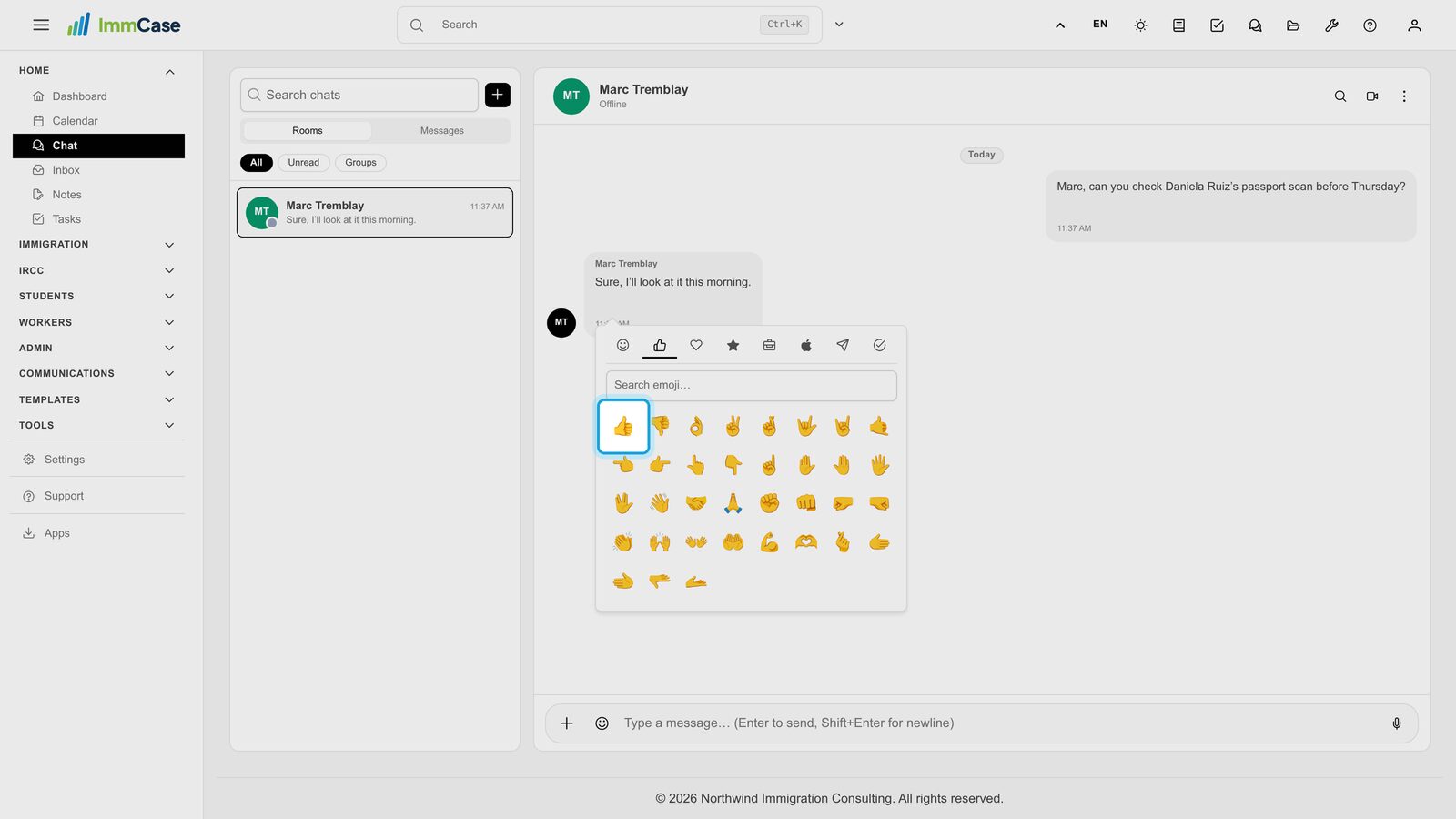
Under a message, click the smiley with + and pick an emoji. Click the emoji again to remove it.
5. Reply to a message
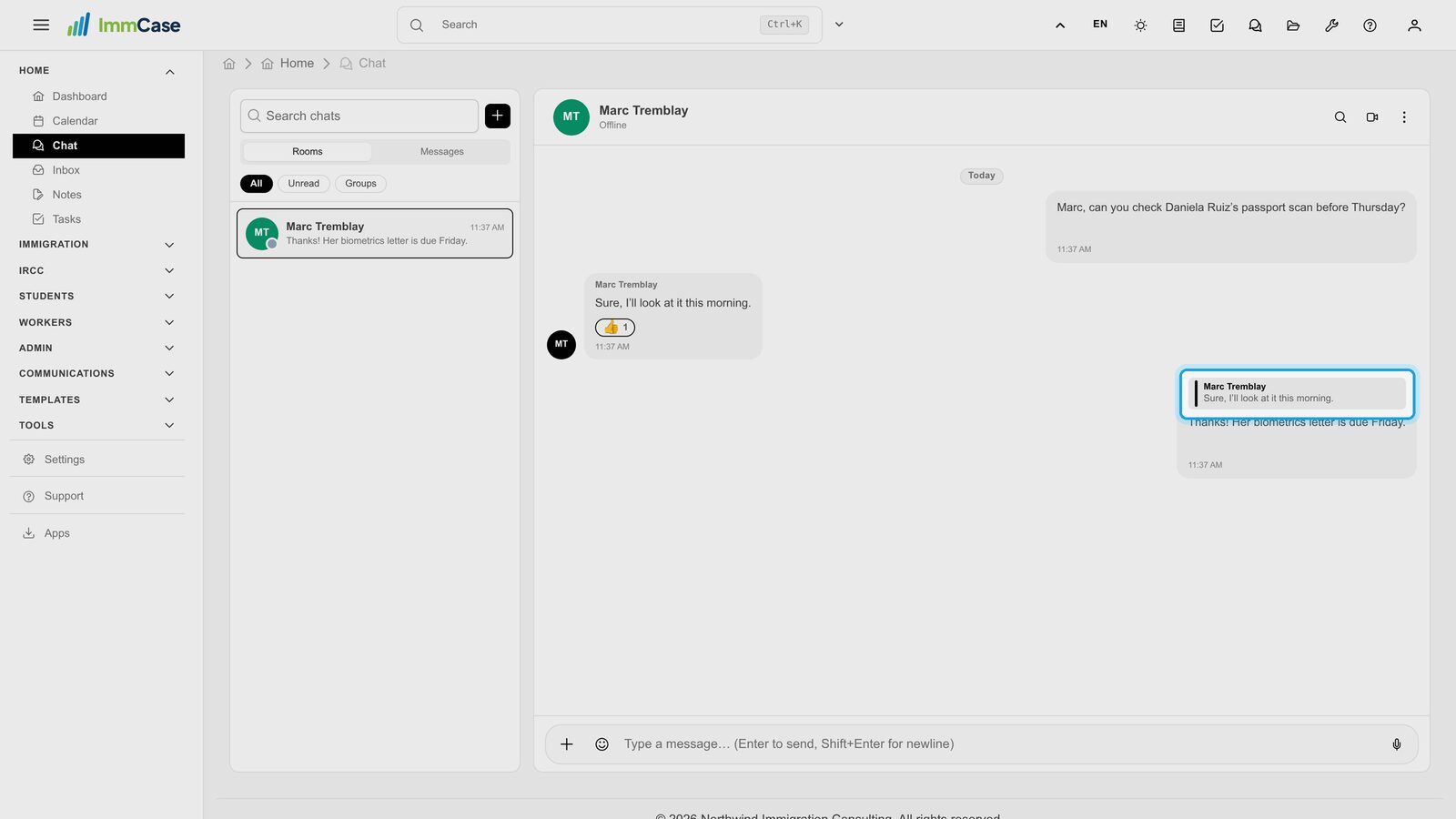
Point at a message and click the arrow to reply to it: your answer shows the message it is about.
6. A group for a file
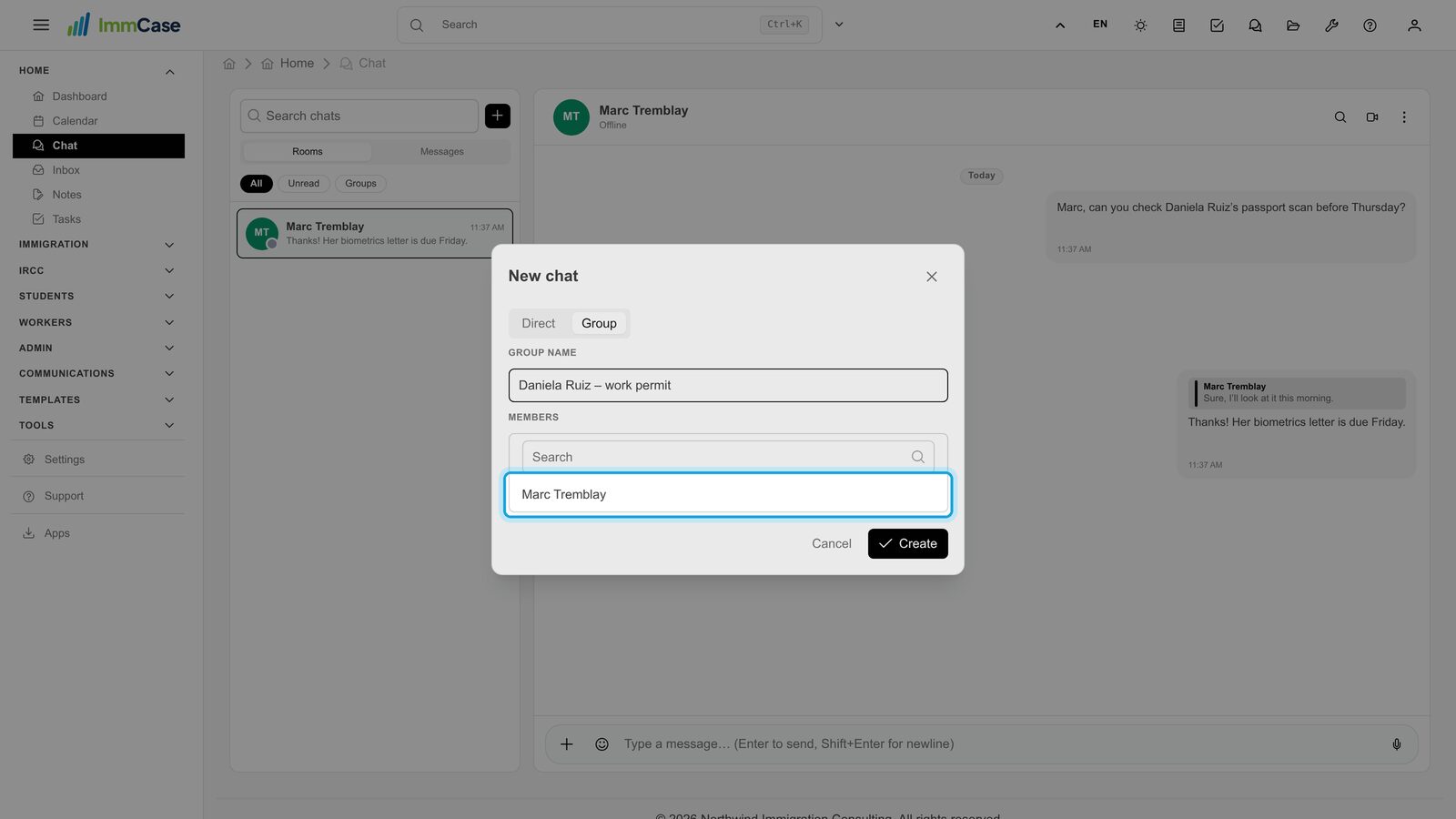
For a conversation with several people, click +, choose Group, give it a name, tick the members and click Create. The group appears in their list.
7. Mention someone
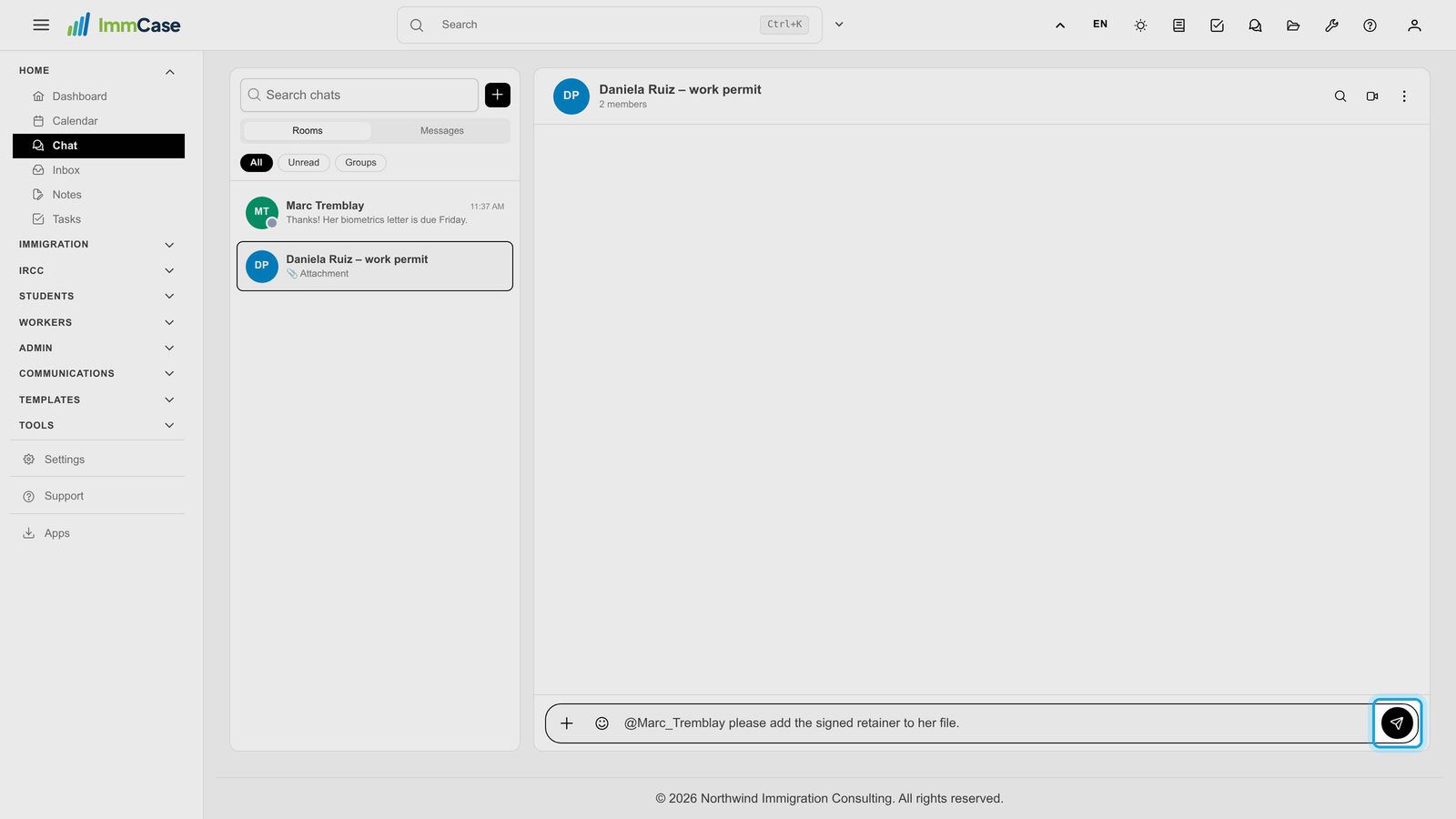
Type @ and the start of a name, then pick the colleague. They get an @ badge on the chat icon at the top of the screen.
8. Share a document
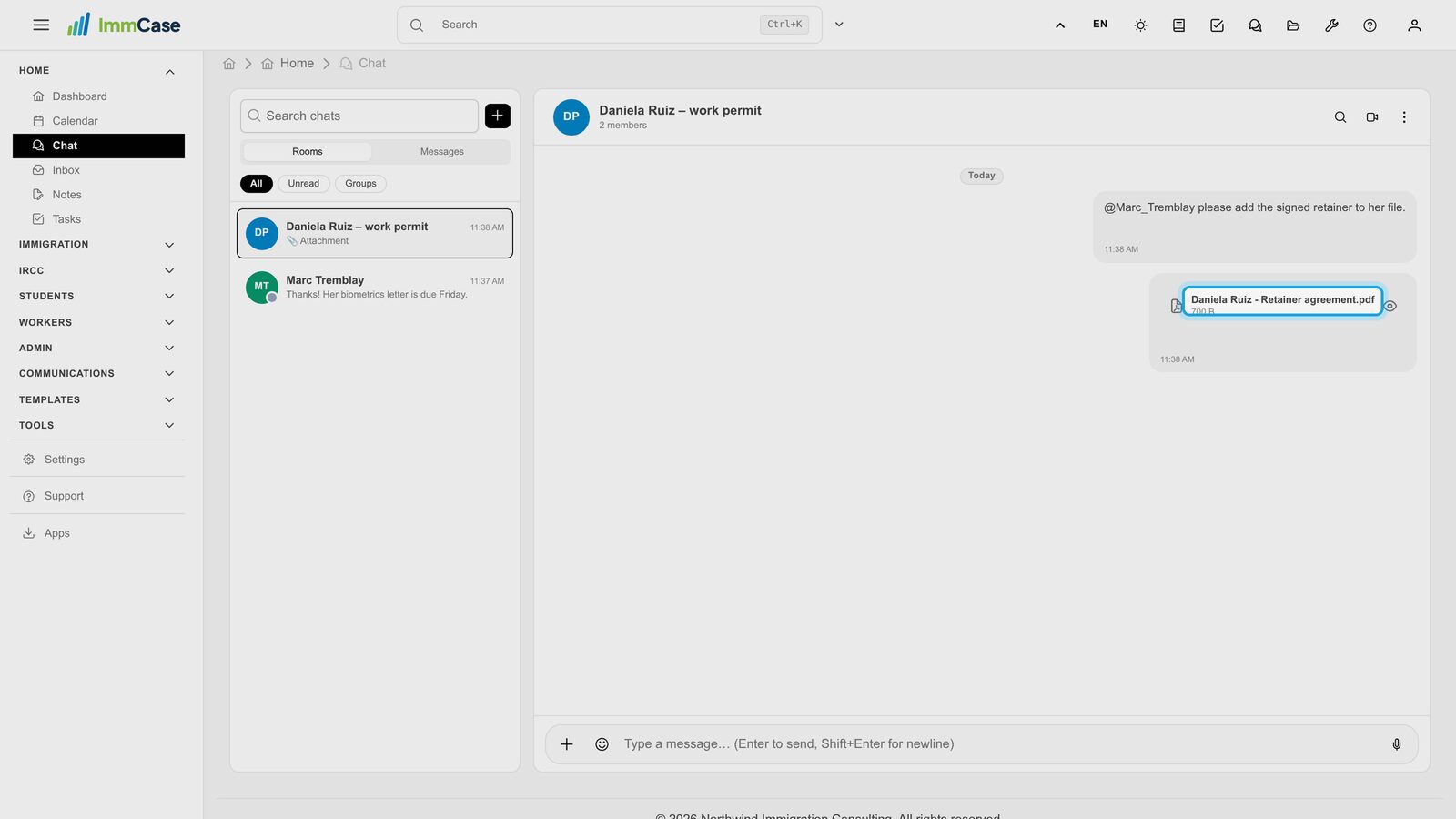
Click + at the left of the message box to send a file. You can also drag files onto the conversation, or paste a screenshot.
9. Find it again
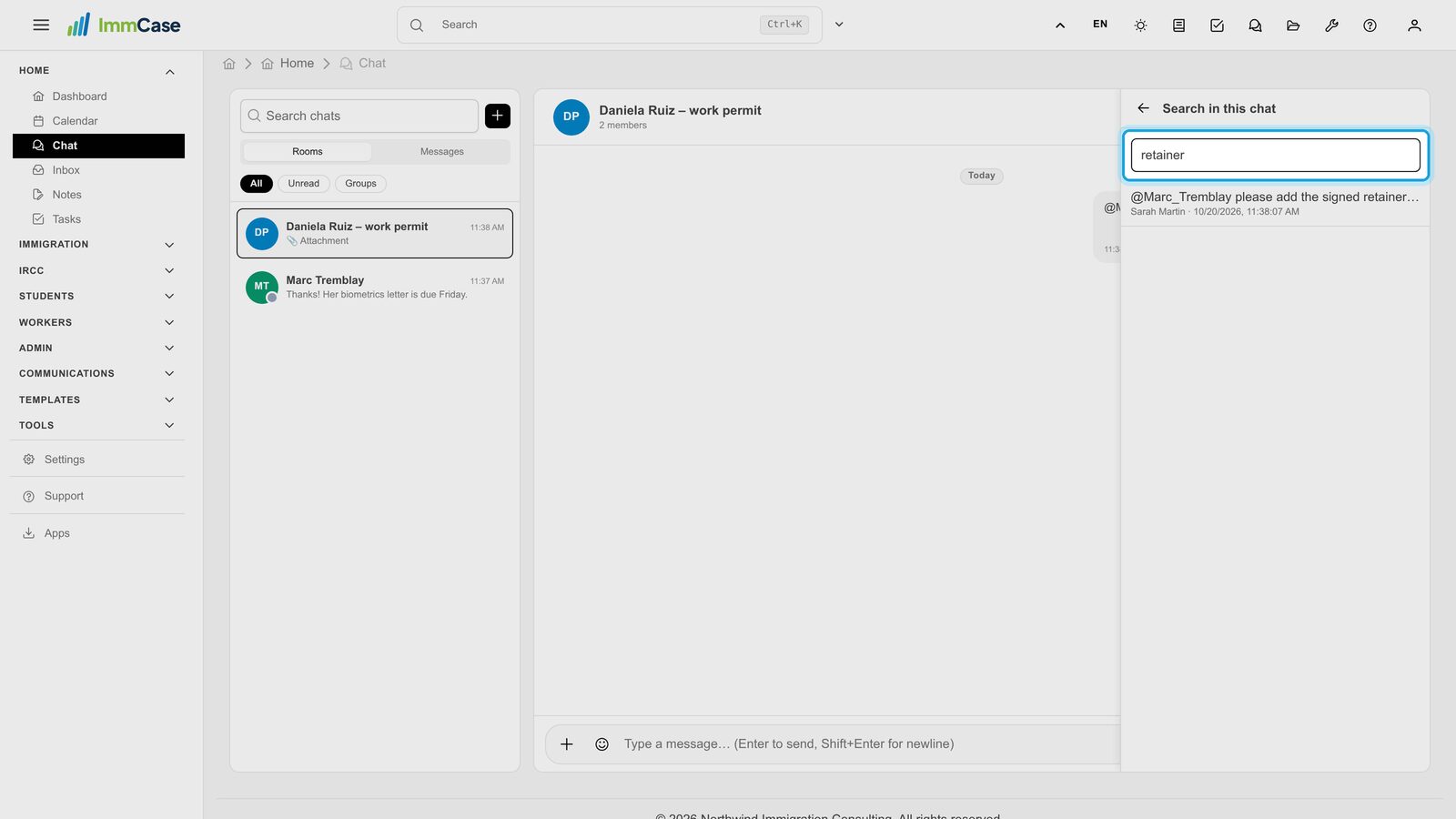
The magnifier at the top of a chat searches its messages. Click a result to jump to it. To search every chat at once, use Messages above the list.
10. Members and files
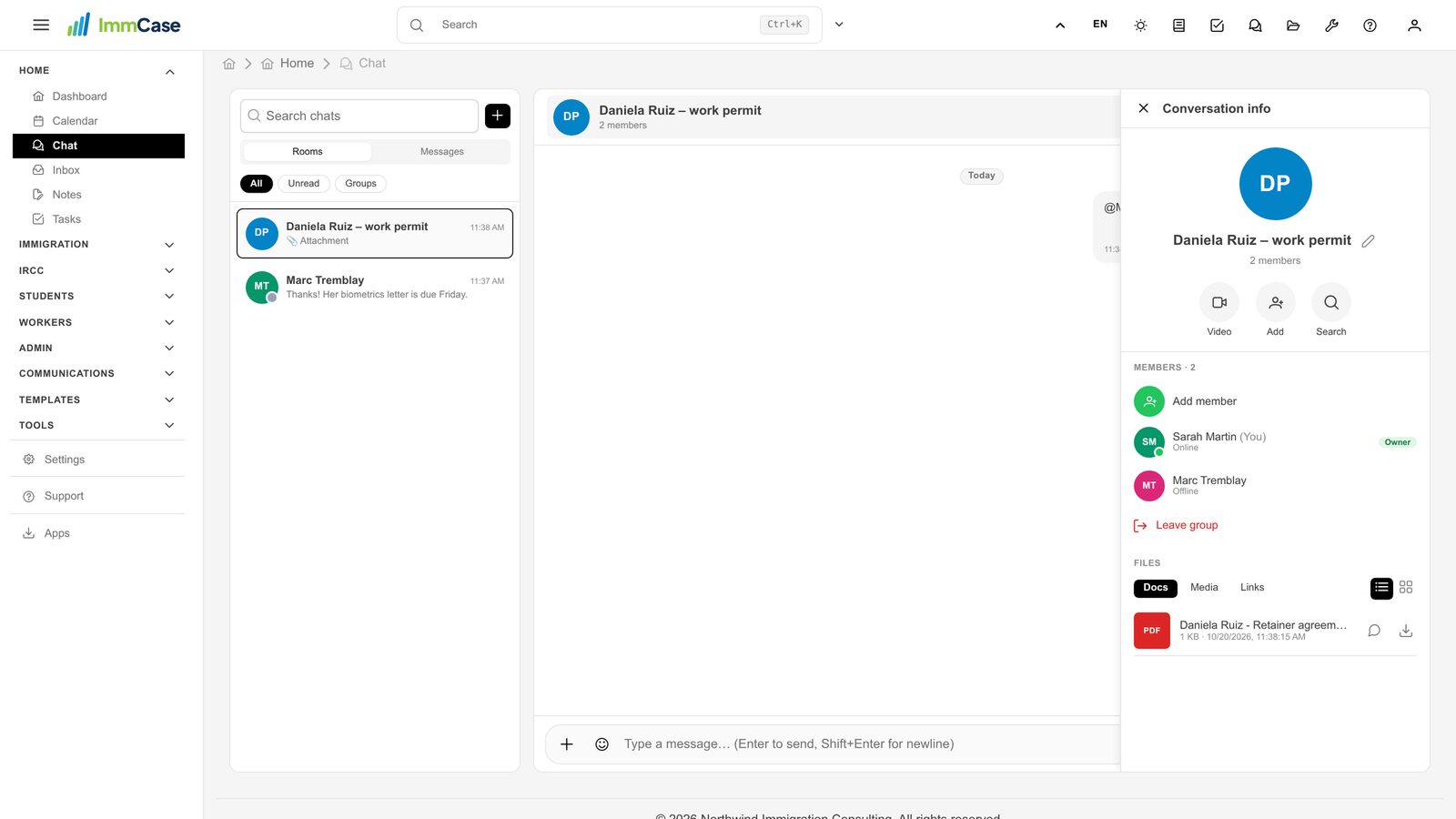
Click the chat’s name to see its members and every file shared in it, with Docs, Media and Links tabs. The group’s creator can rename it and add or remove members.
11. Nothing missed
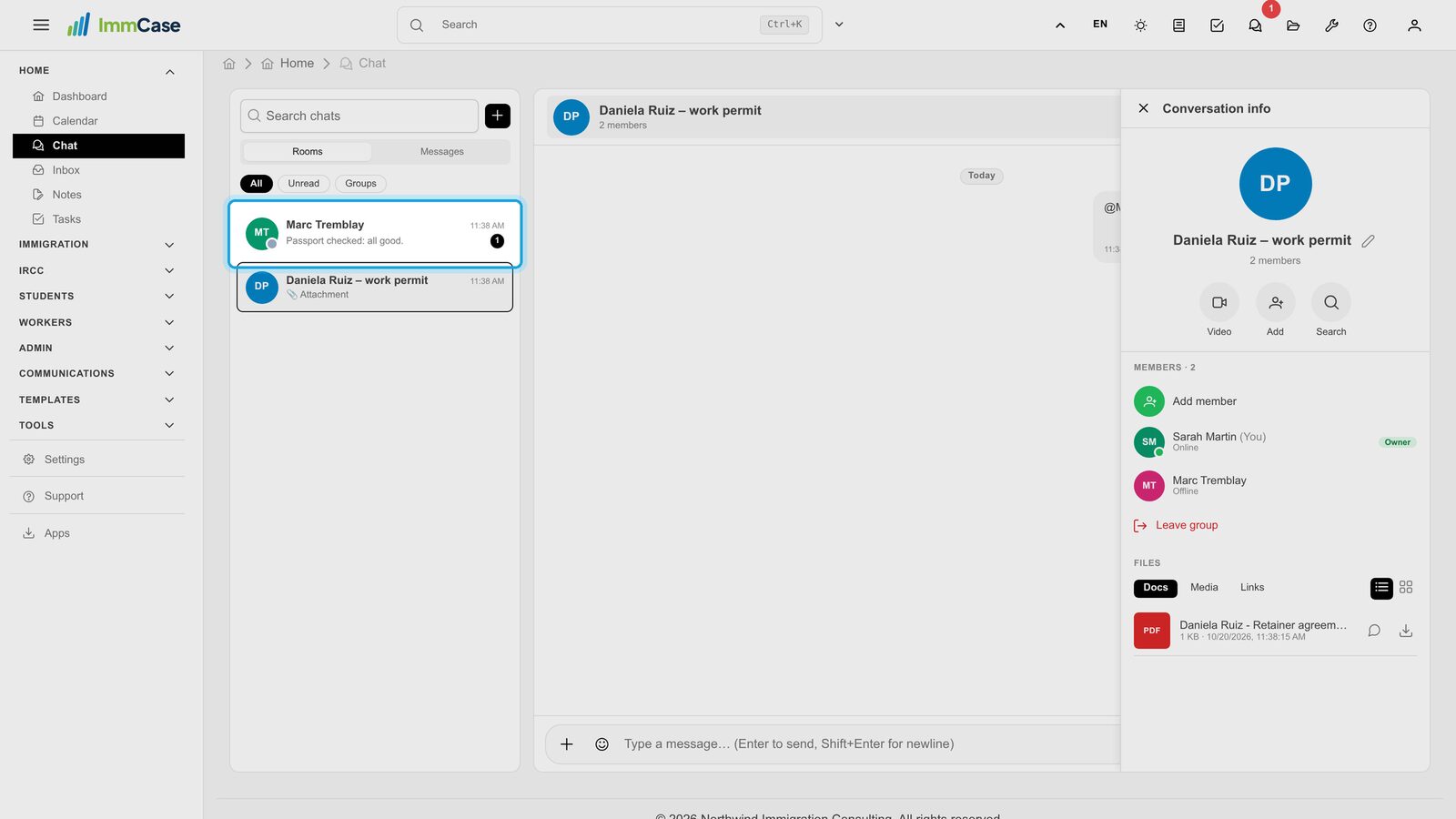
A new message moves its chat to the top with an unread count, and the chat icon at the top of every page shows how many are waiting.
Good to know
- Change your mind: the ⋮ on your own message edits or deletes it.
- Bold and italics: put a word between two asterisks on each side for bold, one for italics.
- Voice message: with the box empty, the microphone at the right records one.
- A quick video meeting: the camera at the top of a chat creates a meeting and posts its link in the chat.
- Delete conversation (the ⋮ at the top) only clears it for you; it comes back when someone writes again.
Something on your screen does not match the guide? Write to us, or use Support inside ImmCase.
Next guide: Dashboard: the firm at a glance