
ImmCase user manual · Documents and applications
Send an eForm to a client
An eForm is an IRCC form, such as the IMM 1294 study permit application, that your client fills in online from a link, on their phone or computer. You send it from ImmCase, watch their progress, and review the answers before they go into the application.
The client («Daniela Ruiz») and firm in this guide are fictional; the link goes to an example.com address that nobody receives.
Getting started
Documents and applications
- Collect and review documents
- Keep a client's files in one place
- See all of a case's documents at once
- Send an eForm to a client
- File an application and record IRCC’s decision
- Write a submission letter
Everyday work
On this page: Watch the video · Step by step · Good to know · PDF
Getting started
- How to create a contact · 0:59
- How to create a quote · 0:52
- How to open a case · 0:53
Documents and applications
- Collect and review documents · 0:43
- Keep a client's files in one place · 0:40
- See all of a case's documents at once · 0:47
- Send an eForm to a client · 0:38
- File an application and record IRCC’s decision · 0:48
- Write a submission letter · 0:36
Everyday work
Watch the video
Step by step
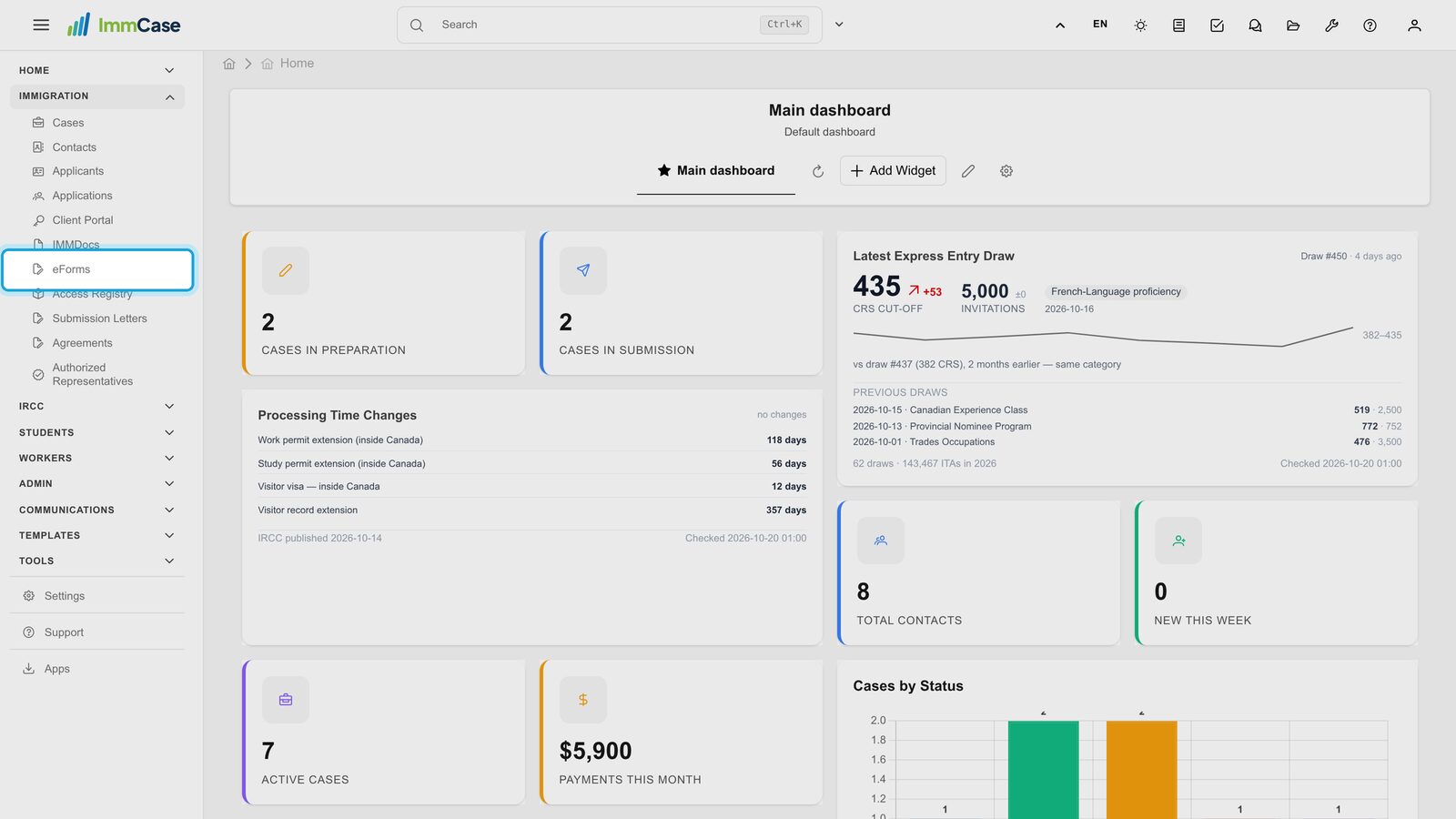
1. Open eForms
In the left menu, open Immigration and click eForms.
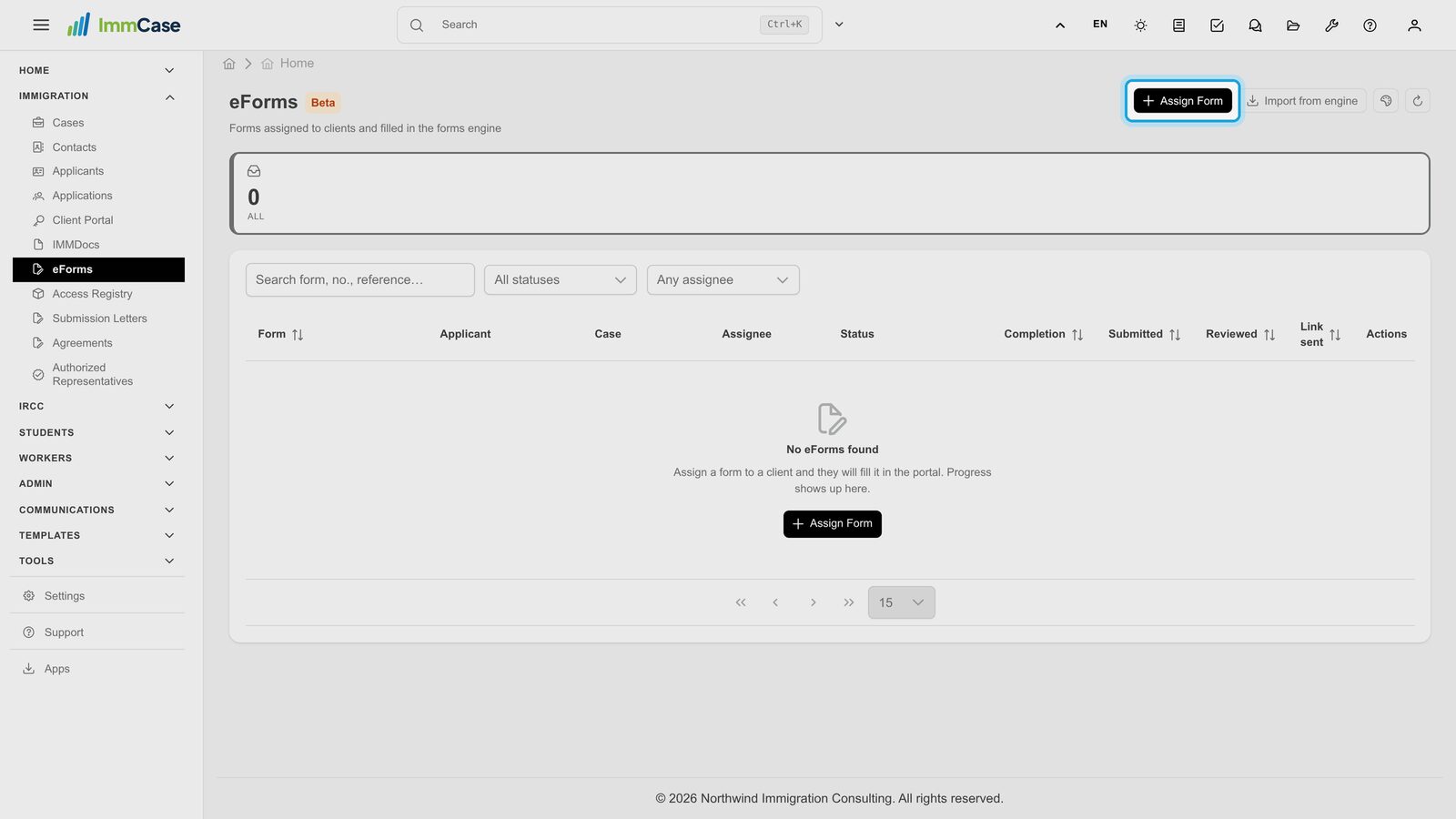
2. Assign a form
Click Assign Form, top right.
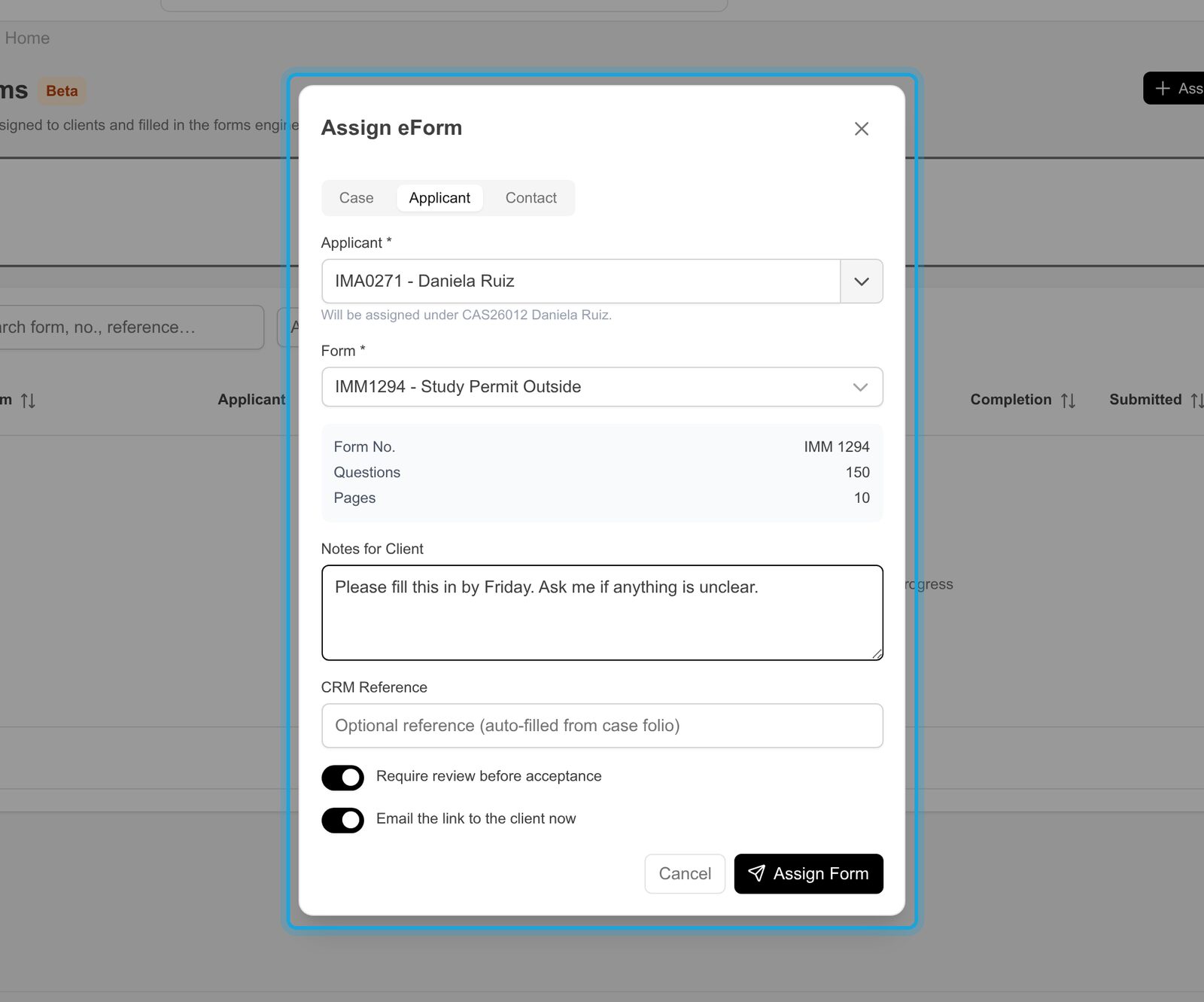
3. Who, which form, and a note
Under Applicant, search the person's name and pick them; the case is filled in for you. Choose the Form (here IMM1294 - Study Permit Outside, 150 questions). Add a short note for the client if you like. Leave Require review on so nothing is accepted before you check it, and Email the link on to send it right away.
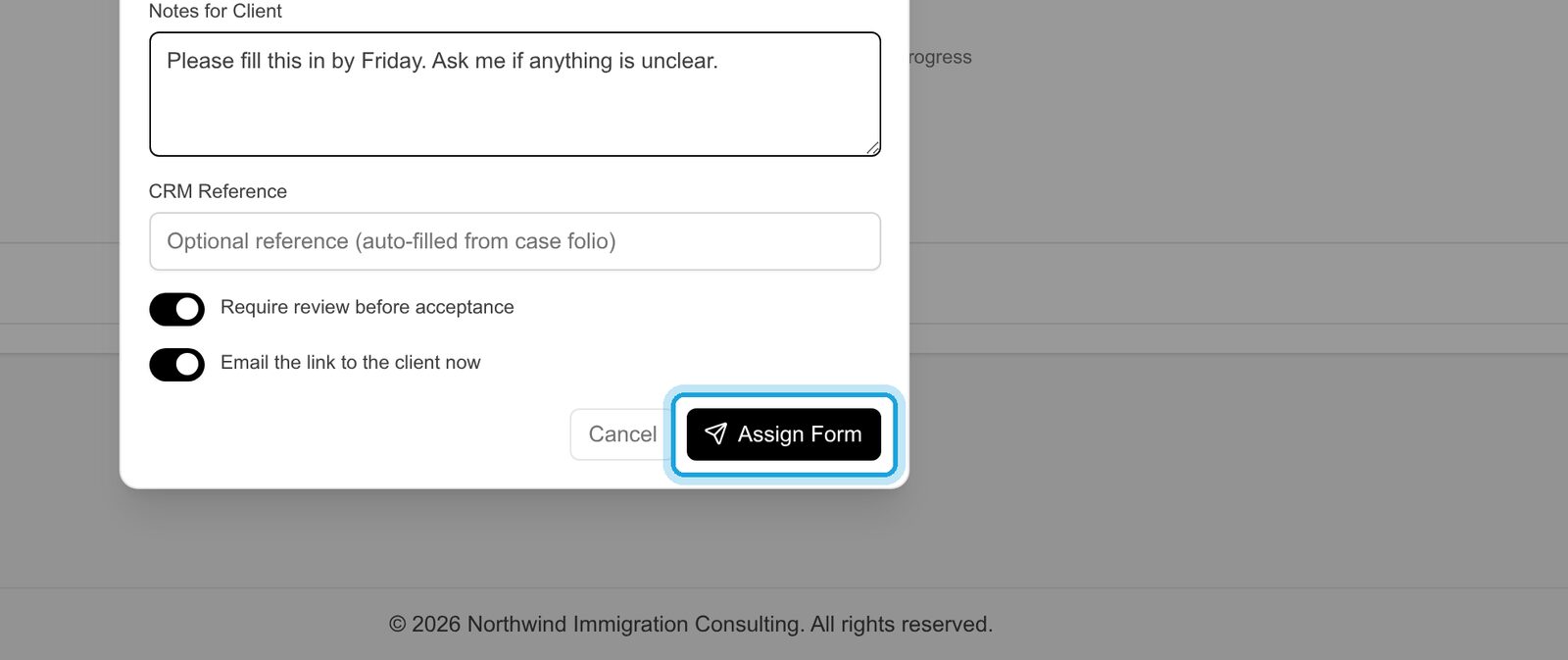
4. Send it
Click Assign Form. The client receives an email with their personal link.
5. Follow their progress
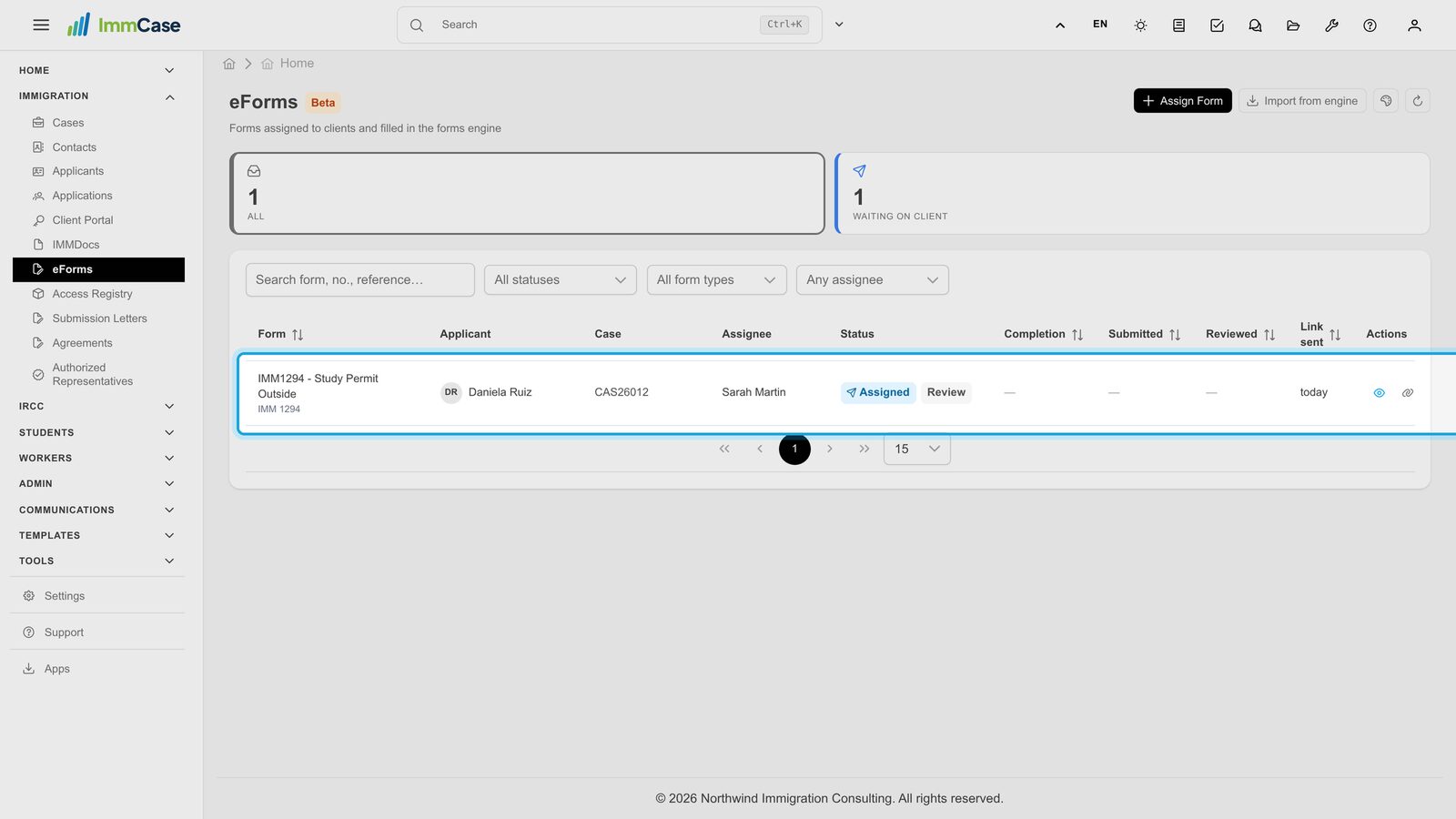
The form appears in the list as Assigned, with the case, the date the link was sent and, once the client starts, how much is filled in. The counters at the top show what is waiting on the client and what needs your review. When they submit, open the form, check the answers and accept them or send them back with a comment.
Good to know
- From the case, too. The case's Workspace lists its eForms next to the document checklist.
- Lost link? The link icon on the row copies the client's link, so you can send it another way.
- Your logo on the form. Portal branding, at the top of the eForms page, sets the name and logo your clients see.
Something on your screen does not match the guide? Write to us, or use Support inside ImmCase.
Next guide: File an application and record IRCC’s decision