
ImmCase user manual · Everyday work
Inbox: the firm’s email, next to its clients
Connect the firm’s mailbox once and read and answer email inside ImmCase. When a client writes, ImmCase recognizes them, and your replies are saved on their record for the whole team.
The firm, its staff, the client («Daniela Ruiz») and the new contact («Omar Haddad») in this guide are fictional.
Getting started
Documents and applications
- Collect and review documents
- Keep a client's files in one place
- See all of a case's documents at once
- Send an eForm to a client
- File an application and record IRCC’s decision
- Write a submission letter
Everyday work
On this page: Watch the video · Step by step · Good to know · PDF
Getting started
- How to create a contact · 0:59
- How to create a quote · 0:52
- How to open a case · 0:53
Documents and applications
- Collect and review documents · 0:43
- Keep a client's files in one place · 0:40
- See all of a case's documents at once · 0:47
- Send an eForm to a client · 0:38
- File an application and record IRCC’s decision · 0:48
- Write a submission letter · 0:36
Everyday work
- Notes: write, pin and find · 0:46
- Tasks: assign, link, follow · 0:47
- Calendar: meetings with your team and clients · 0:48
- Inbox: the firm’s email, next to its clients · 0:52
- Chat: talk to your team without leaving ImmCase · 0:53
- Dashboard: the firm at a glance · 0:47
- Add your own fields · 0:40
Watch the video
Step by step
1. Open the Inbox
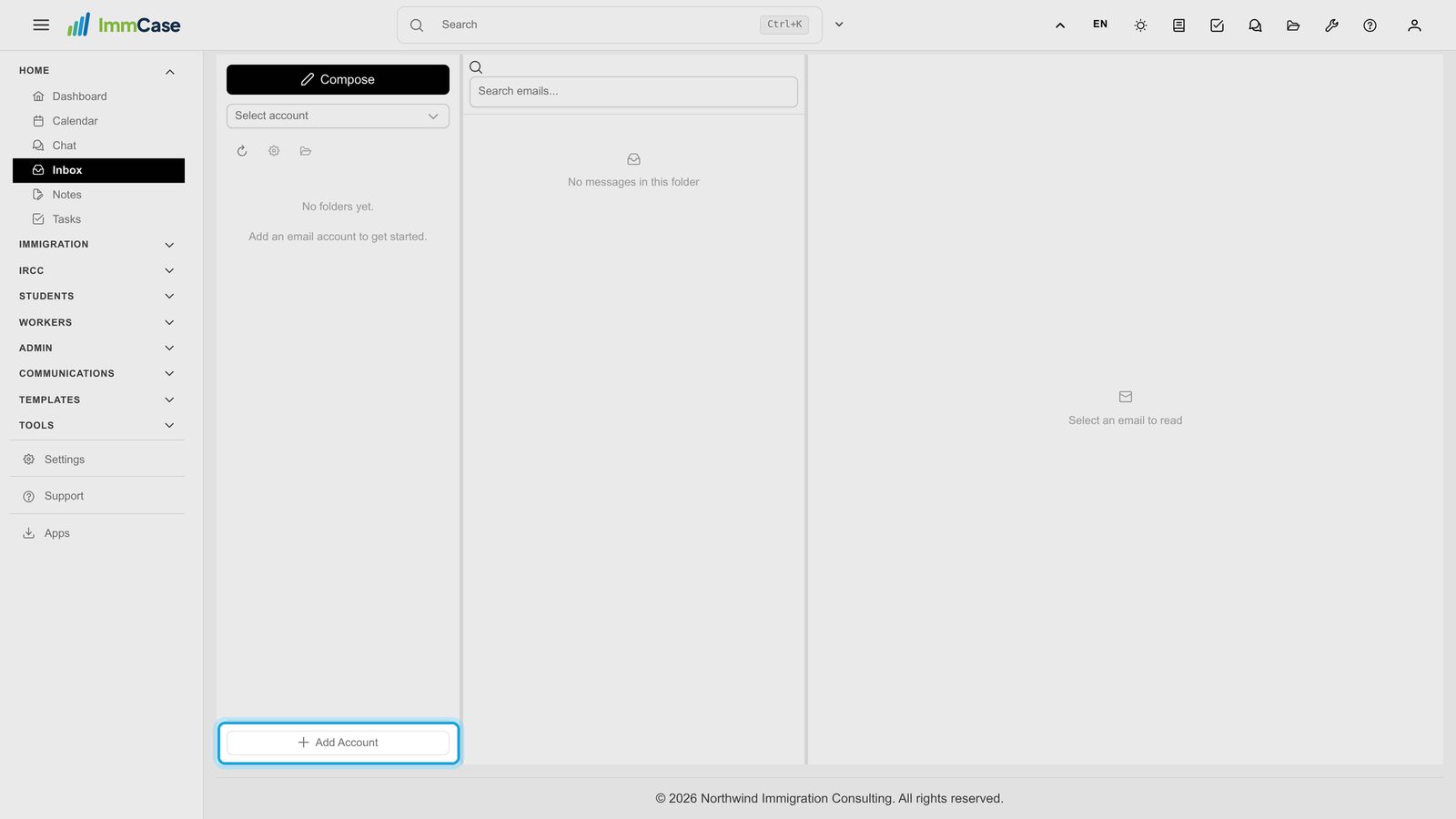
In the left menu, open Home and click Inbox. The first time, click Add Account at the bottom of the folder column.
2. Name and sender
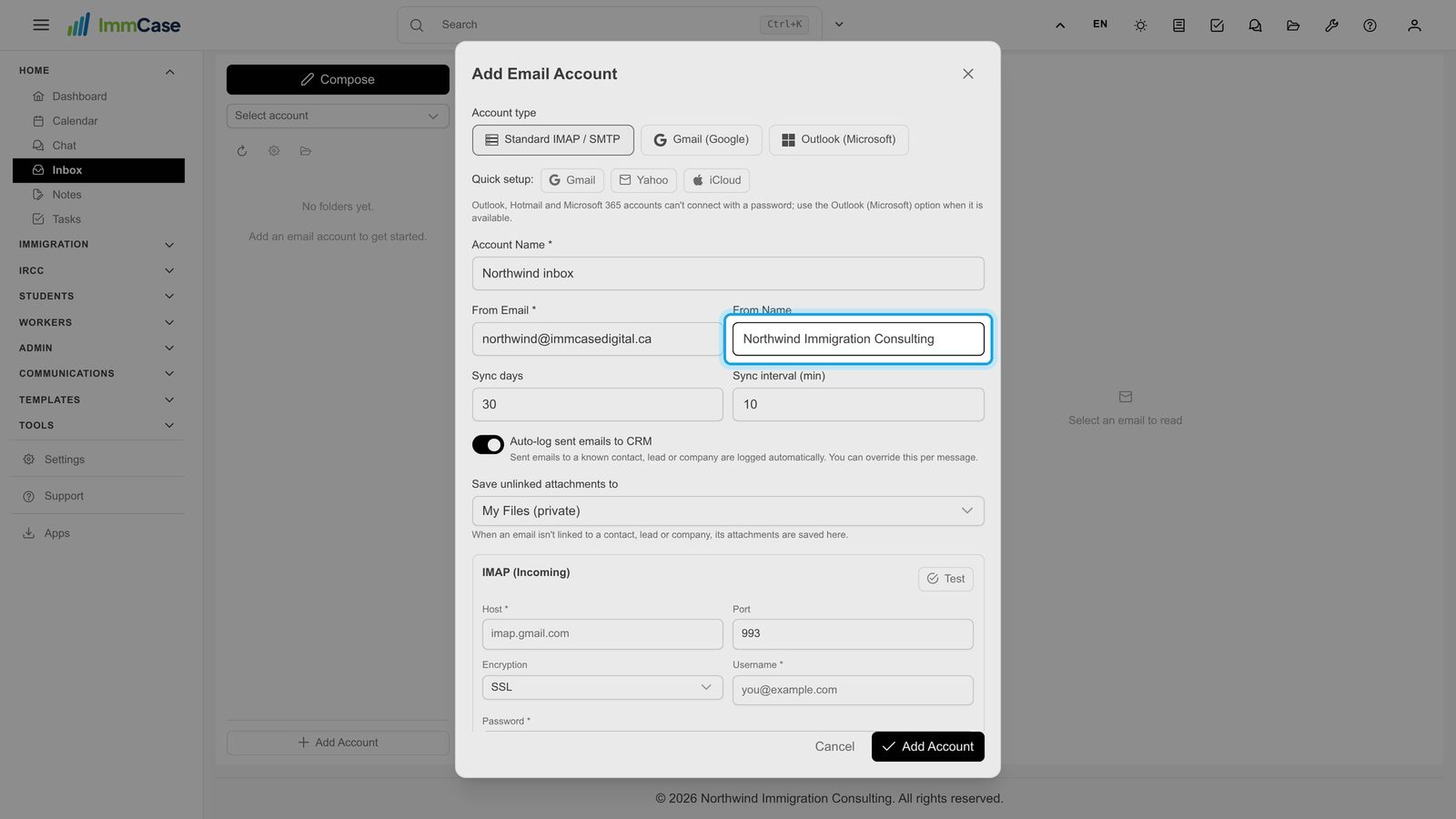
Keep Standard IMAP / SMTP. Give the account a name your team will recognize, then the From Email and From Name your clients will see. For Gmail, Yahoo or iCloud, Quick setup fills in the servers for you.
3. Incoming mail
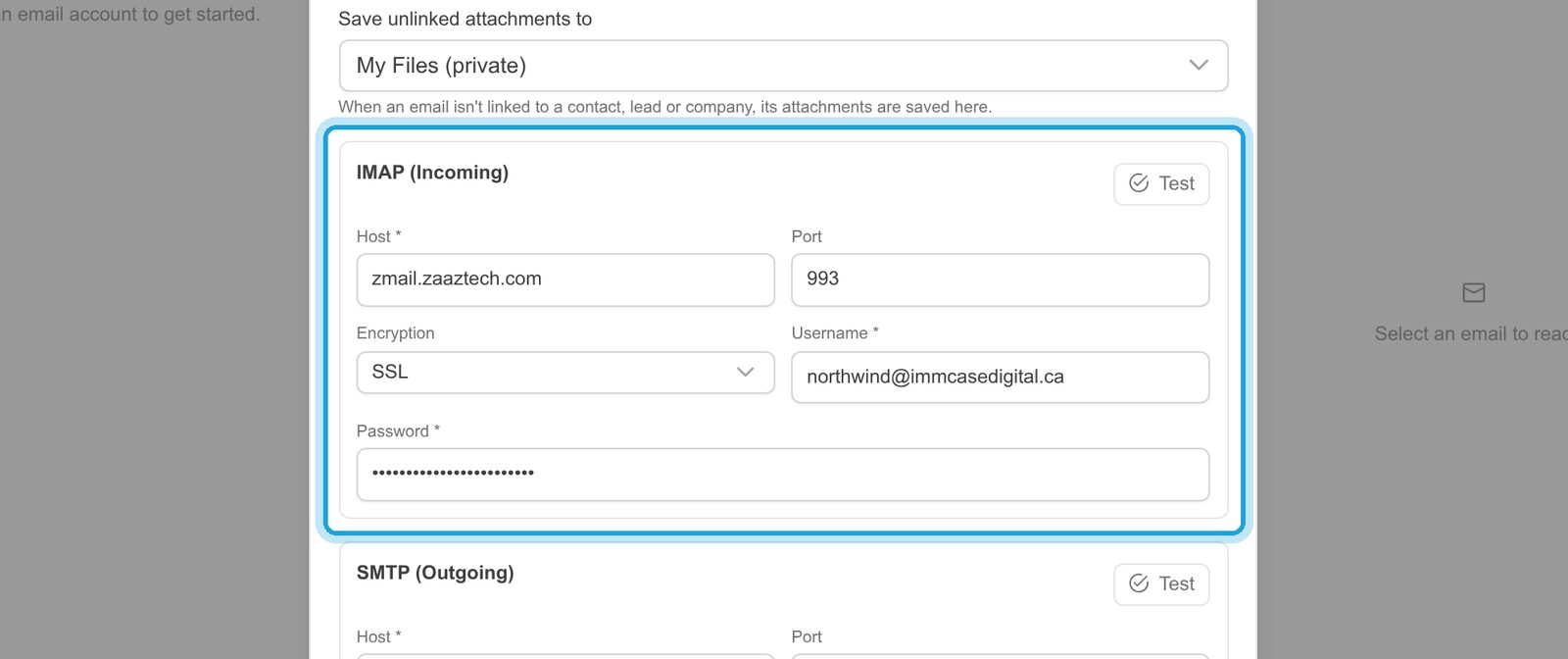
Under IMAP (Incoming), type the server, your email address as Username and the mailbox password (for Gmail, Yahoo or iCloud, an app password). Your email provider gives you these. Click Test.
4. Outgoing mail
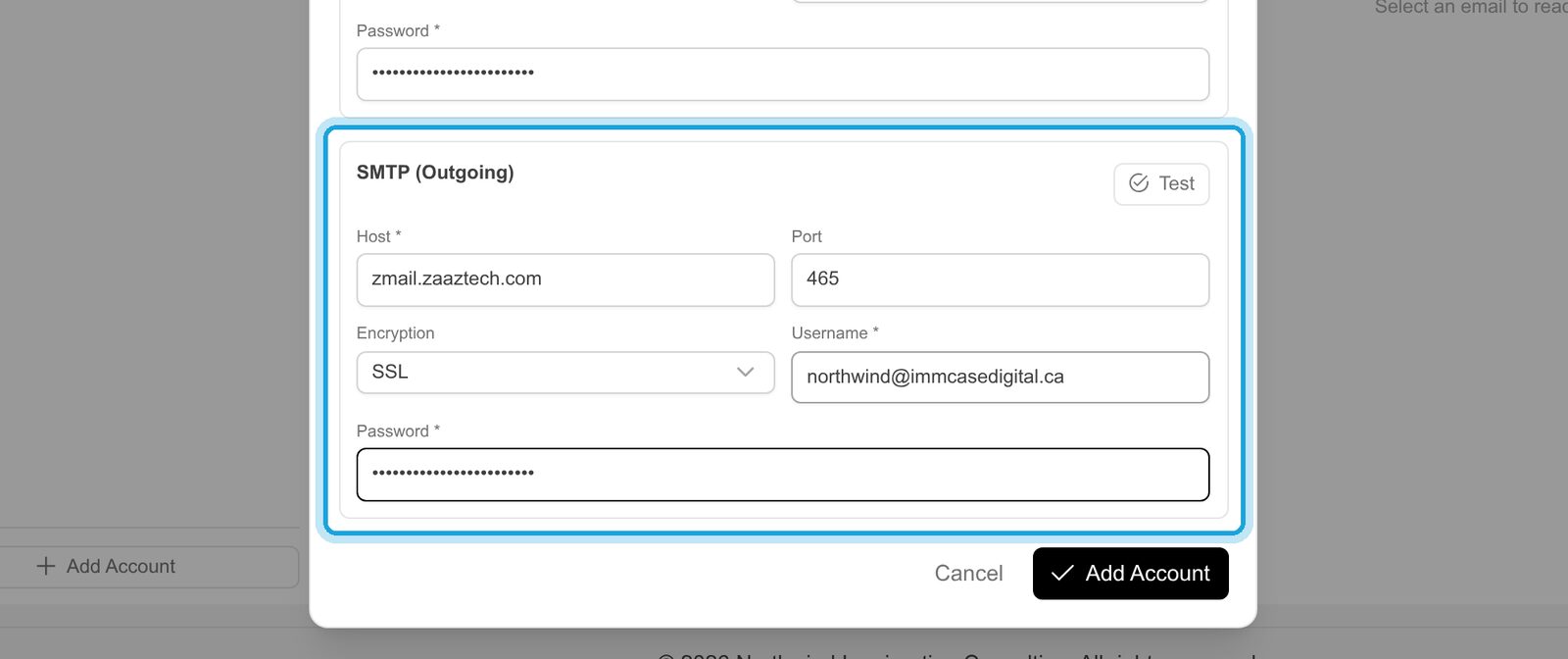
Under SMTP (Outgoing), the same for sending. Most providers use the same username and password.
5. Your mail arrives
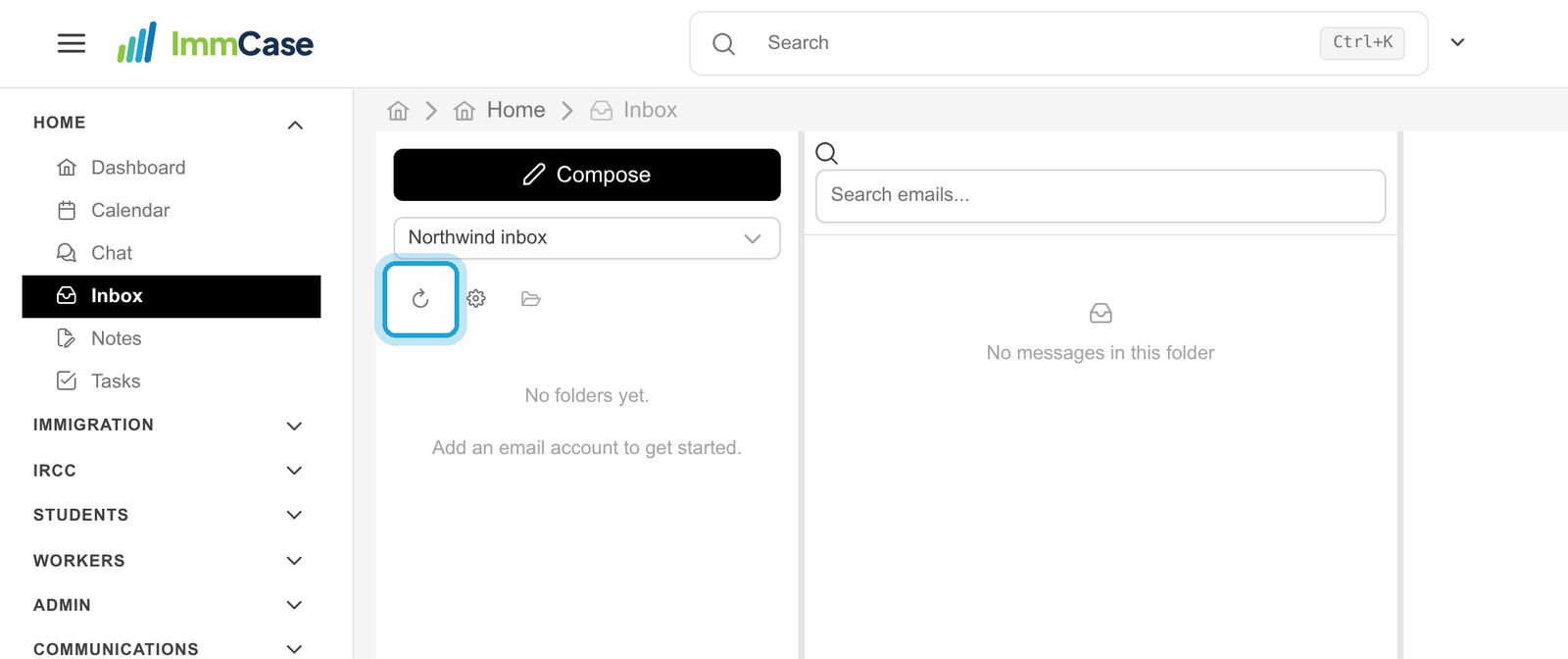
Click Add Account. ImmCase copies the last 30 days of mail; after a few seconds, click ↻ to show your folders. From then on it checks for new mail on its own.
6. ImmCase knows the client
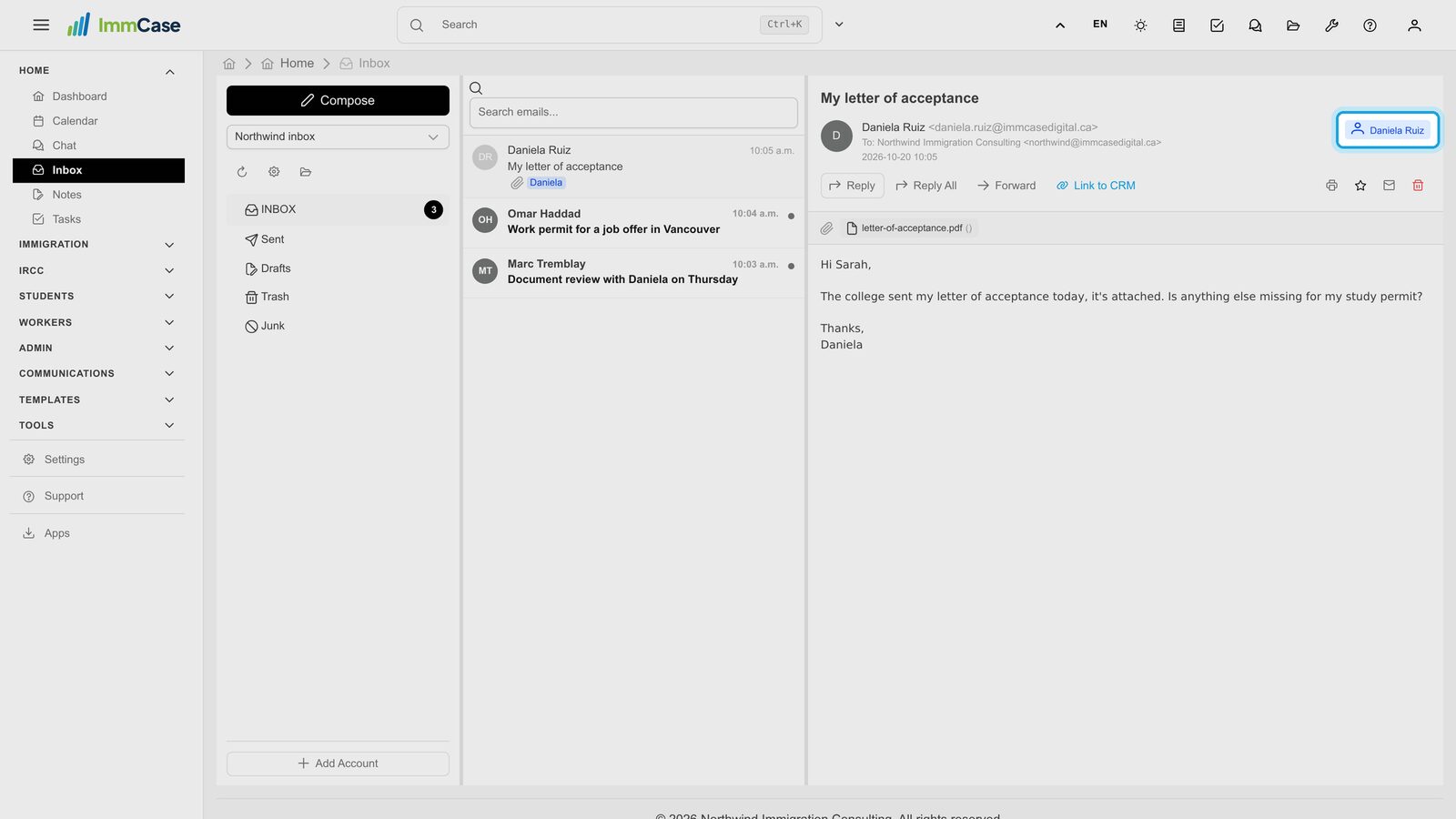
Open an email. When the sender’s address is one of your contacts, their name appears at the top right: click it to open their record.
7. Reply, and keep a copy on file
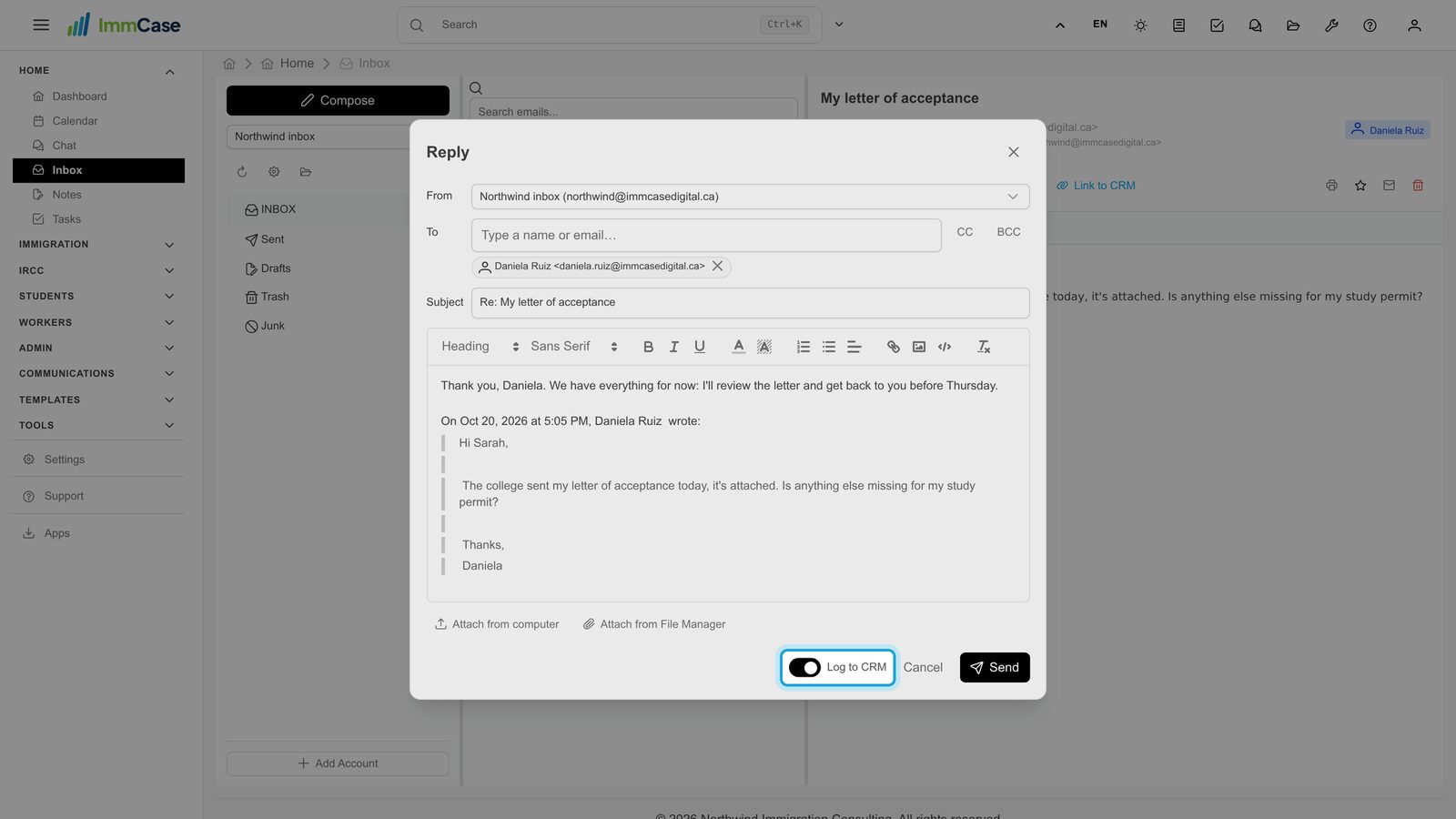
Click Reply and write above the quoted message. Leave Log to CRM on: the email is saved on the client’s record. Turn it off for a message that shouldn’t be kept there.
8. Send
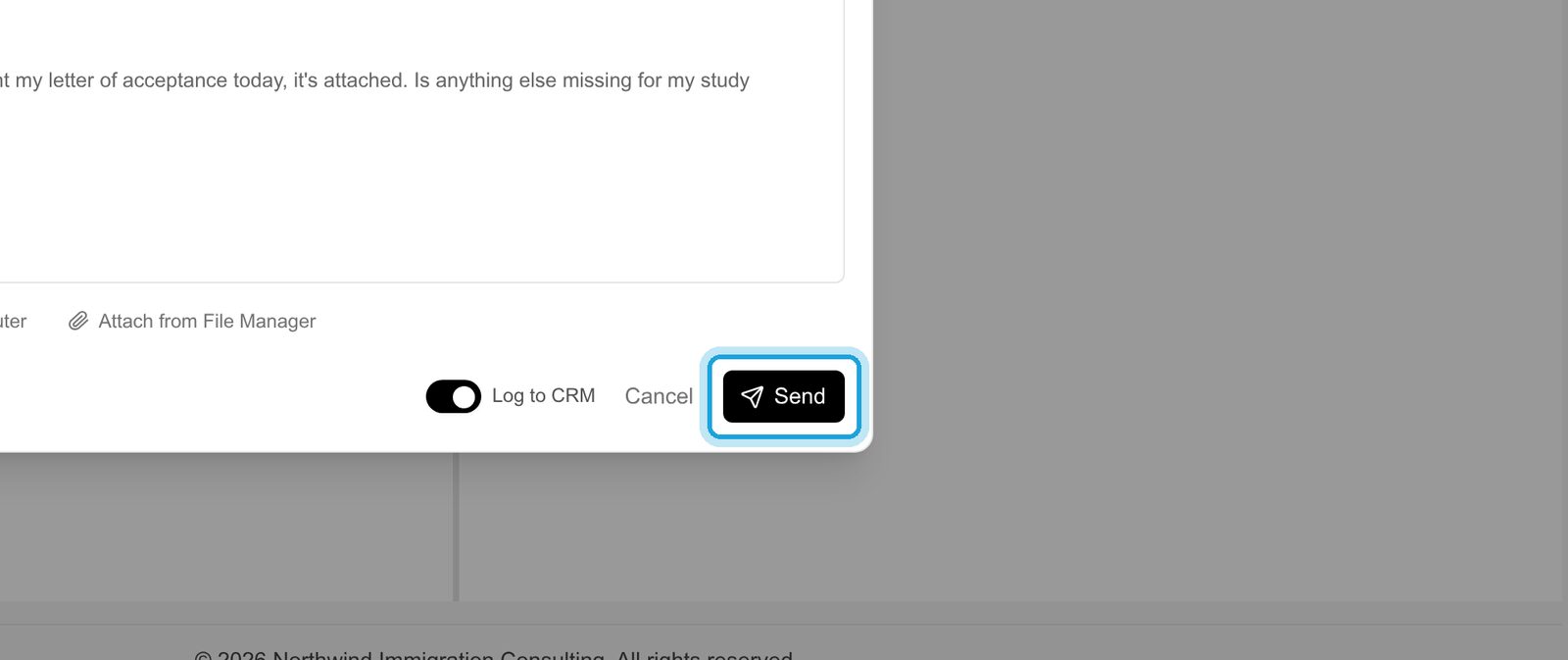
Click Send. It goes out from the firm’s address.
9. Someone new
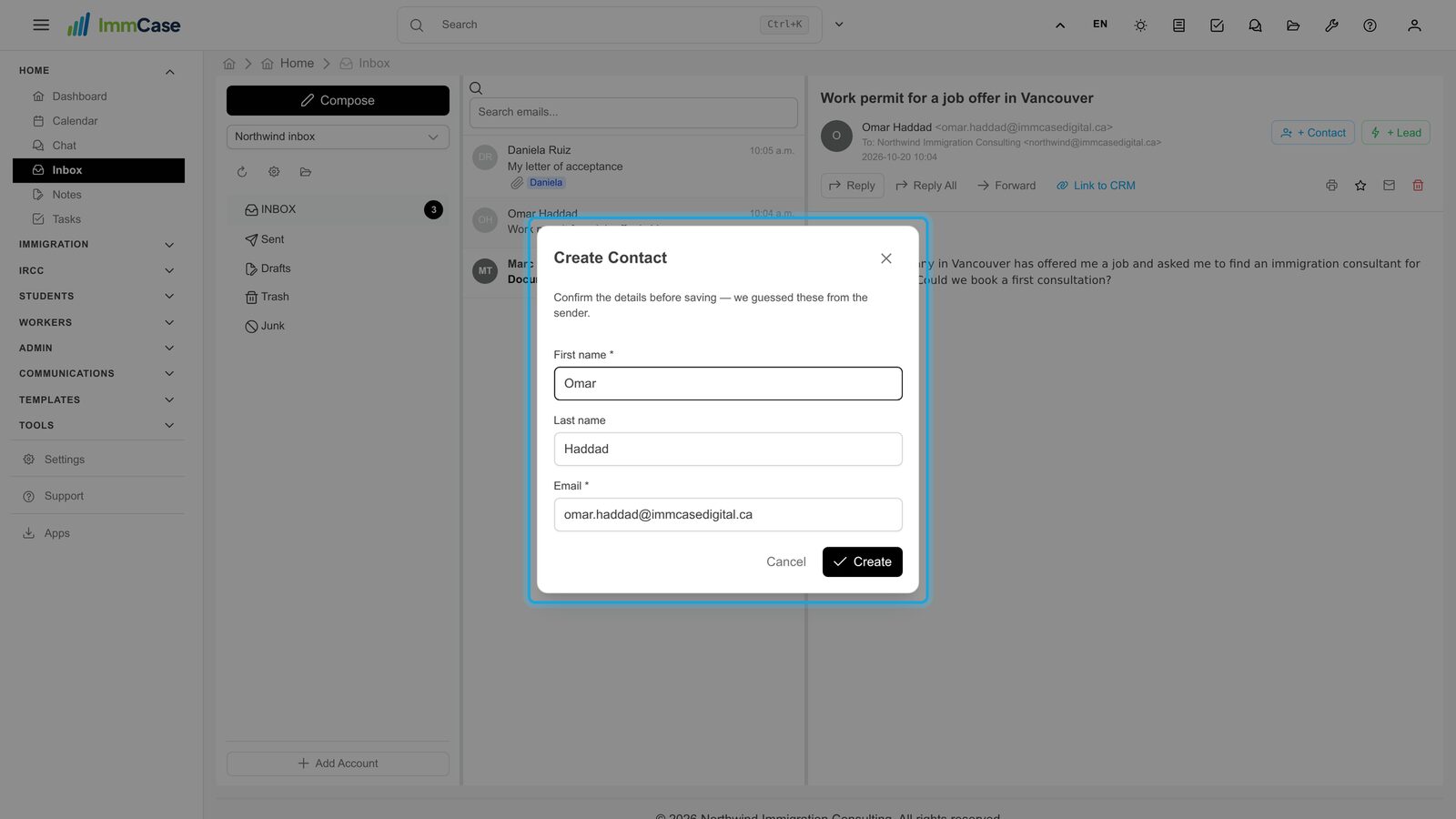
When someone who isn’t in ImmCase writes, click + Contact. Check the name and email ImmCase took from the message, then click Create: the contact is made and the email is linked to it.
10. On the client’s record
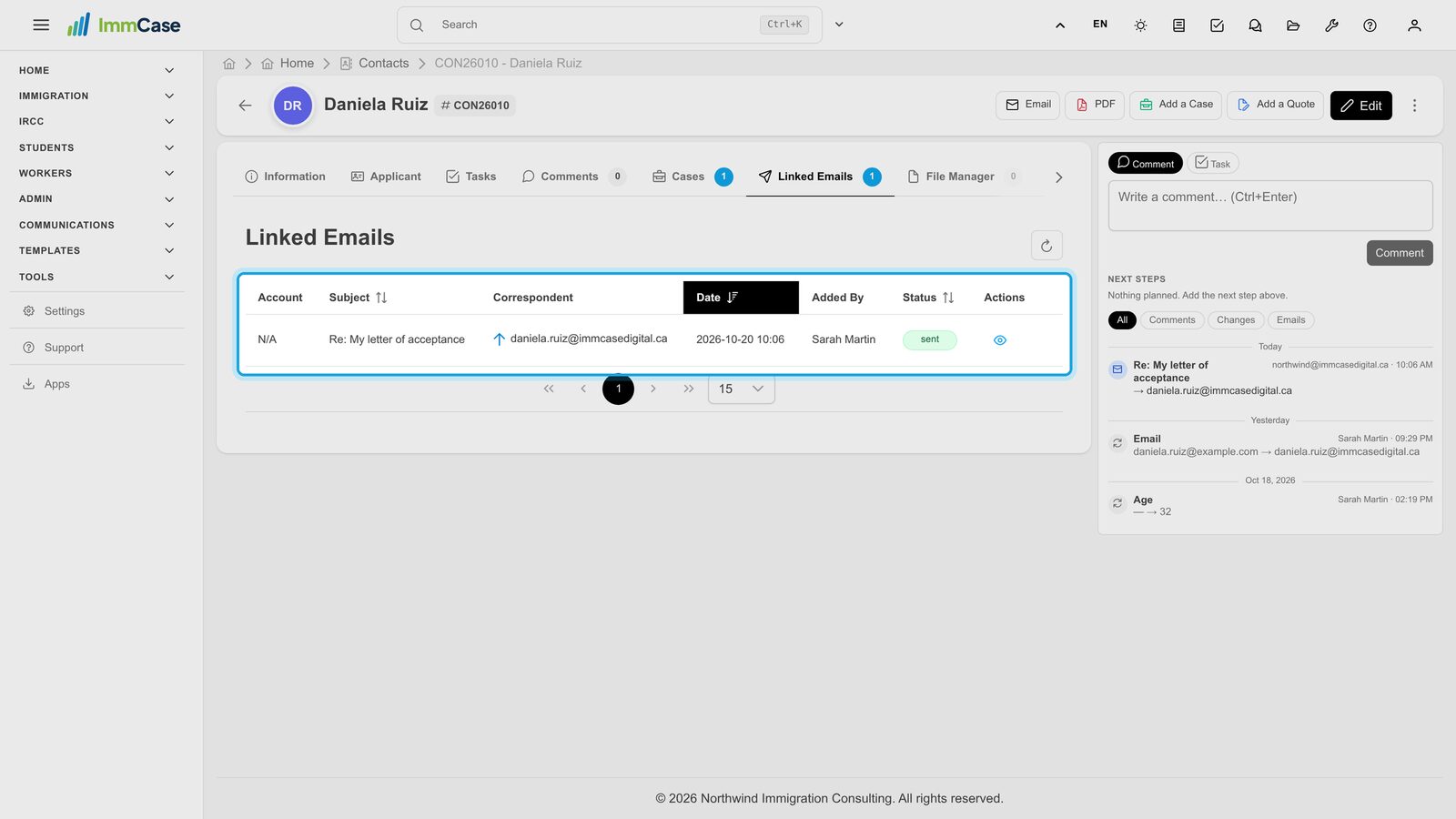
On the client’s record, Linked Emails lists the emails sent with Log to CRM, so anyone at the firm can see what the client was told.
Good to know
- A shared mailbox: the gear above the folders opens the account; under Shared with, give colleagues access to read and send from it.
- Which folders: the folder icon next to the gear chooses which mail folders ImmCase copies.
- From a client’s record: Email at the top of a contact starts a message from one of the firm’s email templates.
- Several addresses: add one account per mailbox; Add Account stays at the bottom of the folder column.
Something on your screen does not match the guide? Write to us, or use Support inside ImmCase.
Next guide: Chat: talk to your team without leaving ImmCase