
ImmCase user manual · Everyday work
Dashboard: the firm at a glance
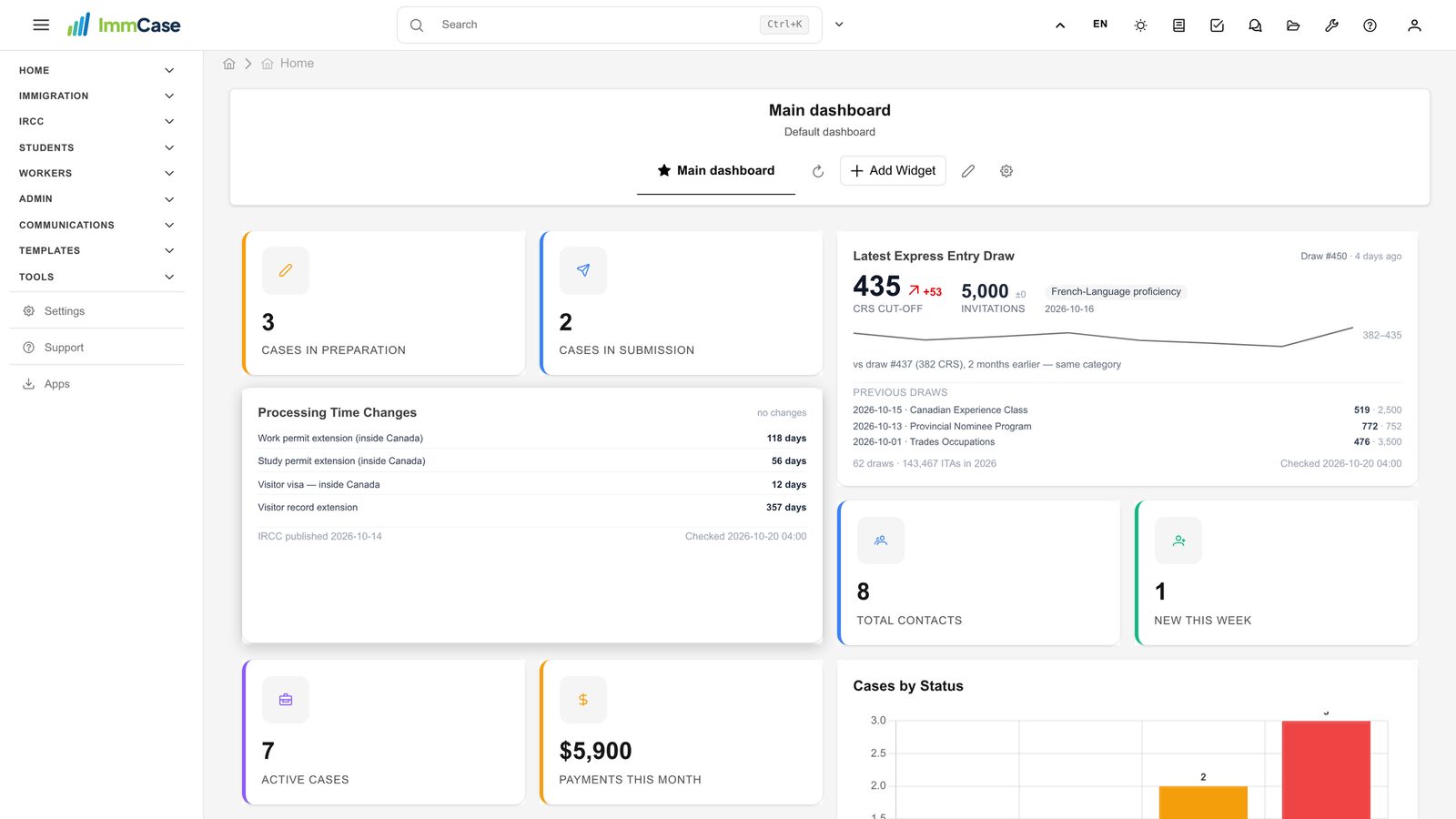
The dashboard is the first page after you sign in. It shows where the firm’s cases stand, the money received this month and the latest IRCC news, all from your own CRM. There is nothing to set up: every new ImmCase firm starts with it.
The firm, its clients and their cases and payments in this guide are fictional. The IRCC figures are real.
Getting started
Documents and applications
- Collect and review documents
- Keep a client's files in one place
- See all of a case's documents at once
- Send an eForm to a client
- File an application and record IRCC’s decision
- Write a submission letter
Everyday work
On this page: Watch the video · Step by step · Good to know · PDF
Getting started
- How to create a contact · 0:59
- How to create a quote · 0:52
- How to open a case · 0:53
Documents and applications
- Collect and review documents · 0:43
- Keep a client's files in one place · 0:40
- See all of a case's documents at once · 0:47
- Send an eForm to a client · 0:38
- File an application and record IRCC’s decision · 0:48
- Write a submission letter · 0:36
Everyday work
- Notes: write, pin and find · 0:46
- Tasks: assign, link, follow · 0:47
- Calendar: meetings with your team and clients · 0:48
- Inbox: the firm’s email, next to its clients · 0:52
- Chat: talk to your team without leaving ImmCase · 0:53
- Dashboard: the firm at a glance · 0:47
- Add your own fields · 0:40
Watch the video
Step by step
1. Your dashboard
Sign in, or open Home → Dashboard from the left menu. Everyone at the firm sees the same dashboard.
2. The firm in numbers
The tiles count the cases in preparation and submitted, the firm’s contacts, and the payments received this month.
3. Open what’s behind a number
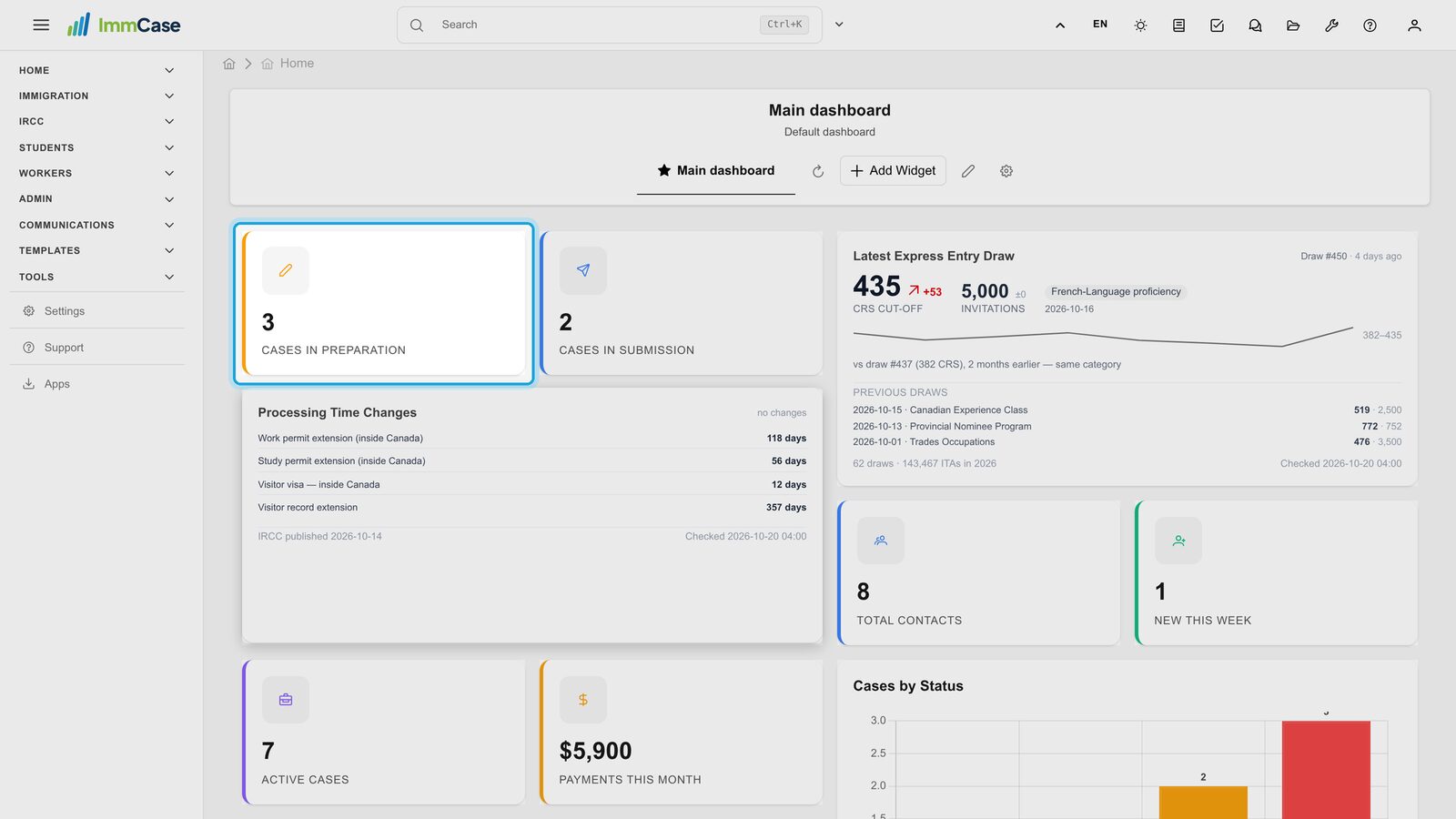
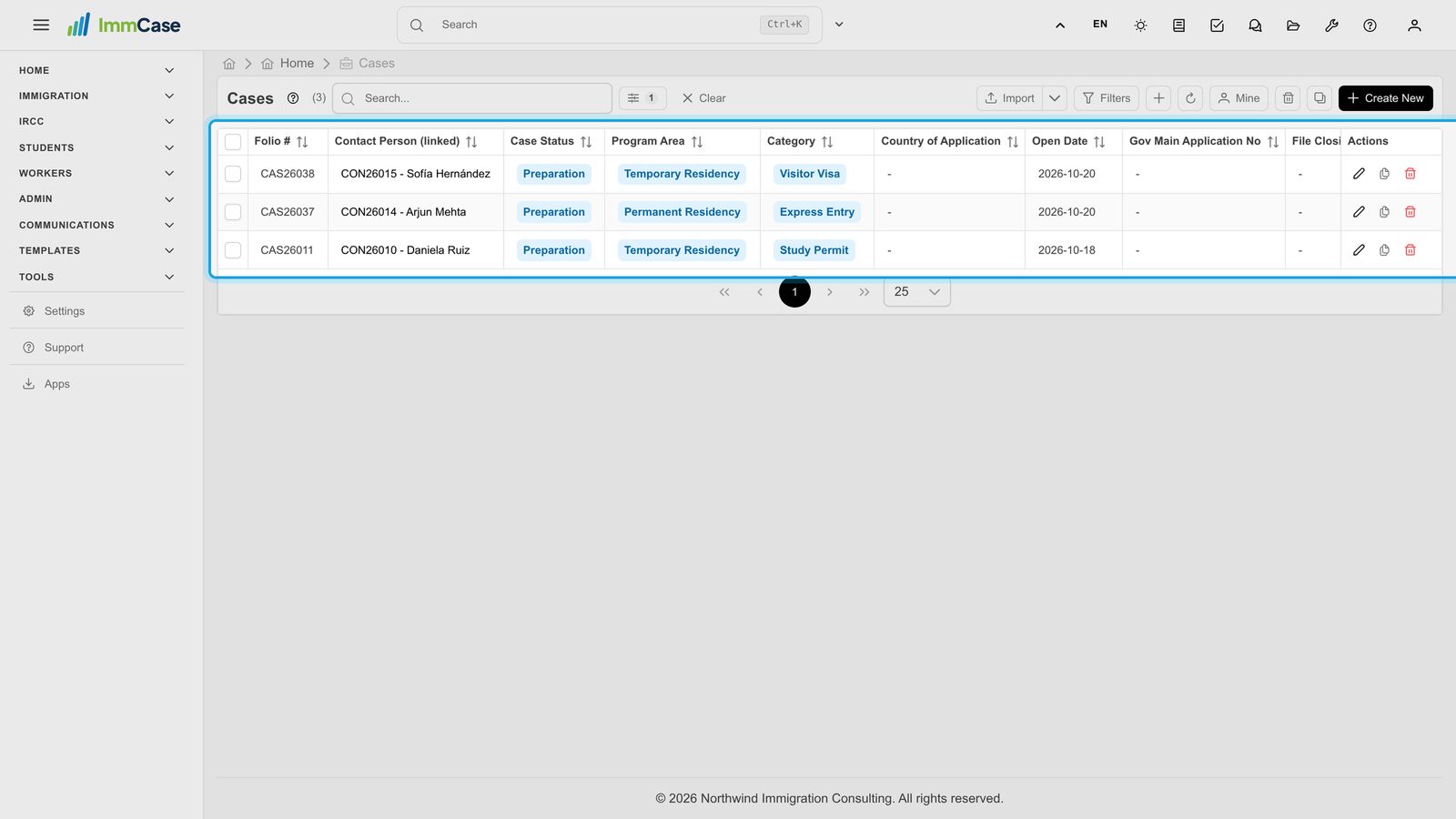
Click a tile to open the list behind it: Cases in Preparation opens the cases list showing only those cases.
4. IRCC at a glance
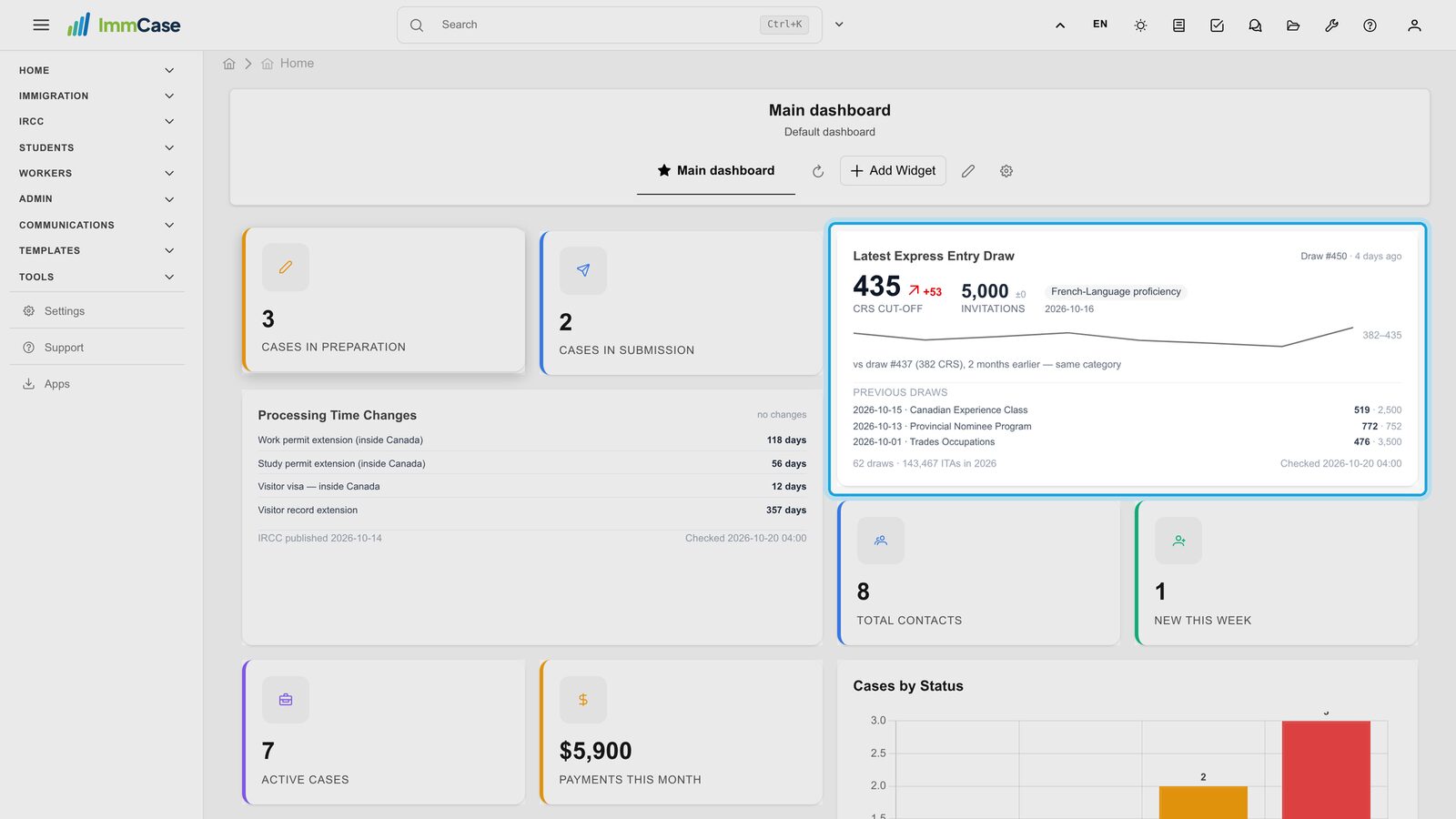
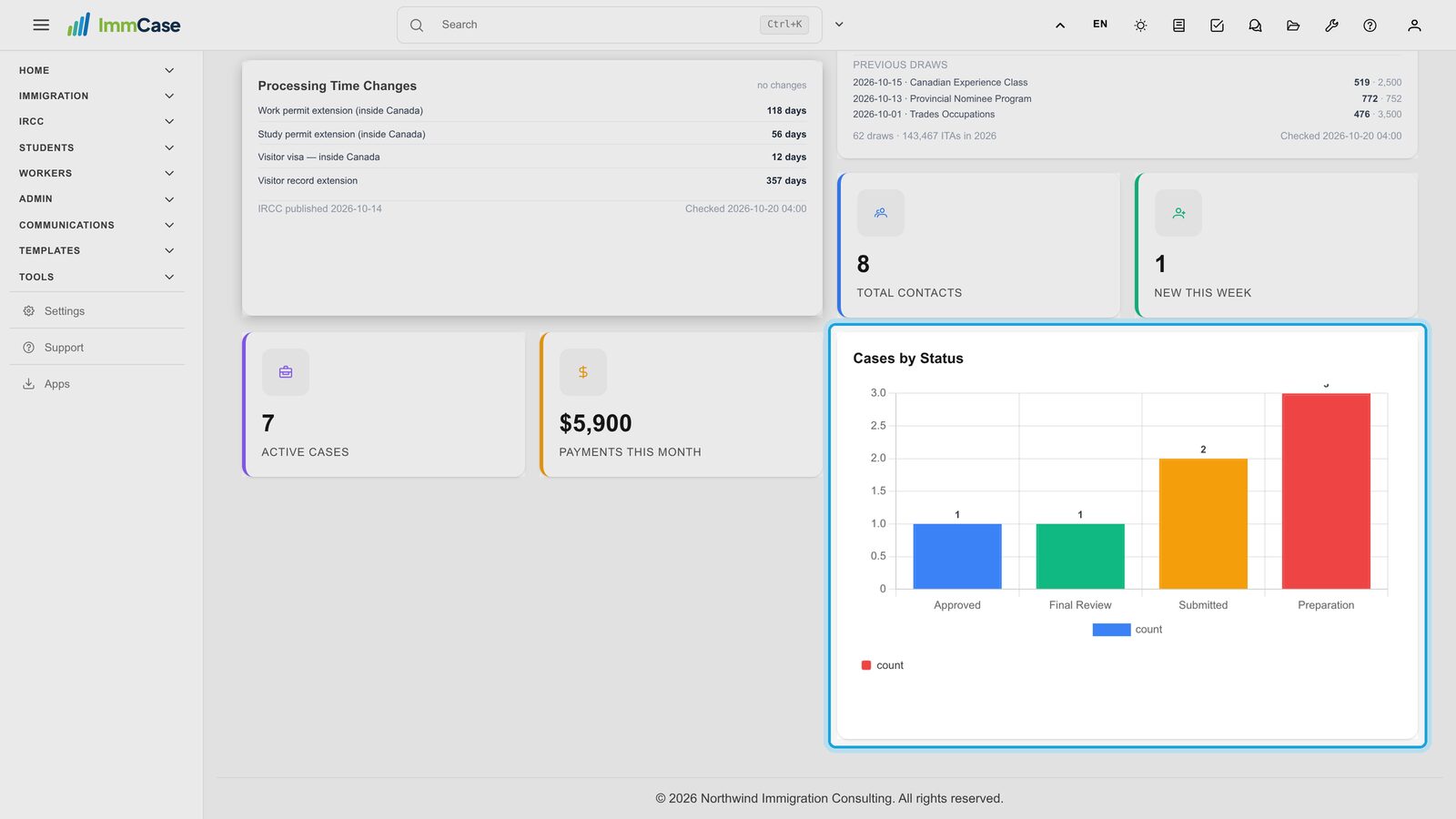
Latest Express Entry Draw shows the CRS cut-off, the invitations and the previous draws. Processing Time Changes lists the processing times IRCC changed. ImmCase checks IRCC every day; the date is at the bottom of each tile.
5. Cases by status
The chart shows how many cases are at each status, so you see where work is piling up.
6. Always current
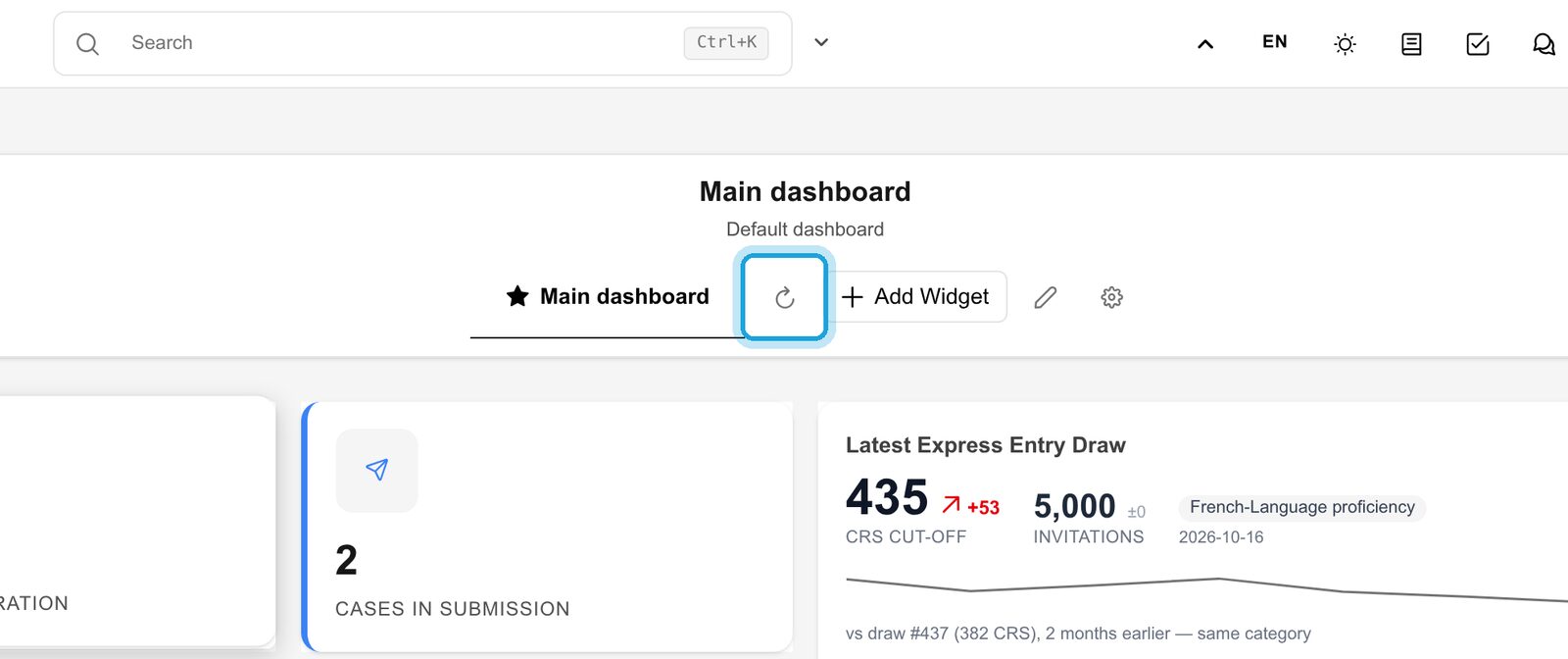
The dashboard refreshes itself every few minutes. Click ↻ to refresh it now.
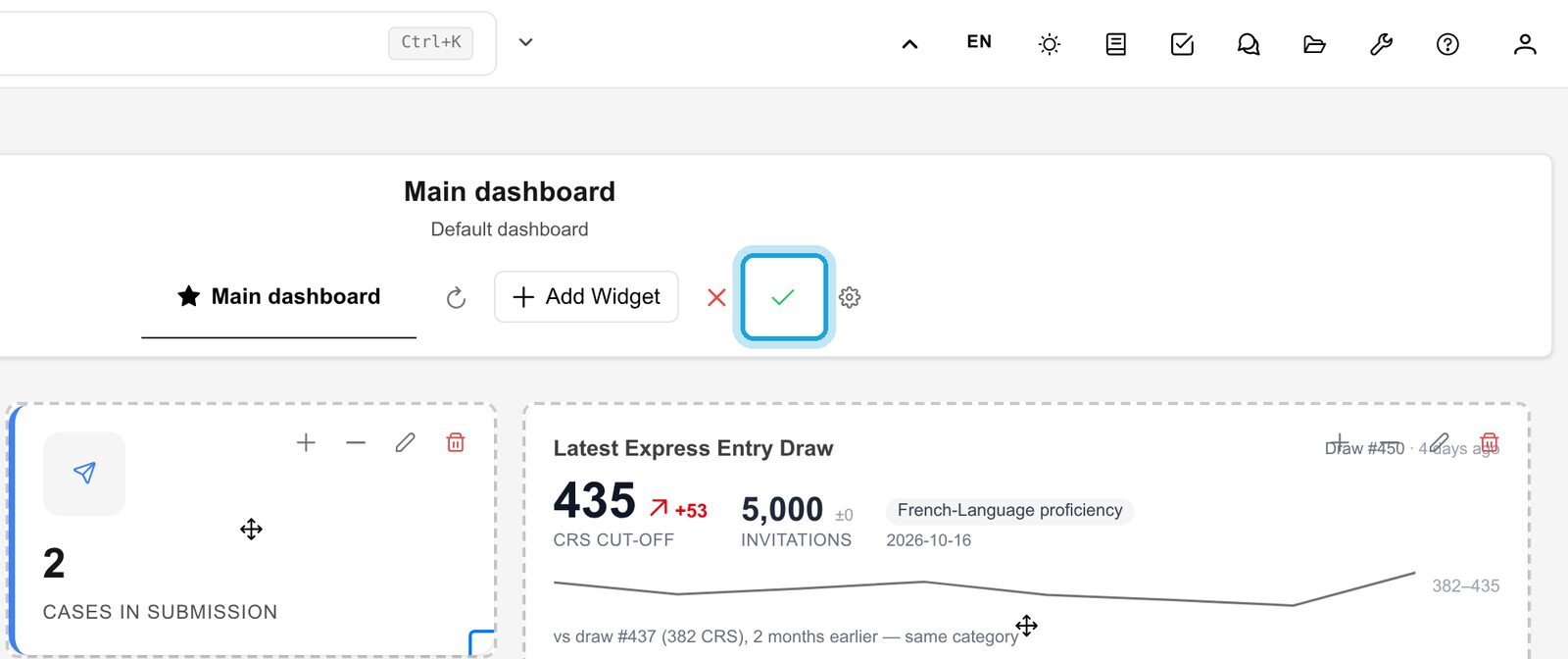
7. Rearrange the tiles (administrators)
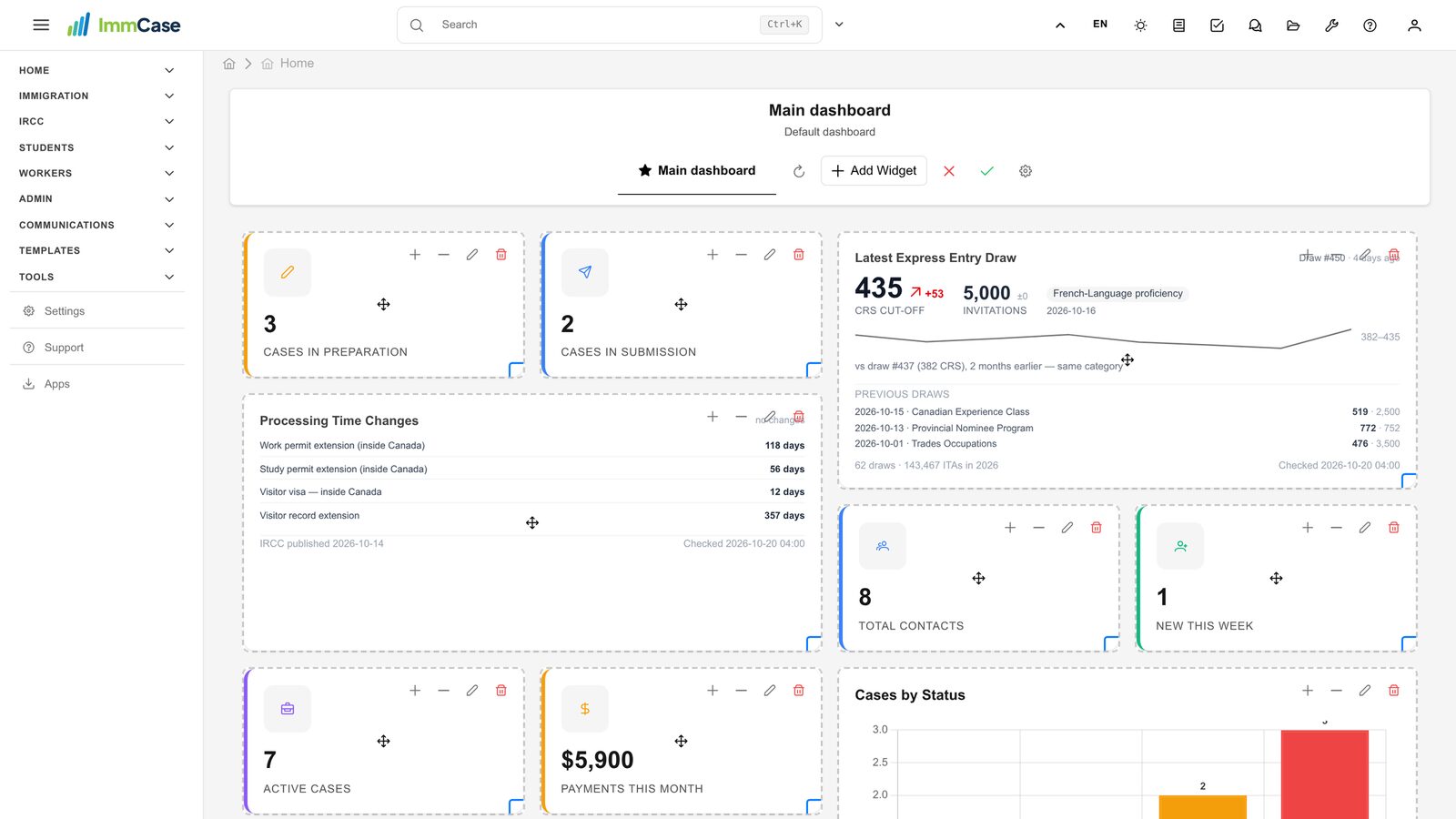
Click the pencil next to the dashboard’s name. Drag a tile by its ✥ to move it.
8. Tile controls
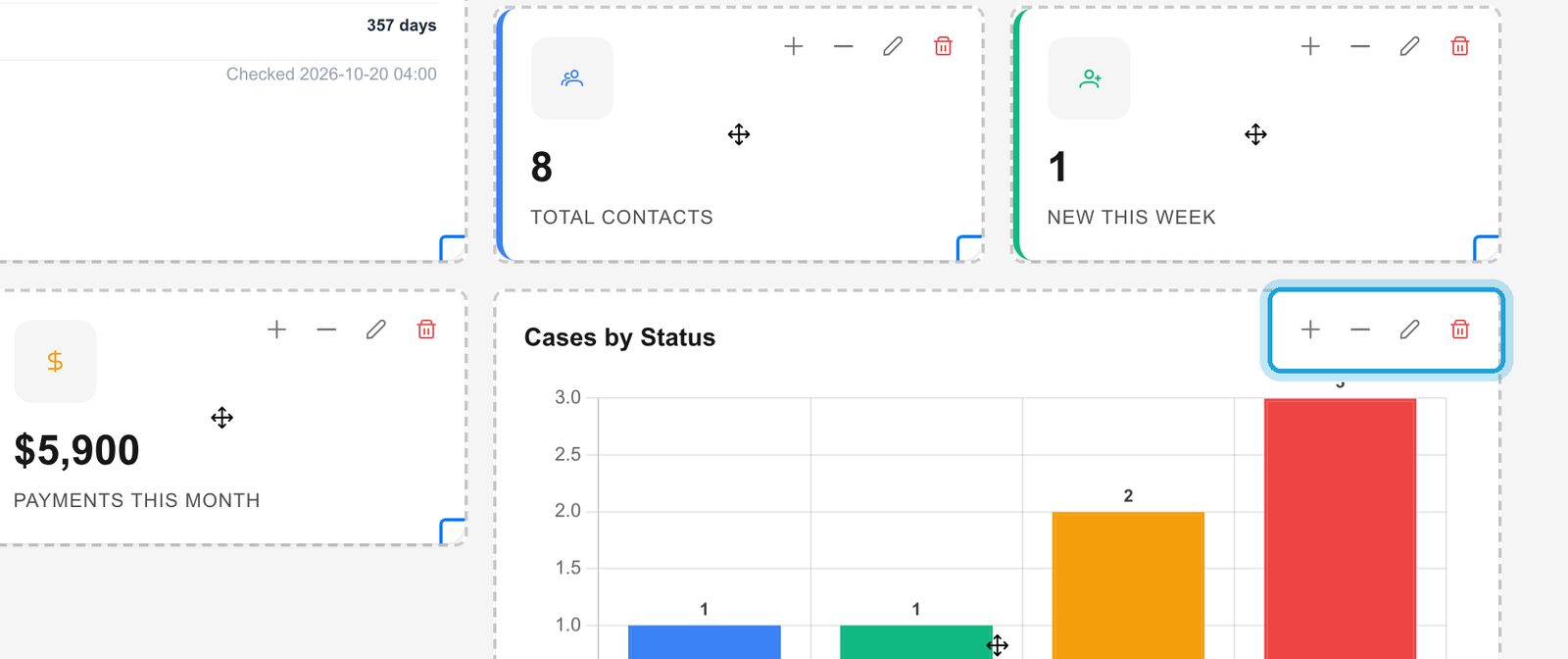
On each tile, + and − change its size, the pencil edits it and the bin removes it. A removed tile is gone even if you cancel.
9. Save
Click ✓ to save the new layout for the whole firm, or ✕ to leave it as it was.
Good to know
- What each person sees: a tile about a module someone can’t open (for example payments) is hidden for them.
- Several dashboards (administrators): the gear next to the dashboard’s name creates more. They appear as tabs for everyone, and the starred one opens first.
- The figures are live: they come straight from the firm’s cases, contacts and payments, nothing is typed in twice.
Something on your screen does not match the guide? Write to us, or use Support inside ImmCase.
Next guide: Add your own fields