
ImmCase user manual · Everyday work
Calendar: meetings with your team and clients
The Calendar holds the firm’s meetings and shows your tasks on their due dates. Invite a colleague and a client to a meeting: ImmCase emails them an invitation, and reminds you before it starts.
The firm, its staff and the client («Daniela Ruiz») in this guide are fictional.
Getting started
Documents and applications
- Collect and review documents
- Keep a client's files in one place
- See all of a case's documents at once
- Send an eForm to a client
- File an application and record IRCC’s decision
- Write a submission letter
Everyday work
On this page: Watch the video · Step by step · Good to know · PDF
Getting started
- How to create a contact · 0:59
- How to create a quote · 0:52
- How to open a case · 0:53
Documents and applications
- Collect and review documents · 0:43
- Keep a client's files in one place · 0:40
- See all of a case's documents at once · 0:47
- Send an eForm to a client · 0:38
- File an application and record IRCC’s decision · 0:48
- Write a submission letter · 0:36
Everyday work
- Notes: write, pin and find · 0:46
- Tasks: assign, link, follow · 0:47
- Calendar: meetings with your team and clients · 0:48
- Inbox: the firm’s email, next to its clients · 0:52
- Chat: talk to your team without leaving ImmCase · 0:53
- Dashboard: the firm at a glance · 0:47
- Add your own fields · 0:40
Watch the video
Step by step
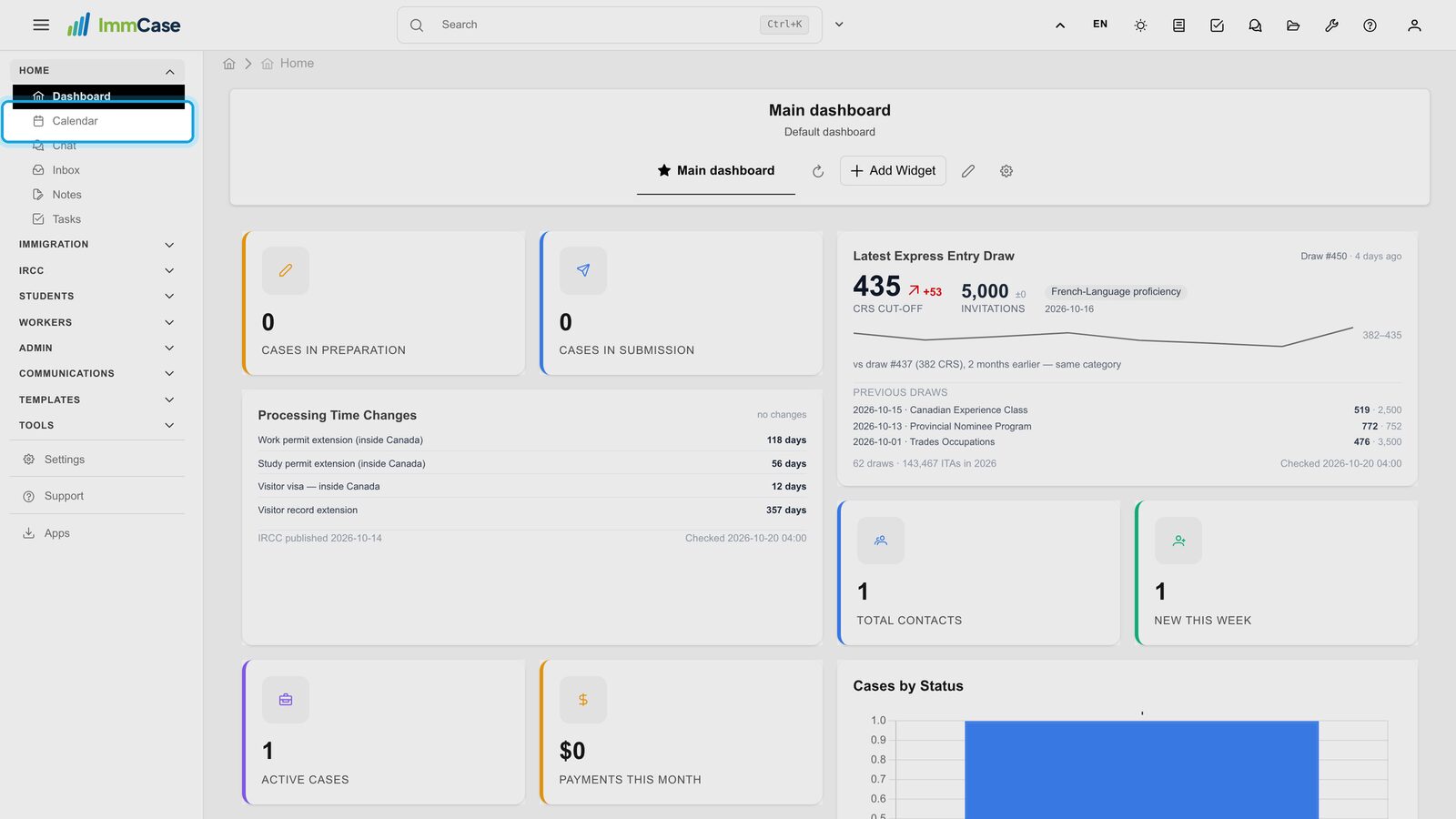
1. Open the Calendar
In the left menu, open Home and click Calendar.
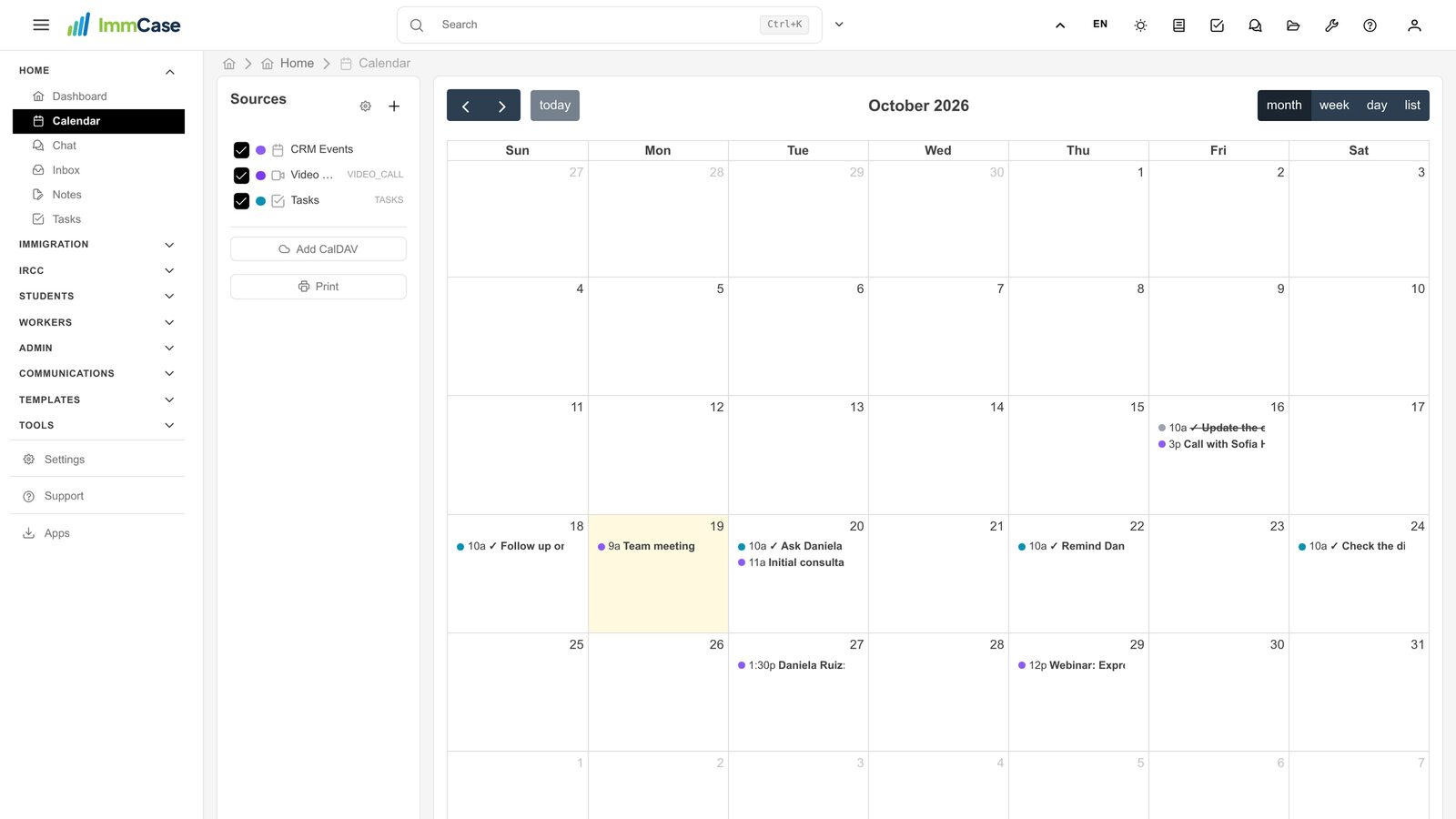
2. Meetings and tasks together
The month shows your meetings and, with a check mark, the tasks due each day. The Sources on the left switch each kind on or off.
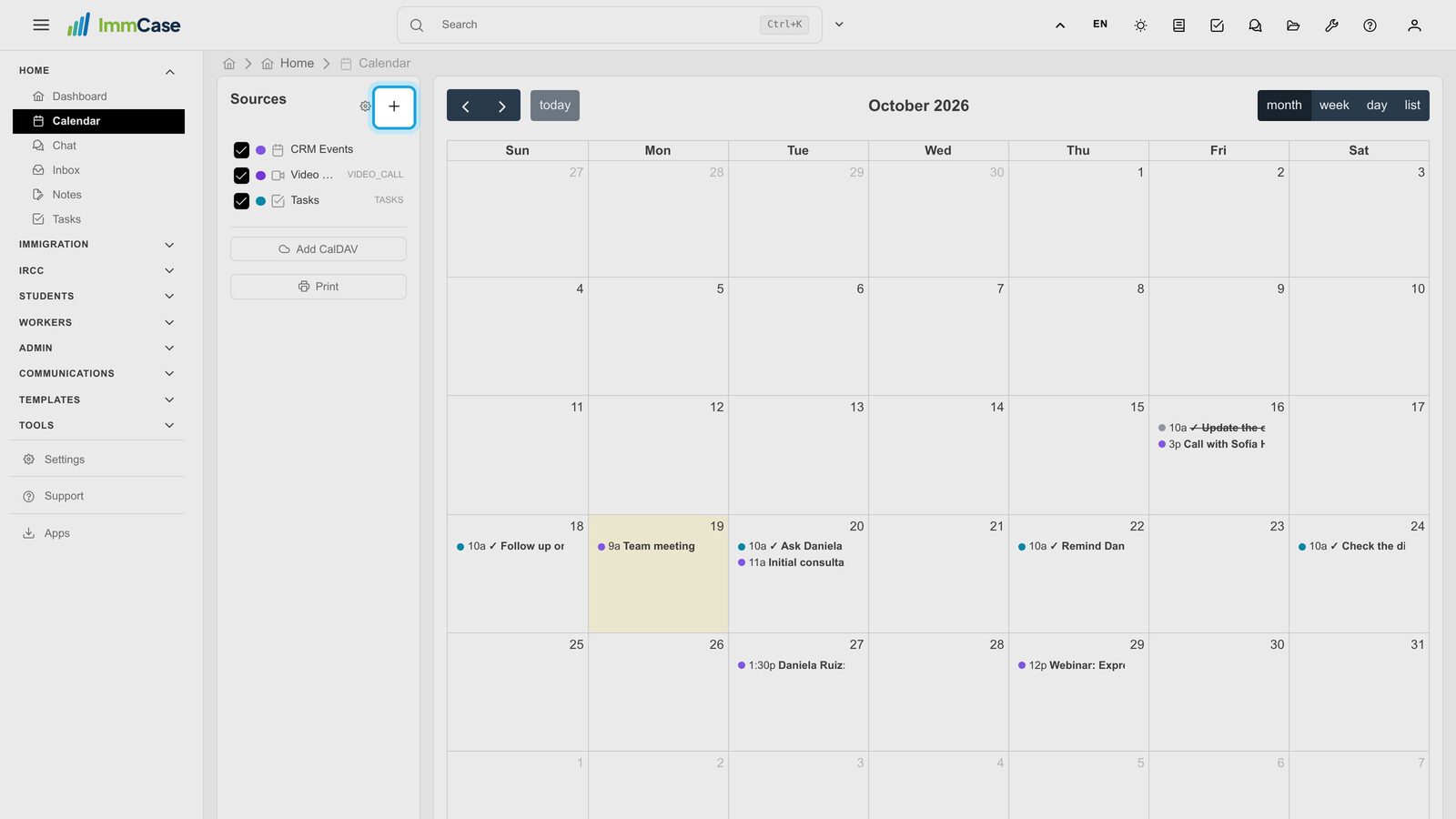
3. New event
Click + next to Sources. You can also click a day or drag across hours in the week view.
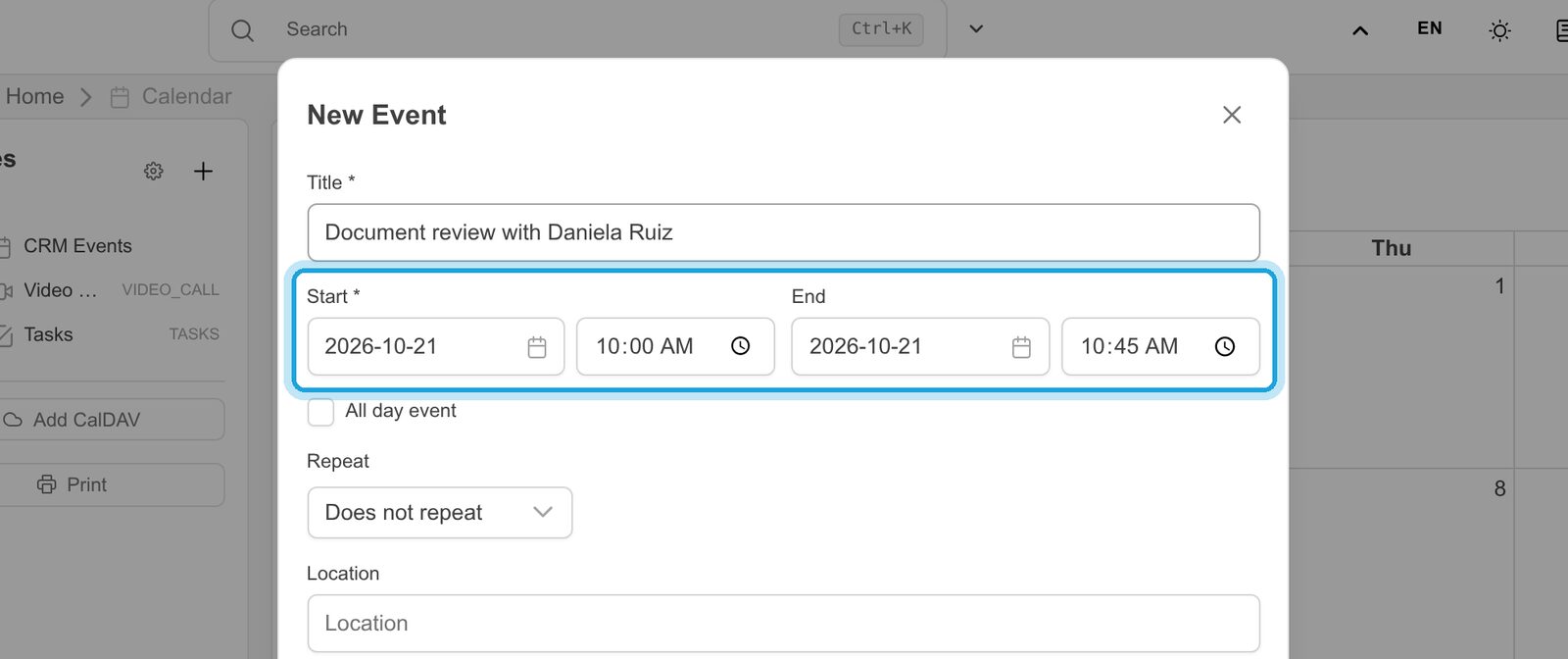
4. Title and time
Type the Title, then the Start and End: pick the day in the calendar or type it (YYYY-MM-DD), then the time.
5. Where and what for
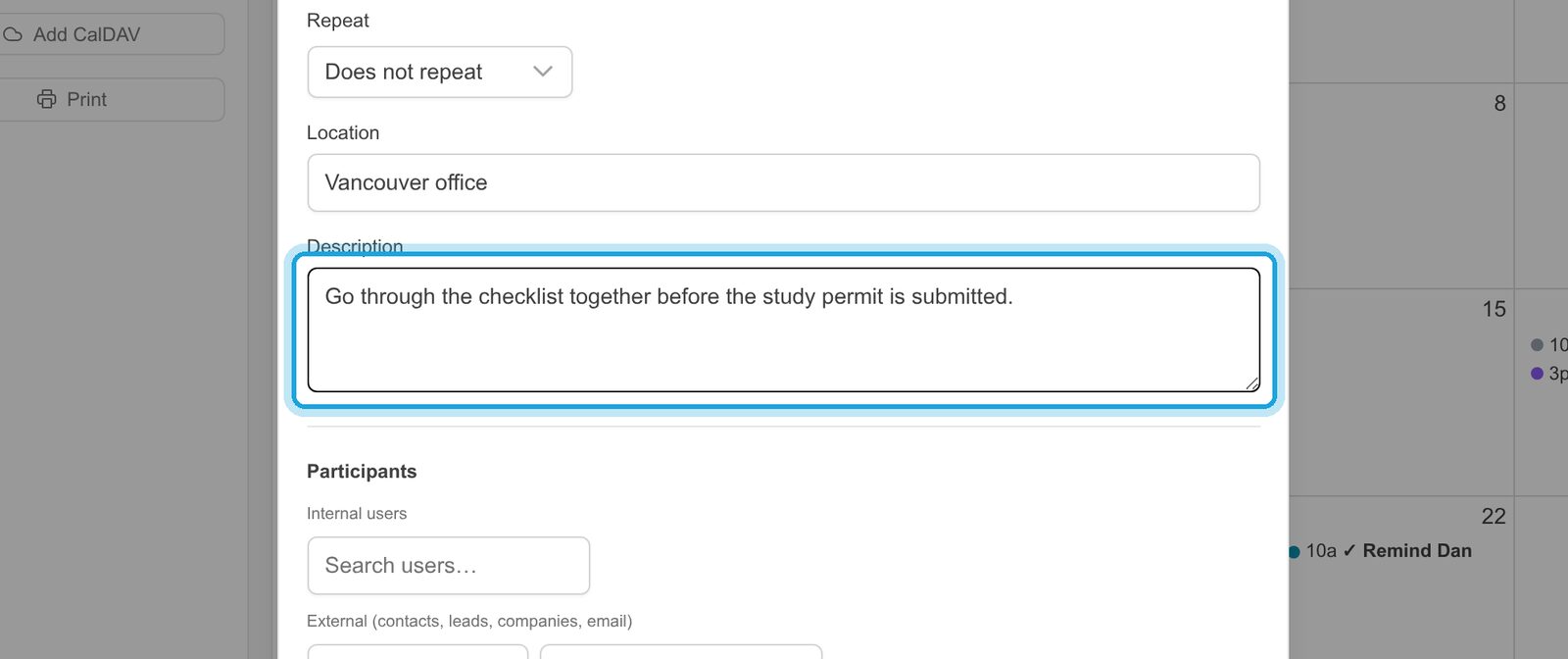
Add the Location and, if it helps, a Description: the people you invite see both.
6. Invite a colleague
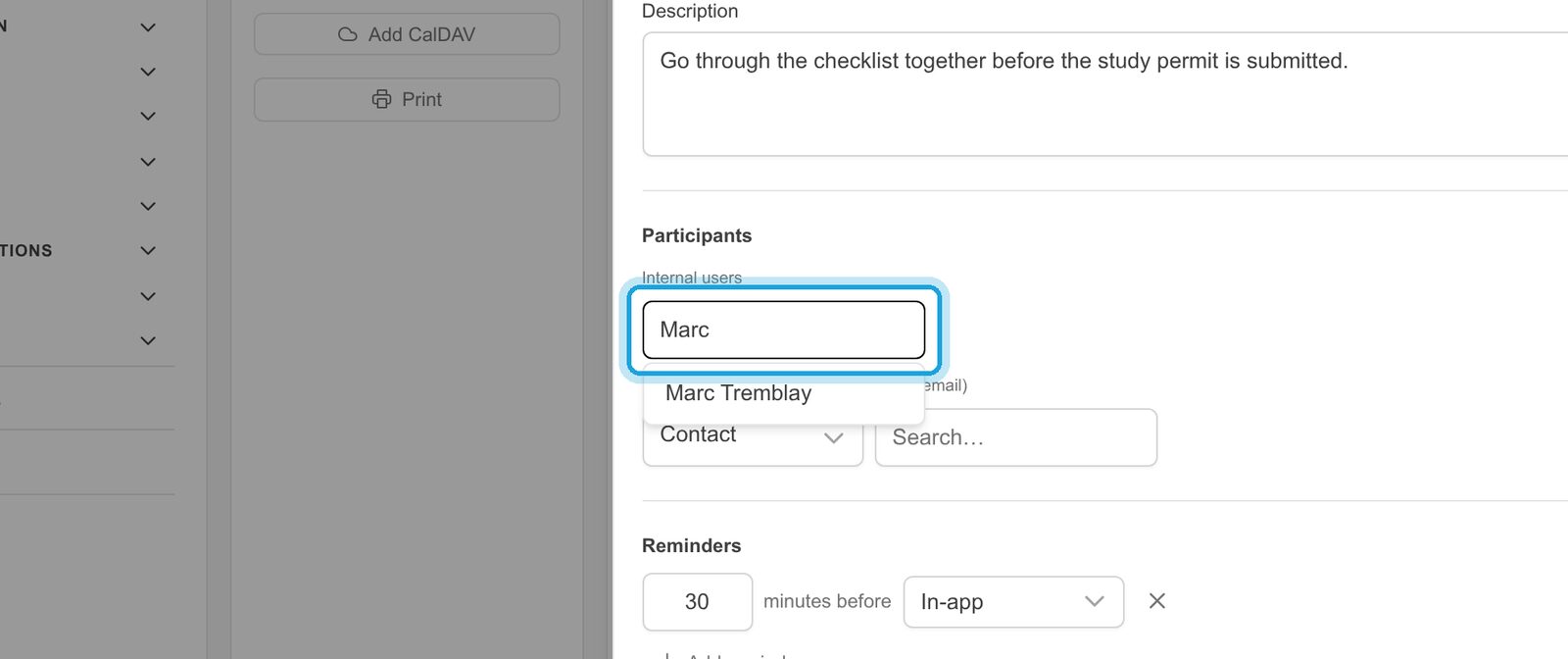
Under Internal users, type a name and pick the person. The meeting appears in their calendar too.
7. Invite the client
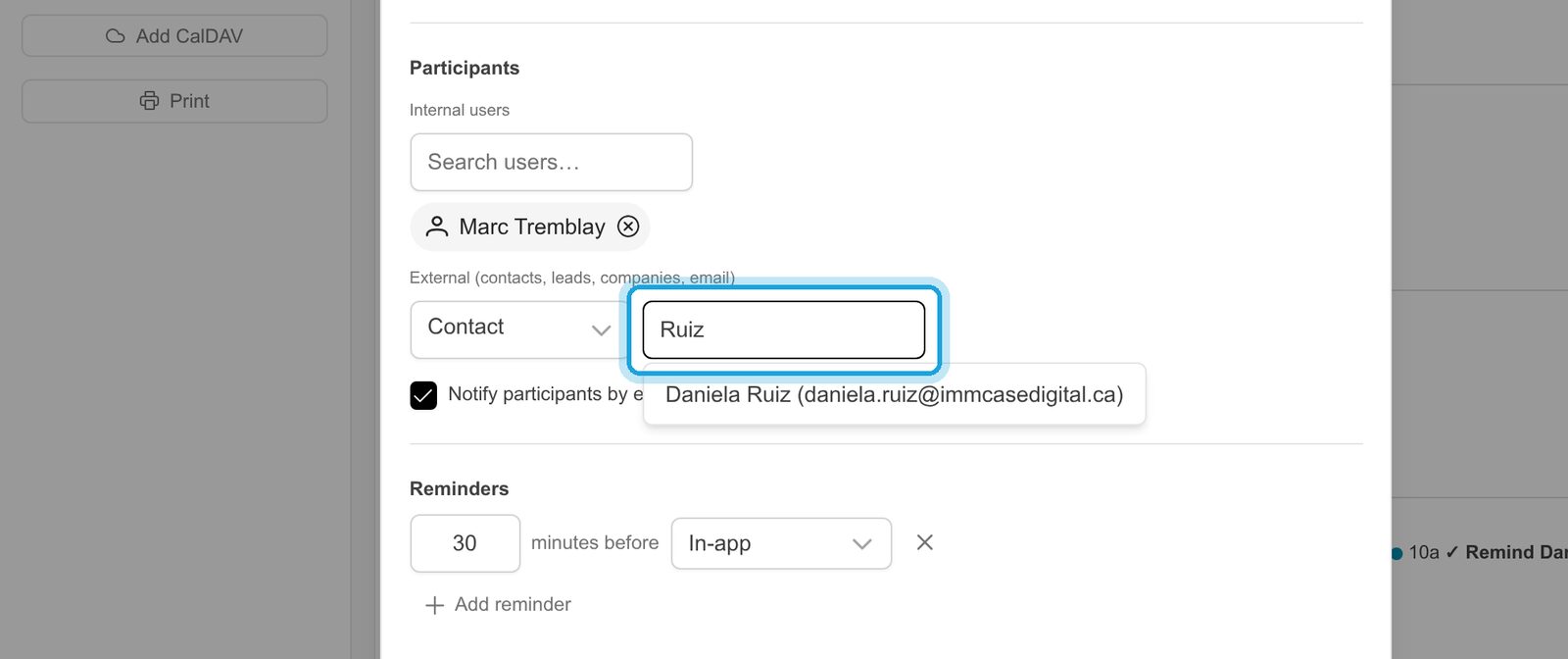
Under External, keep Contact and search for the client. You can also invite any email address.
8. Invitations and reminders
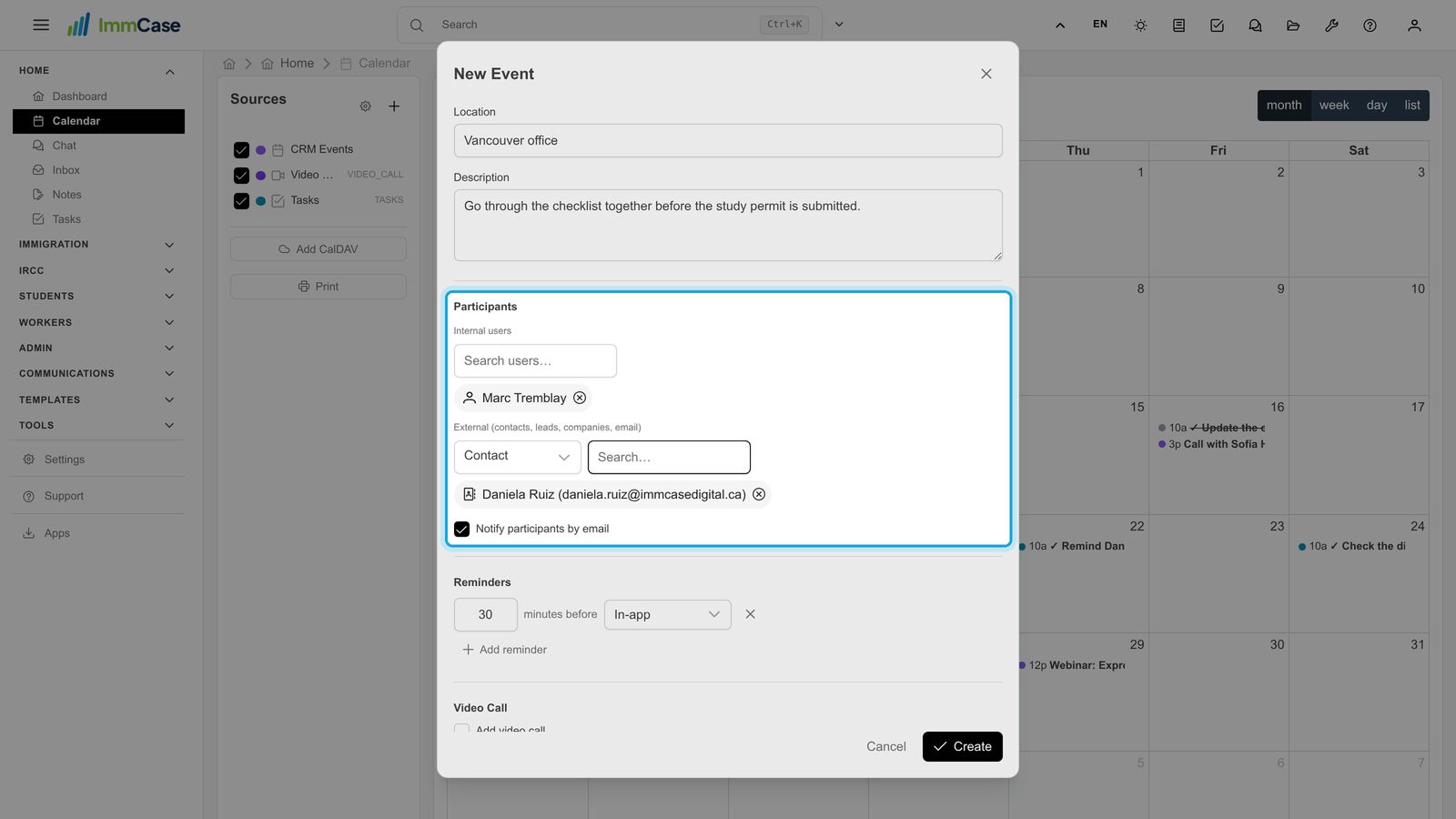
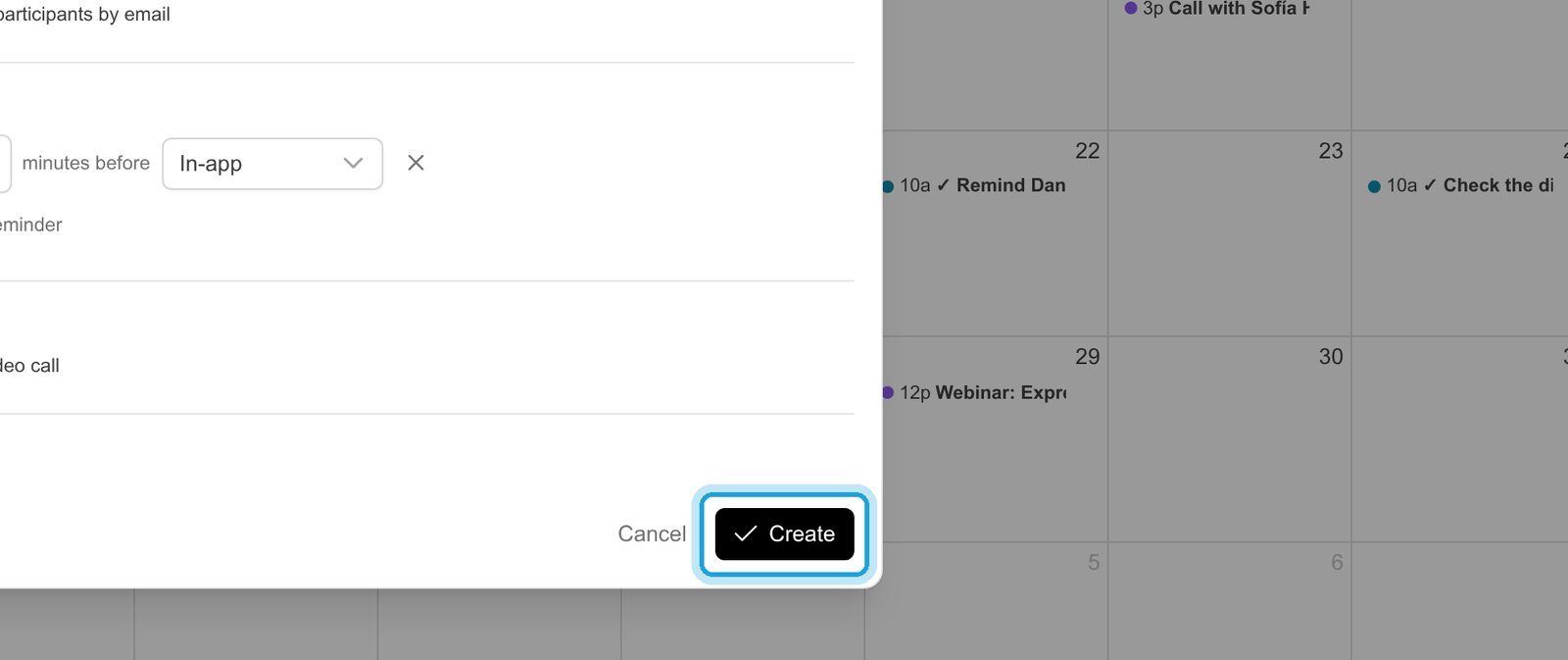
Leave Notify participants by email on: each person gets an email invitation that adds the meeting to their own calendar. Under Reminders, ImmCase reminds you 30 minutes before; change the time or add one by email.
9. Create
Click Create.
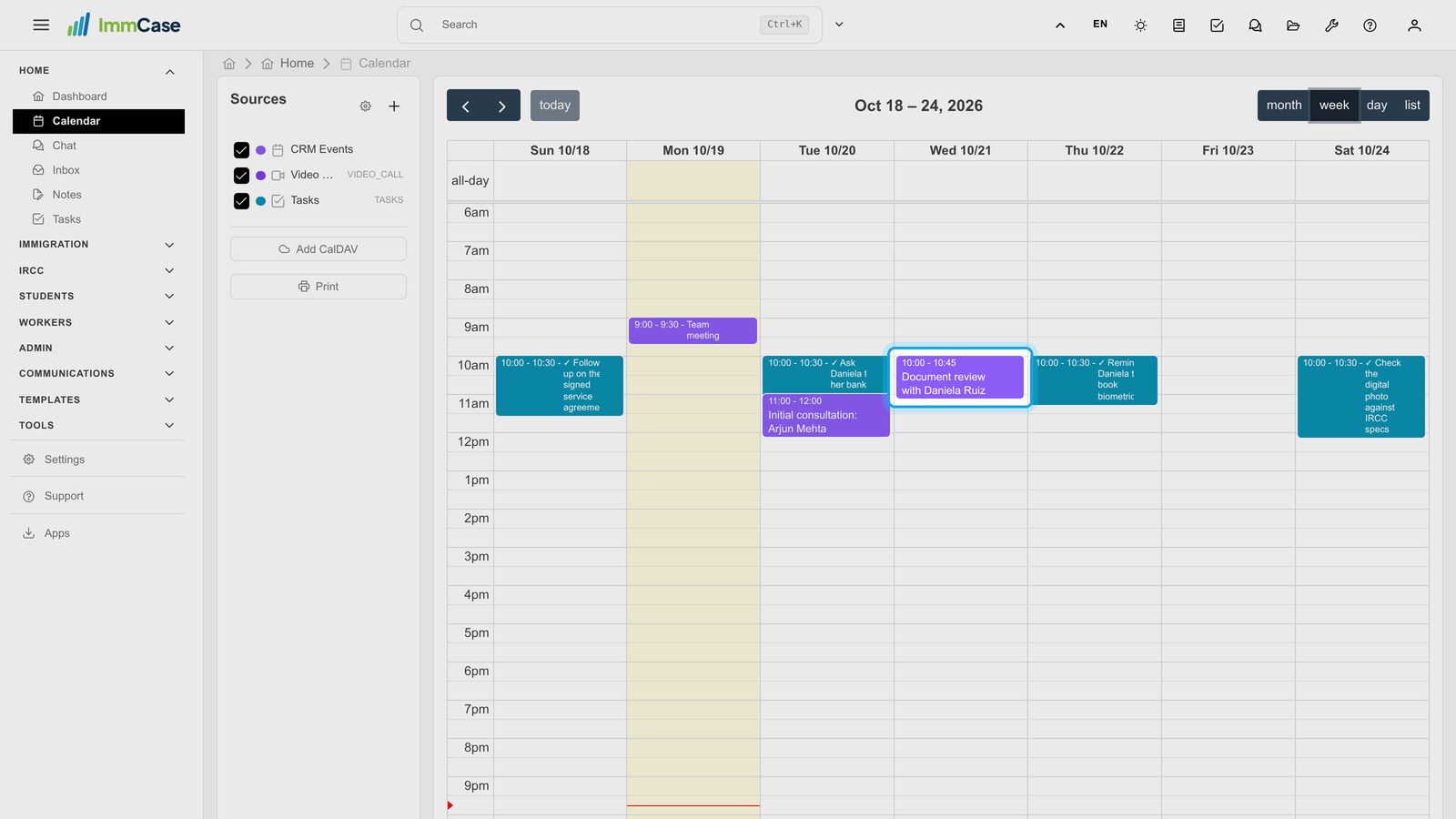
10. The week at a glance
Week shows each meeting at its time. Drag a meeting to move it, or drag its bottom edge to change how long it lasts.
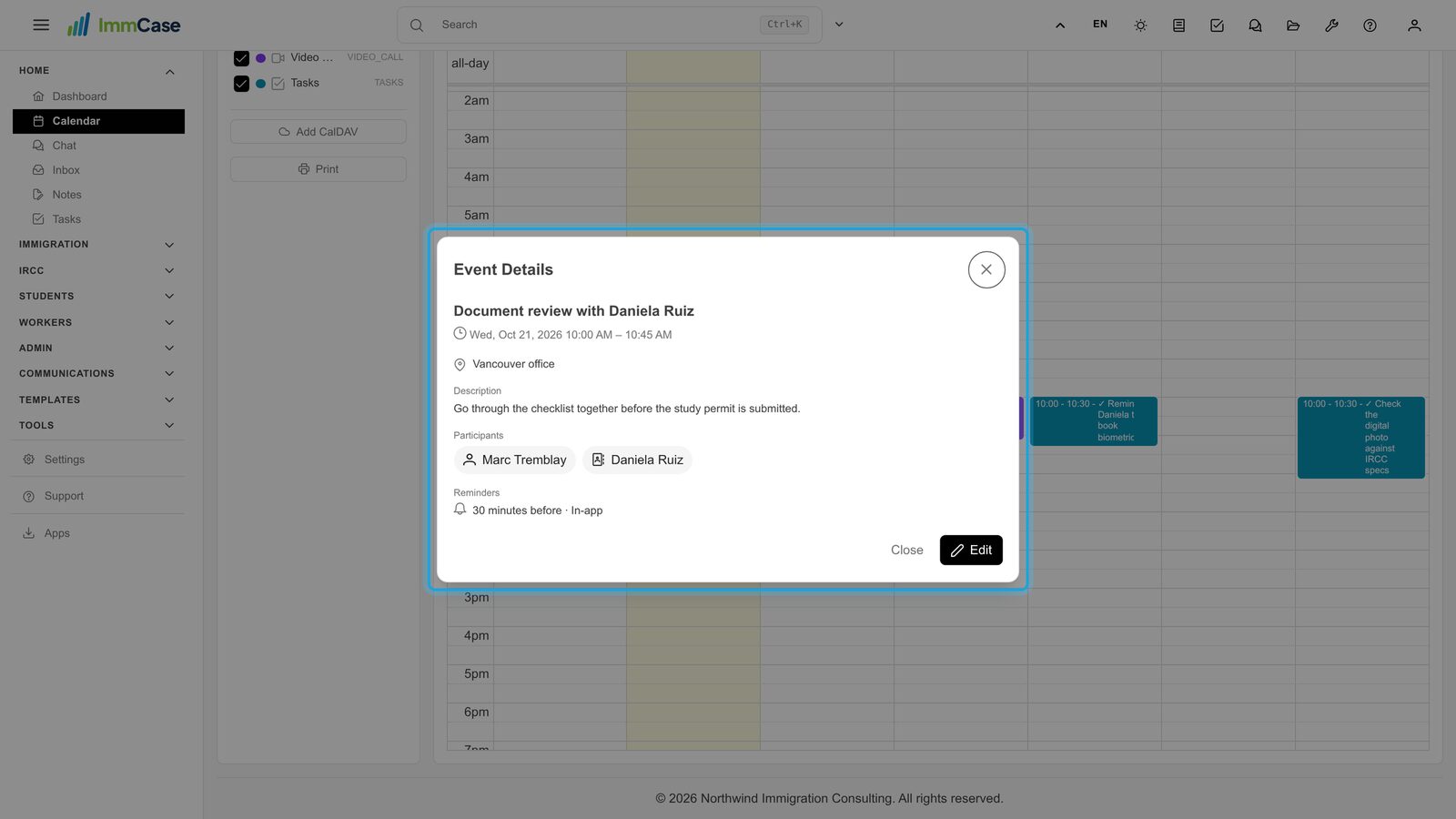
11. Open a meeting
Click a meeting to see when and where it is, who is invited and its reminders. Edit changes it; tick Notify participants by email before saving to send them the change.
Good to know
- A video call in one click: tick Add video call in the event; the client joins from a link in their browser.
- On your phone: the gear next to Sources → Sync to device puts your ImmCase calendar in Apple Calendar, Outlook or Google Calendar.
- Your other calendars: Add CalDAV shows an outside calendar (iCloud, for example) next to your ImmCase meetings.
- On paper: Print gives an agenda or a month grid.
Something on your screen does not match the guide? Write to us, or use Support inside ImmCase.
Next guide: Inbox: the firm’s email, next to its clients